
As of 21st Nov 2024 we have relabeled the “Power Plan” to “Growth Plan”. All plan access remains the same.
The Subscription section in Zanda provides access to all key subscription details, including current plan information, billing dates, optional add-ons, and payment history. You can find this information in Subscription menu (click your practice name, top right). This menu will take you to your Subscription information and settings.
This article outlines where to find subscription settings, how to change plans, view or update payment details, access invoices and receipts, and which email address receives your subscription and billing notifications.
Subscription Information
Zanda subscription is based on the number of active practitioners in an account. Users aren’t included in the subscription. Adding or removing practitioners from the account automatically increases or decreases the monthly subscription.
Monthly subscription billing uses the active practitioner count when billing is processed on your next billing date. If you add or reactivate a practitioner close to your billing date, review your current plan, next billing date, and subscription invoices from this page so you can see how the change applies to your account.
You can find your current Zanda subscription information via Subscription menu (click your practice name, top right). There, you can
- view the details of your current plan, discounts, and next billing date,
- or choose to change onto a different plan type.
-
If you wish to transfer to the new plan* click the ‘Change Plan’ button:
-
Read the information carefully. Click the ‘See plan inclusions’ link for more details:
-
When you are ready, select the plan you chose and click the ‘Change Plan’ button:
-
Your subscription page will be automatically updated with the new current plan information.
You can view more information on our advertised plans and pricing here.
FAQ: My solo practitioner practice has less than 1,000 appointments a year, why am I not on a Starter plan?
- The 1,000 appointment limit for the Starter plan is a strict historical lifetime limit, rather than an annual or monthly allowance. The Starter plan is specifically designed to support brand-new practices as they just get off the ground.
If your total sum of past appointments (individual and group sessions combined) since you started using Zanda has exceeded 1,000, your practice will be placed on the Growth plan, regardless of your current yearly appointment volume.
(Note: We do not include Personal appointments or imported historical appointments in this lifetime count.)
Frequently Asked Questions
How much will it cost to add another practitioner?
Adding a practitioner changes your monthly price, because your subscription is based on the number of active practitioners. How much it changes depends on the plan you are on now:
- On the Starter plan, your subscription covers one practitioner. Adding a second active practitioner moves your account to the Growth plan automatically. The Growth price is a base fee plus an amount for each active practitioner beyond the first, so your increase is the difference between your current Starter price and the Growth price for two practitioners, not only the amount for one extra practitioner.
- On the Growth plan, each extra active practitioner adds the per-practitioner amount to your monthly price.
To see the prices for your own account before you add anyone:
- Click your practice name (top right) > Subscription.
- Click Change Plan. The dialog shows your Active Practitioners and Current Appointment Count.
- On the Growth Plan card, check the monthly price and the Additional practitioners price, which is the amount for each extra practitioner per month.
- Click Cancel to close the dialog without changing your plan.
If an introductory discount currently applies to your account, the discounted price is shown next to the standard price, marked with an asterisk (*). The note below the plans shows the discount rate and the date it ends. After that date, the standard price applies. See Understanding Zanda Subscription Plans for how plans and introductory discounts work.
Only active practitioner profiles count towards your subscription. Admin, reception, billing, and scheduler users don’t change your price. If you’d like your exact new price confirmed, email the Zanda support team at [email protected].
What happens if I add a practitioner on my billing date?
If the practitioner is active when monthly billing is processed on your billing date, they are included in the active-practitioner count used for that subscription invoice. If you are adding a practitioner on the same day your subscription renews, check Subscription (click your practice name, top right) for your next billing date and invoices, or contact Zanda support if you need account-specific confirmation before making the change.
Will adding a practitioner the day before my billing date create a separate pro-rata charge?
For your main Zanda subscription, the monthly invoice is based on the active-practitioner count at billing time. Optional add-ons can have different billing rules, so review your subscription invoices after the change if you use add-ons such as SMS, BizzyAI, or telehealth.
Will deactivating a practitioner remove them from this month’s charge?
The same billing-date rule applies in reverse. Your subscription invoice is based on the active-practitioner count at the moment monthly billing is processed on your billing date, not a snapshot taken earlier in the cycle, and there is no part-month credit for deactivating partway through a cycle. Deactivate the practitioner before your next billing date and they are excluded from that invoice. If your billing date has already passed for this cycle, they still appear on the invoice already generated, and the change takes effect from the next billing cycle onward. Check Subscription (click your practice name, top right) for your next billing date before making the change if timing matters to you. Optional add-ons can have different billing rules, so review your subscription invoices after the change if you use add-ons such as SMS, BizzyAI, or telehealth.
How do group appointments count toward the Starter plan’s 1,000 appointment limit?
A group appointment counts as one appointment, however many clients are in the group. A group session with eight participants adds one appointment to your practice’s lifetime total, not eight.
Individual (one-to-one) client appointments count as one each. The lifetime count leaves out Personal appointments, along with any appointment dated before your Zanda account was created.
To see where your practice currently sits, click your practice name (top right) > Subscription and click Change Plan. The dialog shows your Current Appointment Count next to your active practitioner count.
Do cancelled or no-show appointments count toward the Starter plan’s 1,000 appointment limit?
Yes. An appointment counts toward your practice’s lifetime total whatever its status. Appointments marked Cancelled, Late Cancellation, No Show, or Rescheduled are counted in the same way as completed ones, and changing an appointment’s status does not remove it from the count.
The only appointments left out are ones that have been deleted. A deleted appointment no longer counts toward the limit, and if you restore it later it counts again. Deleting an appointment also deletes the invoice attached to it, and you need the Delete Appointments permission to do it, so read Creating, Editing and Deleting a Client Appointment before deleting anything.
Appointments booked in the future are not counted yet. Each one is added to your total once its scheduled start time has passed.
To check your current total, click your practice name (top right) > Subscription and click Change Plan to see your Current Appointment Count.
Where Subscription and Billing Emails Are Sent
Emails about your Zanda subscription—overdue invoice notices, credit card expiry reminders, discount-ending notices—are sent to the account email address held against your practice, not to each user individually.
You can view and change that address yourself; you do not need to contact Zanda support.
-
Click the Settings cog (top right) > Practice > Business Info.
-
Update the Email Address field.
-
Save.
You will need access to the Settings menu to edit this page.
💡Important
The Business Info email address is also used elsewhere in your account. It is the fallback From and contact address for client emails when no location email or reminder From address is set, it fills the {AppointmentLocationEmail} merge field where a location has no email of its own, and it appears as the practice contact email on printed invoices. Check those settings before you change it if you do not want clients to see the new address.
Why is a second address also receiving subscription emails?
Your account’s Master User—the account owner—is automatically copied on these billing emails whenever their own user email address is different from the Business Info email address. That is why another address can be receiving subscription emails even though no setting appears to point at it.
To change who that is, transfer the Master User role to another user in Account Settings > Team > Users (click the Settings cog, top right), or update that user’s own email address in their User Profile. See Transferring Account Ownership or Master User Rights.
The Business Info email address and the Master User are the only two recipients of subscription and billing notifications; the account holds no separate billing contact field.
Optional Add-Ons
On the Optional Add-Ons page (Account Settings > Practice > AI Settings) you can view pricing and details for optional add-ons such as SMS, BizzyAI and telehealth.
Learn more about each available add-on:
Subscribing users to AI Pro
Every Zanda subscription includes AI Core at no extra cost once AI features are enabled for your practice: AI writing and editing, daily AI appointment summaries, 4 AI Scribe appointments a month, and AI Insights across each client’s last 3 sessions. AI Pro is an optional, per-user monthly add-on that adds unlimited AI Scribe and full client history for AI Insights and AI Write with Insights. AI Pro is unlimited for normal clinical use, subject to fair use. See Introducing AI Core and AI Pro for full plan details and where to see the AI Pro price for your region.
To subscribe users to AI Pro:
- Go to Account Settings > Practice > AI Settings.
- In the BizzyAI Features section, make sure Enable AI features for your account is switched on.
- On the AI Pro plan card, click Select Users for AI Pro.
- Select the users you want to subscribe, then click Subscribe to AI Pro.
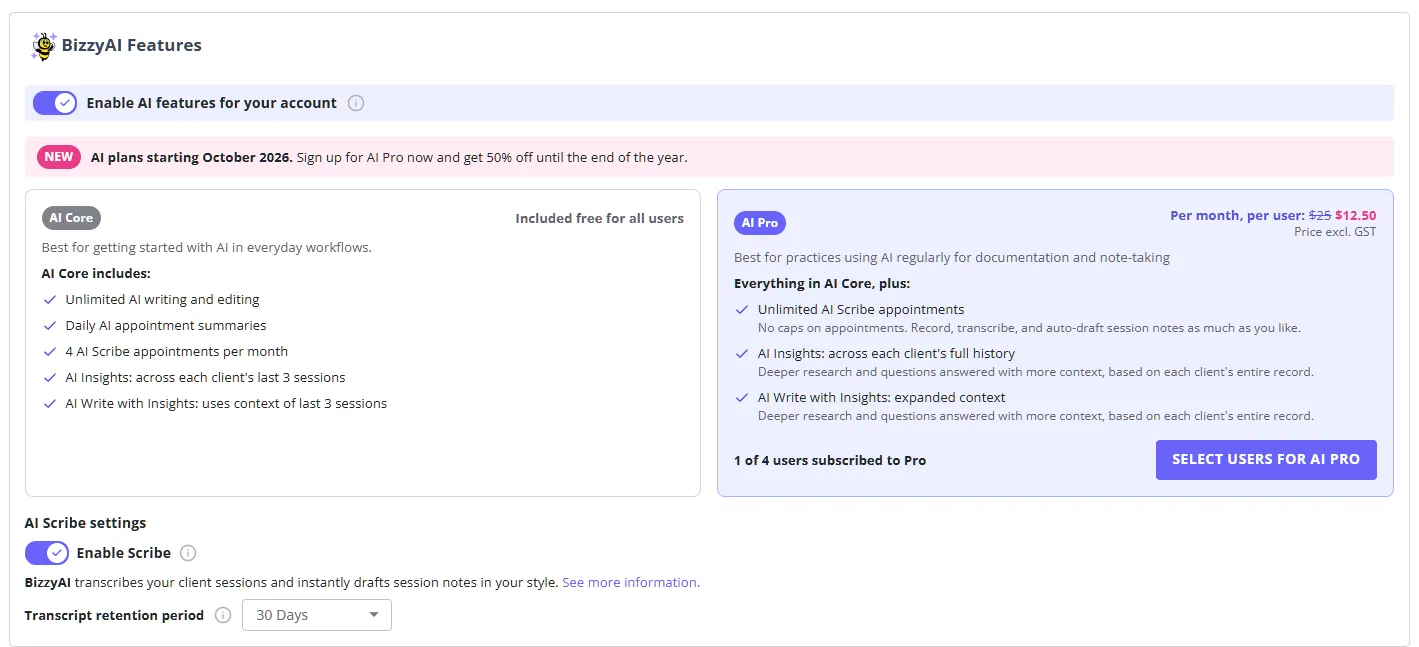
AI Pro is billed monthly per user as part of your normal Zanda subscription cycle, and is pro-rated if you subscribe a user partway through a billing cycle. If you unsubscribe a user, their AI Pro access continues until the end of the current billing cycle, and they then move to the AI Core allowance of 4 AI Scribe appointments a month.
Important: If you already pay for unlimited BizzyAI Scribe, you’ll move to AI Core once the new AI plans launch. Subscribe those users to AI Pro to keep unlimited Scribe access; without it, they’ll have the AI Core allowance of 4 AI Scribe appointments a month.
The same Optional Add-Ons page also has a Daily Focus settings section, next to BizzyAI Features, with an Enable Notes AI summaries toggle. See Introducing AI Core and AI Pro for what it does and how to turn it off.
Invoices and Receipts
On this page you’ll find a list of your Zanda subscription invoices and receipts.
- The subscription billing happens automatically once a month, using your card details entered when you subscribed to Zanda. If for any reason an automatic payment failed, you can pay your account manually.
- To pay your account, please select all outstanding invoices and complete the payment form below.
- To learn how billing works when storing or closing your account, see How to Store or Close Your Account.
Who are my subscription invoices addressed to, and can I change it?
Your Zanda subscription invoices are addressed to your practice, using the details saved in Business Info. The Invoice To section of each subscription invoice shows your Business Name, your Billing Address (including suburb, state and postcode) and your Country.
To change these details, click the Settings cog (top right) > Practice > Business Info, update the fields, and click Save Changes.
There’s no separate billing name, address or tax number just for your subscription invoices, so keep the following in mind:
- Your Business Name is also the name your clients see, including at the top of the invoices you send them. If you change it to the name of the company that pays for your Zanda subscription, your clients will see that name too.
- Your own Tax ID/ABN/VAT number isn’t printed on subscription invoices. The only tax number on a subscription invoice is Zanda Health’s own ABN.
- Past subscription invoices update too. Subscription invoices use your current Business Info every time you open or print them, so reprinting an older invoice shows your new details. To keep a copy of an invoice as it was, download its PDF from the Invoices and Receipts tab before you make the change.
Looking to change the card your subscription is charged to instead? See Updating Your Credit or Debit Card Details.
Payments
On the Payments page, you’ll see a list of all processed subscription payments for your records.
Update Credit Card
Here, you can update your automatic payment details. These details will be used for processing the Zanda subscription monthly payments.