
Turn on 2FA now
2FA keeps your account protected even when a password is guessed, reused, or stolen, because logging in also needs a code from your own device. Zanda strongly recommends 2FA for every user on every account, and 2FA will be required for all Zanda users from early November 2026. Setting it up now means you choose the timing, and your team is ready before the requirement starts.
You can turn on 2FA for yourself, and an admin can require it for any other user in the account. See Zanda Account Security: Passwords, Password Managers, 2FA for more on how 2FA protects you and how a password manager can generate your codes.
Set up 2FA on your own profile
- Set up or open an authenticator app on your phone, such as Google Authenticator or Microsoft Authenticator. A password manager that generates 2FA codes works too. The app generates the 6-digit code you enter when you log in.
- Open your Zanda account. In the top-right corner of your dashboard, click your account business name.
- In the menu that appears, click User Profile.
- In the Two-factor authentication row, click Enable 2FA.
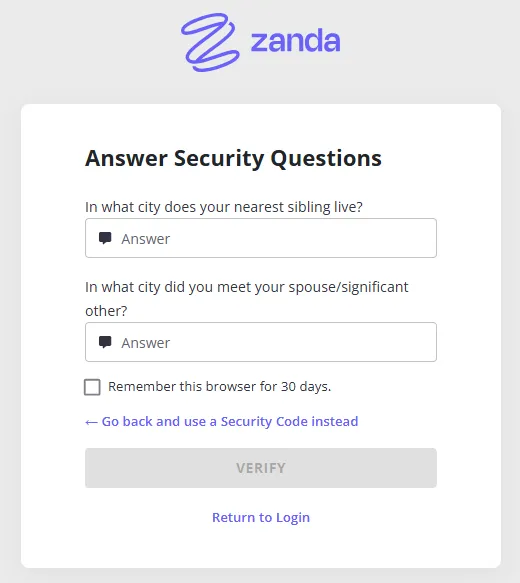
- In the dialog that opens, choose three security questions and enter an answer for each one. Answers are not case sensitive.
- Under Authenticator app, scan the QR code (or enter the key shown next to it) with your authenticator app, then type the 6-digit code the app generates.
- Click Save.
Once your settings are saved, you see a confirmation message, and the button on your profile changes from Enable 2FA to Configure 2FA.
Important: Check the spelling of your security question answers before you save. The security questions are how you log in when you do not have your phone, and the answers need to match what you saved.
Logging in with 2FA
Once 2FA is on, Zanda asks for the 6-digit code from your authenticator app each time you log in, unless the browser has been remembered as trusted (see Remember a trusted browser below). Keep your phone with you so you can open the app.
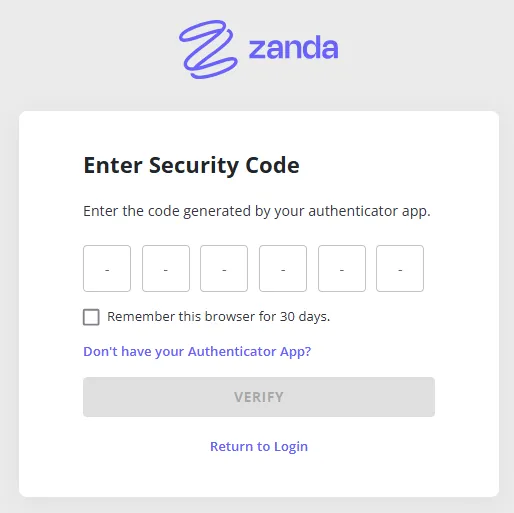
If you do not have your phone, click Don’t have your Authenticator App? on the verification screen. Zanda shows the security questions saved on your profile so you can answer them instead of entering a code.
Set up 2FA when it is required for your profile
If an admin has required 2FA for your profile and you have not set it up yet, the next time you log in you are taken to a dedicated two-factor authentication setup screen instead of your calendar. Complete it in three steps:
- Set up two-factor authentication. Scan the QR code (or enter the key shown next to it) with your authenticator app, type the 6-digit code the app generates, and click Verify.
- Set up security answers. Choose three security questions, enter an answer for each one, and click Save and continue. Security answers let you verify your identity when you do not have your authenticator app.
- Confirmation. You see a confirmation message and are taken to your calendar automatically after a few seconds.
Your setup is saved when you click Save and continue, not before. If your 6-digit code expires while you are entering your security answers, Zanda takes you back to the first step to enter a fresh code and keeps the answers you entered. If Zanda rejects your code at the first step, see Why does Zanda say my code is wrong when I entered the right one? below.
You can click Return to Log in at any point before you finish to stop and sign out instead of completing setup. This signs you out of your account entirely, not only the current browser.
[SCREENSHOT PLACEHOLDER: Required two-factor authentication setup screen] Show the first step of the dedicated setup screen, titled Set up two-factor authentication, with the authenticator app QR code, the six-digit code field, the Verify button, and the Return to Log in link in the footer
Require 2FA for your team
Require 2FA for every user in your account now, so your whole team is set up before 2FA becomes required for all Zanda users. A master user (account owner), or a user with permission to access the Settings menu, can turn the requirement on or off for other users at any time.
- Go to User Menu > Account Settings > Team > Users > User Management.
- Click the name of the user.
- In the Two Factor Authentication row of the user profile, turn on the Require Two Factor Authentication switch.
- Click Save.
The user is asked to set up 2FA the next time they log in. See Set up 2FA when it is required for your profile above.
Note: The Require Two Factor Authentication switch appears only on another (non-master) user’s profile. It does not appear on your own profile or on the master user profile. Master users manage their own 2FA from their User Profile. To change 2FA on the master profile when locked out, contact support.
Check who has 2FA turned on
The User Management page includes a 2FA column that shows “Yes” for any user who has 2FA either required or enabled, so you can confirm every user is covered:
- Required means an admin has turned on Require Two Factor Authentication for the user. The next time that user logs in, they need to set up 2FA before they can access the account.
- Enabled means the user set up 2FA on their own profile.
A “Yes” next to a user who has not finished setup means they will be asked to set up 2FA at their next login, not asked for a code.
Remember a trusted browser
When you enter your 2FA code at login, you can check Remember this browser for 30 days. Zanda then skips the 2FA code on that browser for the next 30 days, including after you log out and log back in. The setting is saved per browser on each device, so a browser where you have not checked the box (or a private or incognito window) still asks for the code. The box is unchecked by default. After 30 days, the browser asks for your code again.
Each browser remembers one person at a time. If someone else logs in on the same browser and checks the box, Zanda remembers them instead, and the previous person is asked for their code again at their next login there. On a device several people share, leave the box unchecked (see How does 2FA work when several people share the same iPad or computer? below).
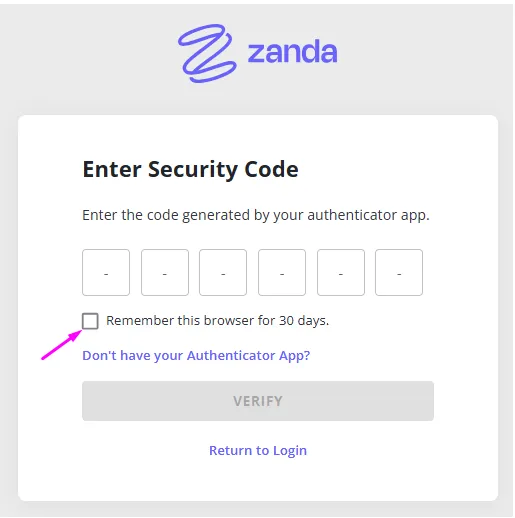
Certain account security changes end a browser’s trusted status early, even within the 30 days:
- You change your account password.
- You turn 2FA off and back on, or set it up again with a new authenticator app.
- An admin turns Require Two Factor Authentication on or off for your profile. This includes turning it off and back on to reset your security questions (see Update or reset security questions below).
Any of these changes resets the trusted status of every browser for your account. Logging out, or being signed out on another device, does not. Checking Remember this browser for 30 days again starts a fresh 30-day period.
Update or reset security questions
Security questions are managed from the same 2FA settings as your authenticator app. When you configure 2FA, Zanda asks you to select three security questions and enter an answer for each one. The answers are not case sensitive, but they need to match the answers you saved.
To update your own security questions while logged in:
- Click your account business name in the top-right corner and select User Profile.
- Click Configure 2FA.
- Update your three security questions and answers, then click Save.
If another user is unable to answer their security questions, a master user or an administrator with access to User Management can reset that user’s 2FA setup:
- Go to User Menu > Account Settings > Team > Users > User Management.
- Open the user profile.
- Turn off Require Two Factor Authentication.
- Click Save.
- Turn Require Two Factor Authentication back on.
- Click Save again.
The user is asked to set up 2FA and choose new security questions the next time they log in.
Regain access or turn off 2FA
Use the option that matches your situation. Because 2FA is strongly recommended and will soon be required, turn 2FA back on as soon as the access problem is solved.
You can log in
- Click your account business name in the top-right corner.
- Select User Profile.
- Click Configure 2FA.
- Click Disable 2FA.
If 2FA is required for your profile and you are not the master user, Disable 2FA is unavailable while the requirement is on. An admin can turn the requirement off from User Menu > Account Settings > Team > Users > User Management by opening your profile, turning off Require Two Factor Authentication, and clicking Save. Once the requirement is off, you can disable 2FA from your own profile.
You are unable to log in and are not the master user
Contact your account master user, or an administrator with the Setup and Configure Zanda permission. They can turn off 2FA for you:
- Go to User Menu > Account Settings > Team > Users > User Management.
- Open the user profile.
- Turn off Require Two Factor Authentication.
- Click Save.
You are the master user and are unable to log in
Email [email protected] to request that 2FA be disabled on the master user profile.
Important: Send the email from the address you used to create your Zanda account, or the address currently saved in your master user profile. That address identifies you as the master user.
Attach copies of the following documents as proof of identity:
- A government-issued ID for the master user, such as an ID card, driver’s license, or passport.
- A document confirming ownership of the business, in which the owner name matches the name on the ID.
- If the business owner and the master user are different people, a document confirming your position in the business that uses the Zanda account, such as a copy of your job contract.
An authorized Zanda team member reviews the proof of identity and, if it is accepted, disables 2FA on the master user profile.
Note: Zanda support can help only users who have Setup access to their account. If you do not have Setup access, contact the account holder or someone who does.
Frequently Asked Questions
When will 2FA become required for all users?
Zanda plans to require 2FA for all users from early November 2026. Until then, 2FA is optional but strongly recommended. Set it up on your own profile now (see Set up 2FA on your own profile above), and if you are an admin, require it for your team (see Require 2FA for your team above) so everyone is ready before the requirement starts.
Do I need a smartphone to use 2FA?
No. Any authenticator app or password manager that generates 6-digit 2FA codes works, including desktop apps.
Why does Zanda say my code is wrong when I entered the right one?
Work through these checks in order, entering a fresh code from your authenticator app after each one:
- Sync the time on your phone. Codes change every 30 seconds, so if your phone clock is out of sync, the codes do not match.
- Android: in the Google Authenticator app, open the main menu, tap Settings, tap Time correction for codes, then tap Sync now. See also setting the time on your Android device.
- iPhone: go to Settings > General > Date & Time and turn on Set Automatically. See also setting the time on your iOS device.
- If you are setting up 2FA, load a fresh QR code. The QR code on the setup screen stays valid for 10 minutes from when the screen first opens. After that, Zanda no longer accepts codes from it, even when your phone time is correct. Refresh the page (or close the dialog and click Enable 2FA again) to get a new QR code, scan it, and enter the code straight away.
- Use the newest Zanda entry in your authenticator app. Each time you scan a new QR code, your app adds another Zanda entry, and the entries can look identical. Only the entry from the QR code you scanned most recently works. Delete the older Zanda entries so you do not pick the wrong one.
Starting setup again is safe. Zanda saves nothing until you click Save (or Save and continue on the required setup screen), so refreshing the page or closing the dialog does not change your account.
If you are setting up 2FA and Zanda still rejects your codes after you scan a fresh QR code and enter a new code straight away, contact Zanda support. If 2FA was already working and your code stopped being accepted when you log in, see My 2FA code stopped working and I cannot log in. What can I do? below.
My 2FA code stopped working and I cannot log in. What can I do?
If 2FA was working before and Zanda now rejects your code at login, for example after you get a new phone, reset your phone, or reinstall your authenticator app, you can still get back in without a code:
- Sync the time on your phone, then try one fresh code. See Why does Zanda say my code is wrong when I entered the right one? above. Avoid entering code after code. Each wrong code counts as a failed login attempt, and 5 in a short period locks the account for 10 minutes (see Why am I locked out after entering my 2FA code? below).
- Log in with your security questions. On the code screen, click Don’t have your Authenticator App? and answer the security questions you saved when you set up 2FA. Answers are not case sensitive.
- Reconnect your authenticator app. Once you are logged in, click your account business name in the top-right corner, select User Profile, and click Configure 2FA. Scan the QR code in the dialog with your authenticator app, then delete any older Zanda entries in the app so you do not pick the wrong one. You do not need to change anything else. Close the dialog, and use the code from the new entry the next time you log in.
- If you cannot answer your security questions, see Regain access or turn off 2FA above. If you are not the master user, your master user or an admin can turn off Require Two Factor Authentication for you. If you are the master user, email Zanda support.
Why am I locked out after entering my 2FA code?
Each incorrect 2FA code counts as a failed login attempt, the same as an incorrect password. So does a wrong set of answers to your security questions. After 5 failed attempts in a short period, Zanda locks the account for 10 minutes and shows this message:
“Your account is locked due to multiple failed log in attempts. Please retry in 10 minutes or reset your password. You may also contact an administrator who can reset your account.”
To get back in, use whichever option suits you:
- Wait 10 minutes, then try again. If Zanda keeps rejecting a code you believe is right, sync the time on your phone first (see Why does Zanda say my code is wrong when I entered the right one? above) so you do not lock the account again.
- Reset your password. Setting a new password lifts the lockout straight away. See Resetting Your Email Address and/or Password.
- Ask your master user or an admin to reset the lockout. In User Menu > Account Settings > Team > Users > User Management, a locked-out user shows Locked till and a date in red beside their username. Clicking the x beside it resets the lockout. See Managing Users.
If you still cannot get past the 2FA step once the lockout is lifted, for example because you no longer have your authenticator app, see Regain access or turn off 2FA above.
Note: If the message says “Your account has been locked by Zanda Support. Please contact support to restore access.”, waiting, resetting your password, or an admin reset will not lift it. Email [email protected] from the email address you log in with.
Why is my QR code not being recognized?
Try these fixes:
- Update Google Authenticator to the latest version.
- Zoom in slightly on the QR code, or open it on a different screen, such as a phone or tablet.
- Turn off dark mode and turn your screen brightness all the way up.
Why am I not asked for my 2FA code when I log in?
That browser was most likely remembered as trusted with the Remember this browser for 30 days option during an earlier login. Logging out does not remove the trusted status, which is designed to persist. To make the prompt appear on that browser, clear the browser cookies for Zanda, or open a private or incognito window and log in there. The trusted status also expires on its own 30 days after it was set.
How does 2FA work when several people share the same iPad or computer?
2FA belongs to each person’s own Zanda login, not to the device. As long as everyone has their own login, each person sets up 2FA once on their own profile and can then log in with 2FA from any shared iPad, tablet, or computer in the practice.
- Set up 2FA once, with an app on a device the person keeps. During setup, each person scans the QR code with an authenticator app on their own phone, or with a password manager that generates 2FA codes. Do not set up the authenticator app on the shared device itself, because anyone using that device could then generate the code.
- Log in on whichever shared device is free. Enter your email address and password, then the 6-digit code from the app on your phone.
- No phone with you? Click Don’t have your Authenticator App? on the code screen and answer the security questions you saved during setup. This works on any device, which helps team members who log in only occasionally.
- Leave Remember this browser for 30 days unchecked on a shared device. On a device many people rotate through, checking the box only skips the code for whoever checked it most recently (see Remember a trusted browser above), and it also lets anyone who knows that person’s password log in on that device without a code for 30 days.
- Log out at the end of every session so the next person starts from the login page.
To get everyone ready before 2FA becomes required, an admin can turn on Require Two Factor Authentication for each user (see Require 2FA for your team above). Each person then completes setup the next time they log in. For why each person needs their own login rather than a shared one, see Zanda Account Security: Passwords, Password Managers, 2FA.
Why do I keep being asked for my 2FA code even though I checked Remember this browser?
Zanda remembers a trusted browser by saving a cookie in that browser. If you are asked for your code at every login, work through these checks:
- Check for a recent account security change. Changing your password, turning 2FA off and on again, setting up a new authenticator app, or an admin turning Require Two Factor Authentication on or off for your profile resets every remembered browser. See Remember a trusted browser above. After one of these changes, check the box again at your next login and the browser is remembered for a fresh 30 days.
- Make sure you are not in a private or incognito window. Private windows discard cookies when they close, so they never stay remembered.
- Check your browser cookie settings. If your browser is set to block cookies, or to clear cookies and site data when you close it, the trusted status is removed every time. Allow cookies for zandahealth.com, or add it as an exception to any “clear on exit” setting.
- Check browser extensions and security software. Privacy, ad-blocking, or cleaner extensions, and some antivirus or device-management tools, can delete cookies automatically. Try logging in with them paused for zandahealth.com.
- Remember each browser separately. The trusted status is saved per browser on each device, so check the box once on every browser and device you use, including different browser profiles.
If none of these apply and you are still asked for your code at every login, especially on more than one browser or device, contact Zanda support. Let them know which browsers and devices are affected and roughly when it started so the team can look into it for you.