
Overview of the Enrollment Process
Enrollment Process
Step 1: Subscribe to Zanda Claims with Ensora Clearinghouse (formerly Apex EDI).
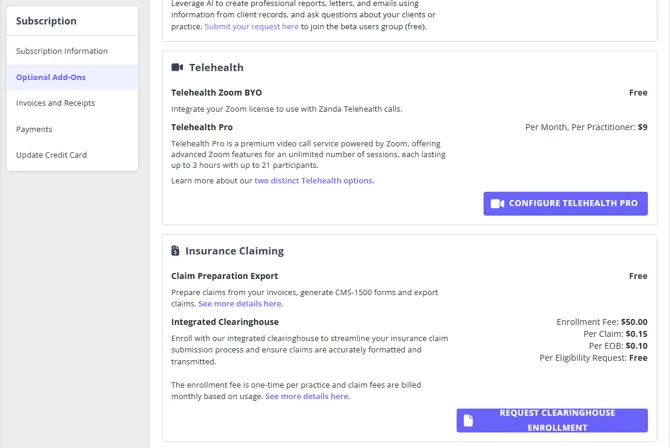
- Go to the User Menu > Your Account > Subscription > Optional Add-Ons in Zanda.
- Select Insurance Claiming and request Clearinghouse Enrollment
- Agree to the terms and conditions.
Step 2: Enroll with Ensora Clearinghouse (formerly Apex EDI).
- Choose your enrollment type: Individual (Type 1 NPI), Group (Type 2 NPI), or Combination.
-
Type 1 NPI (Individual):
- For healthcare providers who are individuals and sole proprietors. Eligible for only one NPI.
-
Type 2 NPI (Group):
- For healthcare providers who are organizations, including physician groups, and corporations where an individual incorporates.
-
Combination Enrollment:
- Credentialed with some payers as a Type 1 and some as a Type 2. Requires a combination enrollment.
-
Step 3: Process your enrollments with Ensora Clearinghouse (formerly Apex EDI).
- You’ll receive a welcome packet via email. Return it promptly.
- Ensora Clearinghouse (formerly Apex EDI) Enrollment team will guide you through the remaining steps.
Step 4: After Ensora Clearinghouse (formerly Apex EDI) enrollment approval.
- A unique Ensora Clearinghouse (formerly Apex EDI) ID will be provided.
Claiming Costs (Effective January 2025)
-
Enrollment Fee:
-
Initial enrolment fee(any number of practitioners included on the enrolment information form): $50.00
-
Additional practitioners enrolment fee: $50.00 per a practitioner (this fee will apply to each practitioner enrolment after the initial enrolment was processed).
-
-
Per Claim: $0.15
-
Per ERA/EOB: $0.10
-
Per Eligibility Request: Free
There is no monthly fee for the clearinghouse integration itself. Apart from the one-time enrollment fees above, you only pay for what you use: claim and ERA/EOB charges are added as their own lines on your regular Zanda subscription invoice for the billing period. Your Zanda plan and any optional add-ons, such as SMS, Telehealth Pro, or AI Pro, are billed separately on the same invoice. See Understanding Zanda Subscription Plans.
Requesting Ensora Clearinghouse (formerly Apex EDI) Clearinghouse Enrollment
In this section of the article, we will guide you through the Ensora Clearinghouse (formerly Apex EDI) enrollment process.
-
The ‘Insurance Claiming’ section is available on a paid Zanda account. If your account is still on a free trial, convert your trial to a paid subscription first. While you are on a trial you cannot open the Optional Add-Ons page, so there is no ‘Insurance Claiming’ section to reach.
-
Once your account is converted, go to the User Menu > Account Settings > Practice > Subscription > Optional Add-Ons page, to the ‘Insurance Claiming’ section.
-
Carefully read the provided information and click the ‘Request Clearinghouse Enrollment’ button.
-
Complete the enrollment information form, including your Business Name, Contact Email, Business Contact Phone and Billing Provider NPI Number, and click ‘Next’ to proceed.
-
Read the Zanda Integrated Insurance Claims Service Agreement, check the ‘I have read and accepted the Service Agreement’ box and click ‘Submit’
-
After the enrollment application is submitted, go to the User Menu > Account Settings > Practice > Subscription > Optional Add-Ons page and continue to Ensora Clearinghouse (formerly Apex EDI) to enroll on their side.
-
Once your enrollment is completed, we will send you a confirmation email.
-
On the User Menu > Account Settings > Practice > Subscription > Optional Add-Ons page, you will see the status of your enrollment and your Ensora Clearinghouse (formerly Apex EDI) Vendor ID (it will consist of 3 characters). You can use this Vendor ID when you reach out for assistance to APEX support.
Please be aware of the following enrollment fees:
-
The initial enrollment fee is $50.00, which covers any number of practitioners listed on the enrollment information form.
-
For each additional practitioner enrolled after the initial application, a fee of $50.00 will be charged.
Ready for Claim Submission
After the registration with Ensora Clearinghouse (formerly Apex EDI) is completed, you will be able to submit insurance claims.
- When on a claim, there will be a “Submit Claim” button available for enrolled client
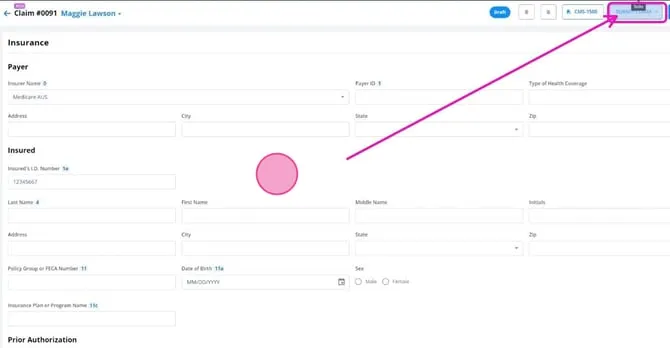
- Unless you are enrolled with Ensora Clearinghouse (formerly Apex EDI) via the Zanda integration, you will not be able to submit claims.
- Claims can only be submitted if the status is in ‘Draft’ or ‘Failed’ status.
- Lack of required information will prevent the claim from submitting.
Current Claiming Functionality
Currently, the Zanda clearinghouse integration provides the following functionality:
- Linking invoices to claims for easier payment updates.
- Viewing the status of claims in Zanda.
- Printing claims as PDFs.
- After claim submission, Zanda will automatically handle status updates of claims daily, showing the claim status in the system.
Alternatively, you will also be able to log into Ensora Clearinghouse (formerly Apex EDI) to view your payments and manage further details.
Note: Integrated eligibility checks doesn’t work for dependents
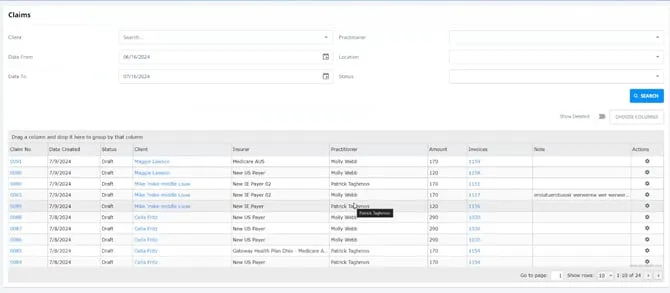
- The Claims report will include the following data columns:
- Claim No
- Date Created
- Status
- Client
- Insurer
- Practitioner
- Amount
- Invoices
- Note
- Actions
Zanda Claims FAQs:
Does Zanda offer ERA?
Yes. For US insurance claiming, Electronic Remittance Advice (ERA) is handled through the Ensora Clearinghouse (formerly Apex EDI) integration after your Zanda account is enrolled for integrated clearinghouse claiming. In Zanda, ERA information appears as EOB and claim payment details: claim status updates collect remittance advice documents, and paid claim details can be reviewed from Billing > Insurance > Claim Payments.
Do I need to enroll with Ensora Clearinghouse (formerly Apex EDI) for Zanda Claims?
Yes, Ensora Clearinghouse (formerly Apex EDI) is the required clearinghouse.
What is Ensora Clearinghouse (formerly Apex EDI) Enrollment?
It notifies payers of your intent to submit electronic claims (EDIs) and receive ERA/EOBs through Ensora Clearinghouse (formerly Apex EDI).
Already enrolled with a payer?
You still need to enroll through Ensora Clearinghouse (formerly Apex EDI) for claims to be processed in Zanda. It is possible to use your existing Vendor ID, please email to [email protected] to request adding your existing Vendor ID to your Zanda account.
Can I use ClaimMD or another clearinghouse for Zanda Claims?
Zanda Claims uses Ensora Clearinghouse (formerly Apex EDI) for in-app electronic claim submission, claim status updates, eligibility checks, and ERA/EOB processing. ClaimMD and other separate clearinghouses are not connected to the in-app Zanda Claims workflow. If you already have an Ensora Clearinghouse (formerly Apex EDI) Vendor ID, contact Zanda support to request adding it to your Zanda account.
Enrollment duration:
It can take up to 45 business days, depending on the payer.
Does an ‘Active’ enrollment status mean I’m fully set up with every payer?
An ‘Active’ status means your Zanda account is registered with Ensora Clearinghouse (formerly Apex EDI) and you can submit claims. Zanda tracks your enrollment as a single status for the account, while Ensora Clearinghouse manages enrollment separately for each payer, so Ensora Clearinghouse may still contact you directly with additional requirements for a specific payer. If you receive a message like this from Ensora Clearinghouse, follow their instructions to keep that payer’s enrollment moving. It does not mean anything is wrong with your Zanda account.
I can’t find the Insurance Claiming section on the Optional Add-Ons page. Why?
The most common reason is that your account is still on a free trial. While you are on a trial you cannot open the Optional Add-Ons page: the AI Settings link under User Menu > Account Settings > Practice, which is what opens Optional Add-Ons, is grayed out with the note ‘Available with a paid account.’, and going to Subscription takes you to the Start Your Plan page instead. Convert your trial to a paid subscription and you will be taken straight to the Optional Add-Ons page, where you will find the ‘Insurance Claiming’ section and the ‘Request Clearinghouse Enrollment’ button. Insurance Claiming is US-only, so the section does not appear on accounts outside the United States. Enrollment and per-claim fees are listed under Claiming Costs above, so you can check the cost before you convert.
Am I charged for claims that fail, are denied, or are resubmitted?
- A claim that fails on submission is not charged. If Ensora Clearinghouse (formerly Apex EDI) finds missing or incorrect information when you submit, the claim is marked Failed and no claim fee is added. Correct the errors and click Submit Claim again; you are charged $0.15 only once a submission is accepted.
- A claim that is accepted and later denied by the payer is still charged. The $0.15 covers sending the claim, not the payer’s decision.
- A corrected resubmission is charged as a new claim. If you fix a denied claim and send it again, for example with Create Copy to Resubmit, that resubmission is charged $0.15 once it is accepted. There is no separate fee for handling the denial.
Zanda shows you each claim’s status so you can review a denial, correct the claim, and resubmit it, rather than running denial management on your behalf. See Claim Submission and Payment Process (US-only).