
- You must fill out your HW027 form to register for Online Claiming. If you or any providers that submit claims through your account have not filled out this form previously please do so immediately. Details on how to fill out the form and submit it to Medicare can be found here. Please keep Question 3 on the form blank.
- When a practitioner starts working at a new location, do not override the existing location or Medicare insurer details under Practitioner Profile > Insurers.
Instead, to maintain accurate records and ensure Medicare claims are processed correctly:
-
Create a new Location entry for the updated practice details.
-
Add a separate Medicare insurer record linked to the new location.
This approach helps preserve historical data, supports accurate billing, and avoids potential issues during audits.
Once you have configured the DVA insurer, added your provider number(s) and recorded a client’s DVA details on their client record you are ready to begin submitting DVA claims through Zanda. Follow on below to learn how!
Submitting a claim
If you’re familiar with submitting Medicare claims through Zanda then this process should feel very familiar. To submit a DVA claim follow the steps below.
- When submitting these claims you will need to ensure that you have the correct services configured (including the correct service code). You can learn more about how to set services up here.
- The requirement for a referral when submitting DVA claims depends on the type of service and the color of the patient’s DVA card. When both the servicing provider and the referring provider are valid, Zanda will process the claim without interruption. To help prevent errors, please ensure all information is entered accurately before submitting your claim.
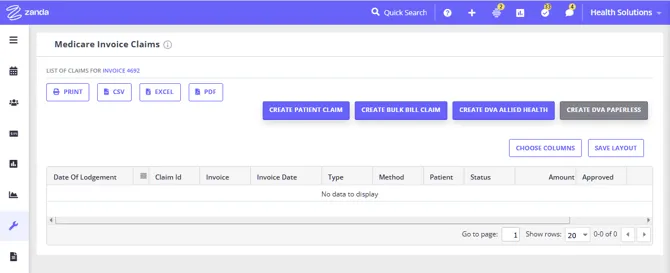
- On the appointment panel or edit invoice page, select the Medicare button.
- Select either Create DVA Allied Health (for allied health, community nursing, psych, and speech pathology) or Create DVA Paperless (for specialists and GPs) depending on which type of claim you would like to submit.
 3. Most of the information will be automatically filled out for you, such as patient and provider information and referral information (if this was selected on the invoice). You will only need to input a small amount of information such as the treatment location.
4. Once you have filled out any relevant information simply click Send or Save and Send Later (if you would like to submit multiple claims at once at a later time).
3. Most of the information will be automatically filled out for you, such as patient and provider information and referral information (if this was selected on the invoice). You will only need to input a small amount of information such as the treatment location.
4. Once you have filled out any relevant information simply click Send or Save and Send Later (if you would like to submit multiple claims at once at a later time).
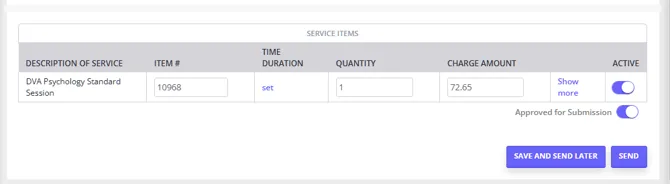
And that’s it! Your claim should go through with a status of Referred if it was successful. If you receive another message you should be able to follow the prompt to troubleshoot and resubmit.
- For information on cancelling a DVA claim, please refer to our article here: DVA claims: Troubleshooting and Frequently Asked Questions.
- Here’s how you can check DVA claim payments and allocate them to invoices automatically.
- When you Email a submitted DVA claim (Allied or Paperless), the email modal pre-selects your Medicare Email Template, set under User Menu > Account Settings > Billing > Invoices. See Customising Your Invoices/Receipts to set or edit it.
Billing travel kilometers on a DVA claim
DVA Allied Health claims (Community Nursing, Speech Pathology, Allied, and Psychology) don’t use the standard per-kilometer pricing described in Adding and Editing Services. For a DVA claim, DVA works out and pays the travel amount itself from the kilometers you enter on the claim, not from a price you set on the line item.
- Add the travel item to the invoice as you normally would (see Adding and Editing Services for how to set up a product), but set its Price to $0.00.
- Generate the DVA Allied Health claim as described above.
- On the travel service line, click Show More and enter the number of kilometers traveled in the Distance Kms field.
- Send the claim as usual.
A claim line can’t carry both a Charge Amount and a Distance Kms value, see DVA claims: Troubleshooting and Frequently Asked Questions if you see an error about this. Keeping the line item’s price at $0.00 avoids it.
Understanding the DVA fields
When submitting DVA claims you will need to fill out a few fields (accessible via Show More field) that you may be unfamiliar with (especially if you are used to claiming through a service such as PRODA). The tables below should help in filling this section out.
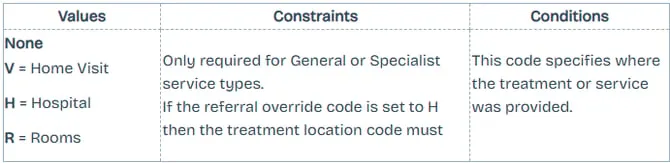
Treatment Location
Only applicable for DVA Medical Paperless claims. In the majority of situations, R will be selected, indicating rooms (such as your practice).
Claim Certified
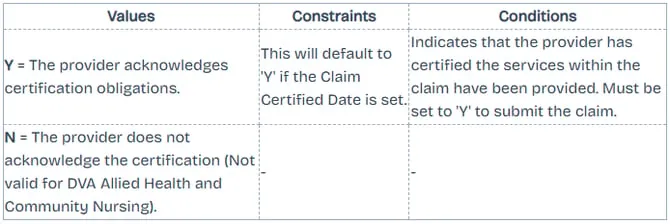
This field needs to be set to Y in order to submit the claim. This simply certifies that the services being claimed were in fact provided.
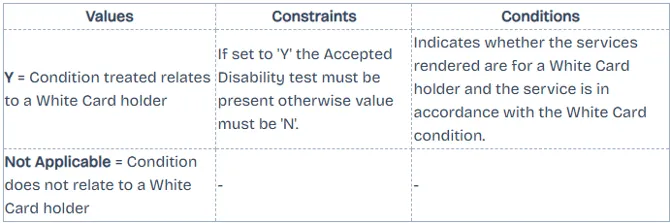
 Accepted Disability
Set this to Y if the patient is a DVA White Card holder. If you set this to Y you must also fill out the Accepted Disability Text field below with the patient’s diagnosis — the specific condition treated during the session. DVA requires this for White Card claims because White Cards only cover a veteran’s accepted (approved) disabilities; this field is how DVA verifies the service relates to a covered condition. Gold Card holders do not require this field.
If you have set a default Accepted Disability value on the client’s insurance record (the patient’s diagnosis/covered condition), this field will be pre-populated automatically when the claim is created. See Preparing for DVA Claiming for how to set this up.
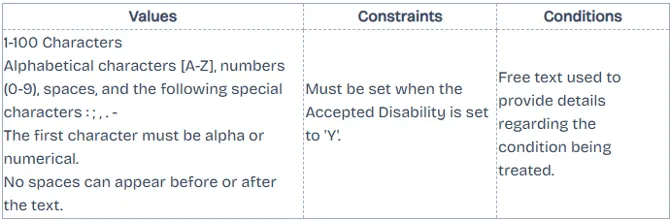
Accepted Disability Text
If you have set a default Accepted Disability Text value on the client’s insurance record (the patient’s diagnosis/covered condition), this field will be pre-populated automatically when the claim is created. See Preparing for DVA Claiming for how to set this up.
Understanding the Service Item fields
When viewing the table of service items, if you click “Show More” you will see several additional fields that can be filled in. This section explains what these fields are used for and when they should be filled. For more information on these fields please see Medicare’s website here.
Service Text
Free text used to provide additional information to assist with the assessment of the service.
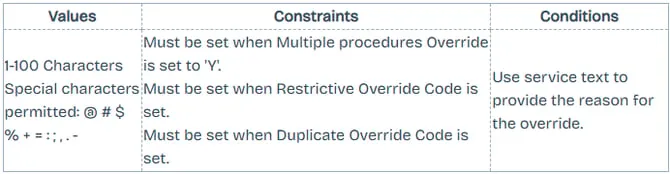
Medicare and DVA only receive the first 50 characters of Service Text as part of the claim. The claim screen in Zanda shows your full entry, but anything beyond 50 characters is not included in what gets transmitted. If you need to fit in details that distinguish similar service items, put them within the first 50 characters.
Account Reference Number
Optional field to record a reference to identify the claim (such as invoice number)

Restrictive (override code)
This code is used to allow payment for services where the account provides indication that the service is not restrictive with another service within the same claim or on the patient history.

Aftercare
Only applicable for DVA Medical Paperless claims. Indicates whether or not the service was performed as part of normal aftercare for the patent (post-operative care and treatment including all attendances until recovery).

Patients Seen
Only applicable for DVA Medical Paperless claims. List the number of patients seen for the service.

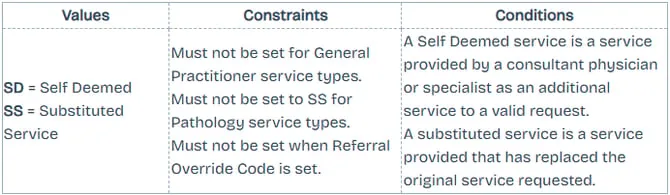
Self Deemed
These services do not require a referral.
Distance Kms
Indicates travelling distances involved in a home, nursing home, or hospital visit.

Second Device
Only applicable for DVA Allied Health claims. This field identifies the provision of second medical grade footwear service.

LSPN Number
Only applicable for DVA Medical Paperless claims. Location Specific Practice Number used for diagnostic and radiation oncology that is specific to an individual location.
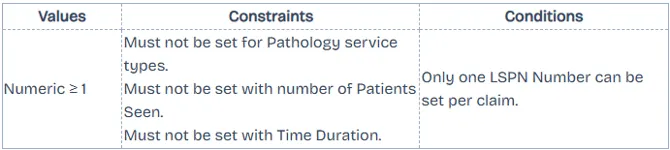
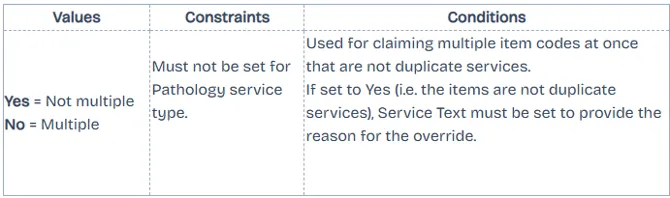
Multiple Procedures (override)
Only applicable to DVA Medical Paperless claims. Indicates whether the multiple services rule should or shouldn’t be applied to the services being claimed.
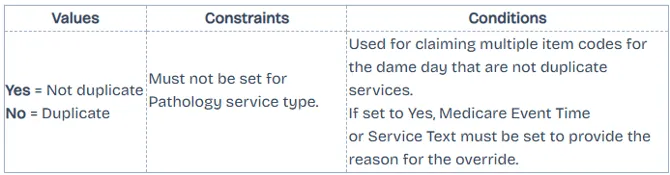
Duplicate (Services) Override
Indicates whether multiple services performed on the same day, by the same service provider should be treated as separate services.
In Hospital
Indicates whether or not the service(s) rendered to the patient was for treatment provided within a hospital facility.

Facility Id
The Commonwealth Hospital Facility Provider Number. A unique identifier of a Registered Hospital or Day Care Facility.

Specimen Collection Point
Only applicable to DVA Medical Paperless claims. Used to identify the site where the pathology specimen was collected.

Admission date
Only applicable for DVA Allied Health claims. The date the patient was admitted to hospital.

Discharge Date
Only applicable for DVA Allied Health claims. The date the patient was discharged from hospital.

Viewing DVA Claims Payment Status
After submitting your DVA claims, you can request a Payment Status Report after 48 hours* have passed since the bulk bill was processed.
*Important ☝️
- Medicare does not issue a payment status report until after 48 hours have passed since the claim was processed.
- If you requested the payment status report while the report had not been issued by Medicare, you will need to manually check each claim individually later, as the system will not send a payment report request for the claims that have already been included in the previous payment report requests.
-
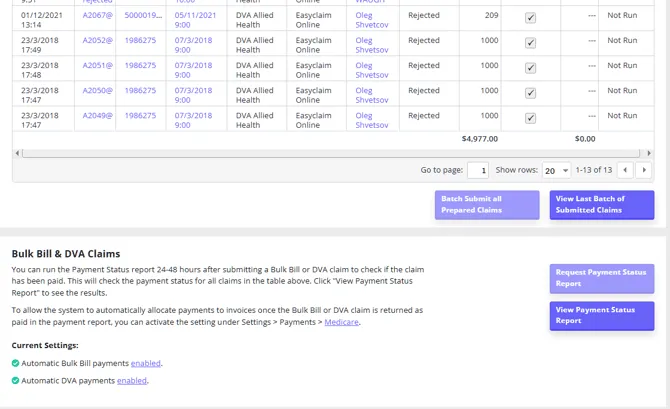
You’ll find this by going to Tools > Medicare. This will show you the status of each of the claims you’ve submitted recently.
-
Run the report and it should be ready within a few minutes.
-
You can see whether the report has been run for a particular claim by looking at the Run Number column on the very right corner of the table.
-
If it says Not Run, it means that the report has not been run for that particular claim.
-
If it says Not Run/ Not Available, this means that there is a problem with the claim which is why a report wasn’t generated for that claim.
Recording a DVA Claim Payment
After DVA claims are submitted Medicare will take up to 48 hours to process them. We recommend that you request payment status report for any individual claim, or process the bulk payments status report via the Tools > Medicare page past the 48 hour period.
When a DVA payment is made it is important to record this payment on the Invoice. You can add a payment to each invoice separately, or allocate the received DVA payments to all paid invoices automatically for the selected period of time. If you haven’t already you’ll need to add ‘DVA’ (or similar) as a payment method to your account by going to User Menu > Account Settings > Payments > Payment Methods and click Add Payment Method. In Item Name enter ‘DVA’ and Save.
- We have introduced a new feature to the Medicare integration that allows you to automatically allocate Medicare DVA payments to their relative Zanda invoices. Read this article for the full details on how to setup and use this functionality.
- Should you choose to record payments for each invoice separately, you can still do that:
- Go to Tools > Medicare.
- Click on Request Payment Status Report. This will request the payment reports for all DVA claims in the table above. This process takes about 5 minutes to run, so leave the page and come back after a short period of time.
- After returning to the page, check the Amount Paid column to see what has been paid (You can also reference the Run Number for a number that will correspond to the payment that was made by Medicare into your bank account), and then click on the Invoice Number to access the Edit Invoice screen.
- Use the Add Payment to this Invoice function to add a DVA payment for the amount paid.
Hint 💡 If you’re reconciling payments for more than one invoice you can right-click the invoice number and open it in a new tab, apply for the payment and then close the tab to return to the Medicare dashboard. This will simply save you time as you won’t need to repeatedly run the report.