
How to Add a New Service
-
Click your practice name (top right) > Account Settings > Billing > Services.
-
Click ‘+Add Service’
-
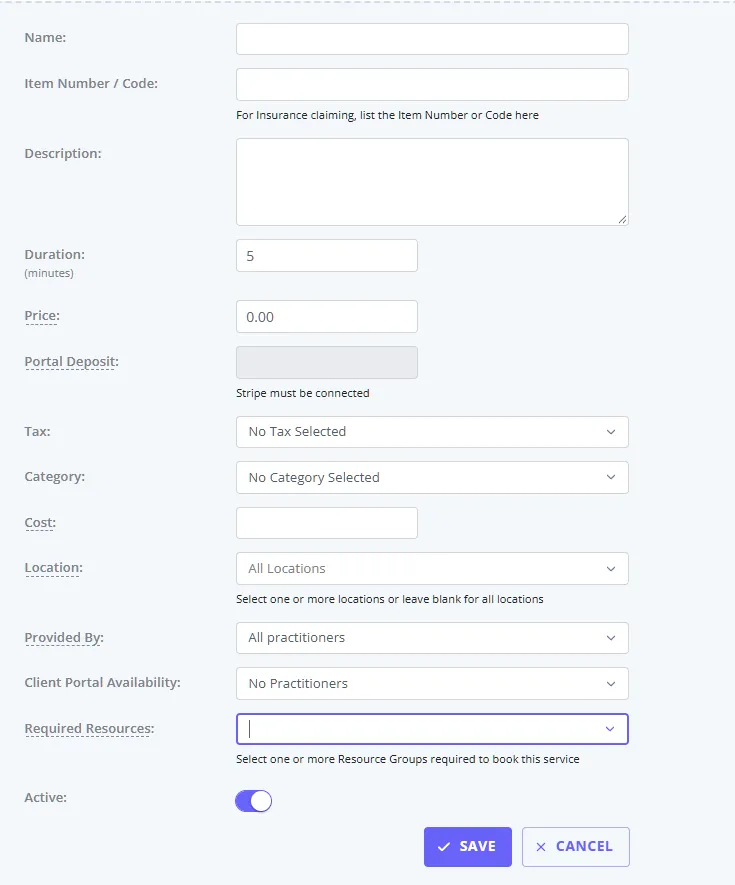
Complete the new service form.
Here’s what each field in the form above is for:
-
Name: this is the title of the service that you will see in drop-down lists and on invoices.
-
Item Number/Code: this is used to record a short piece of text to be used as a reference. This is an optional field. Please note that if submitting Medicare AU or DVA AU claims, this field should be used to record the relevant service code.
-
Description: this is used to record a description of your service. This information also appears on invoices for the service, and on your client portal if the service is available for online bookings, so you can use it to give clients extra detail to help them decide at the time of booking. This field accepts plain text only; HTML tags and other formatting codes (such as
<b>or<i>) are not supported here and display exactly as typed rather than rendering as bold or italic. If you want bold or italic text for clients, add it to the Home Page Instructions For Clients field in your Client Portal settings instead, which does support these formatting codes. -
Duration: used to record the duration of the service in minutes. Zanda also uses it to set the length of new appointments booked with the service attached. It is applied when the appointment is saved, not while you are filling in the New Appointment Panel. See Creating, Editing and Deleting a Client Appointment for what that looks like while you are booking. Duration is always recorded in whole minutes, and a service shorter than 5 minutes still produces a 5-minute appointment. To charge by a unit other than time, such as distance, see the FAQ below on billing for travel or mileage.
-
Price: use this field to record the price of your service, ensuring that any tax is included in the figure (such as GST). This will appear on invoices where this service is attached, and will also show on the client portal if you’re taking payments from clients.
-
Portal Deposit: if some amount is set up here, clients will be required to pay it when booking this service online via the Client Portal. You must connect to Stripe to be able to use this feature.
-
Tax: use this field to record whether or not tax applies to the service. The tax percentage can be set in Account Settings > Billing > Tax Rates (click your practice name, top right)
-
Category: if you have multiple services, you can divide them into a category. To add a new category, click your practice name (top right) > Account Settings > Billing > Saleable Categories. (Clients booking online through the Booking Portal will be able to filter by Category - therefore only relevant if you are going to allow your clients to book appointments via the booking portal)
-
Cost: This is an optional field you can use to record your business’s cost of providing a service. Cost is not visible to clients and other payees.
-
Location: Service will only be available to select for appointments and invoices at the selected locations in your Zanda account and on your Client Portal.
-
Provided By: records which practitioners regularly provide this service inside Zanda. Select All Practitioners, Specific Practitioners (select after saving), or No Practitioners. New services start as All Practitioners.
- If you choose Specific Practitioners (select after saving), a window opens after you save so you can switch the service on for each practitioner who provides it.
- This setting is a guide, not a restriction. It changes the order services appear in when your team books or invoices, and it never prevents anyone from selecting a service. See Provided By and Client Portal Availability below.
-
Client Portal Availability: You can select practitioners who will be offering this service for online bookings on your client portal. Select No Practitioners, Specific Practitioners (select after saving), or All Practitioners.
- If you choose Specific Practitioners (select after saving), you’ll be able to select which practitioners offer this online after you save the service template. Once you click Save, a modal will pop up listing all your practitioners, and you’ll be able to enable a switch next to each one who will be offering this service for online bookings on the Client Portal.
- This setting only changes what clients see when booking online. Inside a Zanda account your team can still assign any active service to any practitioner’s appointment. Provided By is the separate setting that reflects who provides a service internally, and it also leaves every service selectable.
-
Required Resources: mark one or more Resource Groups, such as rooms or equipment, that this service needs. The picker only lists Resource Groups that are active, have at least one active Resource Item, and are available at every Location selected above for this service; if the service has no Location set, every active Resource Group is selectable. When this service is booked, whether by your team or by a client on the Client Portal, Zanda automatically applies an available Resource Item from each required group. See Required Resources and Service Locations below.
-
Active: turn this switch off if you no longer wish to use this Service Template. This change will apply to future invoices only, and inactive services no longer appear in the item list when you add a new line to an invoice.
-
Click ‘Save’ when ready.
All added services will be listed in Account Settings > Billing > Services (click your practice name, top right).
The Service List includes the following information:
- Service Name
- Item Number/Code
- Description
- Duration (minutes)
- Price $
- Tax
- Category
- Cost $ (ex. tax)
- Provided By (which practitioner regularly provides this service)
- Client Portal (visibility by calendars)
- Location (where made available)
- Active (Yes/No)
- Action (Edit/Activate)
☑️ Pro Tip:
To add a free service, such as a “Free Consultation”:
- click your practice name (top right) > Account Settings > Billing > Services,
- then click ‘+Add Service’.
- Fill out the service form,
- set the price to $0.00,
- and select Tax Exempt.
Provided By and Client Portal Availability
These two settings sit next to each other, open the same window, and use the same All / Specific / No Practitioners wording, so it is worth being clear on what each one does. They are independent: a service can be provided by every practitioner internally and offered to nobody on the Client Portal, or the reverse.
| Setting | What it records | Where you see the effect |
|---|---|---|
| Provided By | Which practitioners regularly provide the service inside Zanda | The order services appear in when your team books an appointment or adds an invoice item |
| Client Portal Availability | Which practitioners offer the service for online bookings | Which services clients can choose when booking through the Client Portal |
Neither setting stops your team selecting a service. Every active service stays available for every practitioner when you book or invoice inside Zanda.
Where you can set Provided By
- The service itself. Use the Provided By field when adding or editing a service, as described above.
- The Services list. The Provided By column shows a summary for each service, such as All Practitioners, No Practitioners, or 1 Practitioner. Click the value to change it.
- The service availability window. Open a service’s availability window to see a Provides Service switch for each practitioner, alongside Available on Portal. Changes save as you make them.
- A practitioner’s profile. The Available Services table has a Provides switch for each service. This is the quickest way to review one practitioner’s whole service mix.
- Available Services grouped by service. Choose a service, then set Service is Provided and Available on Portal for each practitioner. This is the quickest way to review one service across the team.
How this changes booking and invoicing
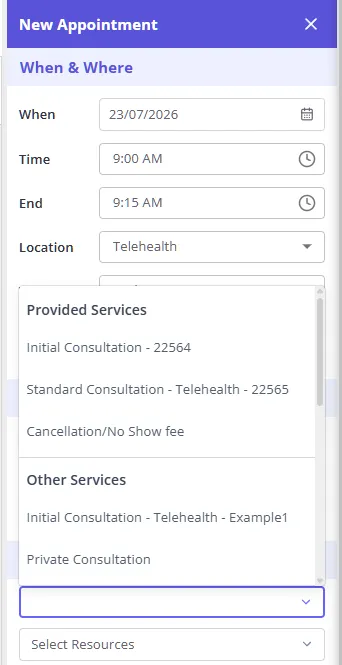
When you select a practitioner and then open the service list, services are grouped under two headings:
- Provided Services — the services that practitioner provides
- Other Services — everything else, still fully selectable
You will only see these headings when the practitioner has services in both groups. If a practitioner provides every service, or none, the list appears exactly as it always has, with no headings. Because new services start as All Practitioners, a practice that turns this on without changing anything will not see a difference until some services are narrowed to specific practitioners.
For the full guide — every place you can set Provided By, and how it changes booking and invoicing — see Marking Which Services Each Practitioner Provides.
Required Resources and service locations
A Resource Group only qualifies as Required for a service if it is available at every Location selected for that service, not just one of them. If a service has two or more Locations, the Required Resources picker only shows groups that are available at all of those Locations together; a group that only covers one of the two does not appear. A service with no Location set can select from every active Resource Group.
This same all-Locations rule applies again after you save, if a linked group’s own availability later changes:
| If the group that’s no longer valid is… | What happens when you save the service |
|---|---|
| Active | The save is blocked. Zanda shows an error naming the group, for example “Therapy Room is not available at the selected Location(s). Please update your selections.”, and you need to update your Required Resources or Location selection before you can save. |
| Inactive | The group is removed from the service automatically, with no error shown. If you deactivate a Resource Group that’s marked Required on a service, check the service’s Required Resources field afterwards to confirm which groups are still linked. |
For how an auto-applied Resource Item behaves once the service is booked, see Managing Resources for Appointments.
How to Search the Services List for Existing Services
When you click your practice name (top right) > Account Settings > Billing > Services you will see the full list of your active service templates.
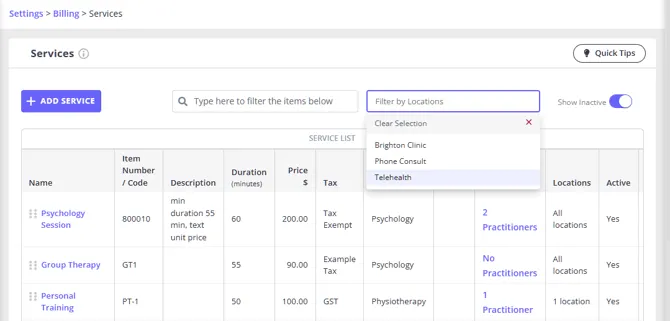
If you need to quickly find a specific service or a group of services, use the provided filters.
- The search bar with the prompt “Type here to filter the items below” specifically checks the text in these three columns in the Service List, so you can look up your services based on their
- Name (e.g., “Psychology Session”)
- Item Number / Code (e.g., “80010”)
- Description (e.g., “min duration 55 min…”)
-
The second available filter allows you to search services by Locations.
-
You can also turn on the Show Inactive switch to see all inactive service templates.
How to change the order of services on services lists in Zanda and the Client Portal
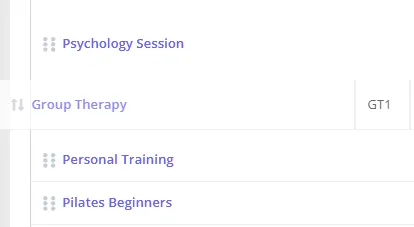
The order of active services in Account Settings > Billing > Services (click your practice name, top right) controls the order users see services in dropdown lists in Zanda and clients see when booking through the Client Portal.
- Click your practice name (top right) > Account Settings > Billing > Services.
- Find the active service you want to move.
- Drag the service into the preferred position in the Services list.
Tip: The Client Portal Availability setting controls which practitioners can offer a service online. The Services list order controls where available services appear to clients during online booking.
How To Edit an Existing Service
You can change the details of the service(s) you’ve added to your Zanda account. Here’s how:
-
Using the main menu sidebar, click your practice name (top right) > Account Settings > Billing > Services.
-
Click the gear icon on the far right side of the service whose details you’d like to change.
-
Click ’ Edit’.
-
The service template form will open and you will be able to edit its fields as needed, then save again. When saving an existing service, Zanda asks whether you want to update all future-dated invoices. Choose Yes, update future invoices to copy the updated service details to active invoices dated after the current date, or decline the prompt to leave those invoice items unchanged.
choosing Yes, update future invoices only updates billing details (name, code, description, tax, price, and cost) on future-dated invoices. It does not change the Duration or time block of appointments that are already booked in the calendar. Appointments keep the duration they were given when they were created, so if you change a service’s Duration, existing bookings are not re-timed. To change the length of an appointment that’s already booked, open it and adjust the Time in the When & Where section, or drag the top or bottom edge of the appointment on the calendar to resize it. Each existing appointment is updated individually — there is currently no bulk way to re-apply a new duration to appointments that are already booked.
Past and current invoice items keep the service details already saved on the invoice, including the Item Number/Code, service name, description, tax, price, and cost. To change one of those invoice records, edit the invoice item directly.
How To Deactivate/Activate a Service
You can deactivate a service in your Zanda account. Here’s how:
- Using the left-hand menu on Zanda, click your practice name (top right) > Account Settings > Billing > Services.
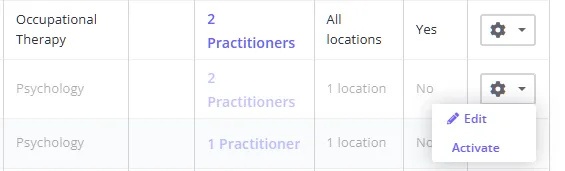
- Click the gear icon on the far right side of the service you’d like to disable and click ’ Deactivate’.
- Click ‘OK’ to confirm.
Once a service is deactivated, it won’t show up in the Services List inside appointments, invoices and the Client Portal.
When necessary, you can reactivate a deactivated service. Here’s how:
- Toggle the ‘Show Inactive’ switch on the top-right corner of the Services page. This will show you a greyed-out list of deactivated services.
- Click on the gear icon on the far right corner of the service you’d like to re-enable.
- Click ’ Activate’.
Frequently Asked Questions
Can I permanently delete a service?
No. Services can only be deactivated, not permanently deleted, since a service can be linked to past appointments and invoices - deactivating it keeps that history intact. See the How To Deactivate/Activate a Service section above for the steps.
Will changing a service item code update invoice history?
Changing a service template updates future-dated invoices only when you choose Yes, update future invoices after saving the service. Past and current invoices keep the Item Number/Code and other service details already saved on each invoice item, so edit the invoice item directly if a historical invoice needs correction.
Why doesn’t my service appear in the dropdown when I add an item to an invoice?
When you click + Add Item on an invoice, the Select a Service, Pack or Product list only shows services that can be used on that invoice. If a service you’ve set up in Account Settings > Billing > Services (click your practice name, top right) isn’t there, check the following:
- Search by the service name, not the item code. The list shows and searches services by their Name. Typing the Item Number/Code (for example a Medicare item number) won’t find the service unless the code is also part of the service’s name. Once you select the service, its code fills in on the invoice line automatically. If your team usually searches by code, you can include the code in the service’s Name.
- Make sure the service is Active. Inactive services don’t appear when you add a new item to an invoice. Turn on Show Inactive in your Services list to find the service, then edit it and switch Active on.
- Check the service’s Location against the invoice’s Location. If a service is limited to one or more Locations, it only appears on invoices whose Location is one of them. This is the Location shown on the invoice itself, which may differ from your usual location, especially on older invoices. Either add the invoice’s Location to the service, or clear the service’s Location so it’s available everywhere. If you change the Location on the invoice instead, save the invoice and open it again before adding the item.
- Reload the invoice if it was already open. The item list is loaded when the invoice opens. If you created the service while the invoice was open, refresh the page.
The invoice date and the service’s Provided By setting don’t hide services. A service you add today can be added to an invoice dated in the past, and every active service can be selected for any practitioner.
For more on limiting services to locations, see How Can I Limit Services and Products By Locations?.
Can I change a service price from a certain date?
For a planned price change, update the service price when you are ready for the new price to apply. Service prices take effect from the saved service details, rather than from a scheduled future start date.
When you save changes to an existing service, Zanda asks whether you want to update existing future-dated invoices with the new service details. Choose to apply the change if those future invoices should use the new price, or decline if already generated invoices should stay unchanged.
Can I see what a service was priced at before a rate change?
Zanda does not keep a price history on a service template. Each service has one Price field, so saving a new price replaces the previous one and the earlier amount is not stored on the service record.
What a service was actually charged at on a past date is kept on the billing records themselves:
- The invoice. Invoice items keep the price that was saved on them at the time, so an invoice from that date shows exactly what was charged. Click View Activity Log on the invoice to see when each item was added and for how much.
- The Sales report. Click Reports, search for Sales, and set the date range to list every service, product, and session pack invoiced in that period, with the item name, quantity, and the total charged. Export to Excel to compare what an item was charged at across different periods.
- Tools > Log File. Set the date range and search the Note field for Saved Service to see when a service template was saved and by which user. The entry records that the service was saved, not the price it changed from or to.
Tip: If you want your previous rates to stay visible, create a new service for each rate period (for example Standard Consultation 2026) and deactivate the older one, rather than editing the price on the existing template. A deactivated service keeps its Price, and you can see it again at any time by turning on Show Inactive in Account Settings > Billing > Services (click your practice name, top right).
Can I duplicate or clone an existing service?
For an amended version of a service, for example with a new date or price, use +Add Service to create a new service and enter the updated details, then deactivate the old one once you’re ready to stop using it. This is the way to base a new service on an existing one, since Zanda doesn’t have a separate clone or duplicate action for services. See the tip above and How to Update Your Rates for the full workflow.
Session pack templates work the same way. Create a new template in Account Settings > Billing > Session Packs (click your practice name, top right) and select your new service on it, since there’s no separate clone or duplicate action for templates either. See Setting Up Session Pack Templates.
I changed a service’s duration, so why didn’t my already-booked appointments update?
A service’s Duration sets the length of new appointments booked with that service attached (including appointments you create internally, not just online bookings). It does not change appointments that are already in the calendar. Choosing Yes, update future invoices when you save the service only updates billing on future-dated invoices — it does not move or resize the appointment time block. To change the length of an appointment that’s already booked, open it and adjust the Time in the When & Where section, or drag the top/bottom edge of the appointment on the calendar. Each existing appointment must be updated individually; there’s no bulk update for appointment durations.
Can I charge different fees for the same service, such as after-hours or clinician-specific fees?
Yes. Create a separate service template for each fee you need, because each service template has one default Price that is used when the service is added to invoices and shown on the Client Portal when payments are enabled.
For example, you might create separate services for a standard appointment, an after-hours appointment, or the same appointment delivered by a clinician with a different fee. Use clear service names so your team can select the right option when booking or invoicing.
If the different fee should only appear for specific online bookings, use Client Portal Availability to choose No Practitioners, Specific Practitioners (select after saving), or All Practitioners for that service. These settings control which practitioners can offer the service through the Client Portal. Internally, your team can still select any active service when creating appointments and invoices.
How do I move some practitioners to a new service or fee from a future date?
Zanda doesn’t schedule service changes for a later date. A service’s name and Price apply to every practitioner who uses it, so when only some practitioners are changing, create a new service for them and move their bookings across. Here’s how:
- Create the new service. Click your practice name (top right) > Account Settings > Billing > Services, click +Add Service, and enter the new name and Price. Keep the original service active, because your other practitioners still use it.
- Update Provided By on both services. Set the new service’s Provided By to the practitioners who are changing, and remove them from the original service’s Provided By. When your team books or invoices for those practitioners, the new service then shows first under Provided Services. See Marking Which Services Each Practitioner Provides.
- Update online bookings, if you use the Client Portal. When clients should start booking the new service, click your practice name (top right) > Account Settings > Schedule > Client Portal > Available Services. Assign the new service to those practitioners and unassign the original service from them. See Setting Up Available Services and Times on Client Portal.
- Switch appointments that are already booked. Don’t choose Yes, update future invoices on the original service. It updates every future-dated invoice that uses that service, for all practitioners. Instead, open each of those practitioners’ appointments on or after the change date, remove the original service, select the new one, and save. The invoice line updates automatically.
- Check each client’s Billing Setup. Adding or editing a service doesn’t change any client’s Preferred Service or Pack. If a client has the original service saved there, Zanda keeps adding it to their new appointments, including appointments with the practitioners who’ve changed. Update it on the client’s profile under Billing > Billing Setup.
Tip: If a client only sees the practitioners who are changing and has the original service as their Preferred Service or Pack, you can switch all their booked appointments at once. Change their Preferred Service or Pack to the new service and choose Yes, Update Future Invoices. This replaces the original service on every invoice for that client dated after today, whichever practitioner the appointment is with. Make the change the day before the new fee starts. See Client Profile in Detail.
Can I stop those practitioners from using the original service? Not inside Zanda. Provided By only changes the order services appear in, and every active service can still be selected for every practitioner. Deactivating a service hides it from everyone, so only deactivate the original once no practitioner uses it. On the Client Portal, unassigning the original service from a practitioner (step 3) does stop clients from booking it with them online.
Can I offer a sliding scale fee based on what a client can afford?
Yes, in one of two ways. For a standard set of reduced rates, such as a concession rate or a few income-based tiers, create a separate service template for each rate, the same way as for after-hours or clinician-specific fees above, then select the matching service when booking or invoicing that client.
For a one-off or individually negotiated rate, edit the Price directly on the invoice item instead: open the invoice, update the price on that line, and save. This changes only that invoice; the service template’s default price is unaffected.
Can one service have a dropdown of sub-options or variants?
No. Each service in Zanda is a single item with its own name, code, duration, and price, so a service can’t contain a dropdown or list of sub-options to choose from.
To offer several versions of the same kind of service, create each version as its own service and group them under a shared Saleable Category. For example, for group support sessions on different topics:
- Click your practice name (top right) > Account Settings > Billing > Saleable Categories, click Add Saleable Categories, name the category (for example Group Support), make it Active, and click Save.
- Click your practice name (top right) > Account Settings > Billing > Services and click +Add Service for each version, for example Group Support - General, Group Support - Anger Management, and Group Support - Weight Management.
- In each service’s Category field, select the category you created, then click Save.
Because each version is its own service, you can give each one its own price, duration, item code, and practitioners. Starting every name with the same word keeps the versions easy to spot in service lists.
If clients book online, they can use the category filter on the Client Portal’s service-selection step to show only the services in that category. A service can belong to only one Saleable Category at a time. See What Are The Saleable Categories For? for more on setting up and using categories.
Can I export all services from Settings > Billing > Services into Excel?
Yes. To export a complete list of your configured services, use the Data Export tool rather than a financial report. Financial reports show services, products, or session packs that have been sold or invoiced in the date range you choose, while Data Export includes the configured services in your account.
- Go to Tools > Data Export.
- Select All Data.
- In the data selection grid, select Services, Products & Packs.
- Click Export.
- When the export is ready, download the ZIP file and open Services and Products.csv in Excel or a similar spreadsheet program.
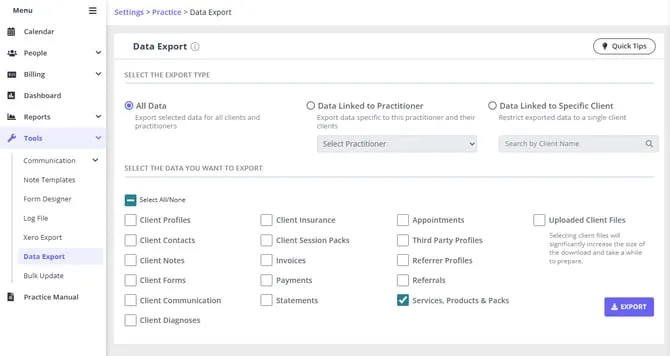
The prepared export is available from the Download List for 72 hours, and the export history is shown there for 14 days.
How do I bill a service by quantity or units?
Create the service with the standard price for one billable unit, then update the Qty field on the invoice line when you invoice the appointment or sale. Zanda multiplies the service price by the quantity on the invoice item, so a service priced per 30-minute unit can be invoiced with Qty 2 when two units were provided.
Use session packs when you need to track a client’s approved sessions, hours, or budget across appointments. Session packs help you monitor how much of an allowance has been used, while the invoice line Qty controls the quantity charged on a specific invoice.
Can I bill for travel or mileage, such as a charge per kilometer?
Yes, using a product priced per kilometer rather than a service. Duration is always recorded in whole minutes and sets the length of new appointments booked with that service, so distance is billed through a product instead.
To charge for distance traveled, set up a product priced for one kilometer and add it to the invoice:
- Click your practice name (top right) > Account Settings > Billing > Products and click +Add Product. See Adding and Editing Products for the full product setup steps.
- Give it a clear name such as Travel - per KM, and set Price to your rate for a single kilometer.
- Set Tax, Category, and Location as needed, turn Active on, then click Save.
- When you invoice the appointment or sale, add the product as a line item and set Qty to the number of kilometers traveled. Zanda multiplies the price by the quantity, so 12 kilometers at $1.20 is billed as $14.40. Qty accepts decimals, so part-kilometers such as 12.5 are fine.
Products have no duration, so a per-kilometer product adds the travel charge to the invoice without changing the length of the appointment.
If you also charge for the time spent traveling, create a separate service (for example Travel Time) with the Duration and Price you charge for it, and add it to the appointment or invoice alongside the per-kilometer product.
The same approach works for any charge measured in something other than time.
- If you bill travel under an NDIS plan, see Managing NDIS Billing (AU-only).
- If you’re billing travel on a DVA claim, don’t set a per-kilometer price, see Billing travel kilometers on a DVA claim in Submitting DVA Claims instead.