
Adding a Business Registration Number to All Invoices
Option 1: Display your registration number top-left under the practitioner’s name on all invoices.
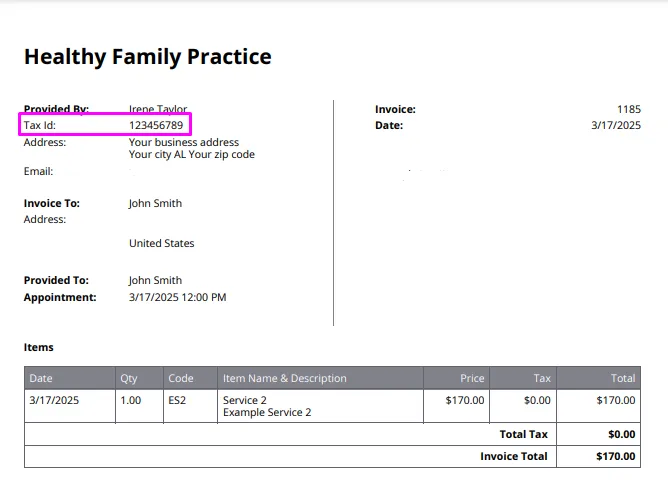
-
Navigate to User Menu > Account Settings > Practice > Business Info.
-
Enter the business registration number (ABN, Tax ID, VAT Number, etc) in the designated field.
-
Save changes.
-
Next, go to User Menu > Account Settings > Billing > Invoices.
-
Set it to show your business contact details at the top left part of invoices.
-
Save changes.
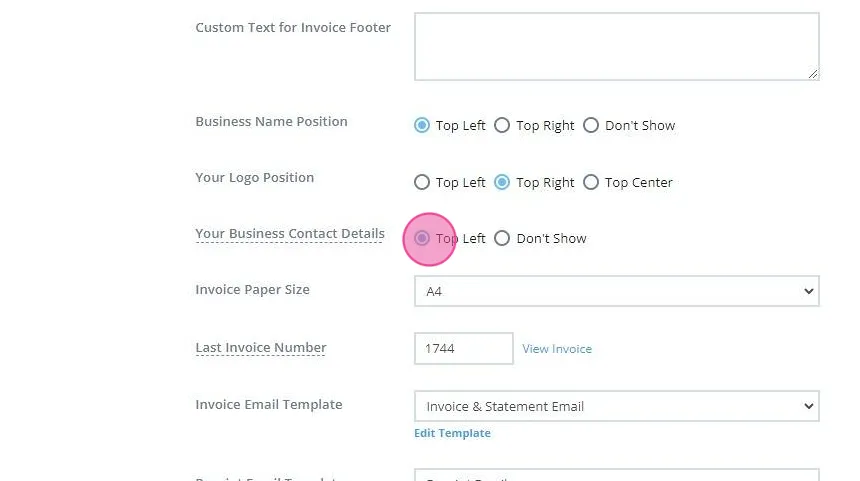
Option 2: Display your registration number top-right of invoices, separate from practitioners.
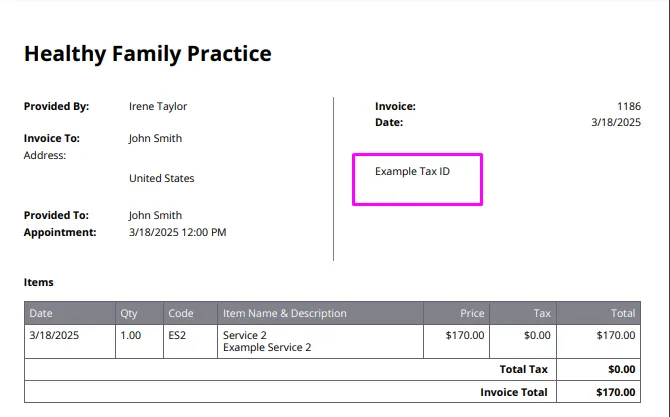
-
Navigate to User Menu > Account Settings > Billing > Invoices.
-
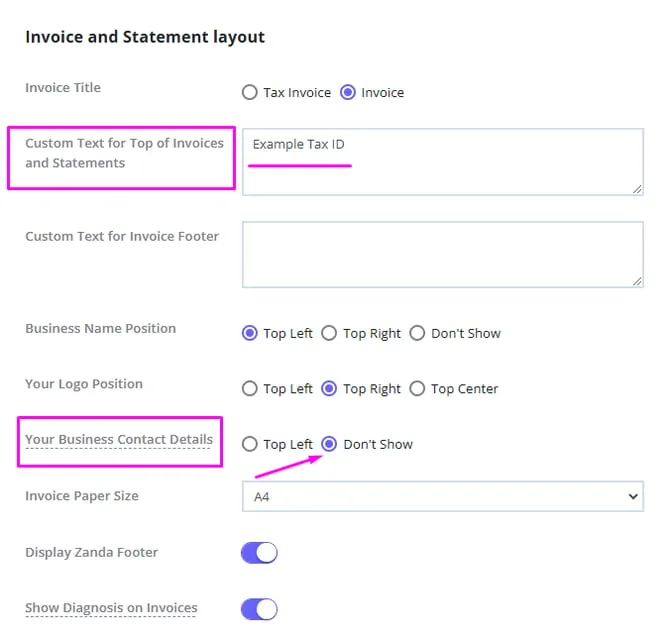
Enter the business registration number in the ’ Custom Text for Top of Invoices and Statements’ box.
-
Set the business contact details to ’ Don’t Show’.
-
Save changes.
Option 3: Display your business registration details on a logo.
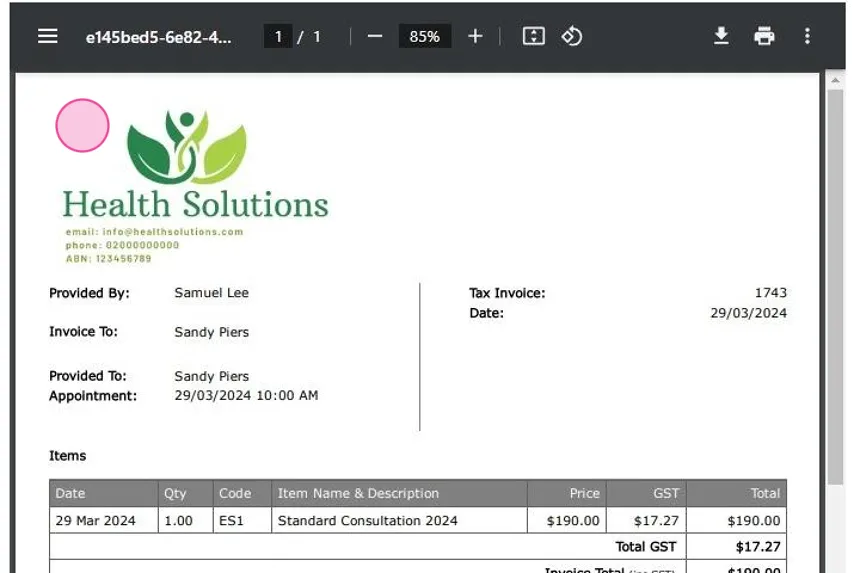
-
Navigate to User Menu > Account Settings > Billing > Invoices
-
Upload your logo image here:
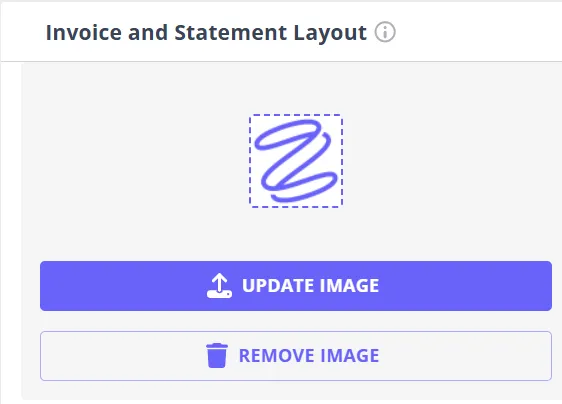
-
Adjust the image dimensions and apply them to the uploaded image.
-
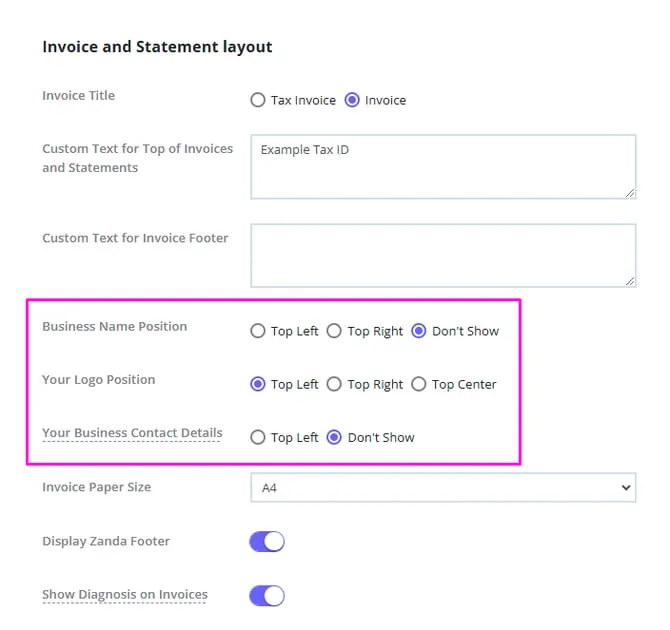
Set the ’ Business Name Position’ to ’ Don’t Show’ if it is included in your logo image.
-
Choose the desired logo position.
-
Set the business contact details to ’ Don’t Show’.
-
Save changes.
Displaying Practitioner Registration Numbers
You may need to display individual practitioners’ registration numbers on invoices issues for the sessions they provided.
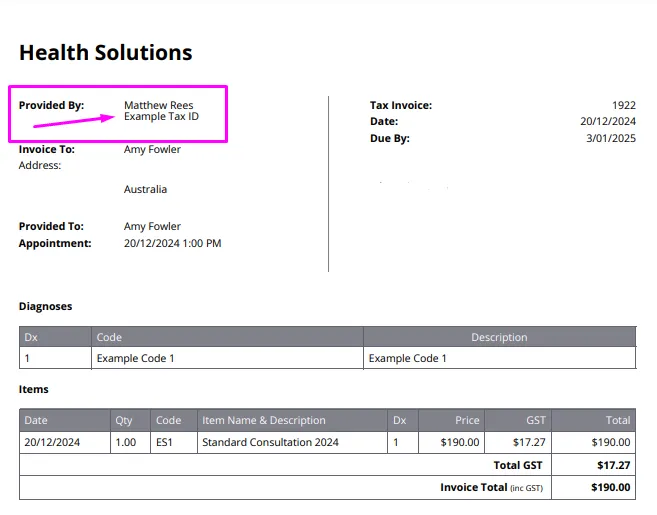
-
Navigate to User Menu > Account Settings > Team > Practitioners.
-
Click on a practitioner name to open their profile.
-
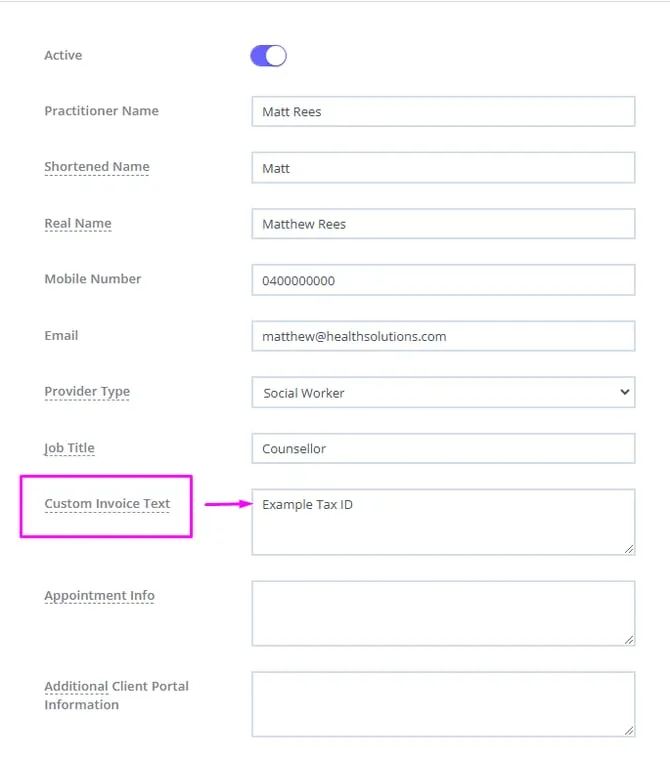
At the Practitioner’s Details page, enter their own business registration number in the ‘Custom Invoice Text’ field.
-
Save changes.
-
Next, navigate to User Menu > Account Settings > Billing > Invoices
-
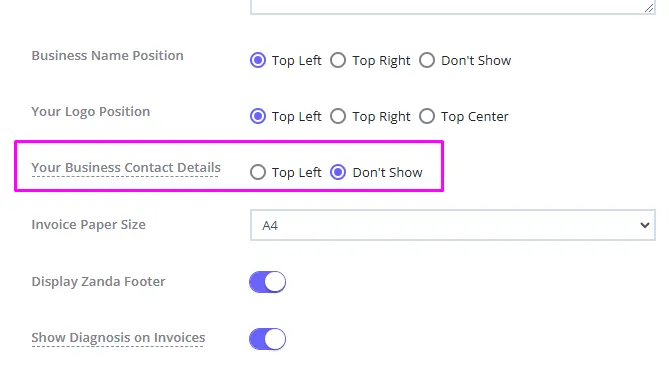
Set ’ Your Business Contact Details’ to ’ Don’t Show’
-
Save changes.
Frequently Asked Questions
I updated my ABN / business registration number. Will invoices I already created show the new number?
Yes. Invoices display your current business details each time they are printed, emailed, or viewed. Once you save the new registration number in User Menu > Account Settings > Practice > Business Info, all invoices—including ones created before the change—show the new number the next time they are printed, emailed, or viewed. You don’t need to edit each invoice, and no bulk update is required.
Invoice PDFs that were already emailed or downloaded before the change are saved copies and keep the old details. To give a client an updated copy, simply re-print or re-email the invoice.