Setting Up Saleable Categories
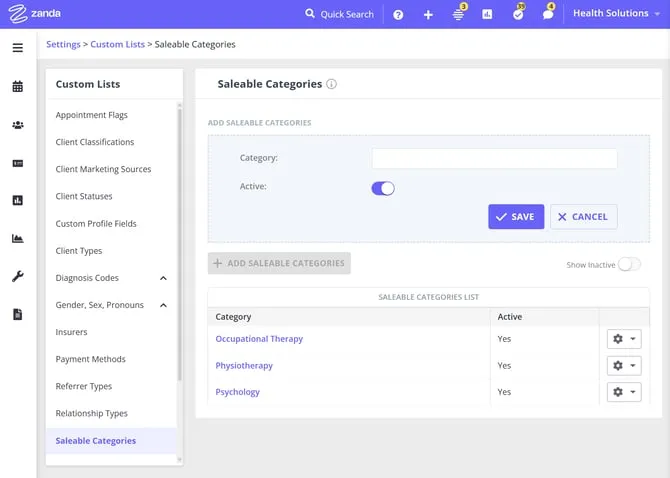
Saleable Categories is a custom feature and you are able to create a list of categories that suit your business needs. To create them:
- Navigate to User Menu > Account Settings > Billing > Saleable Categories and click on Add Saleable Categories
- Name the category, make it Active and click Save.
- Whenever necessary, you are able to edit or deactivate a category.
Applying Saleable Categories to Services, Products, and Session Packs
It is possible to assign the existing Saleable Categories to your Services, Products, and Session Packs. To do so,
- Navigate to User Menu > Account Settings > Services, Products, or Session Packs.
- To update the existing templates, open them and select the Category, save.
- When creating a new template, simply select the Category this saleable item will fall under and save.
Each Service, Product, or Session Pack can carry only one Saleable Category at a time. If you need to reassign it to a different category later, editing the template and selecting a new Category replaces the old one rather than adding to it.
Running Reports on Saleable Categories
There are reports that include data from the saleable categories.
Saleable Categories are a label you define yourself, so they can group results in ways the Practitioner and Location columns can’t. A Practitioner or Location filter only ever isolates results by that one fixed attribute, but a Category can cover several practitioners and locations at once, for example grouping every “Physiotherapy” sale under one label no matter which practitioner delivered it or which location it happened at. This is what makes Categories useful for reporting on a claim type or service line that cuts across your team, such as the NDIS Claim Type use below.
- The sales can be found in the Sales report. Click Reports and search for it. With this report, you will be able to get analytics for payroll, select sales by practitioner, and track the performance of different branches of your business.
- The Australia-based accounts can run the NDIS Bulk Upload report. The NDIS Claim Types for this report as set as Saleable Categories in User Menu > Account Settings > Custom Lists > Saleable Categories.
Hint💡
If you do not see the Category column in the generated reports, please add it via the Choose Columns button under the report. Click on Save Layout to see the Category included the next time you run this report.
Please have a look at this article to learn how to use the Group By The Column report function.
Filtering Services by Saleable Category on Client Portal
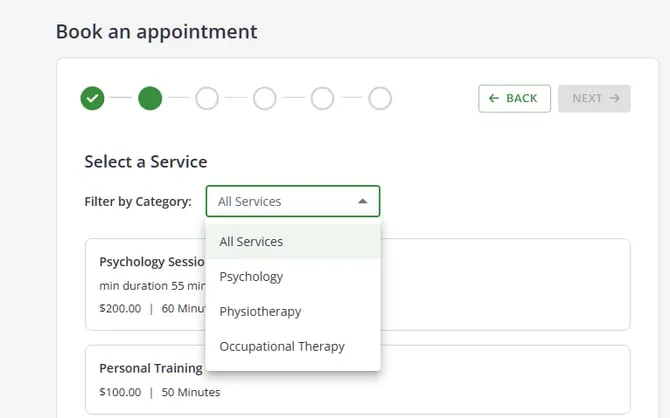
Saleable Categories also help clients narrow the services you offer through the Client Portal. On the service-selection step, clients can use the category filter to refine the service list before choosing a service.
The Client Portal booking flow uses categories as a filter on the service list. It does not add a separate category-selection step before the service-selection step, so clients first see the available services and can then filter that list by category.
The available categories are created in the account, they can be assigned to services in Account Settings > Billing > Services.
In Client Portal the Fileter By Category defaults to ‘All Services’. Clients can click on the filer dropdown and choose another category. Once they choose another category, the system will display the services which have been allocated that category in the account settings. The list is alphabetical.