Provided By and Client Portal Availability
These two settings sit next to each other, open the same window, and use the same All / Some / No Practitioners wording in different settings, so it is worth being clear on what each one does. They are independent: a service can be provided by every practitioner internally and offered to nobody on the Client Portal, or the reverse.
| Setting | What it records | Where you see the effect |
|---|---|---|
| Provided By | Which practitioners regularly provide the service inside Zanda | The order services appear in when your team books an appointment or adds an invoice item |
| Client Portal Availability | Which practitioners offer the service for online bookings | Which services clients can choose when booking through the Client Portal |
Neither setting stops your team selecting a service. Every active service stays available for every practitioner when you book or invoice inside Zanda.
Where You Can Set Provided By
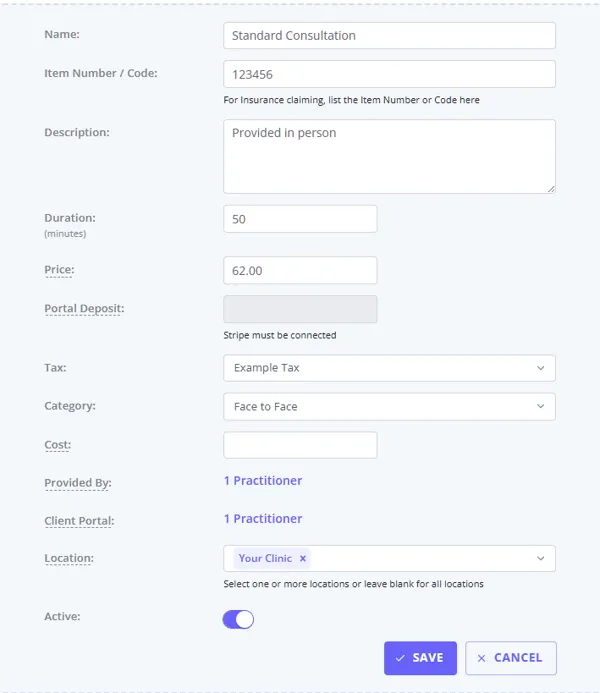
- The service itself. Use the Provided By field when adding or editing a service.
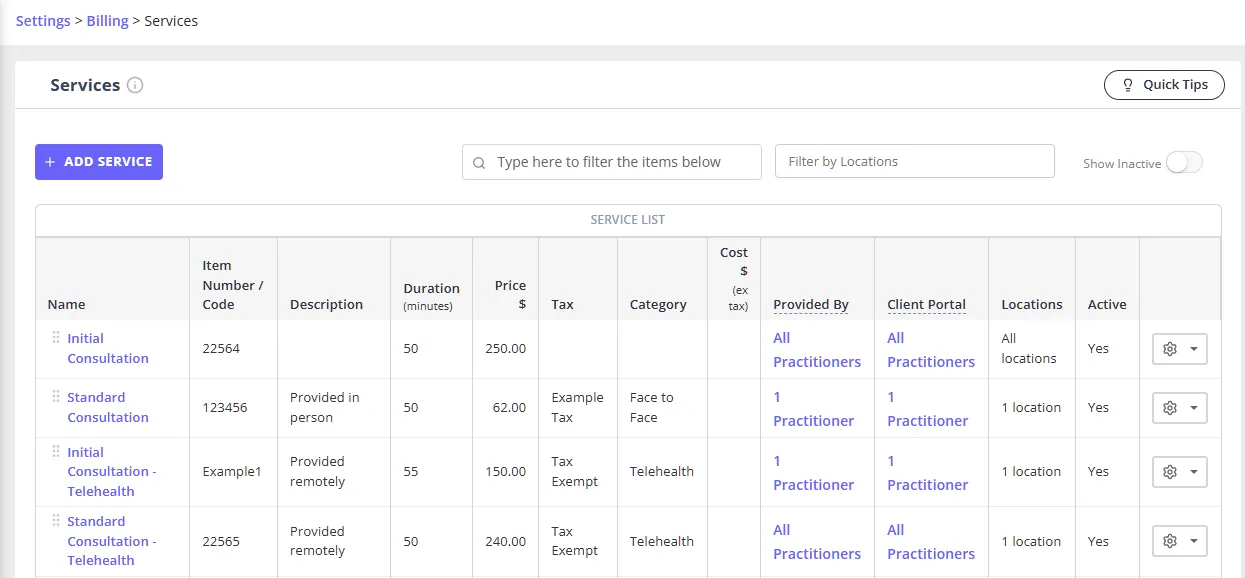
- The Services list. The Provided By column shows a summary for each service, such as All Practitioners, No Practitioners, or 1 Practitioner. Click the value to change it.
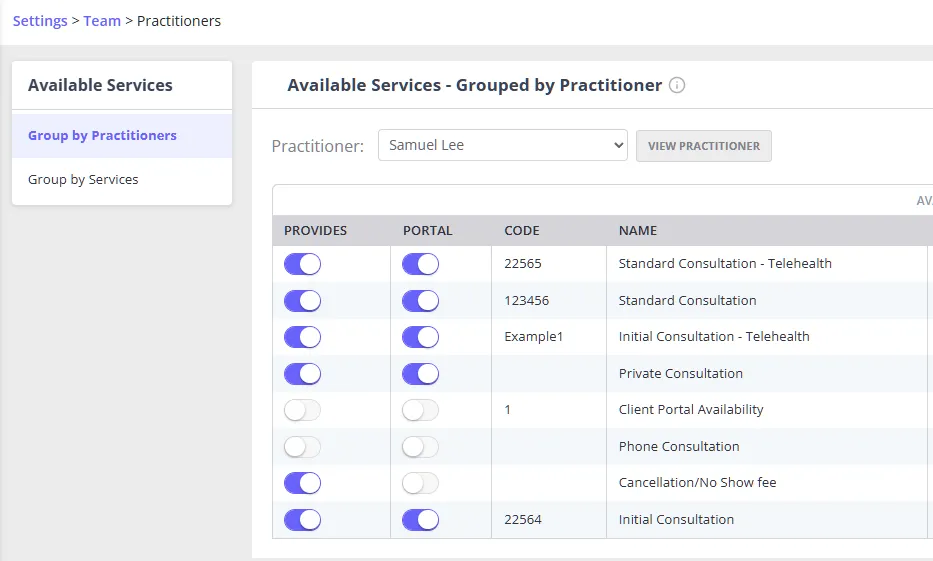
- Available Services grouped by Practitioner in Client Portal settings. Open a service’s availability window to see a Provides switch for each practitioner, alongside available on Portal. Changes save as you make them.
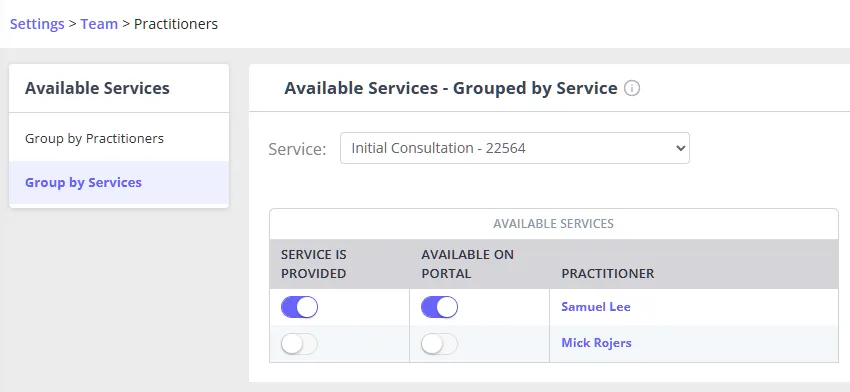
- Available Services grouped by service. Choose a service, then set Service is Provided and Available on Portal for each practitioner. This is the quickest way to review one service across the team.
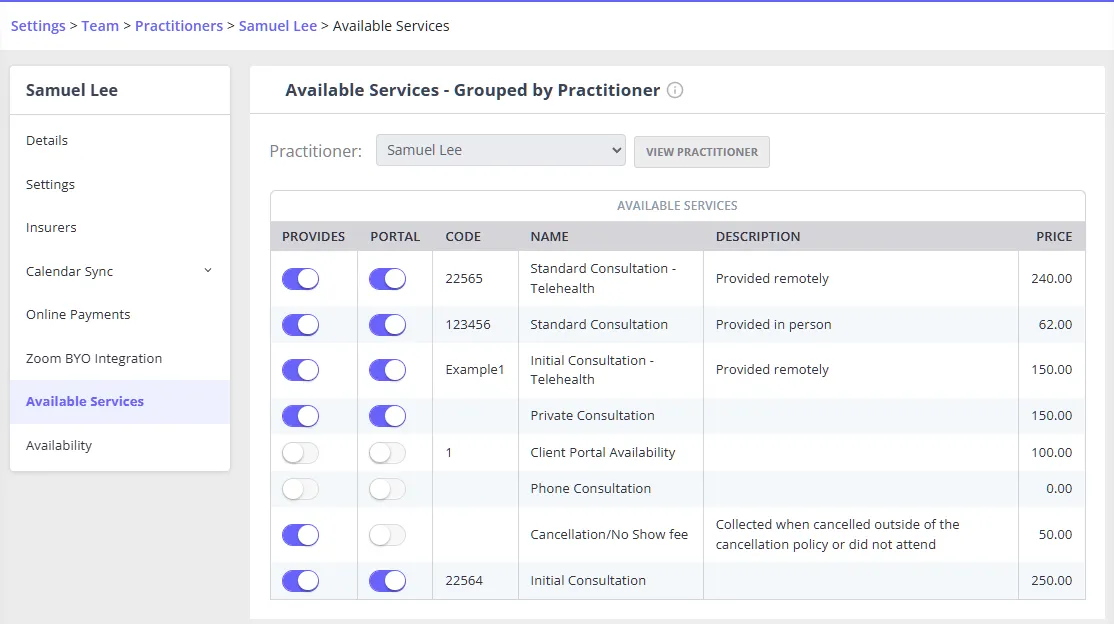
- A practitioner’s profile. The Available Services table has a Provides switch for each service. This is the quickest way to review one practitioner’s whole service mix.
How This Changes Booking and Invoicing
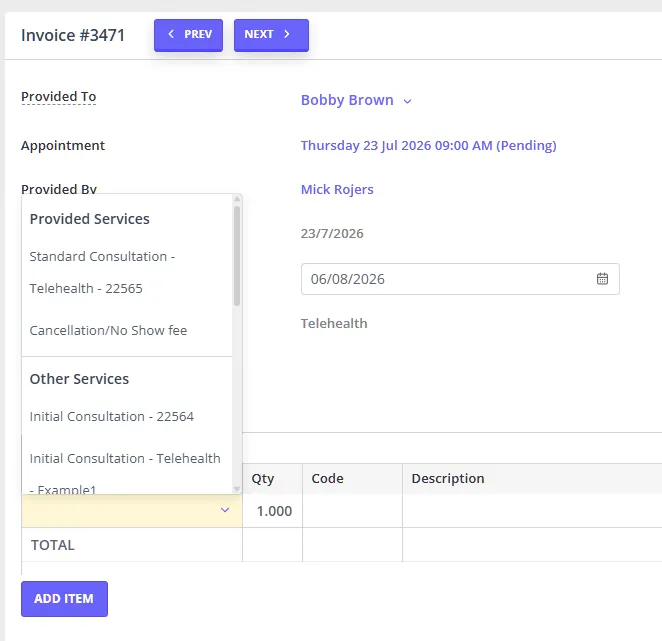
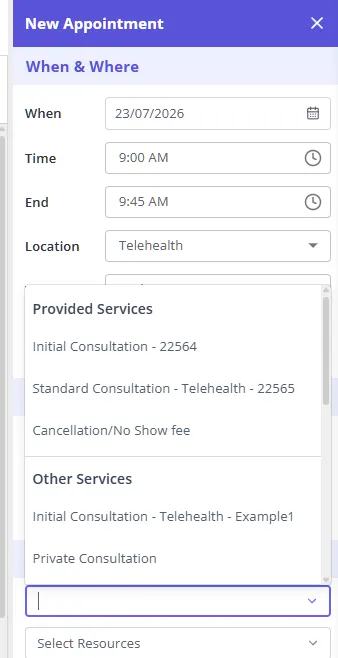
When you select a practitioner on an appointment or an invoice and then open the service list, services are grouped under two headings:
- Provided Services — the services that practitioner provides
- Other Services — everything else, still fully selectable
You will only see these headings when the practitioner has services in both groups. If a practitioner provides every service, or none, the list appears exactly as it always has, with no headings. Because new services start as All Practitioners, a practice that turns this on without changing anything will not see a difference until some services are narrowed to specific practitioners.
Appointment Panel settings:
Edit Invoice settings: