
Invoice layout fields
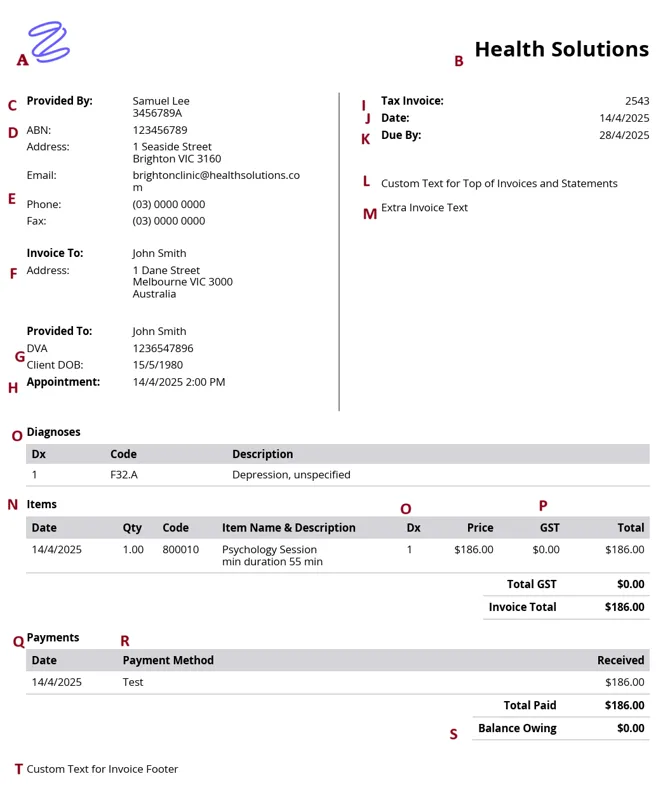
- A - Business Logo - upload it in Account Settings > Billing > Invoices (click the Settings cog, top right)
- B - Business Name - This field can be found by clicking the Settings cog (top right) > Practice > Business Info.
- C - Provided By - Appointment practitioner details, can be updated in Account Settings > Team > Practitioners > Practitioner profile (click the Settings cog, top right). Under the practitioner’s name, this area also shows a line for each insurer on the invoice that has Show on Invoice switched on (the insurer’s Text on Invoice and the practitioner’s provider number) and the practitioner’s Custom Invoice Text.
- D - Practice Tax ID, set up in Account Settings > Practice > Business Info (click the Settings cog, top right)
- E - Business Address and Contact Details: This field can be found by clicking the Settings cog (top right) > Practice > Locations.
- F - Invoice To: appointment Patient/Client Name and home address: Brought from their individual profile.
- G - Provided To - appointment/invoice Patient/Client Insurance Details & Date of Birth: This is entered into the client profile. You can opt to turn this information off on Invoices by clicking the Settings cog (top right) > Team > Practitioners > Select a specific Practitioner > Settings.
- H - Appointment Date and Start Time - details of an appointment linked to this invoice.
- I - Tax Invoice/Invoice - this displays your selected Invoice Title (‘Tax Invoice’ or ‘Invoice’). The number following it is set automatically by the system in chronological order. The invoice number sequence can be reset in Account Settings > Billing > Invoices > Last Invoice Number (click the Settings cog, top right): Enter the invoice number you would like the next invoice to follow.
- J - Invoice Date, the same as the date of the appointment linked to this invoice.
- K - Due Date - this invoice due date, this can be set in Account Settings > Billing > Invoices (click the Settings cog, top right).
- L - Custom Text for Top of Invoices and Statements: This text field can be found by clicking the Settings cog (top right) > Billing > Invoices.
- M - Extra Invoice Text: This text field can be found by clicking the Settings cog (top right) > Practice > Locations and selecting a Location.
- N - Service/Product/Session Pack Name and Usage, Qty, Code, Description and Price: These fields can be found under Account Settings > Billing > Services/Products/Session Packs (click the Settings cog, top right) and by clicking a specific item or creating a new one.
- O - DX - client diagnosis, these are managed in a client Profile > Records > Diagnosis.
- P - Invoice Tax information. This is set up in Account Settings > Billing > Invoices (click the Settings cog, top right).
- Q - Payments added to this invoice.
- R - Type of payment method used to collect this payment.
- S - Balance Owing - the amount still unpaid on this invoice: the invoice total minus the payments applied to it. You can review all of a client’s invoices in the client profile > Billing > Invoices.
- T - Custom Text for Invoice Footer: This text field can be found by clicking the Settings cog (top right) > Billing > Invoices.
Notes
- Invoice number is set by the system in chronological order. You can reset the last invoice number to a larger number, in Account Settings > Billing > Invoices (click the Settings cog, top right).
- Invoice Date is the same as the appointment date and cannot be manually changed. Invoice becomes recognized as unpaid by the system immediately after the appointment time passes.
- It is possible to set up a custom default invoice due date and a due date specific to a single invoice. Look here for more details.
- If quantity (time) is required on an invoice for third parties, it is advised to add the duration of the service in the service name or description in Account Settings > Billing > Services (click the Settings cog, top right). (e.g., Initial Consultation - 60 Minutes)
Frequently Asked Questions
Why does Invoice To or Provided To show a number instead of a client name?
When an invoice is de-identified, Zanda shows the client number instead of the client’s name in client-related invoice fields. Check whether the invoice has been de-identified, then turn de-identification off if the client name should appear on the invoice.
Why is text printing under the practitioner’s name on my invoice?
Text under the practitioner’s name in Provided By most often comes from an insurer’s Text on Invoice setting, not from Custom Invoice Text. For each insurer listed in the invoice’s Insurance section, Zanda prints a line under the practitioner’s name made up of that insurer’s Text on Invoice followed by the practitioner’s provider number for that insurer. If the practitioner has no provider number saved for that insurer at all, the line still prints, showing the insurer’s text on its own.
Provided By takes its text from these places, in the order it prints them:
- The insurer’s Text on Invoice. Click the Settings cog (top right) > Payments > Insurers and check Text on Invoice for each insurer listed on the invoice.
- The practitioner’s provider number for that insurer. Click the Settings cog (top right) > Team > Practitioners > [Practitioner Name] > Insurers and check the Provider Number.
- The practitioner’s Custom Invoice Text. Click the Settings cog (top right) > Team > Practitioners > [Practitioner Name] > Details and check Custom Invoice Text. This text prints on every invoice for that practitioner.
To change or remove the insurer’s line, choose the option that fits:
- Change the wording for every invoice: edit or clear Text on Invoice on the insurer and save.
- Hide the whole line for every invoice: switch Show on Invoice off on the insurer and save. This hides both the insurer’s text and the provider number.
- Remove it from one invoice only: open the invoice, click the trash icon (Remove Insurance) next to the insurer in the Insurance section, confirm, and click Save Invoice.
Zanda reads these settings each time it produces an invoice, so the change also applies to invoices you’ve already created the next time you print, download, or email them. A PDF that has already been emailed or downloaded is a saved copy and keeps the old text.
If the text still prints after you switch Show on Invoice off, check which insurers are listed in the invoice’s Insurance section. The line belongs to an insurer listed there, which may be a different insurer with similar Text on Invoice wording. If none of the invoice’s insurers uses that wording, the text is coming from the practitioner’s Custom Invoice Text. See Insurers and Provider Numbers for more on insurer settings.
Why does my provider number show twice in Provided By?
The Provided By area can display provider number details from insurer settings and extra text from the practitioner’s invoice settings. If the same provider number has been entered in more than one place, it can appear more than once on the invoice. Check these areas and keep the number in the one place that matches your billing setup:
- Click the Settings cog (top right) > Payments > Insurers and review the insurer’s Show on Invoice and Text on Invoice settings.
- Click the Settings cog (top right) > Team > Practitioners > [Practitioner Name] > Insurers and check the Provider Number and Payee Provider Number fields.
- Click the Settings cog (top right) > Team > Practitioners > [Practitioner Name] > Details and check Custom Invoice Text.
- Click the Settings cog (top right) > Billing > Invoices and check Custom Text for Top of Invoices and Statements and Custom Text for Invoice Footer.
- Click the Settings cog (top right) > Practice > Locations, open the location, and check Extra Invoice Text.
- Open the client’s profile and go to Billing > Billing Setup to check Extra Invoice Info.
If you have cleared one of these fields and the wording still prints, see Customising Your Invoices/Receipts for how to tell which field each block of invoice text comes from.
Can I show the appointment date without the appointment time in the invoice details?
No. The Appointment field in the invoice details shows the linked appointment date and start time together. The Invoice and Statement Layout settings do not include a control to hide the appointment time from this field. If you only need the date, use the Date column in the Items table, which shows the invoice item date without the appointment time.
Can I hide the “X of Y sessions used” line on invoices?
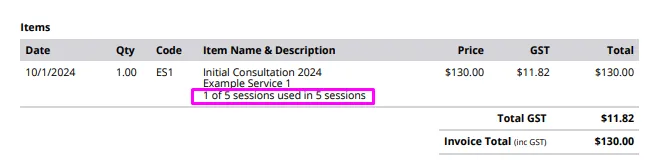
Yes. Turn off the session pack’s Show on invoice setting, on the pack template under Account Settings > Billing > Session Packs (click the Settings cog, top right), or on the individual pack in the client’s Billing > Session Packs, and this usage line stops printing on invoices, statements, and superbills.
The setting only changes what prints or downloads as a PDF. The usage line still shows inside Zanda itself, on the invoice editor and the client’s Session Packs list, so your own team can still see the pack’s remaining balance. The change takes effect immediately, including on invoices you’ve already sent: reprinting or redownloading one after turning the setting off no longer shows the line. See Using Session Packs for more detail.
Do appointment or session notes appear on invoices?
No. Session and appointment notes never appear in invoice content. Each invoice line item’s description starts as a copy of the service’s own Description field, set in Account Settings > Billing > Services (click the Settings cog, top right), but a practitioner can also edit that description directly on the invoice item itself, independent of the service. See Adding and Editing Services for how to edit an invoice item’s description directly.
If wording you did not expect is turning up on an invoice, check both places: the service’s Description field, and the description saved on that invoice item itself. Editing a service’s Description and choosing Yes, update future invoices overwrites the description on every future-dated invoice item still using that service—including ones a practitioner already edited directly—which can look like new text has appeared out of nowhere.