
Note: For Australian users, Medicare is considered as an insurance policy.
Initial Setup
The three initial steps required to set up insurers and their provider numbers are: (You’ll only have to do these once.)
-
Set up locations.
-
Click the Settings cog (top right) > Practice > Locations.
-
Click Add Location.
-
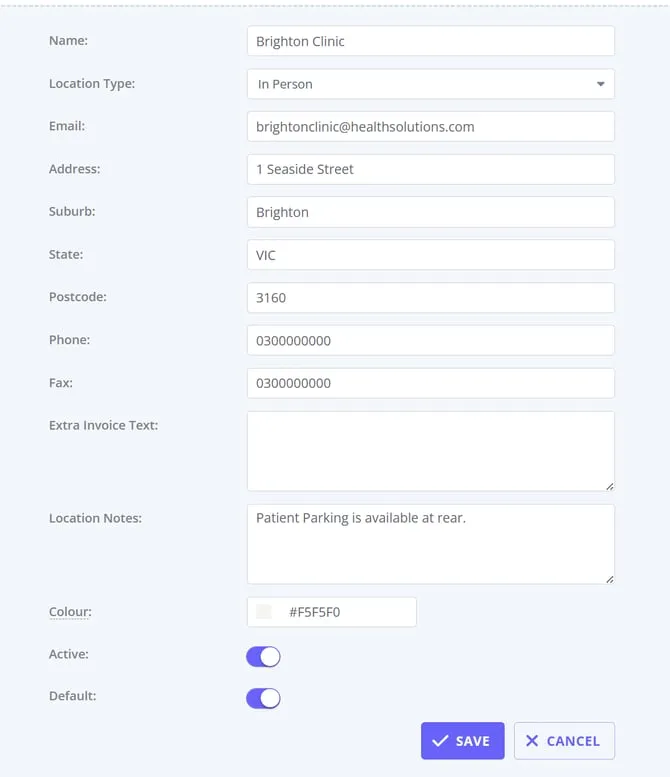
Enter the details of your new location in the form. Save the changes.
-
Adding Insurers.
-
Click the Settings cog (top right) > Payments > Insurers
-
Click Add insurer. The form opens in a panel on the right.
-
For private insurers, add the Insurer name (for example, BUPA) and set Insurer type to Standard.
-
Important: For integrated insurers, such as Medicare (AUS), DVA (AUS) and NDIS (AUS), enter their Insurer Name, and select the relative insurer type. This is important for the seamless work of the Medicare (AUS) and DVA (AUS) integration and the NDIS report.
-
Turn on Show on invoice if you would like the insurer information to be visible on invoices
-
In the Text on invoice field, enter the insurer information you want to display on your invoices (e.g. BUPA Provider Number:)
-
Click Save
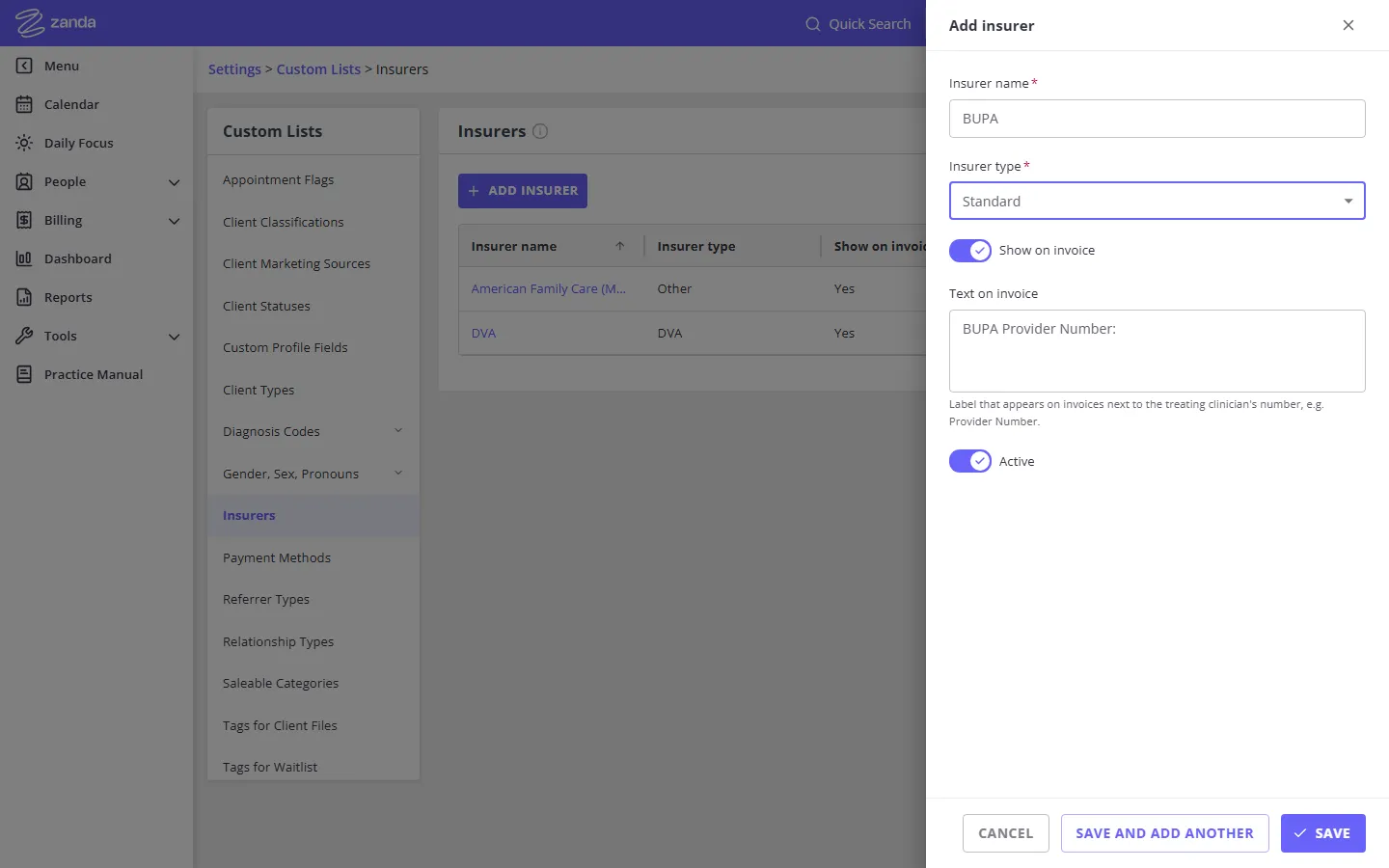
Important: Show on invoice and Text on invoice work together. The text you enter in Text on invoice prints under the practitioner’s name in the invoice’s Provided By section, followed by the practitioner’s provider number for that insurer, and only when Show on invoice is switched on for that insurer. If Show on invoice is off, Zanda leaves that whole line (the text and the provider number) off the invoice, along with the insurer’s name and the client’s insurance number in Provided To. For Medicare, the client’s Medicare Number still shows in Provided To. The text itself stays saved. To show it again, turn on Show on invoice and re-save the insurer.
Zanda doesn’t copy this text onto an invoice when the invoice is created; it reads the insurer’s current settings each time it produces the invoice. A change to either setting therefore applies to every invoice listing that insurer, including invoices you’ve already created, the next time you print, download, or email them. A PDF that has already been emailed or downloaded is a saved copy and doesn’t change.
If text still prints under the practitioner’s name after you switch Show on invoice off, see Quick Reference Guide to Invoice Fields to find where it’s coming from.
After you save the insurer, it becomes available when you add insurance details to a client’s profile and when you add provider numbers to a practitioner’s profile.
-
Adding Provider Number for Specific Practitioners.
-
Click the Settings cog (top right) > Team > Practitioners
-
Select the practitioner to which you’d like to add an insurer and their Provider Number.
-
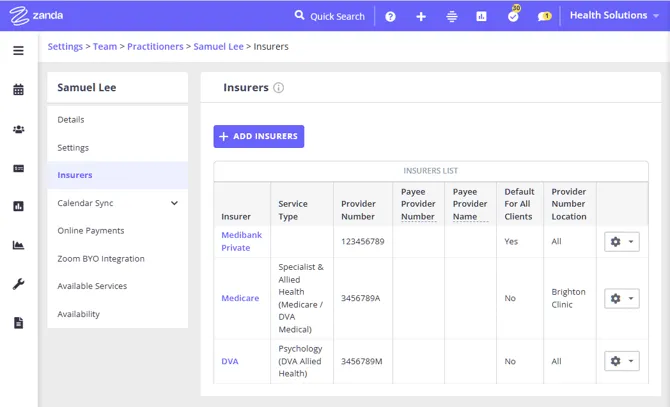
Go to Insurers. Select an existing insurer from the list or click Add Insurer to create a new insurer.
-
Enter the provider number and select whether this is for a specific location or for ‘All’ locations.
-
Switch on Default For All Clients if you want this insurer applied automatically as the default insurer for this practitioner’s clients.
-
Click Save.
Important: Default For All Clients applies to existing clients as well as new ones. Whenever you save a practitioner’s insurer with Default For All Clients switched on, Zanda adds that insurer to every active client whose primary practitioner is that practitioner and marks it as their default, replacing any default insurer those clients already had (for example NDIS or a private health fund). This happens on every save while the setting is on, not only the first time you switch it on, so routine changes such as updating the provider number or location re-apply it too.
When you save, Zanda asks whether you’d like to add this insurer as the default insurer for all clients of that practitioner. Choosing No only skips this when you’re adding the insurer for the first time. When you edit an insurer that’s already saved, Zanda applies it to all of that practitioner’s clients whichever option you choose. To edit an existing insurer without changing your clients’ default insurers, switch Default For All Clients off before you save. Keep in mind that this also stops the insurer being added automatically to that practitioner’s new clients.
Switching the setting off later does not undo a change that has already been applied: the insurer stays on those client profiles until you remove it from each client. To reverse it, follow Removing a default insurer from your clients below.
Note 💡 Default For All Clients is a different setting from Default for New Clients, which sets your practice’s default primary practitioner.
Applying An Insurer to The Client
You can view, add or edit the client’s selected insurer. Here’s how:
-
Go to the client’s profile page by searching for them in the search bar on top of your Zanda dashboard.
-
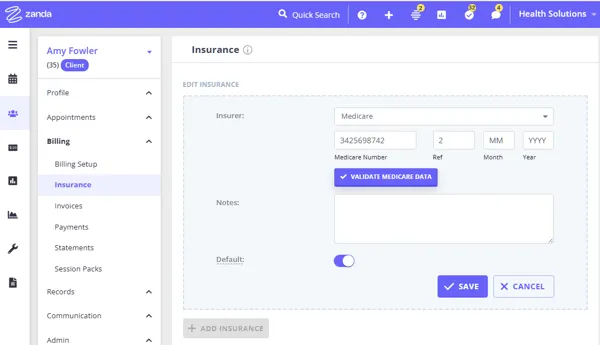
Navigate to Billing > Insurance.
-
Choose an existing insurer from the list or add a new insurer by clicking Add Insurance. 4. Enter the insurance details and toggle the switch labelled Default on.
-
Click Save.
💡 Notes:
- If the client is linked to Parchment for e-prescribing (AU-only), saving a Medicare or DVA insurance record here also asks whether to update it as the default insurance in Parchment. See Setting Up e-Prescribing With Parchment Integration (AU-only) for details.
- You can use Zanda online forms with a linked profile field ‘Insurance Details’ to automatically collect client insurance details.
Change An Insurer From a Clients Invoice
You change the insurer in a client’s invoice to another insurer. Here’s how:
-
Go to the client’s profile page.
-
Navigate to Billing > Invoices.
-
Click on the invoice whose insurer you’d like to change.
OR
-
In your calendar, click on the client appointment whose invoice’s insurer you want to change.
-
In the Appointment Settings Panel, scroll down until you see the Invoice section. Click on the Edit Invoice icon.
OR
-
Use the Quick Search bar to look up an invoice
-
Once you have the invoice open, chose an insurer from the drop-down list next to the field labelled Insurance.
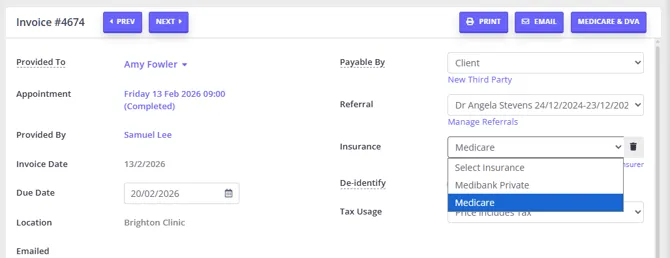
Tip: If you cannot find the appropriate insurer, click Manage Insurance and follow the instructions listed in the Step 2: Adding Insurers section
Can I show more than one insurer’s provider number on the same invoice?
No. An invoice can only be linked to one insurer at a time, so it only ever prints that one insurer’s provider number under Provided By. There’s no way to list several insurers’ provider numbers together on a single invoice.
If a client is covered by more than one insurer and wants to choose which one to submit for their rebate, change the invoice’s insurer to whichever one they need (see Change An Insurer From a Clients Invoice above), then save and reprint the invoice for that insurer.
Update Provider Number
To update your Provider Number:
-
Go into Account Settings > Team > Practitioners (click the Settings cog, top right).
-
Click on the name of the practitioner you need to update.
-
Click on Insurers and then click the Insurer you need to update.
-
Input the correct Provider Number.
-
Click Save
Note: If Default For All Clients is switched on for this insurer, saving the new provider number also makes this insurer the default again for all of the practitioner’s active clients, replacing any other default insurer they had, even if you choose No when asked. To update the provider number without changing your clients’ defaults, switch Default For All Clients off before you click Save.
Removing insurers your practice no longer uses
If your practice no longer bills insurers, you can deactivate insurers in Account Settings > Payments > Insurers (click the Settings cog, top right) and remove insurance records from individual client profiles. Deactivating a practice-level insurer keeps your historical records intact while removing that insurer from active insurer lists. Zanda keeps at least one insurer active in the custom list, so leave a placeholder or the least-used insurer active if the page prevents the final insurer from being deactivated.
Note 💡 Deactivating an insurer removes it from the lists you pick from when adding insurance to a client or creating an invoice. It does not clear that insurer from clients who already have it set as their Default, and those clients’ new invoices will still default to it. To stop that, clear the insurer on each client as described in Removing a default insurer from your clients below.
To stop an insurer from being used for a specific client, open the client profile, go to Billing > Insurance, and use the delete or remove action on the client’s insurance record. Removed client insurance records are no longer active and are not included when Zanda selects default insurers for new invoices.
Removing a default insurer from your clients
Default insurers are removed one client at a time: there is no bulk way to remove or clear a default insurer across client profiles. The Bulk Update tool has no insurer field, so it cannot add or clear an insurer for a group of clients, and no other tool clears a default insurer in bulk.
If the insurer was applied to your clients by the Default For All Clients setting on a practitioner’s provider number, work through these steps:
- Stop it being applied to new clients. Click the Settings cog (top right) > Team > Practitioners, open the practitioner, go to Insurers, open the insurer and switch Default For All Clients off. This stops the insurer being added to new clients. It does not remove the insurer from clients who already have it.
- Find the clients who have it. Run a data export and open the Client Insurance.csv file. It lists each client, the insurer recorded against them, and whether that insurer is set as their default, so you can build the list of clients you need to update. See Exporting Your Data.
- Clear it on each client. Open the client’s profile, go to Billing > Insurance, and either switch the Default toggle off on the insurance row to stop that insurer being selected automatically on new invoices, or use the delete or remove action on the row to remove the insurance record entirely.
Existing invoices are not changed by any of these steps. To change the insurer on an invoice that has already been created, follow the steps in Change An Insurer From a Clients Invoice above.
Frequently Asked Questions
Why has every client’s default insurer suddenly changed to Medicare?
This is almost always caused by the Default For All Clients setting on a practitioner’s insurer. While that setting is on, every time someone saves that insurer in Account Settings > Team > Practitioners > [practitioner] > Insurers (click the Settings cog, top right), for example to update a provider number, Zanda sets that insurer as the default for every active client whose primary practitioner is that practitioner. It replaces any other default they had, such as NDIS. This happens even if No is chosen when Zanda asks about adding it to all clients. Only that practitioner’s clients are changed, but if all your clients share the same primary practitioner it affects your whole client list.
Existing invoices aren’t changed. New invoices for those clients will pick the new default insurer automatically.
To fix it:
- Switch Default For All Clients off on that practitioner’s insurer and save, so it isn’t applied again.
- Follow Removing a default insurer from your clients above to find the affected clients and clear the insurer on each one.
- For clients who should default to a different insurer, open their profile, go to Billing > Insurance, and switch Default on for the correct insurer.
Default insurers can only be changed one client at a time. There’s no bulk tool to undo this.
Which provider number appears on an invoice when a practitioner has different provider numbers for each location?
Zanda uses the invoice’s location context to choose the provider number. If the invoice is linked to an appointment, Zanda uses the appointment location. This means the provider number can change when the appointment’s Where field changes to a different location.
If the invoice is not linked to an appointment, Zanda uses the location selected on the invoice. When there is no matching location-specific provider number, Zanda can use the provider number set for All locations.
Do I need to add Item Numbers when I add an insurer to a client’s profile?
No. Item Numbers (also called service or billing codes) aren’t part of insurer or client insurance setup at all, and there’s nothing to enter here for them.
Instead, you enter the Item Number/Code once on each service, under Account Settings > Billing > Services (click the Settings cog, top right). See Adding and Editing Services for how to set it. Because the code lives on the service rather than on the insurer, it applies automatically to any invoice that uses that service, no matter which insurer or health fund is billing the client, so you don’t need to repeat it for each insurer you add.
This is also unrelated to an appointment’s type (Personal, Client, or Group Appointment). Appointment type only describes what kind of calendar booking it is and has no connection to Item Numbers or billing codes.
Why won’t my invoice save, with an error saying an insurer cannot be added more than once?
Each insurer can only be listed once in an invoice’s Insurance section. If the same insurer appears there twice, for example Bupa listed on two rows, Zanda won’t save any change to that invoice and shows the error An insurer cannot be added to an invoice more than once. This applies to every change, including ones that have nothing to do with insurance, such as adding another line under Services or editing a description. It most often happens on older invoices that already had the insurer added twice.
To fix it:
- Open the invoice.
- In the Insurance section, find the insurer that’s listed more than once.
- Click the bin icon (Remove Insurance) next to one of the duplicate rows, and click Yes to confirm.
- Make your other changes, then click Save Invoice.
The remaining row keeps the insurer on the invoice, so nothing else changes.
Tip: Adding the same insurer to an invoice again doesn’t record a new authorisation number, because the invoice only stores which insurer it’s linked to. To show an authorisation number on a client’s invoices, add it to the client’s Extra Invoice Info field under Client Profile > Billing > Billing Setup, and update it there when the insurer issues a new one. See Invoicing Private Health Insurance Companies.