
Connecting a Zanda Calendar to Your Outlook Calendar
- In Zanda, click your practice name (top right) > Practitioner Profile.
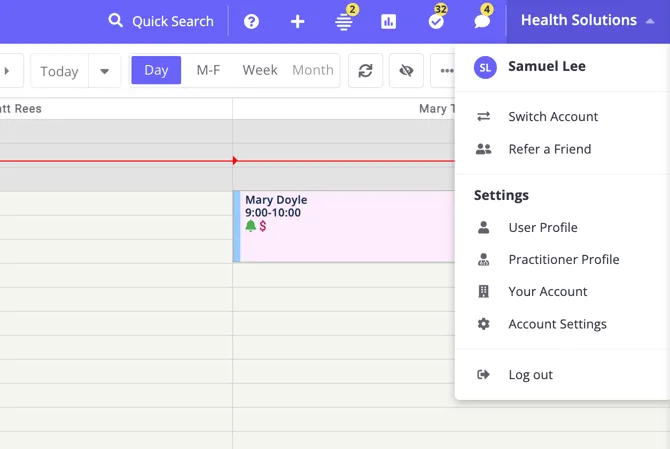
- Alternatively, if you do not see the option to select the Practitioner Profile in that menu, you can click the Settings cog (top right) > Team > Practitioners and select your practitioner profile.
- If none of these options are available to you, please reach out to your account administrator or practice manager for assistance.
- Once you opened your practitioner profile menu navigate to ‘Calendar Sync’ > Select ‘Outlook Calendar’, and click the ‘Connect to Outlook’ button. Follow the prompts to complete the connection.
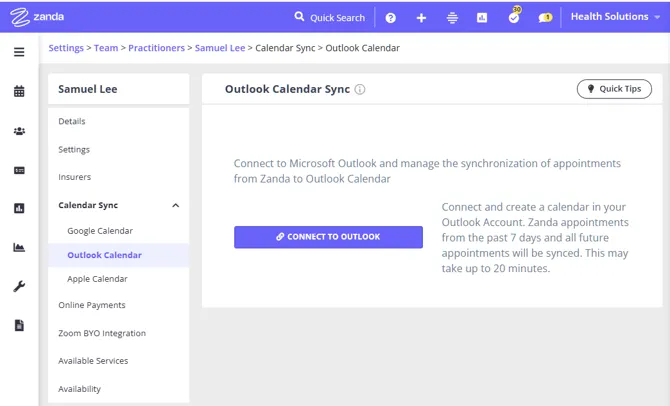
- Once your Zanda and Outlook calendars are linked, you will be automatically returned to your Zanda practitioner profile settings page.
Frequently Asked Questions
Q: What happens to synced appointments if we change our business time zone?
A: When the Time Zone in Settings > Practice > Business Info is changed and saved, Zanda sends synced appointments from the past 7 days and all future appointments to Outlook again with the new time zone. They then show at the same times as in Zanda. Existing events are updated, so no duplicates are created. Appointments older than 7 days are not changed.
Q: Can multiple Zanda calendars be synced to the same Outlook account?
A: Yes, it is possible. Just repeat the steps to connect each practitioner’s Zanda calendar, signing in to the same Outlook account each time. Each practitioner gets their own Zanda calendar in that account, and they are all listed under My calendars in Outlook.
Can I sync Zanda to an existing Outlook calendar instead of a new one?
Zanda syncs to a calendar of its own, so you can’t choose one of your existing Outlook calendars. When you click Connect to Outlook, Zanda creates a new calendar in the Outlook account you sign in with, named after the practitioner followed by Zanda. Zanda appointments are never added to your main Outlook calendar or any other calendar you already have.
If the Outlook account already has a calendar with that name (for example, from an earlier connection), Zanda creates a new one with 2 added to the end of the name. If you later click Create Outlook Calendar and a calendar with that name already exists, Zanda asks whether to Use Existing or create a New Calendar. Use Existing reconnects to that earlier Zanda calendar. It can’t link to any of your other Outlook calendars.
You can still see everything in one place. In Outlook, tick both your existing calendar and the Zanda calendar under My calendars. Depending on your version of Outlook, the ticked calendars show side by side or combined in one view, and you can switch between the two in Outlook’s calendar view settings.
Seeing the calendars together does not block time in Zanda. The sync is one way, from Zanda to Outlook, so events in your other Outlook calendars won’t stop clients booking that time online. To keep that time free, add a Personal Appointment in Zanda. It syncs out to your Zanda calendar in Outlook.
Q: Can each practitioner sync their own Zanda calendar to a different Outlook Calendar?
A: Yes, this is possible to achieve. Each practitioner will need to sign to their own Outlook calendar when they connect their Zanda calendars to Outlook.
Q: Can I sync my Zanda account with my Apple Calendar?
A: Yes, you can show your Zanda appointments in Apple Calendar by subscribing to your Zanda calendar feed. In your practitioner profile, go to Calendar Sync > Apple Calendar, turn on Enable Apple iCal feed, click GET MY LINK, then add the link to Apple Calendar on your iPhone, iPad, or Mac. The feed is one-way and read-only: appointments appear in Apple Calendar when it next refreshes (often every few hours), and you make any changes in Zanda. See Connecting to Apple Calendar.
If you already sync with Outlook Calendar and want your Outlook events in Apple Calendar too, you can also sync your Apple Calendar and Outlook Calendar.
Q: Can I sync my Zanda account with a licensed business Microsoft account without the Outlook email address?
A: For a seamless integration, you would need a cloud-based Microsoft account with an associated email address (e.g., Office 365). However, as a potential workaround,
- You could explore the possibility of using the Google Calendar Sync Option and then setting up a sync from Google Calendar to your Outlook.
- Alternatively, you could connect your Zanda account to your custom SMTP server, as described here: Using a Custom Mail Server
Q: Can Zanda import appointments from Outlook, or from other calendars, back into Zanda?
A: The Outlook sync is one-way: it keeps your Outlook calendar up to date with your Zanda appointments by sending appointments from Zanda out to Outlook. Appointments created directly in Outlook, or in other calendars connected to your Outlook account, stay in Outlook. To have an appointment appear in both places, add it in Zanda and it will sync out to Outlook.
If you need a limited two-way option, Google Calendar Sync can bring new events from the Zanda-linked Google calendar back into Zanda using the Get Changes from Google Calendar option. Events from other calendars need to be imported into the Zanda-linked Google calendar first.
Troubleshooting Connection Issues
If your recent appointment updates from your Zanda calendar are not appearing in your Outlook calendar, please follow these troubleshooting steps:
-
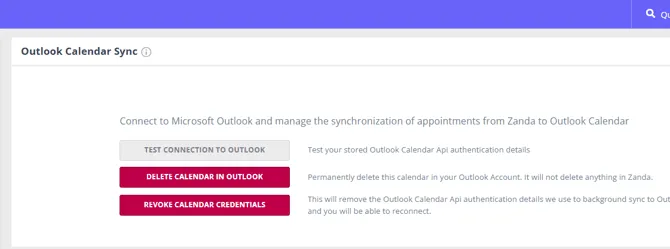
Test connection to Outlook in your Zanda practitioner profile > Calendar Sync > Outlook Calendar. Click the ‘Test Connection to Outlook Button’ to confirm the connection is valid.
-
Try re-connecting your Zanda and Outlook calendars.
- In your Zanda practitioner profile > Calendar Sync > Outlook Calendar click the ‘Revoke Calendar Credentials’ button. This will remove the Outlook Calendar Api authentication details we use to background sync to Outlook. It will not delete the Calendar in Outlook and you will be able to reconnect.
- Then, click ‘Connect to Outlook’ button to re-connect the calendars.
-
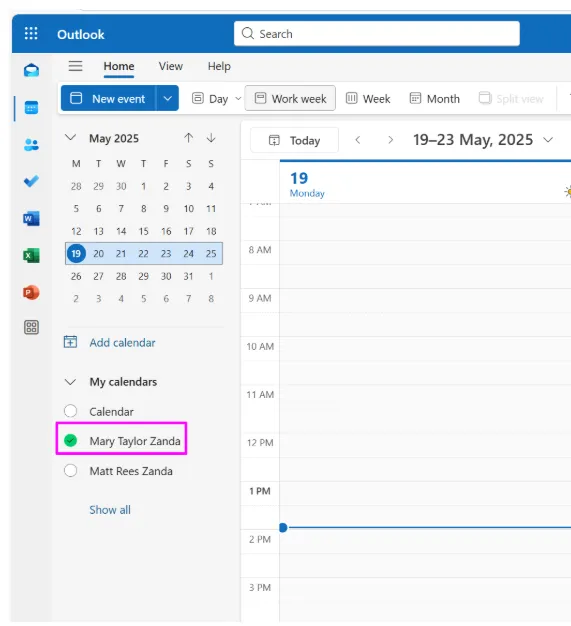
In your Outlook calendar, check if the calendar created for your synced Zanda Calendar is enabled to show. For that, go to the My Calendars menu on the left and make sure your Zanda calendar is selected.
😔 If these troubleshooting steps haven’t helped, please contact our support team at [email protected] for further investigation.