Before You Start
- This is an advanced feature. Using a custom email server means you may need to set up SPF and DKIM records in your DNS server. This differs for every mail provider and DNS provider, so if you need assistance, you will need to contact the providers of these services.
You should only continue if you are familiar with these terms or are IT supported for a clinic. When you are harnessing your own SMTP server, Zanda acts as a mail client and therefore does not have a role in managing SPF and DKIM records.
- Please check with your email provider if they impose any hourly/daily send limits, as they will reject any emails you try to send above that limit.
Zanda vs. Custom Mailing Server
What’s the Difference?
- A mail server’s job here is to deliver the emails you send out from Zanda. If you use the Zanda mail server, your emails are delivered by the Zanda mail server on your behalf. Whichever mail server you choose, it is used for sending only. Zanda does not receive email on your behalf.
- When using Zanda’s mailing server, your emails are sent from a Zanda email address (your name is shown as the sender, and replies go to the From address you’ve configured in your templates or account settings). If you need emails to be sent from an address on your own domain—for example, so a recipient or funding body can match the sender’s email domain to your organization—you’ll need to use a custom mail server as described below.
- On the other hand, a custom mailing server is a server provided by your email provider. This typically includes providers like Yahoo!, Apple iCloud etc. You can choose your emails to be handled by them, instead of Zanda. The settings for each are given below.
Is Zanda affected by the2024 Google and Yahoo’s email sender requirements ?
- Zanda default email servers have all the best practices for authentication, security, and spam prevention already in place.
- If you are using other email sender, then it depends on what address you are sending from and how your domains are configured. As explained above, users using their custom SMTP (including Gmail) with a custom domain would have to setup some of those spam prevention options manually.
Security 💡
When you connect a custom mail server—Gmail, Microsoft Outlook/Microsoft 365, Yahoo, Apple iCloud, or a Custom SMTP Server—that provider, not Zanda, delivers and secures the email in transit, the same as if you sent it directly from that account. Whether TLS is used, and which version, depends on your provider’s own configuration and the recipient’s mail server. The TLS setting described below under Using Zanda’s Mail Server applies only when you select Use Zanda’s Default Server.
The Zanda security page states that account data is encrypted both at rest and in transit. That statement describes data stored and processed within systems Zanda operates directly, not email handled by a third-party mail provider you connect. If you need encryption confirmed specifically for your custom mail server setup—for an audit, funder, or compliance questionnaire—see Responding to Security and Data Residency Audits, or contact Zanda for written, account-specific confirmation.
What email address or IP does Zanda send from?
If you are setting up a mail-flow connector, an SPF record, or an allowlist rule so your own email system recognizes mail from Zanda, use domain-based verification rather than an IP address.
The default Zanda mail server does not send from a single, fixed IP address; it sends through a shared pool of addresses that can change over time. If your mail system needs a fixed value to match against, use the Zanda sending domain instead: zandahealth.com.
If you have connected your own Microsoft Outlook, Gmail, or custom SMTP server as your account’s mail server (see below), your email goes out through your own provider’s infrastructure instead of the Zanda mail server, so this section does not apply. In that case, allowlist your provider’s usual sending details instead.
Using Zanda’s Mail Server (this is default unless you change this)
- Log in to your Zanda account and go to User Menu > Account Settings > Communication > Communication Options
- Toward the bottom of the page, select “Use Zanda’s Default Server”
- Click Save.
Security 💡
Our default mail server supports opportunistic TLS 1.1 or higher. Secure connections always depend on the recipient – for example, if the recipient’s server supports TLS 1.2 or above, then that is what will be used.
If you decide to connect your Zanda account with your custom SMTP server, you will be required to provide your username and password for authentication. Please be informed that the password you provide will be encrypted in the Zanda database to ensure that no one has access to it.
Using Google Gmail Mail Server
If you have a Google Gmail account, you can use this as a mail server by following the steps below:
- Log in to your Zanda account and go to
- User Menu > Account Settings > Communication > Communication Options .
- Under Mail Server select “Gmail” from the Email Server list.
- Click ‘Sign In with Google’ and follow the prompts.
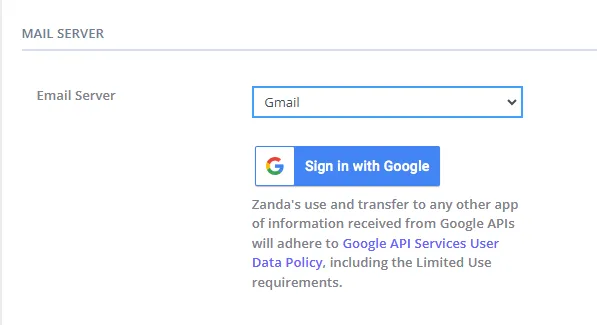
Please note that all emails sent through Zanda will be sent from your Gmail address, however, the reply-to address will be set to the “from” address you have entered in Zanda either for the template, or in your account settings.
Reconnecting Gmail after a password change
If you use Gmail as your mail server and notice your emails have stopped sending, click Reports, search for the Email Activity report, and check for a Failed status. A common cause is a recent change to the password on the connected Google account: the connection to Gmail relies on that sign-in staying valid, so changing the password disconnects it until you reconnect.
To reconnect:
- Log in to your Zanda account and go to User Menu > Account Settings > Communication > Communication Options.
- Confirm Gmail is still selected under Mail Server.
- Click Sign In with Google again and follow the prompts, signing in with your current password.
- Click Save.
There’s no separate step to disconnect first; signing in again re-establishes the connection. If you have 2-Step Verification enabled on the Google account, you’ll be taken through Google’s standard sign-in prompts rather than needing a special app password.
Note: This applies to a Gmail connection specifically. If you use a Custom SMTP Server instead, see the Troubleshooting section below for SMTP-specific checks.
Using Microsoft Outlook Mail Server
- Log in to your Zanda account and go to User Menu > Account Settings > Communication > Communication Options.
- Under Mail Server select “Microsoft Outlook” from the Email Server list.
- Click ‘Connect to Microsoft Outlook’ and follow the prompts.
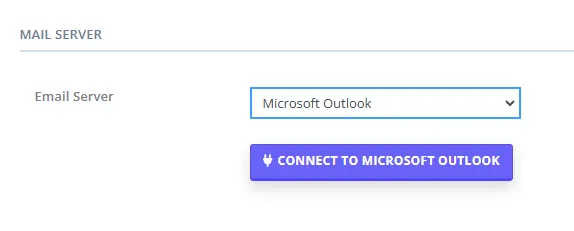
Please note that all emails sent through Zanda will be sent “from” your Outlook address, however, the reply-to address will be set to the “from” address you have entered in Zanda either for the template, or in your account settings.
Sending vs. receiving: what your mail server connection does
Connecting Gmail or Microsoft Outlook as your mail server lets Zanda send emails out through that account. It does not give Zanda access to your mailbox.
Q: Can emails that arrive in my Outlook or Gmail inbox be picked up or retrieved from within Zanda?
A: No. The connection works in one direction only, from Zanda out to your recipients. Emails received in your Outlook, Gmail, or any other mailbox stay in that mailbox and cannot be read, listed, or retrieved from inside Zanda. This applies to every mail server option, including a custom SMTP server.
Q: Where do my clients’ email replies go?
A: To the inbox of the ‘From Address’ set on your email template or in your account settings, not into Zanda. SMS works differently: client SMS replies are recorded against the client in Communication > Activity with the status Received. See Communicating with Clients for more detail.
Q: How do I keep an email in a client’s Zanda record?
A: Save the email as a PDF (or another supported file type) from your email program, open the client’s profile in Zanda, then upload it under Records > Files for clinical material or Admin > Admin Files for administrative material.
Which emails use your mail server
Your Email Server choice under User Menu > Account Settings > Communication > Communication Options is a single, account-wide setting. Whichever server you select carries every email Zanda sends from your account: appointment reminders and other automated messages, invoices and letters, emails you send from a client’s profile, and bulk sends.
Q: Can I send some emails through Gmail and let the Zanda default server send the rest?
A: No. One Email Server setting covers the whole account, so it is all or nothing. The setting has no per-client, per-classification, per-date-range, or per-message-type option, which means appointment reminders and every other message travel through the same server. Once you select Gmail, Microsoft Outlook, or Custom SMTP Server, every email Zanda sends goes out through it. If what you are really after is control over who receives a particular message, see the next question.
Q: I use two email addresses, such as a personal one and an admin one. Can Zanda send from both?
A: Your Zanda account connects to one mail account at a time: one Gmail sign-in, one Microsoft Outlook connection, or one Custom SMTP Server login. You can’t add a second address as another sending account, even when both addresses belong to the same Google Workspace or Microsoft 365 organization.
You can still decide where client replies go for each type of message. Every email template has its own From Email Name and From Email Address, and the From Email Address is where replies are delivered. For example, point your invoice and reminder templates at your admin address and the templates you use for your own clients at your personal address. Edit each template under Tools > Communication > Templates. For a one-off email sent without a template, replies go to the Business Email Address under User Menu > Account Settings > Communication > Communication Options. See Creating and Managing Communication Templates for the steps.
What the client sees as the sender depends on your Email Server setting:
- Gmail or Microsoft Outlook: emails are sent from the account you connected, and the template’s From Email Address is used as the reply-to address.
- Custom SMTP Server: most providers will only send when the template’s From Email Address matches the SMTP Username you entered, so keep your templates on that address. See Troubleshooting below.
- Zanda’s Default Server: emails are sent from a Zanda address with your name shown, and replies go to the template’s From Email Address.
Q: I want to email a particular group of clients—how do I do that?
A: You can choose exactly who a message goes to, even though the mail server that carries it stays the same account-wide. Go to Tools > Communication > Bulk Send, select your template, click Choose Recipients, then use the advanced search filter to narrow the list—for example by client classification, or by clients with appointments between two dates—and click Get Clients. Each selected profile receives its own individual message. See Sending Bulk Communications for the full steps. These messages are sent through whichever mail server your account is set to, the same as everything else.
Using Your Yahoo SMTP Mail Server
If you have a Yahoo (Yahoo, YMail etc.) account then you can use this as a mail server by following the steps below:
- Log in to your Zanda account and go to User Menu > Account Settings > Communication > Communication Options;
- Under Mail Server select ‘Custom SMTP Server’
- Enter your SMTP Server and Login details. For Yahoo, these will be as follows:
- Host Name: smtp.mail.yahoo.com
- Port: 587 or 465
- Username: your Yahoo address (ie. [email protected])
- Password: your Yahoo password
- Click Save.
- Use the Send Test Email functionality to test that you have entered your Mail Server details correctly.
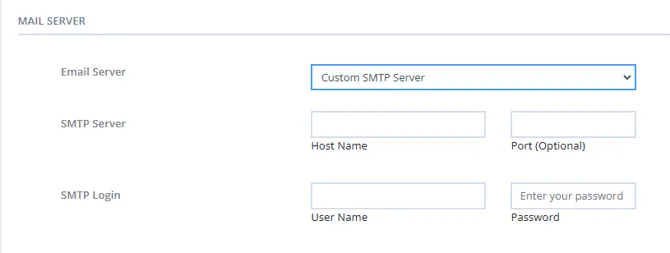
Please note that due to Yahoo’s DMARC policy, you will likely be unable to send email through Zanda’s mail server when using your Yahoo email address as the ‘from’ address. In these instances, you should follow the above steps to send an email directly through your own mail server.
Using Your Apple iCloud SMTP Mail Server
- Log in to your Zanda account and go to User Menu > Account Settings > Communication > Communication Options .
- Under Mail Server select ‘Custom SMTP Server’
- Enter your SMTP Server and Login details. For Yahoo, these will be as follows:
- Host Name: smtp.mail.me.com
- Port: 587 or 465
- Username: your iCloud email address (ie. [email protected]).
- Password: your iCloud email password.
- Click Save.
- Use the “Send Test Email” functionality to test that you have entered your Mail Server details correctly.
Generating Third-Party Passwords for Some Mail Services
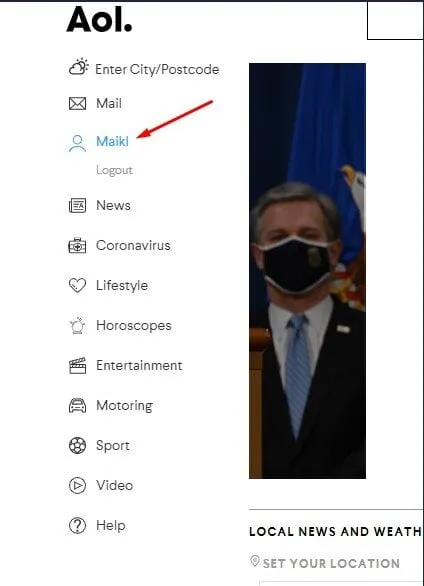
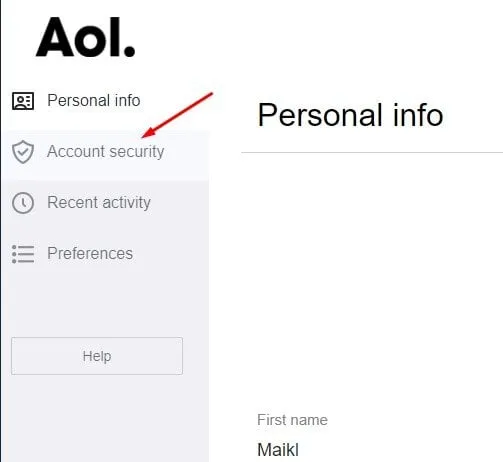
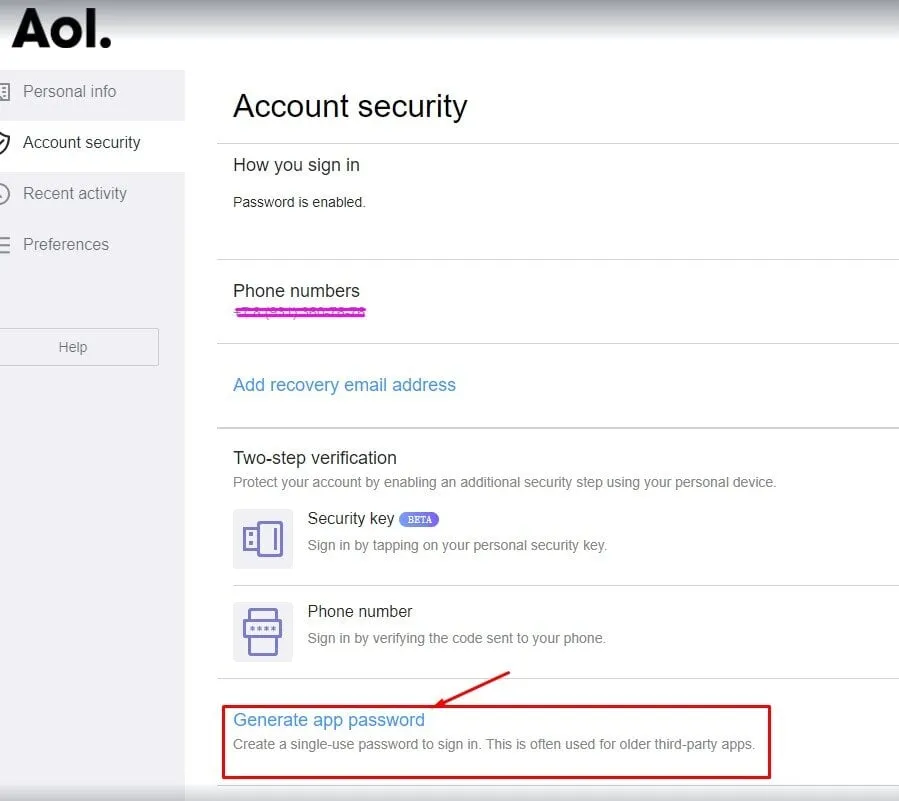
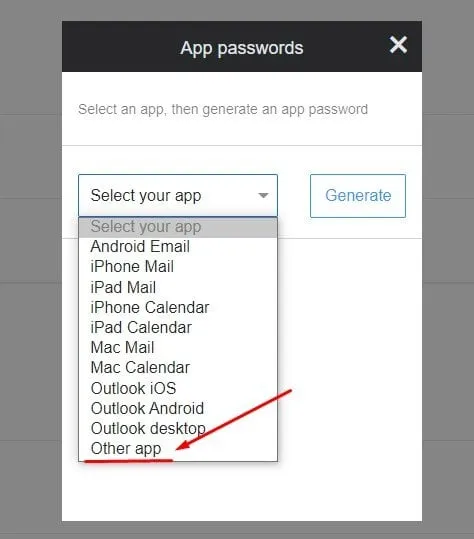
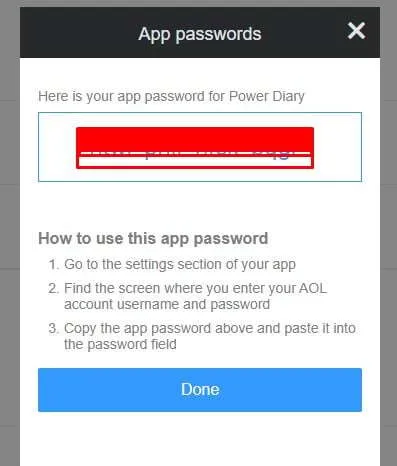
Some mail services require creating third-party application passwords due to their security requirements. In such a case, you will not be able to use your mail account password when setting up your custom SMTP server in Zanda. Below are example recommendations for the AOL server, but you may be required to reach out to your mailing provider for support.
How to add a third party password for the application:
-
Go to the profile page.
-
Click on Account security menu item
- Click on the Generate app password link.
- Select the Other app option from the dropdown menu.
-
Fill in the field something like Zanda and click on the Generate button.
-
Copy the password and paste it into the password field in Zanda.
Troubleshooting
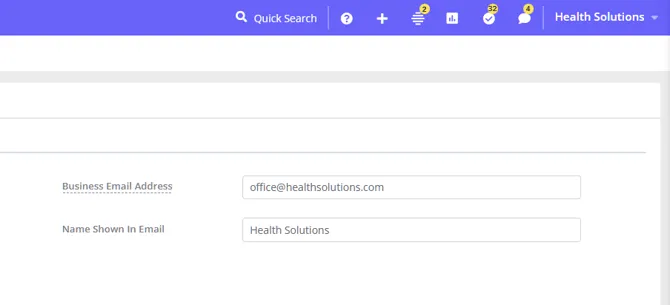
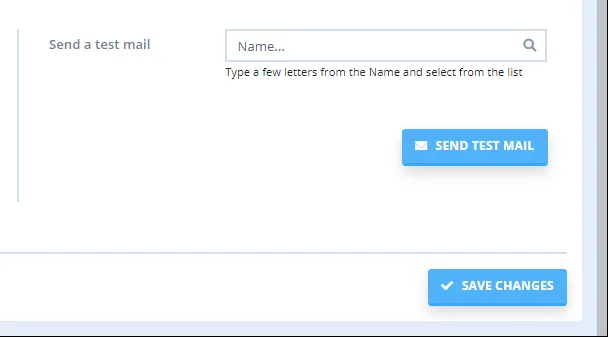
- Please make sure to send yourself a test email after entering the configuration settings. In this test email, the best approach would be to enter a mock client profile that includes your email address. This way, you can instantly check whether your custom SMTP server is working or not. When doing this test, also make sure the email listed here is different from the Business Email Address listed at the top of the page. If you are unable to get a test email, please reach out to your email provider to ask them why they are not allowing your emails to be sent from within your Zanda account.
-
If you’re finding that emails are not sending, it may be worth trying another port (i.e. if you tried 587 change to 465).
-
Check the Business Email address listed on the page is the same email as the SMTP Username you have entered, otherwise, this can fail to authenticate through your mail provider and refuse to process it.
-
Check the email template you’re trying to send has the same From Email Address entered as the SMTP Username you have entered, otherwise, this can fail to authenticate through your mail provider and refuse to process it.