
Overview
When this feature is enabled, Zanda automatically adds a percentage-based fee to all card-not-present Stripe payments made through the Zanda account, including payments made by clients via the client portal and payment links.
This helps your business cover Stripe’s transaction costs while maintaining transparency for both staff and clients.
Note: This article covers only the Stripe card processing fee surcharge described below. To add, remove, or disable other payment methods, see Managing Payment Methods. For the October 2026 Australian card surcharge rule change, see Understanding Card Surcharge Changes (Australia, October 2026).
Key Points:
-
The feature is enabled at the account level via User Menu > Account Settings > Payments > Stripe
-
A percentage (%) fee is added to the payment amount
-
An optional tax rate (%) can be applied to the card fee, this will only be applied to services with taxes enabled. Tax on the card fee is calculated proportionally based on the value of taxable items included on the invoice.
-
A notice appears on invoices, the Client Portal and payment link modals to inform clients
-
The Card Processing Fee item line is added to invoices
-
The exact fee is shown on the payment screen
-
Staff can waive the card processing fee manually (in Zanda accounts only)
⚠️ Note: This setting applies account-wide and cannot be configured per practitioner.
Reporting tip The card processing fee appears as its own line in the Invoices & Payments report, so it is counted in the report totals. To separate it from those totals, see Financial Reports.
How to Enable Stripe Card Processing Fees
To activate the feature:
-
Go to User Menu > Account Settings > Payments > Stripe
-
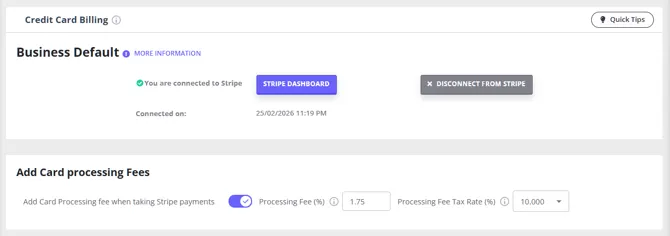
In the Add Card Processing Fees section, toggle
“Add Card Processing fee when taking Stripe payments” to ON -
Enter your preferred processing fee percentage
-
(Optional but recommended) Select a tax rate to apply to the fee
💡Why apply tax? In most regions, card processing fees are considered taxable. Please consult your local tax guidelines.
Turning Off Card Processing Fees
To stop adding the card processing fee to any future payment, including payments clients make themselves through the Client Portal or a payment link, turn the same setting back off:
- Go to User Menu > Account Settings > Payments > Stripe
- In the Add Card Processing Fees section, toggle
”Add Card Processing fee when taking Stripe payments” to OFF - Click Save
This applies account-wide, immediately: staff-processed payments, and payments clients make themselves through the Client Portal or a payment link, will all stop including the fee. This is different from Waiving Card Fees below, which removes the fee from a single payment and is only available to staff when processing a payment in the Zanda account, not to clients paying via the Client Portal or a payment link.
Removing a Card Processing Fee Already on an Invoice
The two options above only change payments you have not taken yet. If an invoice already has a Card Processing Fee line on it, for example it was charged by mistake or it has left the invoice a few cents out of balance, remove that line from the invoice itself:
- Go to Billing > Invoices and open the invoice. You can also open it from the appointment’s Invoice section using the Edit Invoice pencil icon.
- Find the Card Processing Fee line in the invoice items.
- Click the red X at the end of that line to remove it.
- Click Save Invoice.
The fee line is only created when a Stripe card payment is recorded against an invoice, so once you have removed it, saving the invoice does not add it back.
Important: Removing the line does not refund anything. The card payment your client already made, including the fee, stays captured in Stripe. The payment recorded on the invoice still includes the fee, so removing the line usually leaves the invoice showing a credit (negative) balance for the fee amount.
To return the money and bring the invoice back to $0:
- Refund the fee amount to the client in Stripe. See Processing Stripe Payments.
- Record that refund against the invoice in Zanda, following How To Clear a Credit (Negative) Balance in Refunding An Invoice. A Stripe refund never records itself in Zanda.
Check the invoice balance after saving so you know which of these you need.
How Card Processing Fees Are Calculated
When enabled, card processing fees and applicable taxes are automatically calculated for all Stripe card-not-present payment being processed by staff members in the Zanda account, and by clients via the client portal and online payment links. Here’s how the card processing fees are calculated:
-
Card Processing Fee is based on the outstanding amount
-
Tax(if configured) is applied to the card processing fee for services with taxes enabled. Tax on the card fee is calculated proportionally based on the value of taxable items included on the invoice.
-
Staff can waive the processing fee before completing the payment
-
Client’s don’t have the option to waive the processing fee
-
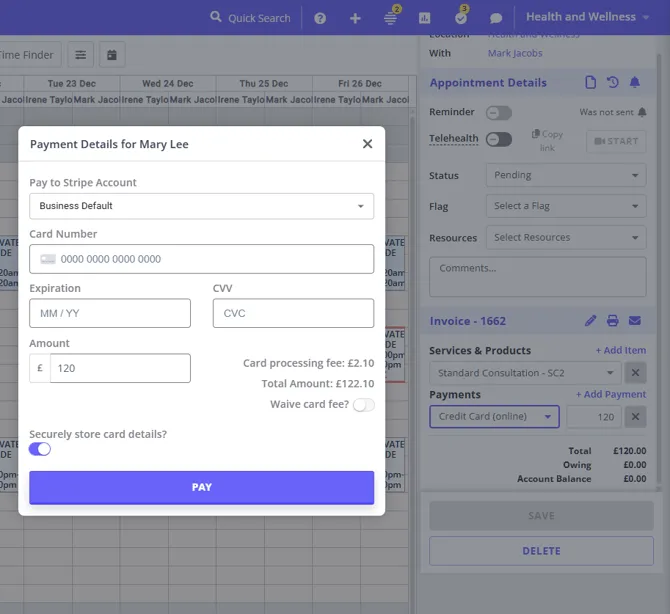
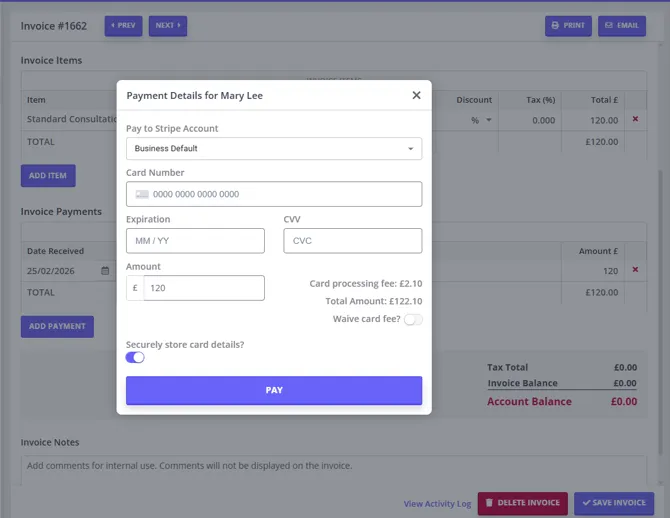
Stripe modal displays the total amount payable including the processing fee
-
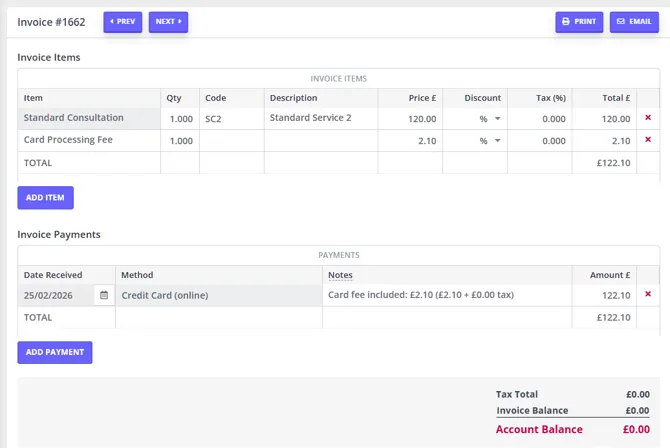
Card processing fee item line will be added to invoices when the fee is calculated
See examples of how this looks when taking a payment Zanda
In a Zanda account:
1. Payment of outstanding invoices via the appointment panel - processed by staff members in a Zanda account:
2. Payment of outstanding invoice via the Invoice Edit Page - processed by staff members in a Zanda account:
- A ‘Card Fee’ line item and a payment note is added to the invoice
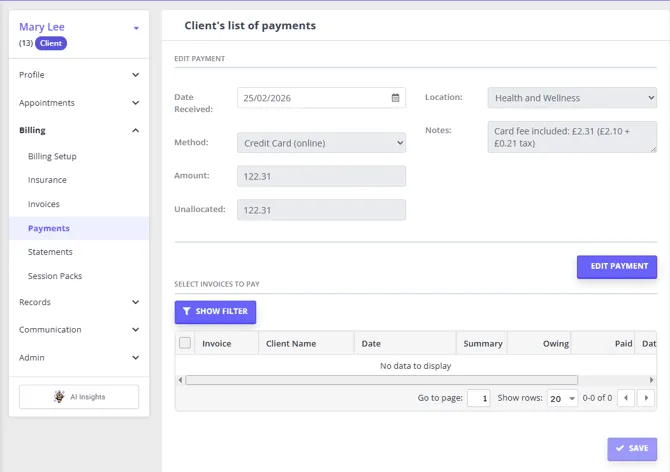
3. Pre-Payments - processed by staff members via Payee Profile > Billing > Payments > New Payment OR Sales > New Payment.
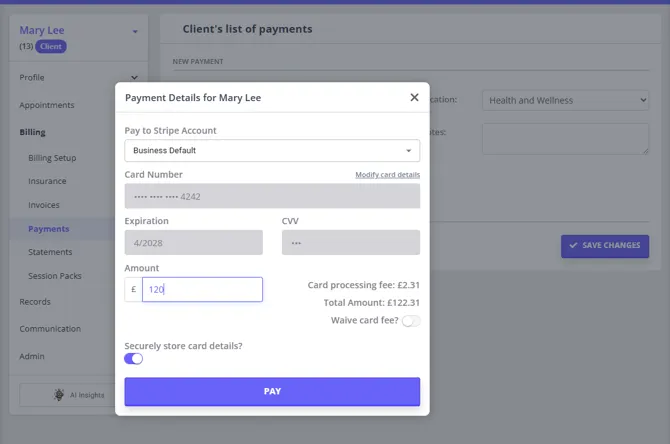
- Once processed and saved, the payment record will include a note regarding the processing fee and tax amount included.
On the Client Portal:
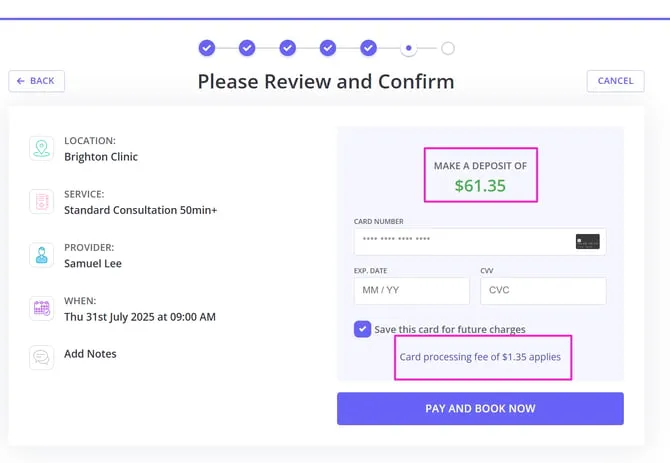
4. Deposit Payment for a Booking - processed by a client via their client portal booking page
-
Fee is calculated on the deposit amount
-
Card processing fee tax will be included if enabled in the feature settings and on the service
-
Total amount payable including the processing fee is shown as theDeposit Amount
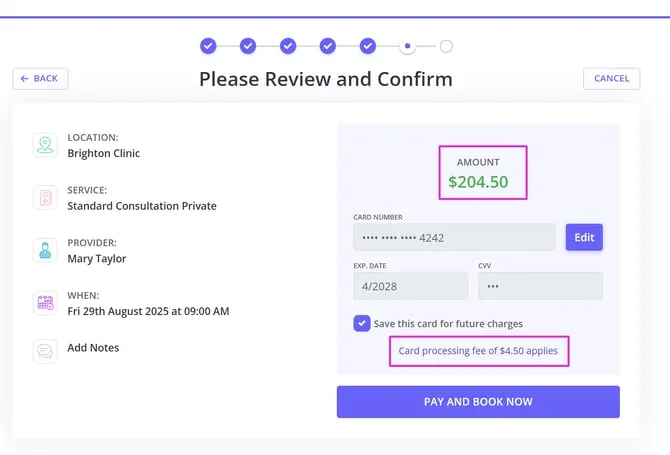
5. Full Payment for a Booking - processed by a client via their client portal booking page
6. Invoice Payment via Client Portal - processed by a client via My Invoices page in their client portal account:
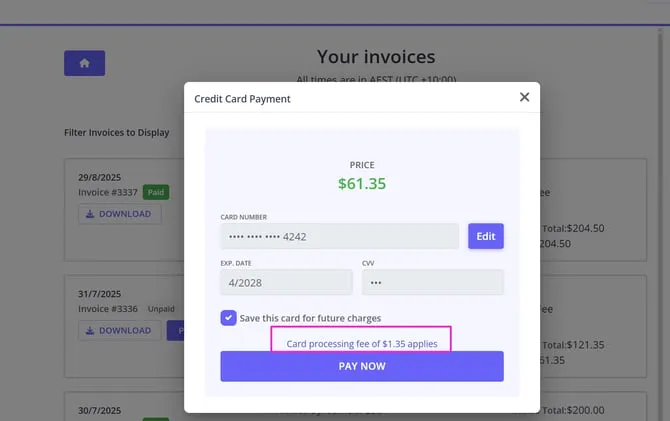
7. Invoice Payment Via Payment Link - processed by a client via a online payment link which was generated in a Zanda account and shared with the client
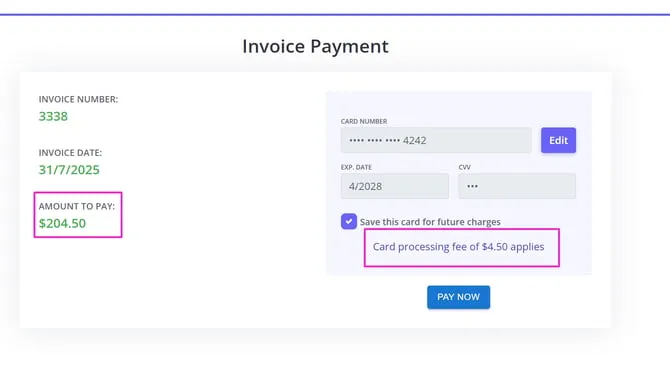
❗ Clients cannot waive the fee in the Client Portal or when paying via the payment link.
What Clients See
When Stripe card fees are enabled for your account:
-
Invoices include a Card Processing Fee item and display a footnote: _“Card processing fee applies if paying by card.”
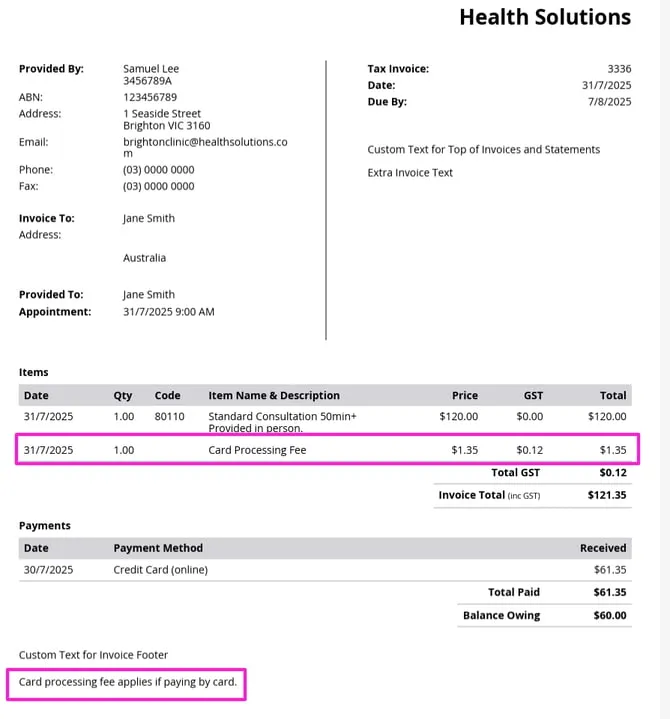
_ -
The “Pay All” button is not shown in the client’s invoice list when card fees are enabled, so clients pay each invoice separately
-
Stripe Payment Screen clearly shows the total amount, including the card processing fee
Waiving Card Fees
Zanda gives your team the flexibility to waive the card fee manually during payment processing in the Zanda account. This can be done by turning on the ‘Waive card fee?’ switch on the payment modal:
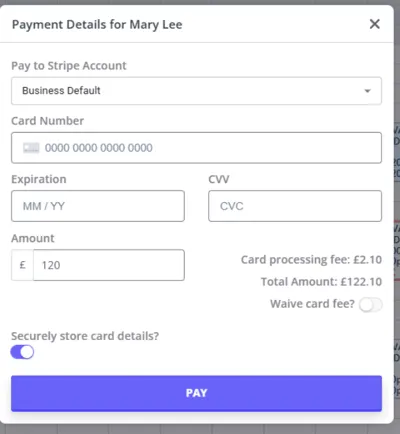
This is useful when:
-
Offering goodwill to loyal clients
-
Absorbing the fee during special promotions
-
Correcting errors or discrepancies
✅ This option is only available in the account and not in the Client Portal or via a payment link.