
Adding a new payment method
- Click the Settings cog (top right) > Payments > Payment Methods..
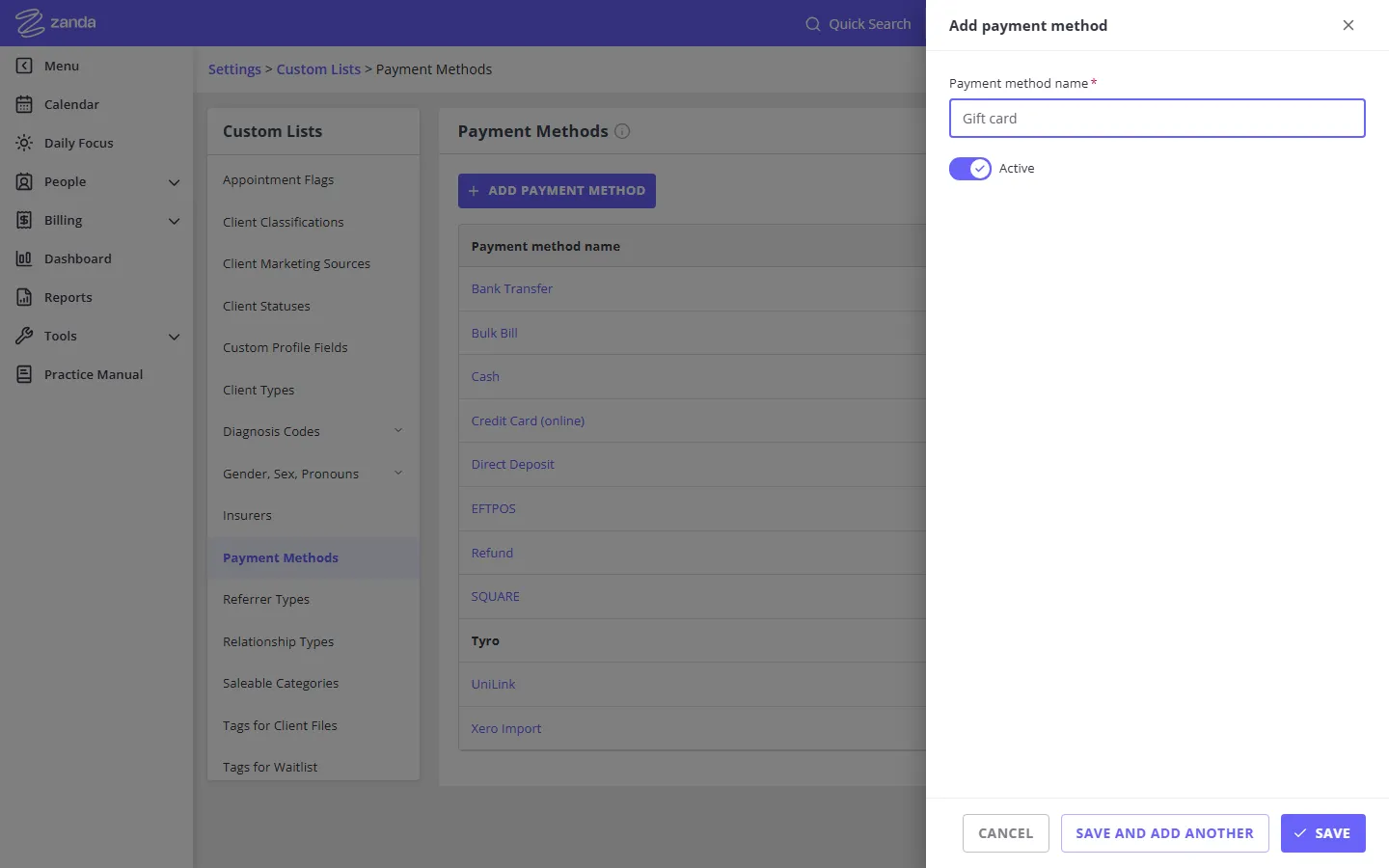
- Click Add payment method. The form opens in a panel on the right.
- Enter the new payment method name in Payment method name.
- Click Save, or click Save and add another to add another payment method straight away.
To remove a payment method from the active list
-
Click the Settings cog (top right) > Payments > Payment Methods.
-
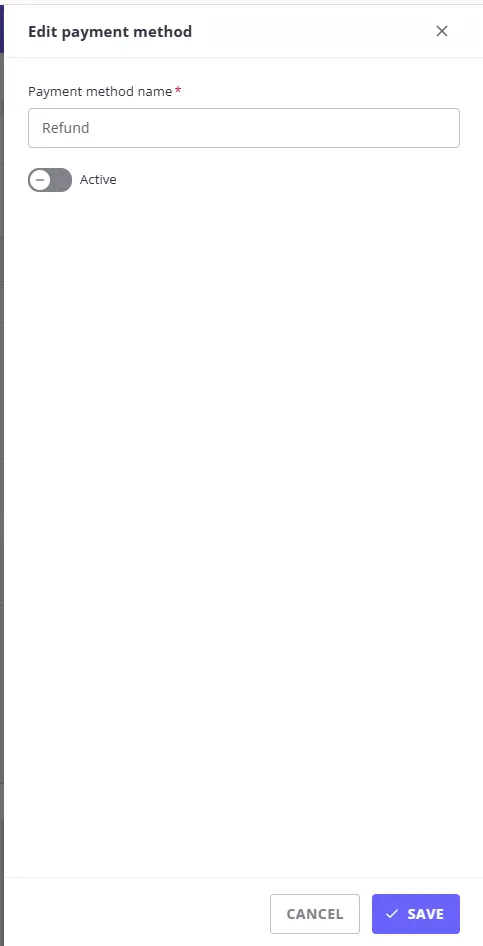
Find the payment method in the list and click on its name to edit.
-
Turn off the Active switch.
-
Click Save.
You can also click More options (⋮) at the end of the payment method’s row, select Deactivate, and confirm. Either way, this removes the method from the list of payment methods when you add payments to invoices.
Built-in payment methods are shown in bold and are read-only; you can deactivate the payment methods you added yourself.
Reactivating an inactive payment method
-
Click the Settings cog (top right) > Payments > Payment Methods.
-
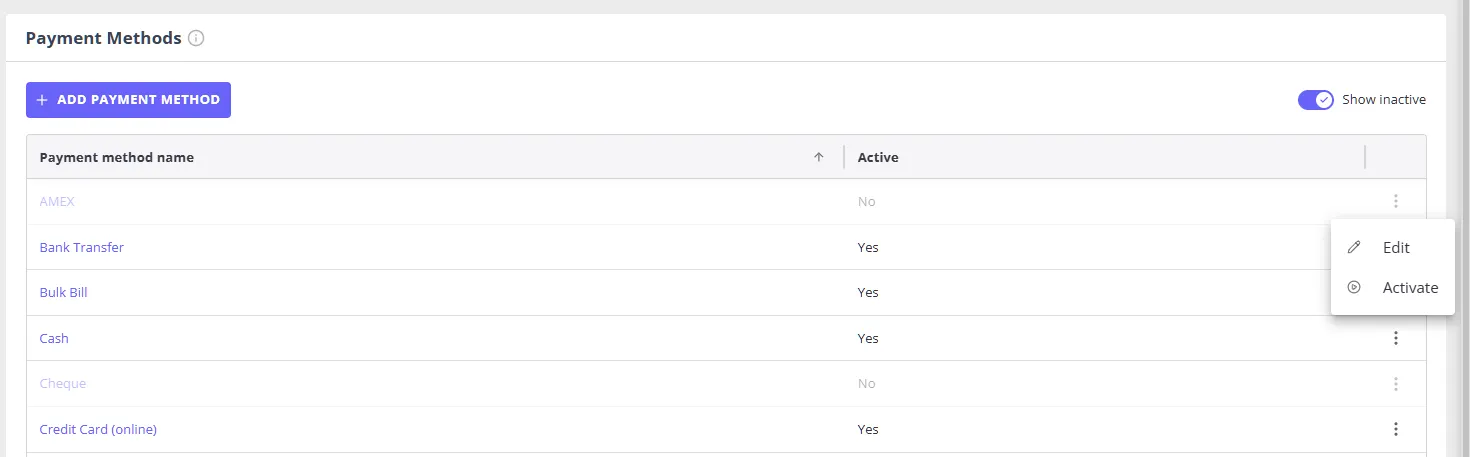
Turn on Show inactive.
-
Find the payment method you want to make active and click its name to edit it, or click More options (⋮) at the end of its row and select Activate.
-
If you opened the edit panel, turn on the Active switch and click Save.
This will add the method back to the list of available payment methods when you add payments to invoices.
Frequently Asked Questions
Can I connect an external payment processor to Zanda?
For external processors and buy now, pay later services, such as Square, Zip Pay, Afterpay, etc, use Zanda to record the payment after it is processed outside Zanda. To offer external processors as an option, process the payment outside of Zanda, then add an active manual payment method such as Zip Pay, Afterpay, or Square in Account Settings > Payments > Payment Methods (click the Settings cog, top right) and select it when recording the payment on the invoice. For automated online card payments and invoice payment links, connect Stripe instead. The Stripe integration processes card payments only, so record buy now, pay later payments manually using the steps above.
Does any physical payment terminal other than Tyro integrate with Zanda?
No. Tyro is currently the only payment terminal that connects directly to Zanda (AUS only). Once it’s set up, Tyro card payments, Medicare bulk bill claims, and private health fund claims can be processed and recorded automatically from the appointment panel.
Other terminals, including Stripe’s own card terminal, Square, Zeller, and similar EFTPOS or point-of-sale devices, don’t connect to Zanda directly. You can still use one of these to take an in-person card payment: process the payment on the terminal itself, then record it against the invoice in Zanda using a manual payment method, the same way described above for external processors.
If you also want to take online card payments through invoices, payment links, or the Client Portal, connect Stripe as well. Stripe is a separate integration from Tyro: it processes online, card-not-present payments only and doesn’t extend to a physical terminal. See Using Stripe: Frequently Asked Questions for how it compares to a physical terminal.
Can I set up ACH payments in Zanda?
ACH can be used as a payment method for recording payments in Zanda, but it is not a general direct-debit processing setup for client invoice payments. If your practice receives ACH payments outside Zanda, add ACH as a manual payment method, then select it when you record the payment on the invoice or from Billing > New Payment.
For online card payment processing, use the Stripe integration. In US insurance claiming workflows, ACH may also appear as an integrated insurance payment method when insurance claiming is active. If an automatically recorded claim payment shows ACH and you want to know why, or need to change it, see the Frequently Asked Questions in Claim Submission and Payment Process.
Can clients pay invoices by direct debit or PayTo, such as BECS Direct Debit or GoCardless?
Zanda doesn’t collect direct debits from a client’s bank account directly: GoCardless doesn’t connect to Zanda, and the Stripe integration processes card payments only, so direct debit and bank payment methods such as BECS Direct Debit and PayTo aren’t available on invoices, invoice payment links, or the Client Portal, even when they’re turned on in your connected Stripe account. You have two ways to keep using direct debit with your practice:
If you use Xero, your direct debit payments can match to Zanda invoices automatically. Export the invoice from Zanda to Xero as usual, collect and reconcile the direct debit payment (for example through your own GoCardless account) in Xero, and Zanda’s Xero integration imports the reconciled payment back and matches it to that same invoice, either when you click Import Reconciled Payments or automatically every hour if you’ve turned that on. See “How Zanda matches imported payments to invoices” in that article for the conditions a payment needs to meet to match.
Without Xero, record each direct debit payment in Zanda manually so the invoice shows as paid:
- Click the Settings cog (top right) > Payments > Payment Methods and add a manual payment method, such as Direct Debit or GoCardless.
- When the direct debit payment comes through, record it on the invoice, or from Billing > New Payment, and select that payment method.
To have clients pay online through Zanda itself, connect Stripe and take card payments. Both credit and debit cards are accepted. A client’s card can be saved for future payments, but each charge is started by your team or by the client, never on a schedule. See Using Stripe: Frequently Asked Questions for details.
Can I reorder payment methods so one appears first?
No. Zanda does not currently let you reorder payment methods or set one manual payment method, such as Direct Deposit, to appear first in the payment method list.
You can still manage which payment methods are available when adding payments to invoices. Click the Settings cog (top right) > Payments > Payment Methods to add a new method, rename an existing method, make a method inactive, or turn Show inactive on and make a method active again.