
Importing Existing Google Calendar Events Into Zanda
Before you proceed with the import, you need to create a new calendar in your Google Calendar that is linked to your Zanda calendar.
Before you continue any further with connecting your Zanda account to Google Calendar you must log out of the Google account. You can click here to log out.
To do this, you need to connect your practitioner Zanda calendar with your Google calendar. Here are the steps:
-
- Click the Settings cog (top right) > Team > Practitioners,
-
select the practitioner profile,
-
and click Calendar Sync > Google Calendar. Follow the prompts to complete the connection. (For more information on connecting Zanda to Google Calendar refer to this article).
-
Once the connection is completed, a new calendar will be created in the linked Google account which will be named ‘“Practitioner Name” Zanda’.
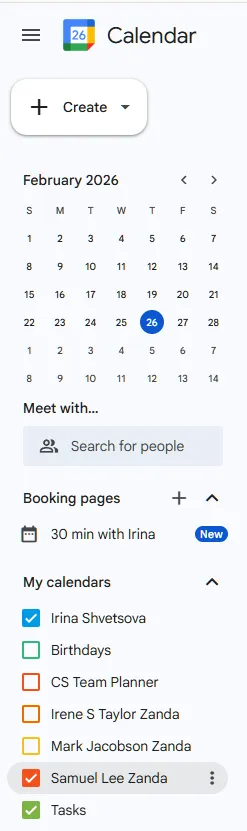 2. Access your existing Google Calendar and export the events as per the steps here.
3. Using the iCal file from the export, import this into the calendar that is linked to your calendar in Zanda as per the steps outlined here.
4. You will then be able to sync these appointments back into Zanda by clicking your practice name (top right) > Practitioner Profile > Google Sync >‘Get Changes from Google Calendar’. This will retrieve these appointments from Google Cal and sync them into your diary.
Please note that as Google Calendar does not store a client database, there is no way to identify which client attended the appointment aside from the text in the appointment title. This means that the appointments are synced into Zanda as personal appointments where there is no direct link to a client in the system. You will see the name of the event as the appointment title in the calendar
Import Conditions
When clicking Get Changes From Google Calendar to import new events added or changes to existing events, there are a few conditions that must be met for information to be brought into Zanda:
-
Events in Google Calendar must have been added or edited since you last clicked Get Changes From Google Calendar
- The first time you click it, Zanda checks events added or edited in the last 10 days. This is based on when the event was last edited, not the date of the event. When you export from one Google Calendar and import into the “Practitioner Name” Zanda calendar, the ‘last edited’ date becomes the day you copied the events, so they will come across provided you import them within 10 days (or any time after your last Get Changes, if you have used it before).
-
Only events dated up to 1 year in the future will be checked (no limit on how far back the event date can be)
-
All-day events are not imported. Only events with a start and end time are brought into Zanda.
-
Cancelled events are not imported.
If Only Some of Your Events Came Across
If you clicked Get Changes from Google Calendar and only some of your events appeared in Zanda, work through these checks in order.
- Give it a few minutes. Getting changes from Google runs in the background and can take up to 5 minutes. Check the practitioner’s calendar in Zanda again after that, rather than clicking the button again straight away.
- Check the events are in the practitioner’s Zanda calendar in Google. Zanda only reads the calendar named “Practitioner Name” Zanda. In Google Calendar, under My Calendars, untick every calendar except that one and look for the missing events. If they are not there, import them into that calendar again, then click Get Changes from Google Calendar.
- Check the event type and date. All-day events and cancelled events are not imported, and only events dated up to 1 year in the future are checked. To block a whole day in Zanda, create it in Google as an event with a start and end time, or add a Personal Appointment in Zanda.
- Check your default location. Imported events are added to your account’s default location. If no active default location is set, new events are skipped. See Which location imported appointments are assigned to.
Clicking Get Changes from Google Calendar again only picks up events added or edited in Google since the last time you clicked it. An event that was checked but not brought in, for example because no default location was set at the time or because it was dated more than a year ahead, is not picked up by clicking again, and it does not come across later on its own. To bring it in, make a small change to the event in the practitioner’s Zanda calendar in Google, such as adding a note, then click Get Changes from Google Calendar.