
Creating a Personal Appointment
You can schedule a one-off personal appointment directly from the calendar.
Here’s how:
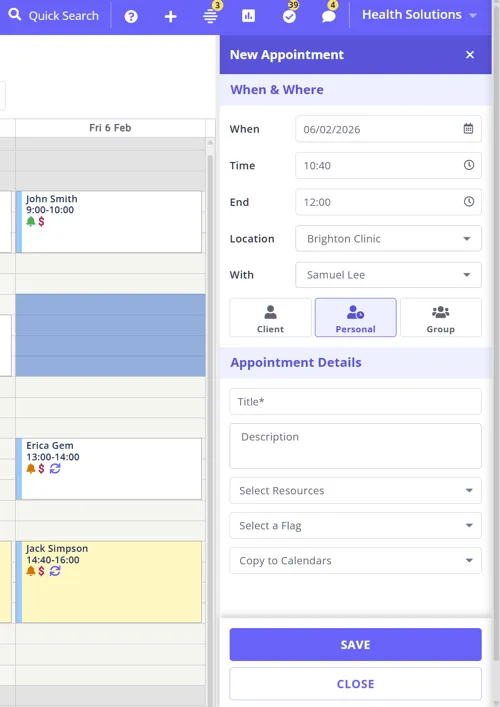
- On the Calendar page, click or drag to highlight the time slot you want to block out.
- The Appointment Panel will open.
- Select Personal as the appointment type (indicated by a distinct icon).
- Enter a Title for the appointment (e.g., “Lunch”, “Dentist”, “Team Meeting”).
- (Optional) Add a Description for more context.
- (Optional) Add one or more Resources (book a room or a piece of equipment) to be used with this personal appointment.
- (Optional) Add a Flag to color-code the appointment on the calendar.
- Click Save.
The appointment will appear on your calendar with a grey sidebar, distinguishing it from client bookings.
💡 Notes:
-
Personal appointments automatically block this practitioner’s availability for this time slot for online bookings in the Client Portal.
-
If you want to see what changes were made to a personal appointment, in the Appointment Details section click on the Show Appointment Log
 icon (a circular arrow with clock arms inside). The log modal will open where yopu can view the Appointment Log entries.
💡 Personal appointments are for blocking calendar availability. If the time is client-related and billable, create an invoice without appointment so the billing record is linked to the client profile.
Recurring Personal Appointments
You can set personal appointments to repeat, which is perfect for regular lunch breaks or weekly meetings.
- Create the personal appointment as described above.
- Open the appointment and click the Recurring Options icon in the When & Where section.
- Select Make Recurring from the dropdown.
- Configure the frequency (e.g., Daily, Weekly) and end date.
- Click Save.
Duplicating a Personal Appointment
You can easy duplicate a personal appointment to create another one with the same details (e.g., Title, Description).
- Open the personal appointment panel.
- Click the Recurring Options icon.
- Select Duplicate.
- Choose the new date and time.
- Click Confirm.
Learn more about Duplicating Appointments.
Team Meetings: Copying to Other Practitioners
Zanda makes it easy to schedule team-wide events by copying a personal appointment to multiple calendars at once.
- Create the appointment on one practitioner’s calendar.
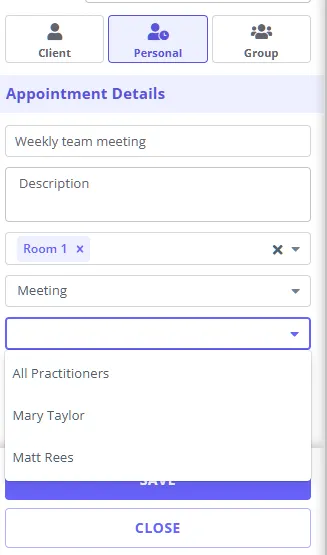
- In the appointment panel, locate the Resources or Copy section.
- Select Copy to other practitioners.
- Select All Practitioners or one or multiple practitioners you want to invite.
- Click Save.
This will create identical personal appointments on their calendars, blocking out that time for the whole team. Each copy is a fully independent appointment, not a link back to the original, so editing or deleting one copy does not affect the others. See Deleting a Personal Appointment That Was Copied to Multiple Practitioners below for how to remove the appointment from every calendar it was copied to.
Editing and Deleting
You can modify or remove personal appointments in the same way as any other booking in Zanda.
Editing a personal appointment
- On the Calendar page, click the personal appointment you want to change.
- The Appointment Panel will open.
- Make your changes—for example, update the title, adjust the time, or add a flag.
- Click Save.
Tip: You can also reschedule a personal appointment by dragging and dropping it to a new time slot on the calendar, or by dragging its top or bottom edge to adjust the duration.
Deleting a personal appointment
Deleting a personal appointment works exactly the same way as deleting a client appointment. There are two options:
Option 1: From the appointment panel
- Click the personal appointment on the calendar to open the Appointment Panel.
- Scroll to the bottom of the panel.
- Click Delete (below the Save button).
Option 2: From the right-click menu
- Locate the personal appointment block on the calendar.
- Right-click the appointment block to open the context menu.
- Select Delete.
Deleting a recurring personal appointment
If the personal appointment is part of a recurring series, deleting one occurrence will trigger a confirmation pop-up asking how you want to apply the deletion:
| Option | What it does |
|---|---|
| This One Only | Deletes only the selected occurrence. All other appointments in the series remain. |
| This & All Following | Deletes the selected occurrence and all future instances. Past appointments remain. |
| All Appointments | Deletes every instance in the series, including past appointments. |
Select the appropriate option and confirm to proceed.
Deleting a Personal Appointment That Was Copied to Multiple Practitioners
When you copy a personal appointment to other practitioners (see Team Meetings: Copying to Other Practitioners above), Zanda creates a separate, independent appointment on each practitioner’s calendar. Deleting the appointment from one practitioner’s calendar removes only that copy; it does not remove the appointment from any other practitioner’s calendar.
To remove the appointment everywhere it was copied, delete each copy individually:
- Use the Quick Search bar and select the Appointments category.
- Search for the appointment’s title, the same title you used when creating it.
- Open each matching appointment in turn and delete it from that practitioner’s calendar, following the steps above.
- Repeat until you have removed the appointment from every practitioner’s calendar it was copied to.
There is currently no single action that removes a copied personal appointment from every calendar at once. Each copy must be found and deleted separately.
Can’t see the delete button?
- If the Delete button is not visible in the appointment panel, this is most likely due to user permissions, not a limitation of the appointment type.
- The Delete button only appears if your user account has the Delete Appointments permission enabled.
- Without this permission, you won’t be able to permanently remove the appointment. (Personal Appointments don’t have a status field, unlike client appointments, so there’s no Pending, Confirmed, Cancelled, or No Show option to fall back on for this appointment type.)
To resolve this: Contact the master user of your Zanda account and ask them to enable the Delete Appointments permission for your user.
This setting is located under:
User Menu at the top-right > Account Settings > Team > Users → [your user] → Scheduling Permissions → Delete Appointments
If you need to search for a deleted personal appointment you can do so via the Log File. Navigating to Tools > Log File, and in the ‘Notes’ text box search ‘Personal’ to locate any personal appointments, including deleted personal appointments.
For a full overview of scheduling permissions, see:
User Permissions for Practitioners
Frequently Asked Questions
Can I search for a personal appointment by name or type?
You can search for a personal appointment by its title. Use the Quick Search bar, select the Appointments category, and search for the personal appointment title, such as “Lunch” or “Team Meeting”. Personal appointments appear in appointment search results with the title, date, time, and practitioner, so use the title rather than the appointment type as your search term.
Can I set or change the status of a Personal Appointment, or hide the Status column when I print my calendar?
No. Personal Appointments don’t have a status field, so there’s no Pending, Confirmed, Arrived, Cancelled, or No Show option for this appointment type, and nothing to set or clear.
This also means the Status column is automatically left blank for Personal Appointments (and Group Appointments) when you print the Appointment List (see Print Appointments List). There’s no separate setting to hide or suppress that column; it’s blank by design for these appointment types, because they don’t carry a status to show.
How do I add a reminder to my calendar without blocking online booking?
If you want a reminder on your calendar (for example, “Send XXX report”) without losing a bookable slot, you have two options, each with a trade-off:
- Schedule the Personal Appointment outside your working hours. Client Portal booking times come from your set working hours, so a Personal Appointment placed before your day starts, after it ends, or on a day you’re not scheduled to work doesn’t remove any bookable slot, while it’s still visible on your calendar as a reminder. This only helps for a reminder that can sit outside your working hours; it isn’t a way to add a reminder in the middle of an otherwise bookable day without blocking that time.
- Use a Practice or Client Task instead. Tasks never block online booking, but they live on the separate Tasks list (the tick icon in the top-right corner) rather than on the calendar itself.
Both options work around the same underlying rule: Personal Appointments always block that time slot from Client Portal online bookings, and there’s no setting to change that directly.