
- You can start your plan at any time during your trial period and will not be charged until after your free trial has ended.
- With Zanda there are no lock-in contracts and can therefore cancel at any time.
How to Start Your Plan
-
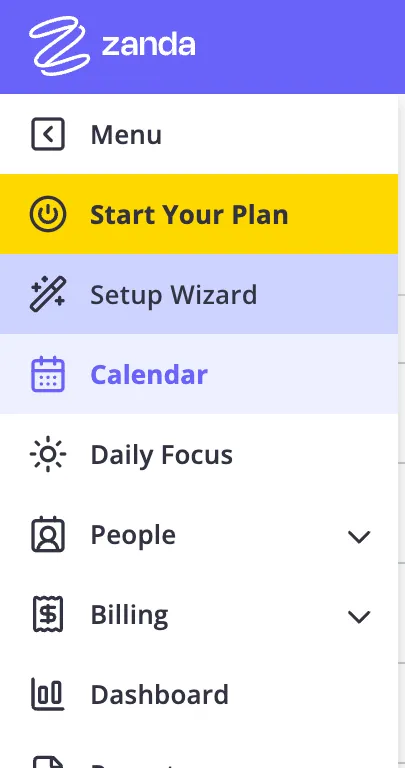
Log into Zanda and click on the Start Your Plan link in the menu.
-
Pick your subscription plan*
*Note: If your current setup does not meet the conditions of the subscription plan you selected, the system will prompt you what updates are necessary to meet those requirements
- Once you’ve selected the right plan, enter your credit/debit card details and click ‘Activate Your Account’.
-
We don’t accept bank transfers or direct debits for Zanda subscription and add-ons payments.
-
As part of our card validation policy, we will place a temporary hold of $1 on your credit card.
-
If you’re based in Australia, we unfortunately cannot accept American Express (Amex) cards due to our Australian-specific payment processor.
-
For any other countries, we are able to accept American Express.
- Once your credit/debit card has been validated and your plan has started, you will be taken to the Account Settings > Practice > Subscription > Optional Add-Ons page (click the Settings cog, top right). Please read the information on this page carefully and enable the add-ons you wish to start using before you proceed with using your account. You will be able to enable or disable those add-ons at any time later. The Start Your Plan link is then removed from your menu.
Note: After you start your plan, the master user sets up two-factor authentication (2FA) at their next login. Users invited to the account during the trial already set up 2FA when they accepted their invite. See Managing 2FA.
Will the offer I saw be applied when I start my plan?
Yes. The offer shown on the Start Your Plan page is applied to your account automatically when you start your plan. There’s no code to enter, and you don’t need to ask the Zanda team to add it.
- The date you start your plan is what counts. A time-limited offer applies if it’s still running on that date, based on your account’s time zone. Starting your trial during the offer period isn’t enough on its own, so if an offer has a deadline, start your plan before it ends.
- Time-limited offers are only available in certain countries. Check the offer banner on your Start Your Plan page: if it’s not showing for your account, your country isn’t eligible for that offer, whatever date you start.
- Extras come with it. If the offer includes extras such as SMS credits, they’re added to your account at the same time.
- When no time-limited offer is running, or your country isn’t eligible for one, new subscriptions still start with an introductory discount, and it’s applied in the same way.
When do I need to start my plan to get the introductory discount?
Whenever suits you. When no time-limited offer is running, the discount shown when you sign up and on the Start Your Plan page (currently 50% off for the first 6 months) is the standard introductory discount, and it isn’t tied to a particular month. The month in the banner, for example “Start in October”, is just the current month and changes at the start of each month.
- Starting your trial near the end of a month is fine. You still get the same introductory discount if you start your plan the following month, including after your 14-day trial has ended.
- The 6 months count from when your paid plan begins. If you start your plan during your trial, that’s the day your trial ends. If you start it after your trial has ended, it’s the day you start your plan.
- A time-limited offer replaces it. If a time-limited offer is running for your country on the day you start your plan, that offer is applied instead, as described above.
You can confirm the discount and its end date under Your Special Offer straight after you start your plan, as shown below.
How to check your offer has been applied
Right after you start your plan, click your practice name (top right) > Subscription (or Account Settings > Practice > Subscription, from the Settings cog) and open the Subscription Information tab. Under Your Special Offer you’ll see the discount and when it ends, for example “100% off until [date]”. If a further discounted period follows, a second line shows it, for example “Then, 50% off from [date] to [date]”. See Accessing your Zanda Subscription Information and Payments.
If you started your plan while an offer was showing and nothing appears under Your Special Offer, contact the Zanda support team at [email protected].
Offers from a professional or member association, or another Zanda partner, work differently: the Zanda team applies those for you on request. See Our Partners.
If you see “Card validation was unsuccessful”
If Zanda can’t validate your card when you start your plan, you’ll see this message instead of a specific reason from your bank. Before trying again:
- Double-check the card number, expiry date, and CVV are entered correctly.
- If your account is based in Australia, confirm the card isn’t an American Express card, since the Australian payment processor doesn’t accept Amex.
- Check with your bank that the card is set up for online and recurring payments, and that nothing on their end is blocking a charge from Zanda.
If you’ve checked all of the above and the card works fine everywhere else, contact our support team so we can look into it with you.
If you’re still being asked to start your plan
The Start Your Plan link only appears in your menu while your account is on a free trial. Once your card has been validated and your plan has started, the link disappears from the menu, and Account Settings > Practice > Subscription (click the Settings cog, top right) shows your subscription details instead of the Start Your Plan page.
If you’ve entered your card details but the Start Your Plan link is still in your menu, or Zanda keeps taking you back to the Start Your Plan page, your plan hasn’t started on the account you’re logged in to. Check the following:
- Make sure you finished the last step. Your plan only starts after you click Activate Your Account and your card is validated. If you closed the page before then, or saw “Card validation was unsuccessful”, click Start Your Plan and try again.
- Make any changes your plan asked for. If Zanda told you your current setup doesn’t meet the conditions of the plan you picked, make those changes (or pick a different plan) and then click Activate Your Account again.
- Check you’re logged in to the right account. Each Zanda account has its own subscription. If you’ve signed up more than once, or with a different email address, log out and log back in with the email address you used when you started your plan. See Logging into Your Account.
If none of these apply, email [email protected] from the email address you log in with and include a screenshot of the Start Your Plan page, so the team can check your account for you.
What Happens Next?
-
After your plan has started you will be able to continue using Zanda. You can review your subscription information including what plan you are on, if you have any discounts available and what your monthly billing rate is, as well as request a change to your subscription mode in Account Settings > Practice > Subscription (click the Settings cog, top right) at any time.
-
Your Zanda billing will be automatically processed every month and a receipt will be generated and saved for your records. To access these receipts click the Settings cog (top right) > Practice > Subscription > Invoices and Receipts.
-
The payments that were processed for your Zanda subscription and add-ons usage will be listed in Account Settings > Practice > Subscription > Payments (click the Settings cog, top right).
-
It is important to keep your credit card details up to date. You can update your credit/debit card details when necessary, in Account Settings > Practice > Subscription > Update Credit Card (click the Settings cog, top right).
What if my Free Trial has Expired?
Upon logging in, you will encounter this screen with the permission warning prompting you to click Start Your Plan to resume normal access to Zanda.