
Log in to Zanda
- Open your web browser and type in
- For the USA and Canada: https://us.zandahealth.com/Account/Login
- For the UK, Europe and South Africa: https://uk.zandahealth.com/Account/Login
- For Australia, New Zealand and other countries https://my.zandahealth.com/Account/Login
-
Type in your email address and password.
-
Click LOG IN.
-
If your profile uses two-factor authentication (2FA), enter the 6-digit code from your authenticator app. If you cannot use your app, click Don’t have your authenticator app? and enter one of your backup codes. See Managing 2FA if your code is not accepted.
That’s it! You’ll land on your Zanda calendar.
Tip: If your practice has turned it on, you can sign in with your Google or Microsoft account instead of your email address and password. See Signing In with Google or Microsoft SSO.
Log in with a username instead of an email address
If you still log in with a username, such as JohnSmith, type it in the Email field on the login page, then switch your login to your email address using the steps below. Usernames were how everyone logged in before Zanda moved to email-based logins, so some long-standing accounts still have users who log in with one. Every new user logs in with their email address, and a username keeps working until you switch.
Log in with your username
- Open the login page for your region (see Log in to Zanda above).
- Type your username in the Email field. Until you switch, your email address won’t work in this field.
- Type your password and click LOG IN. If your login uses two-factor authentication (2FA), enter your code or set up 2FA as usual. Logging in with a username doesn’t change how 2FA works (see Managing 2FA).
Switch your own login to your email address
It is worth switching, because it makes logging in simpler. Once your login is your email address:
- You won’t see the Change Log in page every time you log in.
- You have one less thing to remember, because you log in with your email address.
- You can reset a forgotten password yourself with Forgot password? on the login page.
Each time you log in with a username, Zanda opens the Change Log in page before your calendar.
- On the Change Log in page, check the address shown under The email address we have on file is. If Zanda asks you to set an email address instead, type the address you want to log in with. Zanda asks for one when there’s no email address on your profile, or when the one on file is already used by another login.
- Click Continue with my e-mail address. Zanda sends a confirmation email to that address. Click Continue to Zanda to keep working while you wait for it.
- Open the email and click the link within 24 hours. Zanda changes your login to your email address and logs you out.
- Log in again with your email address and your existing password.
If the link has expired, log in with your username again and repeat these steps.
You can also make the change from your User Profile. Click your practice name (top right) > User Profile. Your username appears in its own Username field (labelled User Name on some accounts) below the Email field. Replace it with the same address that’s in the Email field, then click SAVE. From then on, log in with your email address and your existing password.
Switch a team member’s login to their email address
If you’re the master user, or an admin with the Setup and Configure Zanda permission, you can switch another user’s login for them.
- Click the Settings cog (top right) > Team > Users > User Management. The USER NAME column shows each user’s login, so you can see who still logs in with a username.
- Click the user’s name to open their profile.
- Check that the Email field shows the address the user should log in with, and update it if needed.
- Click Save. Saving a user’s profile from User Management always sets their login to the address in the Email field, so there’s no separate username to edit here.
- Let the user know to log in with that email address and their existing password.
Only the master user can change the master user’s own details, so a master user who still has a username switches their login themselves (see Switch your own login to your email address above). If an email address is already in use by another login, see How to Resolve “Email Address Is Already in Use”.
If you’ve forgotten your username or would like help switching
Ask your master user or an admin to check the USER NAME column in User Management (see the steps above).
You can also email [email protected] if you’ve forgotten your username, or if you’d like the support team to help you switch to your email address. Send your email from the address on your Zanda user profile, so the team can identify you.
Keep your session active
- You will be automatically logged out after 3 hours of inactivity.
- If you select Remember me on the login page, you will be logged out after 30 days.
- Selecting Remember me keeps you logged in after you close your browser. When you type your Zanda login URL into your browser again, Zanda takes you directly into your account instead of the login page.
- Zanda user login URLs remain standard Zanda login links:
- For the USA and Canada: https://us.zandahealth.com/Account/Login
- For the UK, Europe, and South Africa: https://uk.zandahealth.com/Account/Login
- For Australia, New Zealand, and other countries: https://my.zandahealth.com/Account/Login
Log out of Zanda
It is recommended that you log out of your Zanda account when you step away from your workplace for a long period of time or finish work for the day. This ensures no one has unauthorised access to your account, and the system properly refreshes when you log in the next day.
To log out,
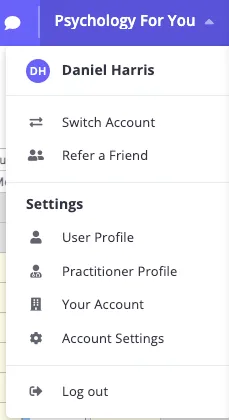
- Select account business name at the top-right of the screen
- Select ‘Log out’
Reviewing your recent logins and managing active sessions
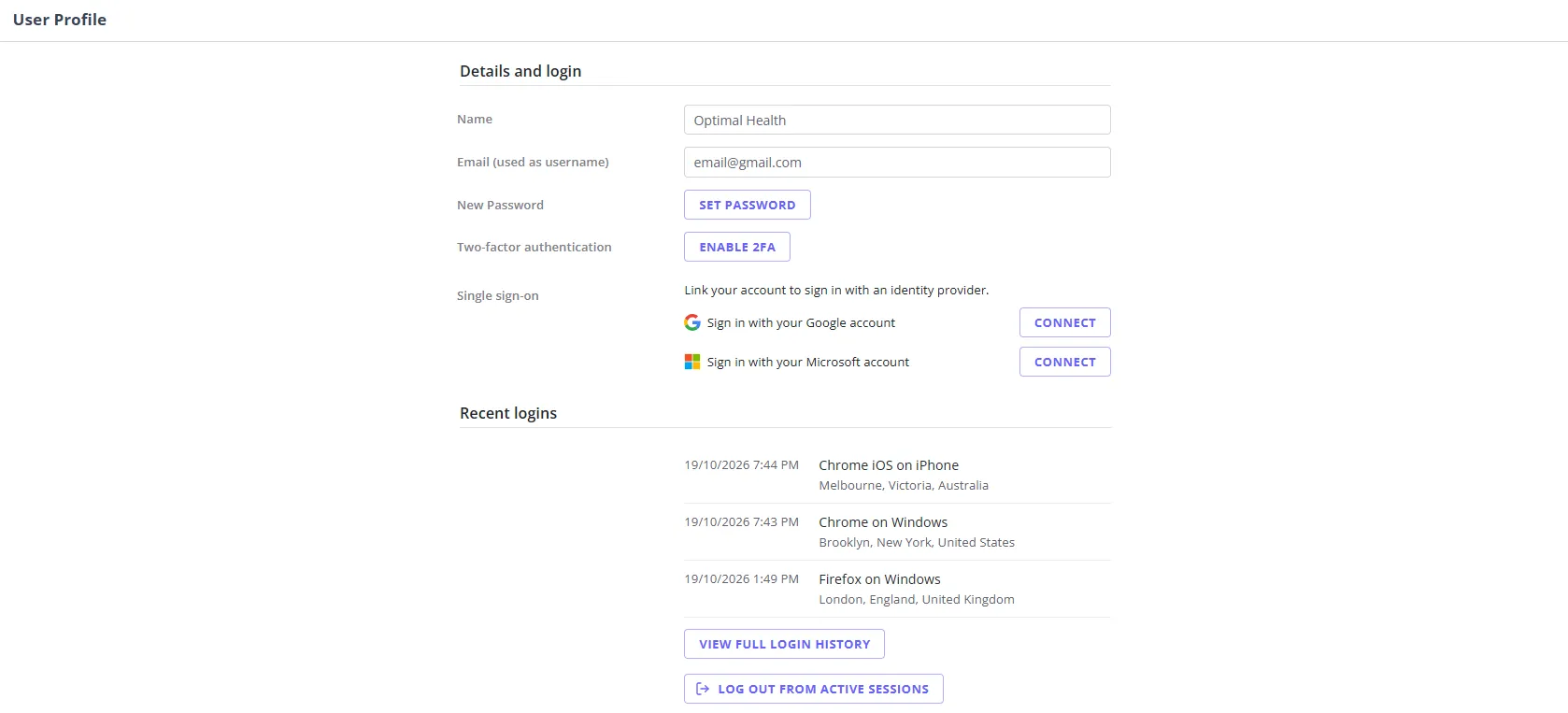
Your User Profile shows your recent logins and lets you sign out of every other session at once, so you can spot unfamiliar activity and lock your account down fast if something looks wrong.
To get there, select the account business name at the top-right of the screen and choose User Profile.
Recent logins
The Recent Logins section lists your last three logins, each with the date and time in your account’s date and time format, the browser and device used, and an approximate location.
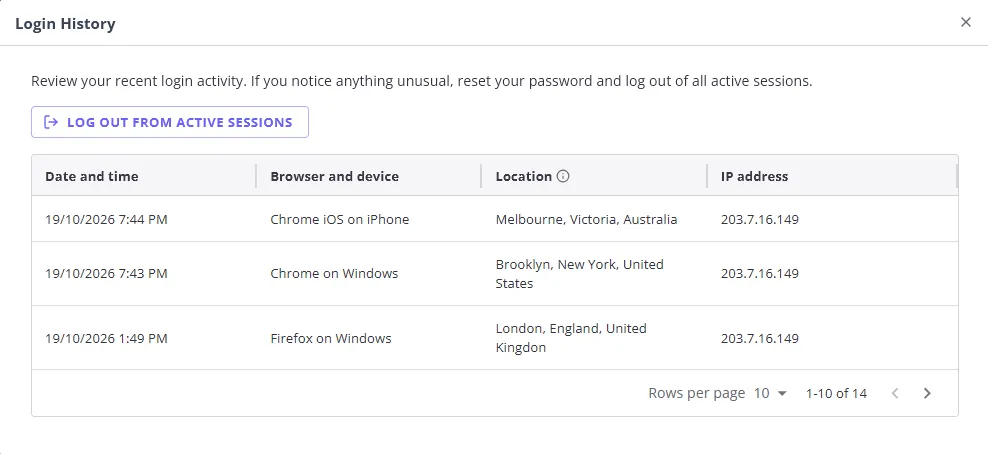
Click View full login history to open the Login History list, which pages back through every login recorded and adds the IP address for each one. Review this list regularly, and if anything looks unfamiliar, reset your password and log out of all active sessions straight away.
Note: Location is estimated from the login’s IP address, so it can differ from where you actually were, especially if you or your internet provider use a VPN. If a location looks wrong, log out and back in and compare the location recorded for the new login.
Note: Recent Logins and Login History only list logins recorded from when this feature was turned on for your account. A login from before then will not appear, even though it happened.
Log out from active sessions
Select Log out from active sessions, either in the Recent Logins section or inside the Login History list, to sign out of every other session on every other browser and device. You stay logged in on the browser you selected it from, and a confirmation message appears once it is done.
Logging out other sessions does not clear a browser’s Remember this browser for 30 days two-factor status, so a browser you had already trusted stays trusted.
Note: The Log out from active sessions button is not shown while you are working in a linked account you switched into (see Managing Linked Zanda Accounts). Switch back to your own account first, then use it from there.
Forgot your email address/password?
Learn here how to reset your email address and/or password.
When you request a password reset, Zanda emails a reset link to the email address on your login. To make sure it reaches you:
- Enter the email address you log in with. Zanda sends the link only to the address on your Zanda login, so a different address, even one of your own, receives nothing.
- Check your spam or junk folder if the email is not in your inbox.
- Use the link straight away. Each link works once and expires 30 minutes after it is sent. If you request another reset, only the newest link works.
Caution: After 5 incorrect login attempts within 10 minutes, including incorrect passwords, 2FA codes, backup codes, or security answers, your login is temporarily locked for 10 minutes before you can try again. Resetting your password, or asking your master user or an admin to reset the lockout, gets you back in sooner. See Managing 2FA.
Login says “We don’t have that Username and Password combination” but your password is correct
Zanda shows the message “Oops! We don’t have that Username and Password combination. Please try again.” for more than one reason, so seeing it does not always mean your password is wrong. If you have already reset your password, tried a private or incognito window, and cleared your browser cache without success, work through the causes below in order.
- You are on the login page for another region. Check you are using the login URL for the region your account is hosted in (see Log in to Zanda above).
- You still sign in with a username rather than an email address. Long-standing accounts may still use a username. Enter your username in the Email field, not your email address. See Log in with a username instead of an email address above.
- Your practice account has been closed. Once the account closure date has passed, no user on the account can sign in, and the login page shows this same message rather than a separate one. Resetting your password will not restore access. See How to Store or Close Your Account.
- A subscription payment has not gone through. If a subscription invoice stays unpaid, Zanda eventually deactivates the account, and sign-in then fails with this same message. Keeping your card details current avoids this. See Updating Your Credit or Debit Card Details.
If you see a different message.”Your account has been disabled. Please contact an administrator for assistance.” means your own user profile has been switched off inside an account that is still active. The master user on your practice account can switch it back on. See Managing Users.
Getting access back after your account has been closed
Email [email protected] from the email address you use to log in, so the team can identify you, and ask them to check your account status. They will tell you whether the account was closed, deactivated because of an unpaid subscription, or something else, and what your options are.
Support has to do this for you. Once the closure date passes, access is removed for everyone on the account and it cannot be reopened from your side.
To access information from a closed account, or if you are writing from an email address that isn’t on the account, Zanda support first asks for proof of identity: photo ID, a selfie holding that ID, and proof of business ownership. See Managing 2FA for the full list of documents.
Want to stop paying for a full subscription but keep your records? Storage Mode is the alternative to closing your account. For a small monthly fee your account stays available in read-only mode, so you keep access to your client records and can export them at any time. Set it up from Subscription > Subscription Information > Close or Store Your Account (click your practice name, top right) (you will need to be the account’s master user). See How to Store or Close Your Account.
Other people’s email addresses and passwords appear at the login page
On a computer that more than one person uses, clicking into the Email field on the Zanda login page can drop down a list of email addresses, and choosing one can fill the password in as well, shown as dots. That looks alarming, but it is not Zanda exposing anyone’s login.
The Zanda login page is a plain Email and Password form. It never presents a list of users to pick from, and it never fills in a password for you. What you are seeing is the web browser’s own saved-password feature, in Chrome, Edge, Safari, or Firefox, offering the logins it has stored on that computer from each time someone let the browser save their password. Those saved logins belong to the browser profile rather than to Zanda, and anyone using that profile can see and use them, for every site saved there and not only for Zanda.
Remember me is a different thing and is not the cause. It stores one email address for that browser so the login page is pre-filled next time, and it keeps that browser signed in for up to 30 days. It never stores a password, and it never shows another person’s details.
Being given access to more than one Zanda account is also a separate feature: you switch between those accounts after logging in, from the menu under your practice name (top right), never from the login page. See Managing Linked Zanda Accounts.
What to do about it
On the shared computer:
- Remove the saved Zanda logins from the browser. Each browser keeps them in its own settings, under passwords or a password manager. Delete the entries for your Zanda login page.
- Choose “Never” the next time the browser offers to save a Zanda password, so it stops collecting new ones.
- Give each person their own browser profile, or their own sign-in on the computer. This is the change that actually fixes it. Saved passwords belong to a browser profile, so for as long as two people share one profile they will keep seeing each other’s saved logins.
- Turn on two-factor authentication (2FA) so a saved password on its own is not enough to get in. 2FA is becoming required for every Zanda user. See Managing 2FA.
- Check that each person has their own Zanda user account rather than sharing one login. See Managing Users.
Clearing your browser’s cache and cookies is not a reliable way to do this. Saved passwords and autofill data are held separately from cache and cookies, and browsers differ in whether clearing removes them. Remove the saved logins from the browser’s own password list instead. See Clearing Your Cache, Cookies and History.
For more ways to protect a shared or personal computer, such as automatic screen locks and disk encryption, see Securing the Devices You Use to Access Zanda.
Frequently Asked Questions
I logged in and Zanda asks me to start a plan, and none of my clients are there
You are most likely logged in to a different Zanda account from your practice’s account, for example a new free trial you started by signing up with a different email address. Signing up always creates a new, separate account. It is not connected to your existing account, and your clients, appointments and records stay in your original account.
To get back to your practice’s account, log out and log back in with the email address you use for that account. If your password isn’t accepted, reset your password. If you aren’t sure which email address your account uses, contact Zanda support. Don’t start a plan in the new account unless you want a second, separate subscription.
I am in Australia but Zanda opens the UK login page. Will this affect my account?
Use the login URL for the region where your account is hosted. For Australia, New Zealand, and other countries, open https://my.zandahealth.com/Account/Login. If your browser keeps opening the UK login page, update any saved bookmark or desktop shortcut so it points to the Australia, New Zealand, and other countries login URL.
You can update your account’s Country, Time Zone, Time Format, and Locale in Settings > Practice > Business Info. These settings help Zanda apply the right business details and local date or time formats. Use the regional login URL for account access, and contact support if you need help checking the correct region for your account.
Zanda is not loading properly on my iPad. The login page is not fully loading. How can I fix this?
A: This usually occurs when your iPad’s iOS or Safari browser needs an update. Check for and install any available software or browser updates, then restart your device and try logging in again.
I am being logged out more often than expected. What can I do?
If you are being logged out well before the 3-hour mark, or Remember me does not keep you logged in, that is not expected behaviour. Work through these steps:
- Clear your browser’s cookies for Zanda, or open a private or incognito window and log in there.
- Check that Remember me is selected each time you log in on that browser. It needs to be selected on that specific browser and device to take effect there.
- If it keeps happening, especially if it affects more than one person at your practice or happens on more than one browser, contact Zanda support. Let them know which browsers are affected, roughly how often it happens, and how many people it affects so the team can look into it for you.
Can someone really log in as another user because their password was saved on our shared computer?
Yes, and it is worth sorting out straight away using the steps above. See Data Encryption and Access Controls for the account protections Zanda applies on its side.