
Single sign-on (SSO) lets you sign in to Zanda with your existing Google or Microsoft account instead of typing your Zanda password. It’s available on the regular sign-in page for existing Zanda accounts; it is not part of starting a free trial, and connecting it never changes or removes your Zanda password.
Manage SSO sign-in for your practice
SSO sign-in is turned on by default for every Zanda account, so there’s nothing for a practice to set up before people can start connecting their Google or Microsoft accounts. A Master User, or a user with the Setup and Configure Zanda permission, can turn it off, or back on again, for everyone on the account.
- Click the Settings cog (top right) > Team > Users, then open the User Settings tab.
- Turn Allow users to sign in using SSO off or on.
- Click Save Changes.
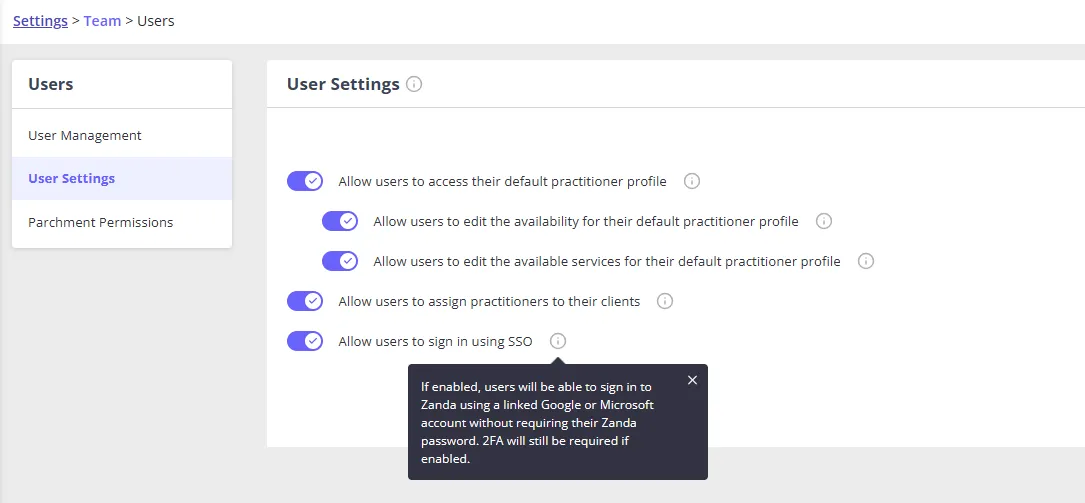
Turning this off hides the Single Sign-On section from everyone’s User Profile and stops anyone signing in with Google or Microsoft. It doesn’t remove an account that’s already connected: turn the setting back on and those connections work again right away, with nothing to reconnect.
Connect your Google or Microsoft account
If your Google or Microsoft account’s email matches your Zanda login email
The first time you select Sign in with Google or Sign in with Microsoft on the login page, Zanda automatically connects that account, as long as its email address matches your Zanda login email exactly. There’s nothing to set up beforehand: the connection happens on its own the first time that SSO sign-in succeeds.
If your Google or Microsoft account uses a different email address
For users who don’t use a Google or Microsoft email address to log in, you can connect an SSO account manually from your profile:
- Select the account business name at the top-right of the screen, then select User Profile.
- Under Single Sign-On, click Connect next to Google or Microsoft.
- Follow the steps to connect that account when prompted.
Once connected, that section shows the connected account instead of a Connect button.
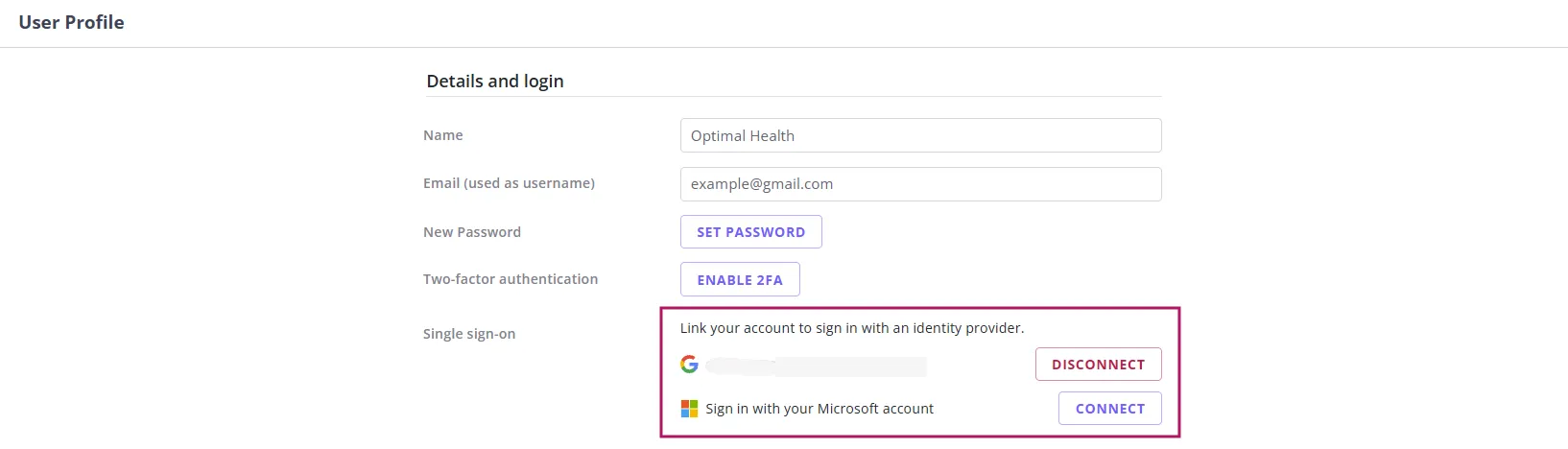
To disconnect an account instead, see Disconnect a Google or Microsoft account below.
Sign in with Google or Microsoft
- Go to your Zanda login page.
- Click Sign in with Google or Sign in with Microsoft, shown above the Email and Password fields.
- Complete sign-in with that provider.
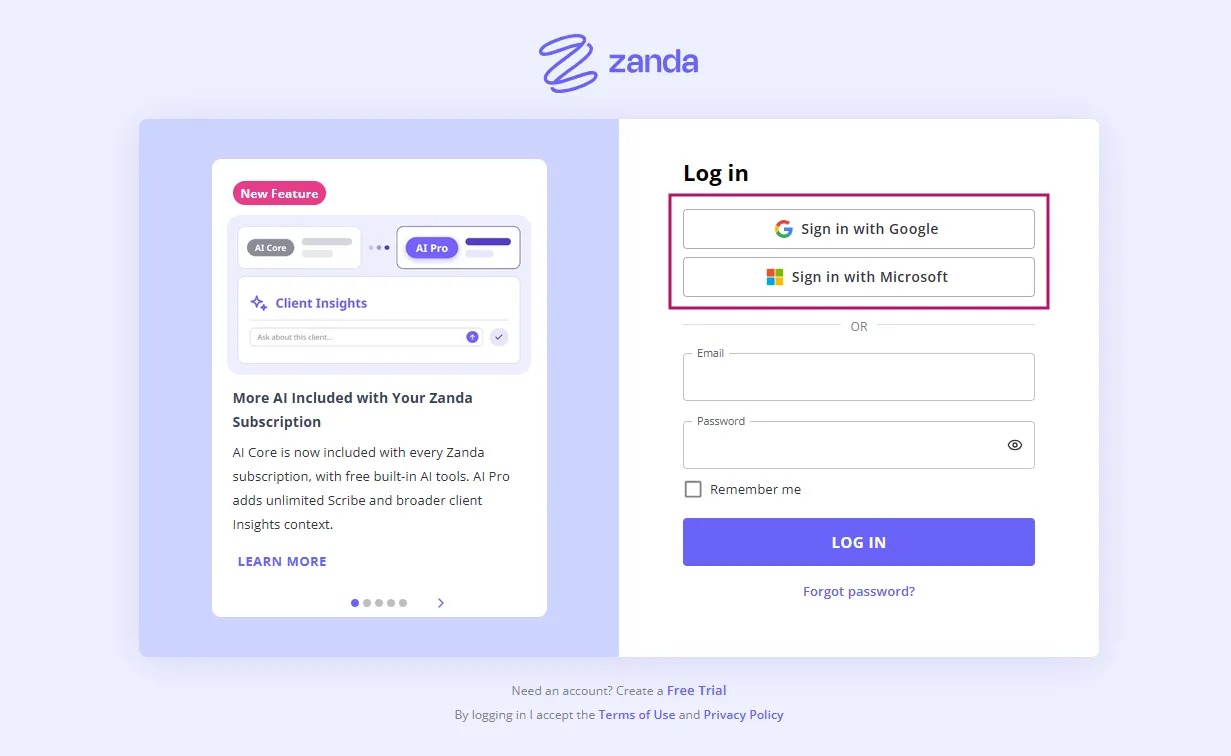
If your profile has two-factor authentication turned on, Zanda still asks for your 2FA code (or a backup code instead), or skips it on a browser you’ve already marked as trusted, before you land in the app, the same as when you sign in with your password. 2FA applies to Google and Microsoft sign-in in the same way. See Managing 2FA.
Disconnect a Google or Microsoft account
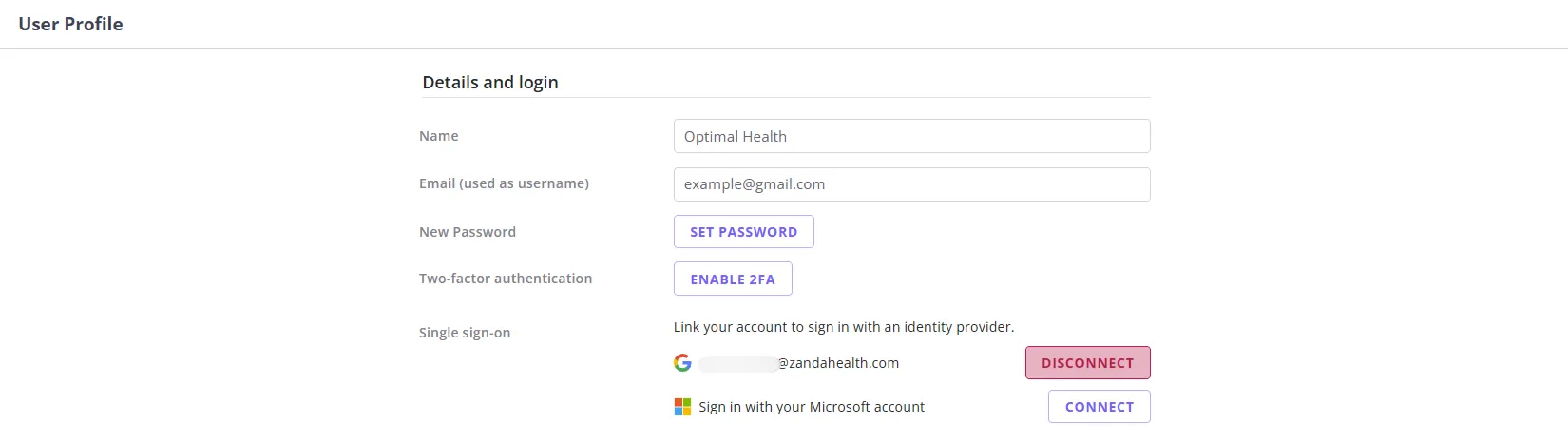
- Select the account business name at the top-right of the screen, then select User Profile.
- Under Single Sign-On, click Disconnect next to the connected provider.
Disconnecting only removes that sign-in option. It doesn’t deactivate your Zanda account or change your password, so you can still sign in with your email address and password afterwards.
Frequently Asked Questions
Why don’t I see the Single Sign-On section in my User Profile?
The Single Sign-On section shows by default. It disappears from everyone’s profile once a Master User, or a user with the Setup and Configure Zanda permission, turns off Allow users to sign in using SSO in User Settings. Ask them to check that setting; if it’s already on and the section is still missing from your profile, contact Zanda support.
The Sign in with Google and Sign in with Microsoft buttons on the login page are different: they always show, because the login page doesn’t yet know which practice you belong to. If your practice has SSO turned off, signing in with Google or Microsoft returns you to the login page with an error asking you to sign in with your email address and password instead.
I signed in with Google or Microsoft, but it sent me back to the login page with an error
Zanda shows a message such as “Unable to log in with Google SSO. Please create an account, or log in with your email address and password.” (or the Microsoft equivalent) when it can’t find an existing Zanda login matching that Google or Microsoft account, among a few other reasons shown in the same message. At that point Zanda has no way to tell whether you’re a new user or an existing one who just hasn’t connected that account yet, so it points you to your email address and password instead.
Check that the email address on the Google or Microsoft account matches your Zanda email address exactly, and that SSO is still turned on for your account. SSO connects to a Zanda login that already exists; it doesn’t create a new one, so if the addresses never match, sign in with your email address and password instead, then connect the account manually from your profile (see If your Google or Microsoft account uses a different email address above) so SSO works next time.
Can I connect the same Google or Microsoft account to more than one Zanda login?
Each Google or Microsoft account can connect to one Zanda login. If you try to connect or sign in with an account that’s already linked to a different Zanda login, Zanda asks you to sign in with your email address and password instead.