
Accessing the report
Master users have access to this report by default. Non-master users require the Access Practice Dashboard permission to view it.
What a non-master user can see within the report depends on their Profile Access permission:
- See all clients. Access all clients — the user sees utilization data for every practitioner in the practice, and can use the Practitioner filter to select any individual practitioner or the whole team.
- See only their clients. Access only their clients — the user sees only their own utilization data. The Practitioner filter is limited to their own profile, so they cannot view other practitioners’ figures.
So to let a practitioner review only their own utilization, grant Access Practice Dashboard while leaving their Profile Access on See only their clients. Access only their clients. To let them review the whole practice, also grant the See all clients. Access all clients Profile Access level.
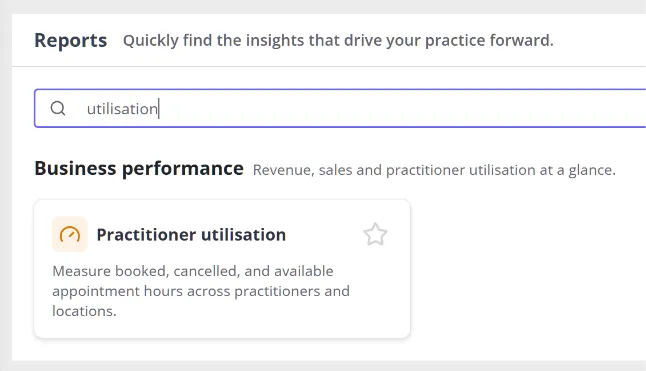
You can find the report by clicking Reports and searching for Utilization, or by browsing the Practice category.
Report Use Cases
You can use the Practitioner Utilization Report in your day-to-day operations to:
-
Spot under-booked practitioners: Identify staff with high available hours but low booked hours.
-
Identify demand pressure: Notice consistently high utilization (near or above 100%).
-
Plan availability changes: Decide when to add or remove availability blocks or adjust recurring schedules.
-
Compare performance: Review metrics across different locations or time periods.
-
Support capacity planning: Prepare ahead of seasonal spikes, holidays, or new service launches.
-
Find operational anomalies: Notice bookings happening outside configured availability.
-
Review client activity: Compare attendance, cancellations, did-not-attend appointments (DNAs), new clients, and rebooking across practitioners.
Available filters
You can use the following filters to narrow down the data shown in the report.
Date range
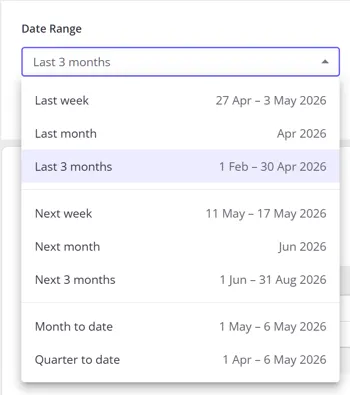
Use this filter to choose the period you want to report on.
By default, the report is set to Last 3 Months.
Available options include:
Past
- Last week
- Last month
- Last 3 months (the last three fully completed months)
Future
- Next week
- Next month
- Next 3 months
To date
- Month to date
- Quarter to date
Choose one of the listed presets to run the report. The date range menu does not include a Last year preset or a custom start and end date range.
The report shows one combined total for each practitioner across the whole date range. It doesn’t break the figures down by week or month, so Last 3 months gives a single figure for all three months, not one figure per month. To report on a single past month, see Can I run the report for a specific past month, last year, or a custom date range? below.
Practitioner
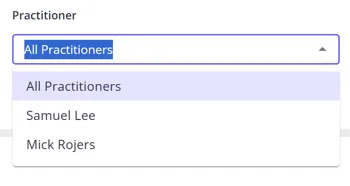
Use this filter to view utilization data for:
- a specific practitioner, or
- your entire team
By default, this is set to All Practitioners. Users whose Profile Access is See only their clients. Access only their clients don’t have the All Practitioners option, so the filter is set to their own profile.
Location
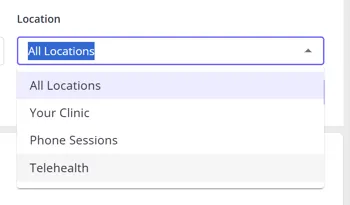
Use this filter to control which locations are included in the report.
By default, this is set to All Locations.
Specific location
When you select a single location:
- each practitioner is shown separately for that location,
- available time only includes hours at that location, and
- booked hours and appointment counts only include appointments at that location.
All locations
When you select All Locations:
- each practitioner appears once in the report,
- available time shows their total availability across locations, and
- booked hours and appointment counts include appointments at every location.
Include personal appointments in booked hours
Use the Include personal appointments in booked hours switch, next to the RUN REPORT button, to choose whether personal appointments count as booked time.
- Off (default): personal appointments are left out of Booked hours and Utilization %.
- On: the time of each personal appointment is added to Booked hours, which raises Utilization % and lowers Unbooked.
Available time stays the same either way, and the Personal appts column always shows how many personal appointments each practitioner had. Personal appointments with a status of Rescheduled, Cancelled, Late Cancellation, or No Show are never counted.
The switch is off each time you open the report, and a change takes effect the next time you click RUN REPORT. Printed and PDF copies of the results list the setting as Personal appts in booked hours: Yes or No.
Understanding the key metrics
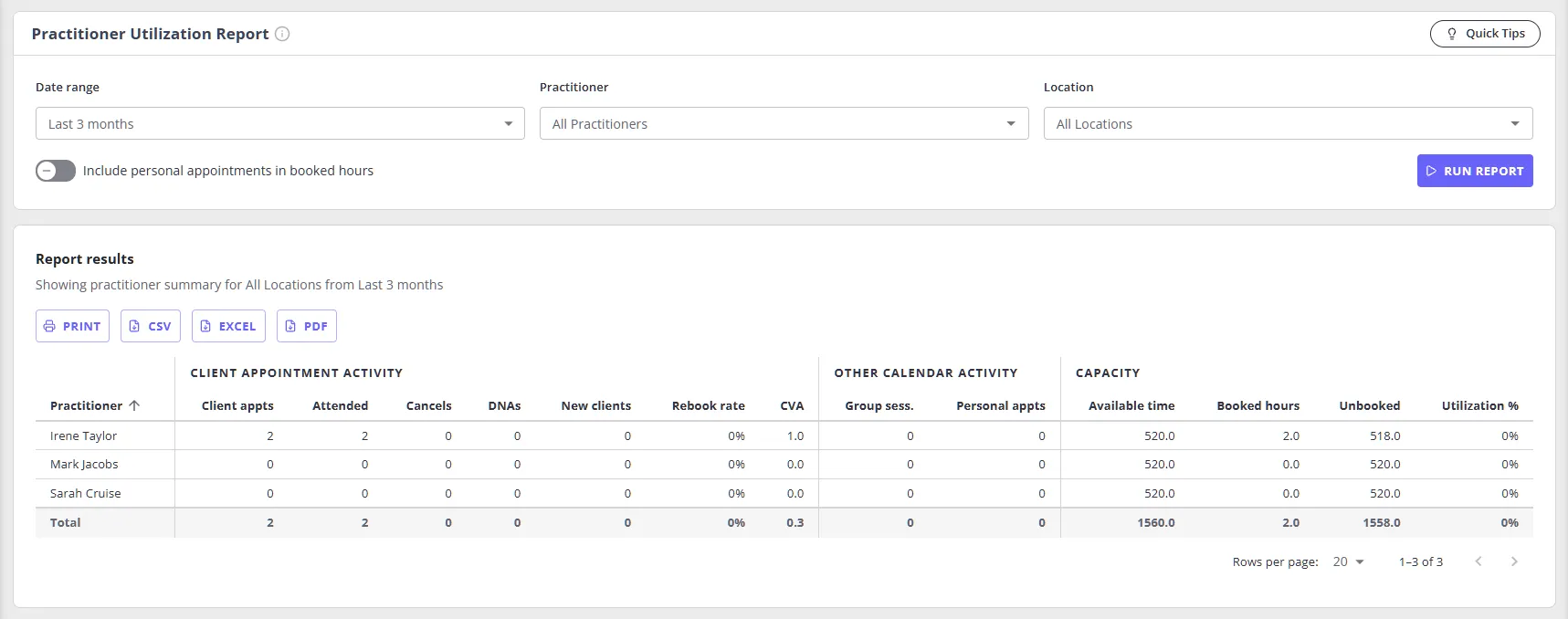
The report shows one row for each practitioner, with the columns grouped into three sections: Client Appointment Activity, Other Calendar Activity, and Capacity. A Total row sits at the bottom of the table.
The report lists every active practitioner who matches your filters, including practitioners with no activity in the date range. An inactive practitioner is listed only when they had a client appointment or group appointment in the date range.
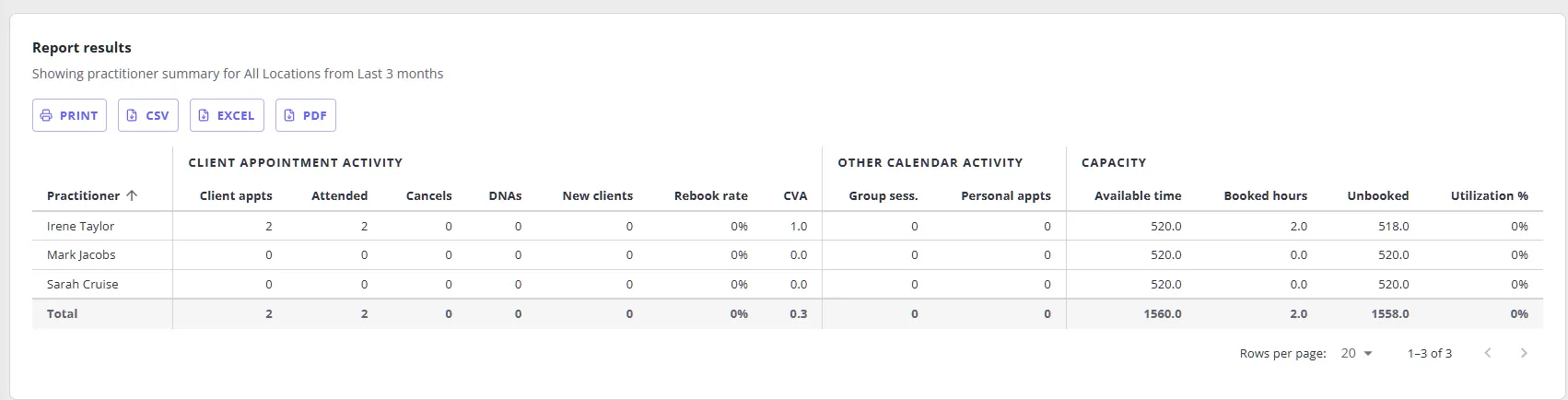
Client Appointment Activity
These columns count individual client appointments, that is, client appointments that are not part of a group appointment. Group appointments have their own column under Other Calendar Activity.
- Client appts: the number of individual client appointments in the date range, whatever their status.
- Attended: individual client appointments with a status of Pending, Confirmed, Arrived, or Completed. Because Pending and Confirmed appointments count, a date range that includes today or future dates also counts appointments that haven’t taken place yet.
- Cancels: individual client appointments with a status of Cancelled or Late Cancellation.
- DNAs (did not attend): individual client appointments with a status of No Show.
- New clients: clients who attended an individual appointment with the practitioner in the date range and had no attended appointment with your practice before the date range started. A client who is new to two practitioners in the same period counts on both rows, and once in the Total row.
- Rebook rate: the percentage of the practitioner’s attending clients (each client counted once) who have an appointment with your practice after the date range ends, with any practitioner and in any status.
- CVA (client visit average): the number of attended appointments divided by the number of different clients who attended. For example, 30 attended appointments across 12 clients gives a CVA of 2.5.
Rescheduled appointments count in Client appts but not in Attended, Cancels, or DNAs, so those three columns don’t always add up to the Client appts figure.
Other Calendar Activity
- Group sess.: the number of group appointments for the practitioner in the date range.
- Personal appts: the number of personal appointments in the date range, excluding those with a status of Rescheduled, Cancelled, Late Cancellation, or No Show. This column is shown whether or not Include personal appointments in booked hours is on.
Capacity
The Capacity columns are Available time, Booked hours, Unbooked, and Utilization %. Each is explained below.
Available time
Available time is the total time a practitioner is configured to be available during the date range you selected. It’s based on:
-
The practitioner’s availability settings (including recurring schedules)
-
The selected date range
-
The selected location scope (a single location or “All locations”)
-
Any availability overrides (extra availability added, or time removed)
Booked hours
Booked hours is the total duration of appointments scheduled in the calendar that count as ‘booked’ within the selected date range and filters. This calculation uses the appointment duration, not the duration of services added to the appointment invoice.
Booked hours includes:
- individual client appointments with a status of Pending, Confirmed, Arrived, or Completed
- group appointments, counted once for the full session time whatever the number of participants or their attendance, unless the group appointment itself is Cancelled, Late Cancellation, or Rescheduled
- personal appointments, only when Include personal appointments in booked hours is on
Individual client appointments are excluded if their status is:
-
Rescheduled
-
Cancelled
-
Late Cancellation
-
No Show
Unbooked
Unbooked shows how many available hours were not booked.
Formula: Unbooked = Available time − Booked hours
When Booked hours is higher than Available time, Unbooked shows a negative figure.
Utilization %
Utilization shows how much of the available time was booked. Outside the US, the column is labeled Utilisation %.
Formula: Utilization (%) = (Booked hours ÷ Available time) × 100
Tip: Utilization can be over 100% if appointments were booked outside configured availability.
Total row
The Total row adds up the counts and hours for every practitioner in the report. Rebook rate and Utilization % are worked out from the totals rather than averaged. New clients and Rebook rate count each client once, even if they saw more than one practitioner. CVA is the average of the practitioners’ CVA values.
On screen, hours show one decimal place and percentages are rounded to whole numbers. Click a column heading to sort the table. PRINT, CSV, EXCEL, and PDF exports list practitioners alphabetically, include the Total row, and show hours to two decimal places.
What’s not included in these calculations
- Cancelled, Late Cancellation, and No Show appointments don’t count toward Booked hours. They appear only as counts in the Cancels and DNAs columns.
- Personal appointments don’t count toward Booked hours unless you turn on Include personal appointments in booked hours, and they never change Available time.
- Appointment purpose is not considered. Every individual client appointment and group appointment in a qualifying status counts toward Booked hours whatever service is attached to it, including appointments booked for admin work such as report writing or phone calls.
So the capacity figures focus strictly on:
- Available time (from configured availability + overrides)
- Booked hours (from qualifying appointment statuses, plus personal appointments when you include them)
- derived Utilization % and Unbooked hours
How calculations work
To ensure accuracy even with recurring patterns and exceptions, the system calculates hours using a specific pipeline. All calculations use your account timezone, including daylight saving time changes.
How Available time is calculated
-
Expanding recurring availability: The system expands recurring rules (e.g., weekly) into specific calendar dates within the report’s date range.
-
Applying daily time blocks: Multiple blocks in a single day (e.g., 9:00 AM to 12:00 PM and 1:00 PM to 5:00 PM) are included.
-
Merging overlapping times: Overlapping availability blocks on the same day are merged to avoid double counting.
-
Applying availability overrides: Extra available time is added, and subtractive overrides (removed time) are deducted.
-
Summing the time: All remaining time is summed to produce the final Available time.
How Booked hours is calculated
-
Finding appointments in the selected date range and practitioner filter.
-
Applying the location scope (single location or all locations).
-
Including only appointments that count as booked (see Booked hours above), and personal appointments when Include personal appointments in booked hours is on.
-
Adding up the appointment durations to produce the Booked hours. Where two appointments overlap, the overlapping time is merged and counted once, so it is never double counted.
Note: For example, if a practitioner has 40 hours of Available time and 30 Booked hours, then Utilization % is (30 ÷ 40) × 100 = 75% and Unbooked is 40 − 30 = 10 hours.
Interpreting common outcomes
Utilization is 0%
This usually means there were no booked appointments in the period, or no configured availability in the period.
Utilization is over 100%
This can happen when:
-
Appointments are booked outside configured availability (e.g., manual scheduling, extended sessions).
-
Availability was reduced (e.g., subtractive overrides) but bookings still occurred.
-
Include personal appointments in booked hours is on and personal appointments fall outside configured availability.
This isn’t necessarily an error—it can be a useful operational signal showing overbooking.
Recording client admin time without inflating Booked hours
Record admin work outside client appointments to keep it out of Booked hours. Booked hours counts every individual client appointment and group appointment in a qualifying status, whatever service is attached to it. An appointment booked under a client for report writing, phone calls, or other admin time therefore counts exactly like a clinical session. The report’s filters are Date range, Practitioner, and Location, and its Include personal appointments in booked hours switch applies to all personal appointments at once, so none of these settings singles out a particular service or client appointment.
If you want the report to compare booked clinical time against genuinely unbooked time, record the admin work in one of these ways.
Bill it on an invoice without an appointment
- Go to Billing > New Invoice.
- Select the client.
- Add the service, pack, or product as an item line.
A standalone invoice is a billing record only, so the work is billed under the client but never counts toward Booked hours. See Creating an Invoice Without Appointment. For NDIS plans, you can also apply a Session Pack retrospectively to record extra services such as report writing, phone consultations, or travel. See Managing NDIS Billing (AU-only).
Block the time with a personal appointment if you need it visible in the calendar
Personal appointments stop clients booking that slot through the Client Portal, and by default they are left out of Booked hours. They do not reduce Available time, so the time is reported as Unbooked. If you turn on Include personal appointments in booked hours, the time counts as booked instead, so leave the switch off when you want admin time kept out of Booked hours.
Remove the time from Available time as well
Add an unavailable (subtractive) availability override, or trim the recurring availability, in Account Settings > Team > Availability (click the Settings cog, top right). This is the only way to take regular admin time out of the utilization calculation altogether, so that unfilled hours reflect only the time you were genuinely open for bookings.
Frequently Asked Questions
Can a practitioner see only their own utilization, without seeing everyone else’s?
Yes. Give them the Access Practice Dashboard permission and keep their Profile Access on See only their clients. Access only their clients — the report will show only their own figures. They will only see other practitioners’ utilization if they also have the See all clients. Access all clients Profile Access level.
Can I see all therapists’ schedules and locations in one report?
The Practitioner Utilization Report compares practitioners rather than showing a roster-style schedule and location view. Use it to compare each practitioner’s appointment activity, available time, booked hours, unbooked hours, and utilization percentage for one location or all locations, then use Account Settings > Team > Availability (click the Settings cog, top right) to review the practitioner’s regular weekly availability, location, available days, online booking settings, and overrides.
Are cancelled or no-show appointments included in the report?
They are counted in the activity columns: Cancelled and Late Cancellation appointments in Cancels, and No Show appointments in DNAs. Their time is left out of Booked hours and Utilization %, which count individual client appointments with a status of Pending, Confirmed, Arrived, or Completed, group appointments, and personal appointments only when you include them.
Can I run the report for a specific past month, last year, or a custom date range?
Not directly. The Date range filter only offers its presets: Last week, Last month, Last 3 months, Next week, Next month, Next 3 months, Month to date, and Quarter to date. There’s no Last year preset and no custom start and end date picker. Each preset gives one combined total per practitioner, not a month-by-month breakdown.
To keep a month-by-month record from now on, run the report with Last month early each month, then save the results with CSV, EXCEL, PDF, or PRINT. Last month always covers the whole previous calendar month, so running it at any point in August gives you July’s figures. Keep each month’s export to compare utilization over time.
For a past month the presets no longer cover, work out booked hours from the Appointments report, which accepts any start and end date:
- Click Reports and search for Appointments.
- Set Start Date and End Date to the first and last day of the month you want, for example 1 July to 31 July.
- Choose the practitioner in the Practitioner filter, and a location in the Location filter if you only want one location.
- Leave Appointment Status on its default of Pending, Confirmed, Arrived, and Completed. These are the same statuses this report counts as Booked hours.
- Run the report and export it to Excel. Use each appointment’s date and end time to calculate its duration, then add up the durations.
The Appointments report lists one row per client, so a group appointment appears once for each client attending. Count the time of a group session, or of any other overlapping appointments, only once, the same way the Practitioner Utilization Report does.
No other report shows Available time. To finish the calculation, add up the practitioner’s available hours for that month from Account Settings > Team > Availability (click the Settings cog, top right), including any availability overrides. Then divide booked hours by available hours and multiply by 100.
Can appointments outside of availability count toward Booked hours?
Yes. Appointments can count as “Booked” even if they fall outside configured availability. This reflects real operational overbooking, which is why utilization can exceed 100%.
How does the system handle daylight saving time?
All date expansion and duration computations use your account timezone. Durations reflect the real time difference on that date, so daylight saving time changes are accurately respected.
If you put a personal meeting in, does that make the appointment unavailable and take it off the count?
A personal appointment created during available hours does not make the time block unavailable and does not remove it from the practitioner’s Available time.
By default, personal appointments are also left out of Booked hours, so the time they occupy is counted as Unbooked. If you turn on Include personal appointments in booked hours before you click RUN REPORT, the personal appointment’s time counts toward Booked hours and Utilization % instead. Either way, the Personal appts column shows how many personal appointments the practitioner had.
Can I include personal appointments in booked hours?
Yes. Turn on Include personal appointments in booked hours, next to the RUN REPORT button, then run the report. Personal appointment time is added to Booked hours and Utilization %, and Available time doesn’t change. The switch is off each time you open the report, so turn it on again each time you need it.
Why does the Attended column include appointments that haven’t happened yet?
Attended counts individual client appointments with a status of Pending, Confirmed, Arrived, or Completed. When the date range includes today or future dates, such as Next month, appointments still in Pending or Confirmed status are counted as attended. For figures that reflect only appointments that have taken place, run the report for a past date range and keep appointment statuses up to date.