
Once you have connected your MailChimp and Zanda accounts, you can to export email addresses from your Zanda profiles into your MailChimp account.
How to export email addresses from Zanda to MailChimp
To export your client, contact or referrer emails lists into a MailChimp follow the steps below. You can add or edit lists in MailChimp .
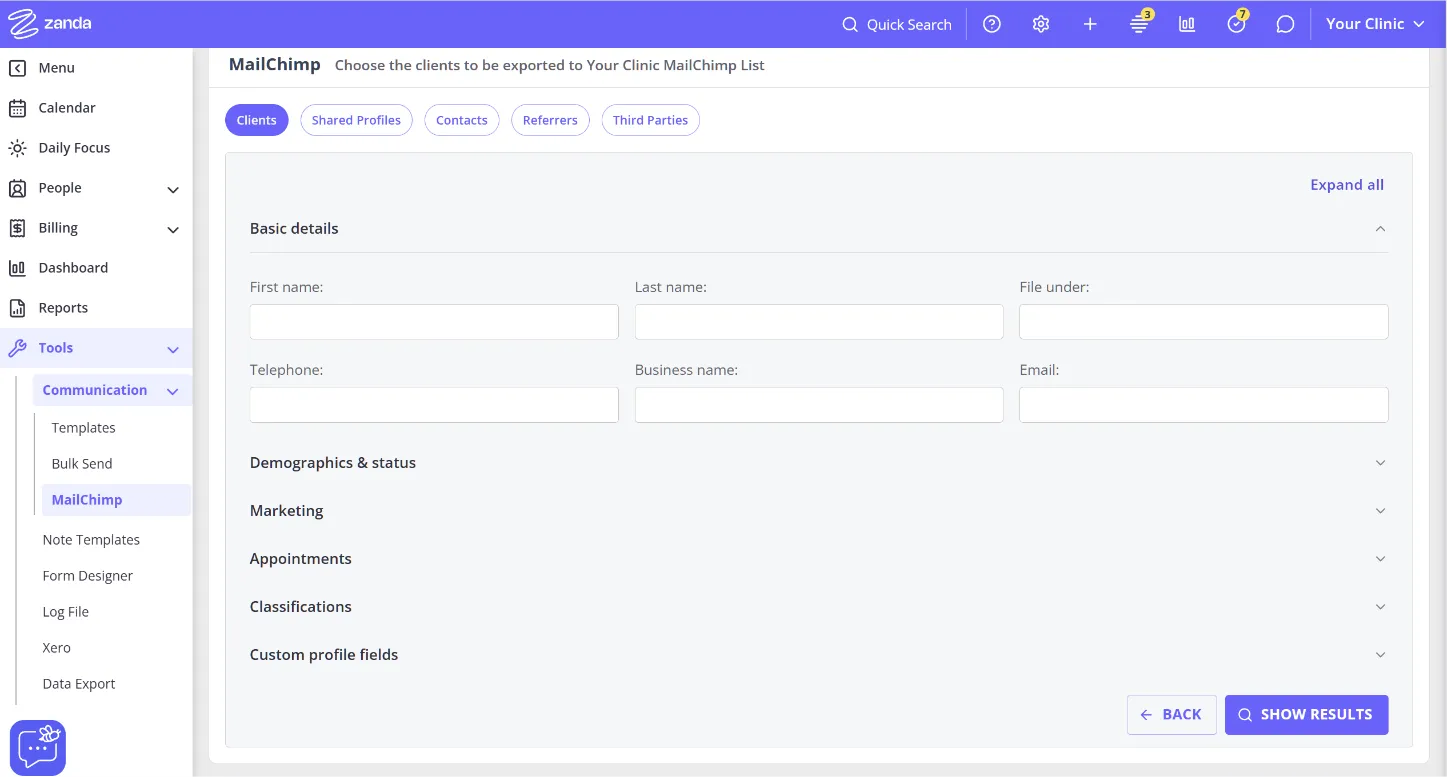
- Go to Tools → Communication → MailChimp.
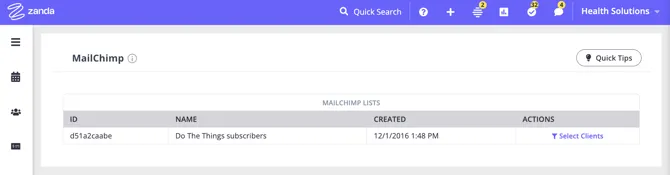
- Click Select Clients to the right of whichever list you would like to use.
- Choose which profiles to search with the profile type chips (Clients is selected by default, and you can also select Shared Profiles, Contacts, Referrers or Third Parties), then set the filters you need in the Advanced search panel to define who to add to the MailChimp list.
- Click Show results. Every profile that matches your search is selected for you, so review the listed names below and untick any that you do not wish to include in the list. The checkbox in the header row selects or clears every match across all pages of results. To find people in a long list, click a column heading to sort by it, or hover over the heading and open the column menu to filter by it. Sorting and filtering cover all pages of results. Text columns show values that contain what you type, in any mix of upper and lower case. Date columns take the earliest date, the latest date, or both. Marketing takes Opted-in or Opted-out. While a filter is on, Zanda sends only the ticked profiles the filter shows to MailChimp.
- Click Send to MailChimp {list name} List (for example, Send to MailChimp Newsletter List), then click Yes, send in the Confirmation window.
That’s it! They will now be listed in your MailChimp account as an audience.
From here, you can use the list in MailChimp for marketing campaigns, newsletters, and special offers. If you’re new to MailChimp we recommend checking out their guide on getting started with MailChimp.
Future clients you add to Zanda will not automatically sync to MailChimp. To ensure all new clients added to Zanda are listed in MailChimp, repeat the steps above. This will not create duplicate entries in MailChimp.
Frequently Asked Questions
Can I choose which Zanda fields are exported to MailChimp?
No. Zanda sends each selected profile’s email address, first name, and last name to the chosen MailChimp list. The MailChimp export page does not include an option to choose extra Zanda profile fields, custom fields, or other details for the MailChimp record.
To control who is exported, change the profile type chips and filters before you click Show results, then untick any records you do not want to include before you send the list to MailChimp. If you need additional audience fields or segmentation beyond name and email, manage those details in MailChimp after the people have been added to your list.
Can I export only clients who receive marketing communication?
Yes. When you select clients for a MailChimp list, open the Marketing section of the Advanced search panel and set Marketing communication to Opted-in to find clients marked as receiving marketing communication. Then click Show results and untick any records you do not want to export. You can review or update this setting from the client’s Receives Marketing Communication field before exporting.
Troubleshooting MailChimp export errors
If there is an issue with finalizing the export of email addresses, Zanda will generate an error message. We will be including the known errors and troubleshooting instructions in this section of the article.
Error: “Your merge fields were invalid”
- Log in to your MailChimp account
- Navigate to Audience > All Contacts > Settings > Audience fields and |MERGE| tags
- Make sure only the email field is set as required.