
Managing User Settings for your Account Users:
The User Settings feature includes global settings that apply to all users within the account, allowing for easy activation or deactivation of included features for everyone. Here is how you can access and edit your account users settings:
-
Click the Settings cog (top right) > Team > Users menu and select the ‘User Settings’ tab
-
Turn the switch of a setting you wish to enable/disable for all users
-
You can read the tool tip message (click the ‘i ’ icon) to learn about the functionality of a feature
-
Click ‘Save Changes’
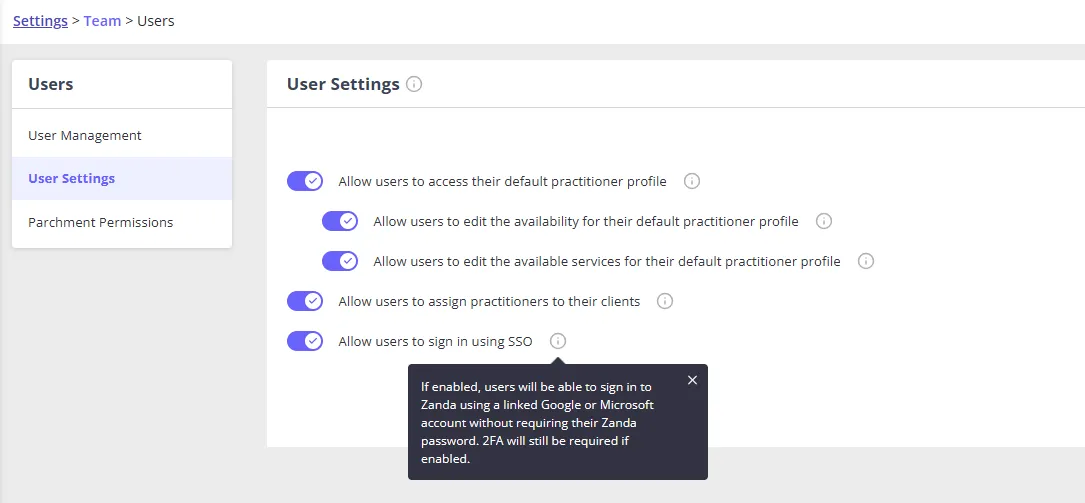
Allowing Users To Access Their Default Practitioner Profiles
When enabled, this setting allows users linked with a default practitioners profile to easily access and edit their default practitioner details.
☑️ Pro Tip
- To link a user profile with a default practitioner go to Account Settings > _Team > Users _> User Management (click the Settings cog, top right)
- Open the user profile > Select their default practitioner profile > Save.
- The user will need to re-log in to have the system update their settings.
Important: This will allow the user to access the clinical records for all clients linked to that practitioner if they are granted with clinical access level.
The users can update their practitioner details, manage insurers providers information, and set up their Zanda calendar sync without needing to navigate the settings menu or rely on someone else with access permissions. Once enabled, users can access their practitioner profile via the following method:
-
To access their practitioner settings, a user will need to log in and click the account business name at the top-right:
-
Their user profile menu will open.
-
They will select the ‘Practitioner Profile’ tab
-
This will take the user to their default practitioner profile and make changes to the settings available to them.
-
If they click the ‘Details’ tab, they will be able to edit their practitioner details and save those changes.
-
The ‘Settings’ tab will allow to configure their calendar and messaging settings.
-
Clicking the ‘Insurers’ tab will allow the user to add or edit their insurer provider information.
8 . Clicking the ‘Calendar Sync’ tab will allow practitioners to access the Google Calendar and the Outlook Calendar sync settings.
-
The ‘Online Payments’ tab enables a practitioner to connect their calendar with their own Stripe account for processing online payments.
-
Zoom BYO Integration - here, a practitioner can connect their calendar with their own Zoom account/license.
Allowing Users to Edit The Availability For Their Default Practitioner Profile
When enabled, this setting allows users linked with a default practitioner’s profile to easily access and edit their availability.
The user setting “Allow users to access their default practitioner profile” must be enabled for you to enable “Allow users to edit the availability for their default practitioner profile” as the access is dependent on the user having access to their practitioner profile.
The users can add and edit their availability without needing to navigate the settings menu or rely on someone else with the ‘Setup and Configure Zanda’ permission. Once enabled, users can access their availability via the following method:
-
To access their practitioner settings, a user will need to log in and click the account business name at the top-right.
-
Select the ‘Practitioner Profile’ menu item.
-
When the practitioner profile loads, they will need to click “Availability”.
-
From here, the user can add, edit, or delete availability for their practitioner only, without accessing availability settings of other practitioners.
Allowing Users to Edit The Available Services For Their Default Practitioner Profile
When enabled, this setting allows users linked with a default practitioners profile to easily access and edit their available services to control what services can be booked with them online via the portal.
The user setting “Allow users to access their default practitioner profile” must be enabled for you to enable “Allow users to edit the available services for their default practitioner profile” as the access is dependent on the user having access to their practitioner profile.
The users can control what services are available for online bookings with them without needing to navigate the settings menu or rely on someone else with the ‘Setup and Configure Zanda’ permission. Once enabled, users can access their available services via the following method:
- To access their practitioner settings, a user will need to log in and click the account business name at the top-right.
- Select the ‘Practitioner Profile’ menu item.
- When the practitioner profile loads, they will need to click “Available Services”.
- From here, the user can enable or disable available services for online bookings for their practitioner.
Allowing Users to Assign Practitioners To Their Clients
If this user setting is enabled, users will be able to set a new primary practitioner and assign practitioners and users with access for clients where they are listed as the primary practitioner.
To do this, a practitioner with open a client profile Admin > Manage page and select practitioners and users with access as necessary.
Allowing Users to Sign In Using SSO
When enabled, this setting lets every user on the account sign in to Zanda with a linked Google or Microsoft account instead of their Zanda password. Turning it off also hides the Single Sign-On section on everyone’s User Profile, though any account that’s already connected stays connected and works again as soon as the setting is turned back on. See Signing In with Google or Microsoft SSO for how users connect their account and sign in.
Allowing Users to Sign In Using Passkeys
This setting is on by default. When enabled, every user on the account can add a passkey on their User Profile and log in with it without their Zanda password or 2FA code. Turning it off hides the Passkeys row on everyone’s User Profile and stops passkey logins, so users log in another way, such as with their email address, password, and 2FA code. Passkeys already saved stay on users’ accounts and work again as soon as the setting is turned back on. See Logging In with a Passkey for how users add and use a passkey.
Frequently Asked Questions
Why did the Practitioner Profile option disappear from the menu under my practice name?
The Practitioner Profile option can disappear from the menu under your practice name without your account being deactivated. Two different changes can cause it, and each behaves differently:
- The practice-wide setting was switched off. If a Master User turns off Allowing Users To Access Their Default Practitioner Profiles in User Settings, the change applies to everyone straight away, including anyone already logged in. You do not need to log out for the option to disappear—it can go on the very next page refresh.
- Your link to a default practitioner profile was removed. This kind of change needs you to log out and log back in before it is reflected—a page refresh alone is not enough here.
To get the option back:
-
Ask a Master User to confirm Allowing Users To Access Their Default Practitioner Profiles is switched on, via Account Settings > Team > Users > User Settings (click the Settings cog, top right).
-
Ask them to confirm your user profile is still linked to a default practitioner profile, via Account Settings > Team > Users > User Management (click the Settings cog, top right).
-
If both are correct but the option still is not showing, log out and log back in.