
Your User Profile is your own corner of Zanda. It controls how you log in and how your account is protected, and it holds a few settings that apply only to you. Keeping it up to date means your login email receives the confirmation when your password changes, two-factor authentication (2FA) protects your login even if your password is guessed or reused, and emails and letters that use the user signature merge field carry your own signature. The Recent logins area also lets you check for any login you do not recognize and log out of every active session if you need to. Each user has their own User Profile, so the changes you make here affect only your login and settings, not anyone else’s in the account.
Open your User Profile
You can open your User Profile from any page in Zanda:
- Click your practice name in the top-right corner of the screen.
- Under Settings, click User Profile.
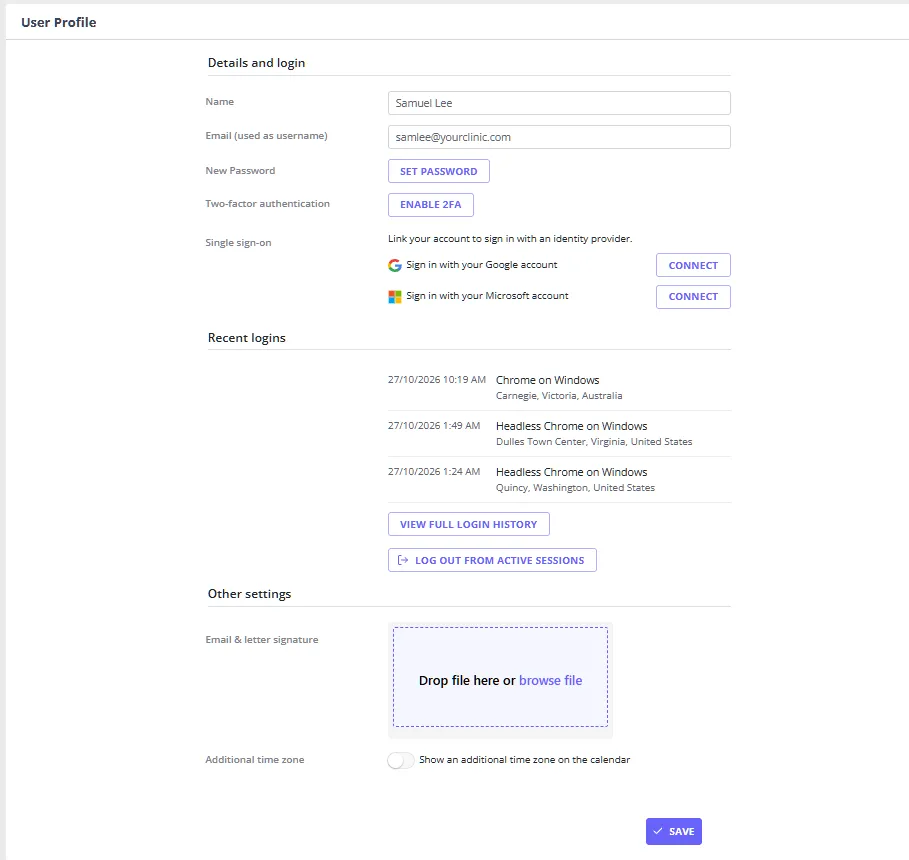
The page is split into three areas, in this order: Details and login, Recent logins, and Other settings. A Save button sits at the bottom of the page. See The Menu Under Your Practice Name for the other options in the User Menu.
If an admin has required 2FA for your profile and you have not set it up yet, a banner at the top of the page reads “Please setup Two Factor Authentication before continuing with Zanda”. The banner disappears once 2FA is set up. See the two-factor authentication section below.
Note: Your User Profile always shows the details of the user you are logged in as. To update another user’s details, an admin uses User Management instead. See Managing Users.
Details and login
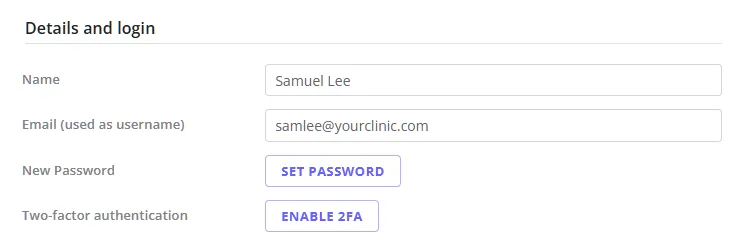
The Details and login area holds the details you log in with and the ways you secure your login.
Name
Name is the name on your user profile. It can be up to 100 characters long. Click Save to apply a change.
Email and username
Email is your login email address. It is also where Zanda sends the confirmation email when you change your password.
Most users log in with their email address. In that case the field is labeled Email (used as username) and there is no separate Username field: when you change your email and click Save, the email you log in with changes too.
If your login uses a username that differs from your email address, a separate Username field appears below Email. You can change either one independently. A username can be up to 100 characters long.
Zanda checks both values when you click Save:
- The email address must be a valid email address and must not already belong to another Zanda user. If it does, you see “This email address is already in use. Please use a different address.”
- The username must not already belong to another Zanda login. If it does, you see “Sorry, that username is not available. Please choose a different one.”
See Changing Email Addresses in Your Account for every other place an email address is stored in Zanda.
Password
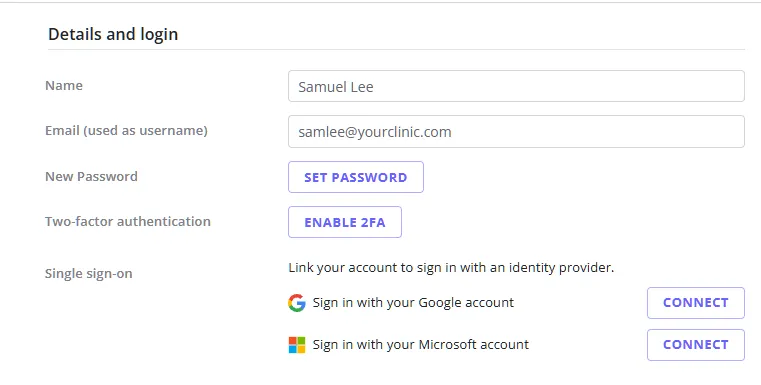
You can change your password directly from your profile, as long as you know your current one.
- In the New Password row, click Set Password. The password fields appear.
- In Existing Password, type your current password.
- In New Password, type your new password.
- If a Re-enter Password field is shown, type the new password again. The two entries must match.
- Click Save.
If a password strength indicator appears under New Password, keep strengthening the password until it is rated strong enough. Zanda shows “Password is not strong enough” and does not save a password that is too weak.
When the change is saved, Zanda sends a confirmation email to the email address on your profile. If your existing password is wrong, or the new password does not meet the requirements, the page shows the error next to the relevant field and your password stays the same.
For tips on choosing a strong password and using a password manager, see Zanda Account Security: Passwords, Password Managers, 2FA.
Two-factor authentication
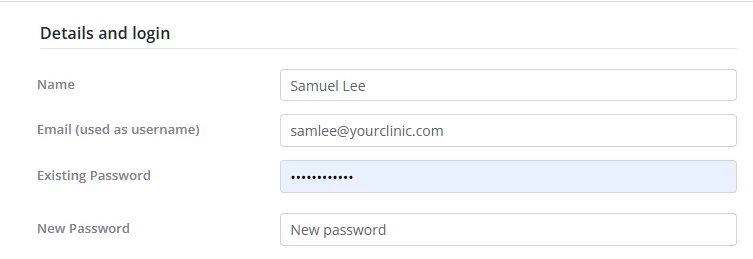
Two-factor authentication (2FA) adds a second step to your login: a 6-digit code from an authenticator app on your phone. The Two-factor authentication row shows Enable 2FA when 2FA is off, and Manage 2FA once it is on.
- In the Two-factor authentication row, click Enable 2FA.
- Scan the QR code with your authenticator app, enter the 6-digit code it generates, and click Verify.
- Zanda shows your 10 backup codes. Save them with Download, Print, or Copy, check I’ve saved my backup codes, and click Done.
Backup codes let you log in when you cannot use your authenticator app. Each code works once, and Zanda shows them only once, so save them somewhere safe, such as a password manager you do not use for 2FA codes, or a printed copy locked away. Once 2FA is on, click Manage 2FA to see how many backup codes you have left or to get new codes.
2FA settings save from inside the dialog. You do not need to click the page’s Save button afterwards. For the full setup steps, logging in with a backup code, and getting back in if you lose your authenticator app, see Managing 2FA.
Single sign-on
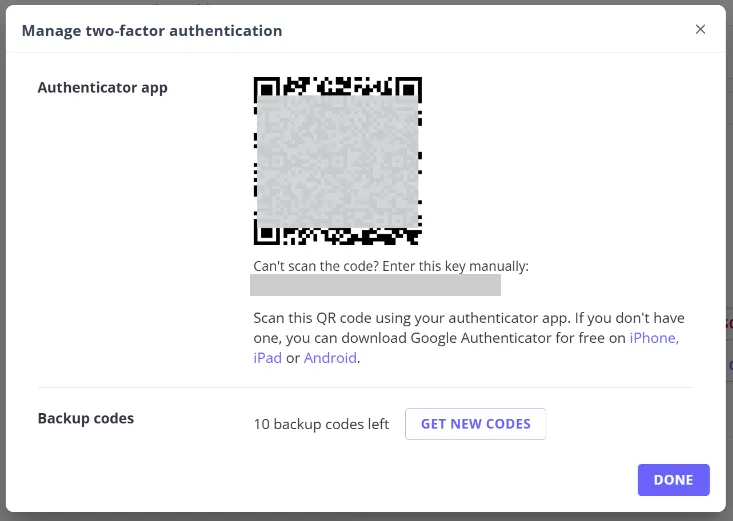
Single sign-on (SSO) lets you log in to Zanda with your Google or Microsoft account instead of typing your Zanda password. The Single sign-on row lists each provider available to your account:
- A provider you have not connected shows “Sign in with your Google account” (or Microsoft) and a Connect button. Click Connect and sign in with that provider when prompted. Zanda brings you back to your User Profile and shows “Authentication successful” once the account is linked.
- A connected provider shows the email address of the linked account and a Disconnect button. Click Disconnect to remove that sign-in option. The page refreshes and the provider shows Connect again.
Connecting and disconnecting take effect straight away; you do not need to click Save. Disconnecting does not change your Zanda password, so you can still log in with your email address and password.
Each Google or Microsoft account can be linked to only one Zanda login. If the account you choose is already linked to another Zanda login, Zanda shows a Connection Error message and does not connect it.
The Single sign-on row appears only while Allow users to sign in using SSO is turned on for your account. See Signing In with Google or Microsoft SSO for how your practice controls this setting.

Recent logins
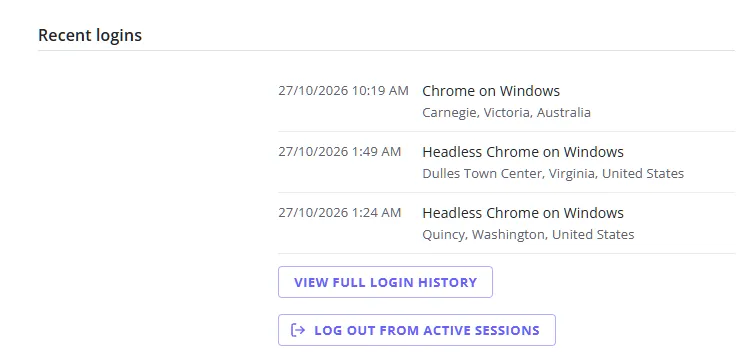
The Recent logins area helps you spot unfamiliar activity on your login. It lists your three most recent logins, newest first. Each entry shows:
- The date and time of the login, in your account’s date and time format.
- The browser and device used, for example “Chrome on Windows”.
- An approximate location, estimated from the login’s IP address.
Click View full login history to open the Login History dialog. It lists every recorded login, 10 per page by default, with columns for Date and time, Browser and device, Location, and IP address. You can show 10, 20, or 50 logins per page.
If you notice a login you do not recognize, reset your password and click Log out from active sessions. This button appears both in the Recent logins area and in the Login History dialog. It logs you out of every other browser and device straight away, keeps you logged in on the browser you are using, and shows “Logged out from all active sessions” when it is done.
The Log out from active sessions button does not appear while you are working in a linked account you switched into. Switch back to your own account to use it.
See Logging into Your Account for more on reviewing your logins and on how login locations are estimated.
Other settings
The Other settings area holds personal settings that control how Zanda presents your work.
Email and letter signature
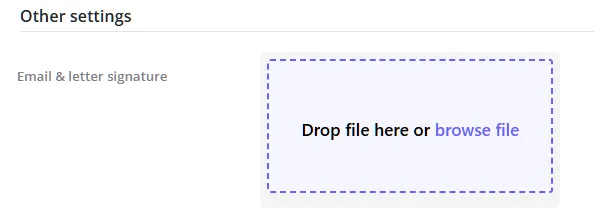
The Email & letter signature row stores an image of your signature. Zanda inserts it wherever an email or letter template uses the user signature merge field, so each user’s own signature appears on the messages they send.
- In the Email & letter signature row, drag an image onto the upload area, or click browse file to choose one. Use a JPG, JPEG, PNG, or WebP image.
- Crop and size the image in the editor that opens, then confirm.
The image uploads as soon as you confirm, and Zanda shows “Your email and letter signature has been updated.” You do not need to click Save. To replace the image, click Update Image. To remove it, use the remove option and confirm when Zanda asks “Are you sure you want to delete?”.
Only you can change your signature, from your own User Profile. To add the signature merge field to your templates, see Add Users Signature to Emails and Letters.
Additional time zone
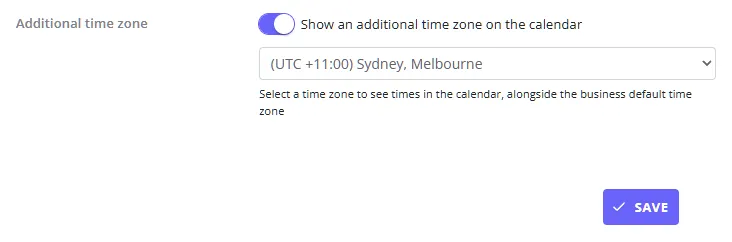
The Additional time zone setting shows a second time column on your calendar, so you can read appointment times in your own time zone alongside the account’s business time zone. It changes only what you see. Appointments and reminders keep using the business time zone.
- Turn on Show an additional time zone on the calendar.
- Choose your time zone from the dropdown that appears. Until you choose one, it shows your account’s business time zone.
- Click Save.
If you change this setting and try to leave the page without saving, your browser asks you to confirm before it discards the change. See Showing Your User Time Zone In the Calendar for how both time zones appear on the calendar.
Saving your changes
Click Save at the bottom of the page to save your Name, Email, Username, password change, and Additional time zone setting. Zanda confirms with “User details saved.” Some changes only take effect after your next login, so log out and back in if you want to see them straight away.
Everything else on the page takes effect as soon as you complete it, without Save:
- Setting up or changing 2FA, which saves from its own dialog.
- Connecting or disconnecting a Google or Microsoft account.
- Uploading, updating, or removing your signature image.
- Logging out of your other sessions.
If Zanda cannot save a change, the page shows the error next to the field that needs attention. Fix it and click Save again.
Frequently Asked Questions
Why can’t I change my username to the one I want?
Usernames are unique across every Zanda login, not only the users in your account, so a username someone else already uses is not available. Zanda shows “Sorry, that username is not available. Please choose a different one.” Try a variation. Usernames can be up to 100 characters long.
Will I get an email when I change my password?
Yes. Once your new password is saved, Zanda sends a confirmation email to the email address on your profile. If you did not make the change, reset your password straight away and use Log out from active sessions in the Recent logins area.
Why is there no Username field on my profile?
Your email address is your username. The field is labeled Email (used as username), and changing it also changes the email you log in with. A separate Username field only appears when your login uses a username that differs from your email address.
Why does Zanda say my email address is already in use?
Each email address can belong to only one Zanda user. If another user already logs in with that address, Zanda shows “This email address is already in use. Please use a different address.” Choose a different address, or contact the person who manages that other login.