
Your practice has one set of Calendar Display settings, and everyone’s calendar starts from them. In the Calendar display section of your User Profile you can choose your own values for three of those settings, so the calendar suits the way you work. The rest of your team keeps seeing the practice settings, or their own choices.
What you can set for yourself
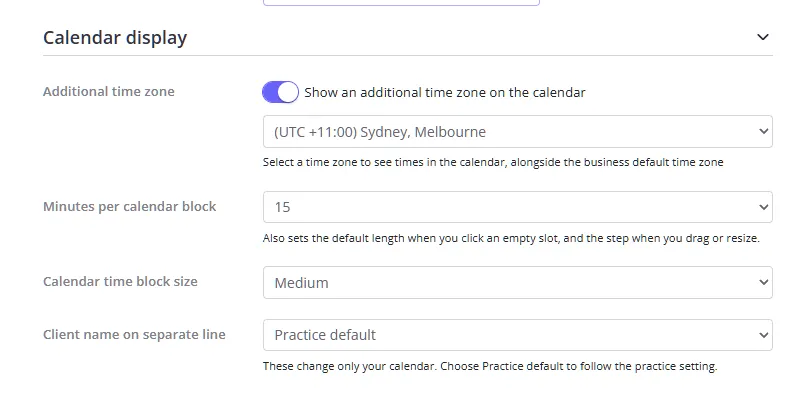
The Calendar display section on your User Profile holds four settings:
| Setting | What it changes on your calendar |
|---|---|
| Additional time zone | Shows a second time column next to the business time zone. See Showing Your User Time Zone In the Calendar. |
| Minutes per calendar block | How much time each block on the calendar represents: 5, 6, 10, 12, 15, 20, 30, 45 or 60 minutes. It also sets the default length when you click an empty slot to book, and the step an appointment moves by when you drag or resize it. |
| Calendar time block size | How tall each block looks: Small, Medium, Default, Large or XLarge. |
| Client name on separate line | On puts the appointment time on its own line below the client name on each appointment. Off shows the name and time on one line. |
Minutes per calendar block, Calendar time block size and Client name on separate line each start on Practice default. While a setting is on Practice default, your calendar follows the practice’s Calendar Display setting, including any later change to it.
These settings apply to the day and week calendar views. Everything else on the Calendar Display page, such as the calendar start and end times, stays the same for everyone and can only be changed there.
Set your calendar display
- Click your practice name in the top-right corner of the screen.
- Under Settings, click User Profile.
- Find the Calendar display section. It’s open when the page loads. Click its heading to collapse or expand it.
- Choose a value for any of the settings, or leave them on Practice default.
- Click Save at the bottom of the page. Zanda confirms with “User details saved.”
Open the calendar to see the change. If you’re also logged in to Zanda on another device or browser, the change shows there the next time you log in on it.
Go back to the practice settings
To follow the practice settings again, set the setting back to Practice default and click Save. Your calendar then uses the practice’s Calendar Display value for that setting.
Who sees the change
Only you. Your choices change how the calendar looks when you are logged in, whichever practitioners’ calendars you are viewing. Other users, including the practitioners whose calendars you view, keep seeing the practice settings or their own choices.
Appointments, availability and reminders aren’t changed by these settings. They only change how your calendar is drawn.
Frequently Asked Questions
How do I change the calendar display for other users?
Change the practice settings. The Master User or a user with the Setup and Configure Zanda permission can click the Settings cog (top right) > Schedule > Calendar Display. Users whose settings are on Practice default follow the change. Users who picked their own value keep it. See Editing Your Calendar Display.
Each user’s own choices can only be changed from their own User Profile. Editing a user under the Settings cog (top right) > Team > Users > User Management doesn’t show or change them.
Who can change their own calendar display?
Every user can open their own User Profile and change these settings, without any extra permission.
I changed a setting but my calendar looks the same. Why?
Check the following:
- You clicked Save at the bottom of the User Profile page. Changes aren’t kept until you save.
- The setting isn’t on Practice default. If it is, your calendar uses the practice setting.
- You’re looking at the day or week view, where these settings apply.
- If you saved on another device, log out and back in on this one.
Why does my calendar look different from a colleague’s?
One of you has chosen your own value for a calendar display setting. Open your User Profile and check the Calendar display section. To match the practice settings, set each setting to Practice default and click Save.