
Important Note
- You will need a Xero account. Free trial accounts can be obtained from the Xero website.
- If you have an existing account and would like to try the Xero Export, you can create a new trial organisation within your Xero account and use this to test. Invoices you export to a trial organisation stay marked as exported in Zanda after you connect your live organisation, so test with invoices you don’t need in your live Xero books. See Reconnecting to a different Xero organisation.
- Xero Cashbook and Ledger plans are not able to receive invoices or bills from third-party apps, therefore, you won’t be able to export approved invoices or payments to Xero if you are under these plans. You will need to upgrade your plan with Xero to enable the export of Approved invoices and payments.
Getting Started
Before connecting your Zanda and Xero accounts, you might need to update the following settings in your Zanda account:
- User login and permissions requirements:
- Enable users 2FA authentication: starting Monday, 28th August 2023, all users accessing the Xero export must enable Two-Factor Authentication (2FA) and authenticate within the last 24 hours. 2FA adds an extra layer of security to your account. Need help setting it up? Check our guide: Managing 2FA
- If you have no 2FA, you’ll see a prompt to set it up.
- If you haven’t signed in within the last 24 hours, you’ll be guided to log out and sign in again. See Tools > Xero asks you to log out and back in if this gets in your way.
- Enable Access Financial Reports permission in Account Settings > Users > User Management (click the Settings cog, top right) for user profiles which will be used for managing Xero exports in Zanda.
- Enable users 2FA authentication: starting Monday, 28th August 2023, all users accessing the Xero export must enable Two-Factor Authentication (2FA) and authenticate within the last 24 hours. 2FA adds an extra layer of security to your account. Need help setting it up? Check our guide: Managing 2FA
- Add tax codes you work with in Account Settings > Billing > Tax Rates (click the Settings cog, top right)
- Add services and products in Account Settings > Billing > Services (click the Settings cog, top right) and Account Settings > Billing > Products (click the Settings cog, top right). Apply relevant tax rates to each service and product. Services and product names will be exported to Xero as Item Descriptions. See What Zanda sends to Xero for the full list.
Connecting Your Zanda Account to Xero Account
Important Note:
If your business has multiple Zanda accounts and one Xero account, we don’t recommend linking multiple Zanda accounts to one Xero account. This setup is likely to cause issues with customer data in Xero account.
To connect your Zanda and Xero accounts, follow these steps:
- Go to Tools > Xero.
- You will be prompted to connect your Xero account to Zanda.
- Follow the steps to connect and authorize access to your Zanda account.
- Once the connecting is complete, you will automatically return to the Tools > Xero page.
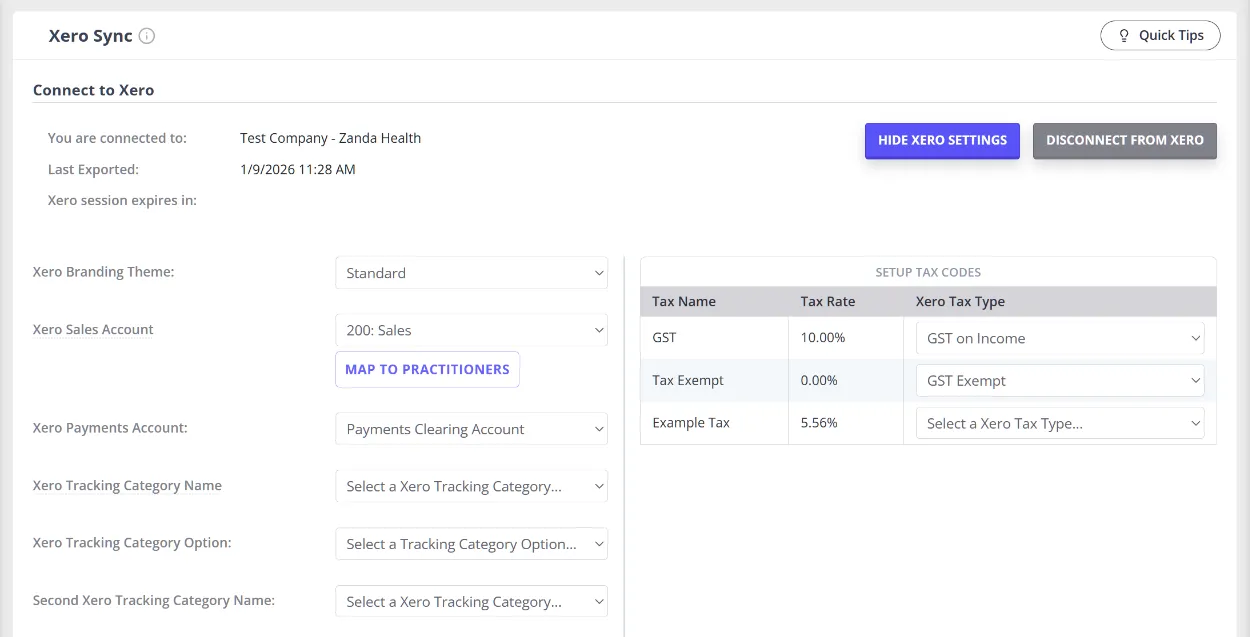
- Click Show Xero Settings at the top-right and configure your Xero integration settings in Zanda. The button changes to Hide Xero Settings once the settings panel is open.
- Here are the key settings to review:
-
Select a Xero branding theme – this must be set up in your Xero account first. In Zanda, you’ll simply select which theme you want to use. Instructions for adding themes in Xero are linked here as well.
-
Select your Xero sales account – this is where Zanda invoices will be exported. It’s commonly the 200 Sales Account, but your accountant may advise using a different one. Look for underlined feature names—hovering over them will reveal helpful tips.
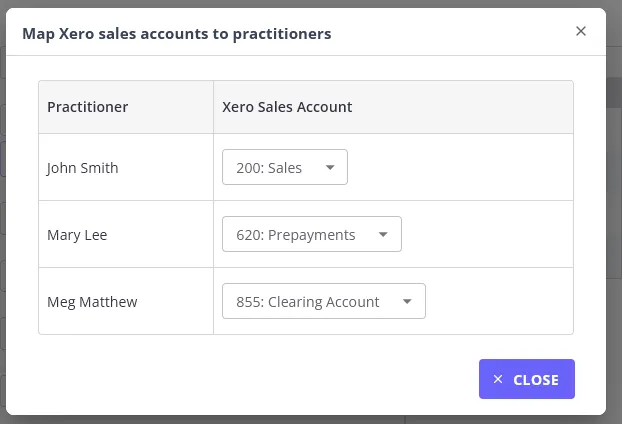
- Map to Practitioners – click Map to Practitioners below the Xero Sales Account dropdown to open Map Xero sales accounts to practitioners, a table listing every practitioner with a Xero Sales Account dropdown next to their name. Each dropdown defaults to the Xero sales account you selected above; change it for any practitioner whose invoices should post to a different Xero sales account instead. Each change saves as soon as you pick an account, there’s no separate save step inside the table, so use Close once you’re done.
-
Xero payments account – this is separate from the sales account. It’s where your payments from Zanda will go. The Payments Clearing account is often used, but again, consult your accountant.
-
Xero tracking category name – this helps you categorise invoices for reporting purposes. You can have two tracking categories with multiple options, for example Location with options like Brighton Clinic, In-home Services, or Telehealth. Zanda doesn’t pick the option from each invoice’s location, service, or practitioner. The options you select here are applied to every line of every invoice in the export. To track invoices by location, filter the export by Location, select the matching tracking option and click Save, export that batch, then repeat for the next location.
-
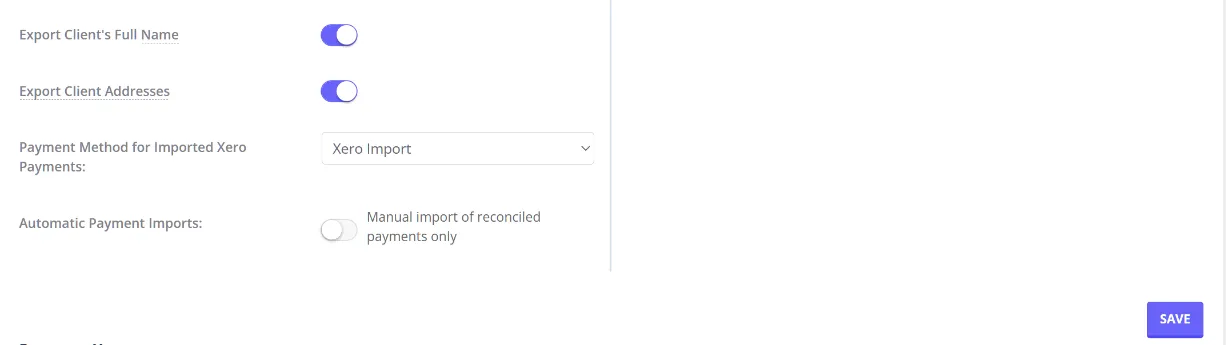
Export Client’s Full Name – If unticked, then only the client’s first name and first letter of their last name will be exported to Xero. Untick if you need to maintain client confidentiality.
-
Export Client Addresses – If unticked the Client’s address and email address will not be exported. Untick if you need to maintain client confidentiality.
Changing Export Client’s Full Name or Export Client Addresses only affects what Zanda sends in exports from then on. Zanda doesn’t go back and change invoices or contacts that are already in Xero.
-
Set up tax codes – your accountant will advise which tax types to use. You can map Zanda tax rates to Xero tax types and manage tax settings under Account Settings > Billing > Tax Rates (click the Settings cog, top right).
-
Once configured, don’t forget to click Save!
-
Exporting Clients and Invoices to Xero
Important Note:
- The first time you export an invoice for a new client, that client will be created as a Contact in Xero. So exporting a client’s invoice also exports the client details.
- Exporting must be done in two batches:
- Export the invoices
- Then export the payments
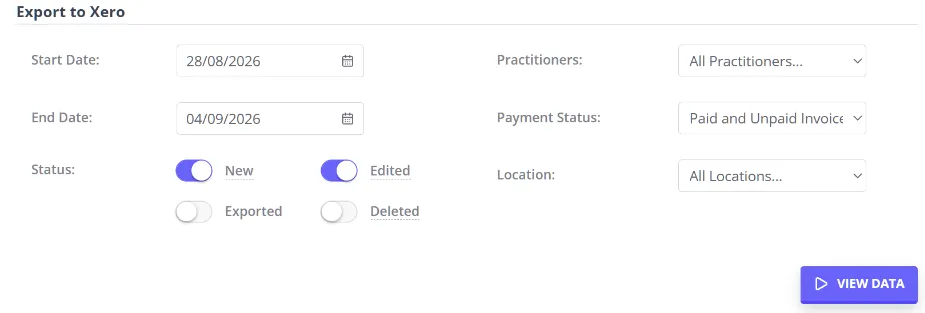
- To generate a list of invoices and payments, select the date range, invoice status (new, edited, already exported, or deleted), practitioners, payment status (paid, unpaid, or both), and location.
Let’s break that down:
-
Invoice status:
- New: never exported
- Edited: exported before, but changes were made since (see Re-exporting an edited invoice)
- Exported: just to check what’s been sent
- Deleted : returns no invoices, since invoices you’ve deleted in Zanda don’t appear anywhere on this screen
-
Practitioners: choose one or export for all practitioners
-
Payment status: all, paid only, or unpaid only
-
Location: filter invoices by location if you have multiple clinics or service types
Tip: The Xero Sync screen only lists invoices that still exist in Zanda, so the Deleted status filter can’t tell you whether an invoice you deleted in Zanda still exists in Xero. To check that, look up the invoice in Xero directly. For how to find a client’s deleted invoices in Zanda, see Deleting and Restoring Invoices.
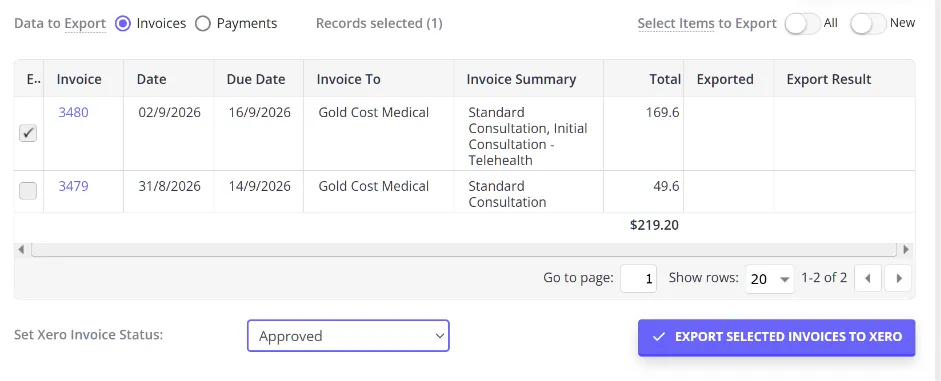
- Click View Data to see a list of invoices.
- Each invoice shows its invoice date. For an invoice created from an appointment, this is the appointment date.
- You can right-click the invoice number to View Invoice, Refresh Data, or Mark as Exported (if it already exists in Xero, or you don’t want it exported).
-
Select invoices you’d like to export to Xero. If you have a large number of invoices, use the Select Items to Export All button to quickly check all that are eligible—Zanda will skip already exported ones.
-
Set Xero Invoice Status: exported invoices can be in Draft or Approved status.
If invoices are exported in Draft status then they can be edited and deleted in Xero, but payments can’t be applied. If you initially export them in Draft status then you will need to export them again later in Approved status to export the related payments. You can change the export status at the bottom of the page.
- Click ‘Export Selected Invoices To Xero’.
Later, if you want to confirm whether an invoice was exported, open the invoice in Zanda, it will display the export date and status in the invoice screen.
What Zanda sends to Xero
For each invoice, Zanda sends:
- the invoice number,
- the invoice date (for an invoice created from an appointment, this is the appointment date),
- the due date (or the invoice date, if the invoice has no due date),
- the client as the Xero contact, or the contact or third party the invoice is billed to,
- the Xero branding theme you selected, and
- the status you choose when you export (Draft or Approved).
The Xero invoice’s Reference is left blank, unless the invoice is billed to a contact or third party. Then it holds the client’s name (or their first name, last initial, and client number, if Export Client’s Full Name is unticked), so you can tell who the invoice was for.
For each invoice line, Zanda sends:
- the service or product name, as the line description,
- the quantity and unit amount,
- any discount (a percentage discount is sent as a discount rate, and a dollar discount is taken off the unit amount),
- the Xero tax type mapped to the line’s tax rate, and the tax amount,
- the Xero sales account (the one mapped to the invoice’s practitioner under Map to Practitioners, otherwise your default Xero Sales Account), and
- the tracking category options selected in Xero Settings.
Zanda doesn’t send item codes (including NDIS support item codes), any notes added to the invoice or its lines, the practitioner’s name, or the location. The practitioner only decides which sales account is used.
Re-exporting an edited invoice
An invoice shows as Edited when it has been changed in Zanda since it was last exported. When you export it again, Zanda sends it with the same invoice number, so Xero updates the existing invoice with that number instead of creating a new one. The update uses your Xero Settings as they are at the time you re-export, including the sales account, practitioner mappings, and tracking options, which may be different from the first export.
Xero won’t let an invoice be changed once a payment or credit note is allocated to it in Xero, so the re-export is rejected. See Invoice not of valid status for modification in Troubleshooting Xero Exports for how to resolve it.
Exporting Payments to Xero
-
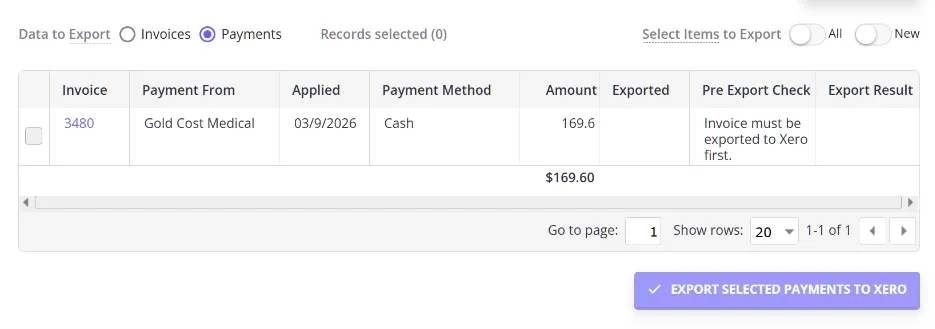
To see the list of payments, click the ‘Payments’ option above the loaded list.
-
The Pre-Export Check table on the payments tab tells you if an invoice has been exported yet for each payment. If not, export it first, then return and export the payments.
-
Also note: payments are filtered by date applied (when the payment was added to its invoice in Zanda), not the invoice date. So if you apply a payment several days after the appointment, you’ll need to adjust the date filter to see those payments.
-
To see only the payments already exported (or only the ones still to export), use the Exported column’s own filter: hover over the column header, click the filter icon, then choose the ‘not null’ condition to show already-exported payments, or ‘null’ to show the ones still waiting.
-
Once ready, click ‘Export Selected Payments To Xero’.
The export result will show in the table, so you can track what was successfully sent.
Importing reconciled payments from Xero
Once you have connected Zanda to Xero, you can bring payments you have reconciled in Xero back into Zanda instead of recording them a second time by hand. Zanda matches each reconciled payment to the Zanda invoice it belongs to and records the payment against it automatically.
Important: This only works for invoices already exported from Zanda to Xero. Zanda finds the matching invoice using the record it created when the invoice was exported, so a payment reconciled against an invoice that was created directly in Xero has no matching Zanda invoice to import against, and will not import.
What the first sync picks up
The first sync only picks up payments already reconciled in Xero within the previous 7 days (see Importing payments automatically below for how every sync after that works). Any payment reconciled more than 7 days before that first sync won’t be picked up automatically, so enter those as payments manually in Zanda instead.
Reconnecting to a different Xero organisation resets the sync the same way (see Reconnecting to a different Xero organisation below), so check for anything reconciled more than 7 days earlier before you reconnect.
Turning on payment import
- Go to Tools > Xero and click Show Xero Settings.
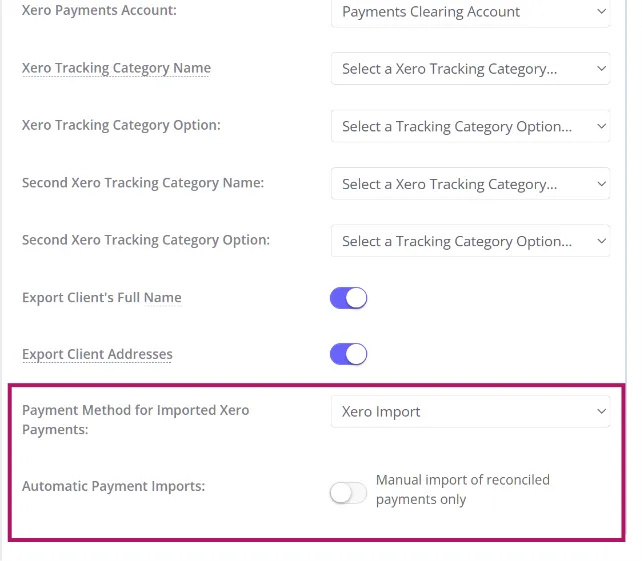
- Under Payment Method for Imported Xero Payments, select the payment method Zanda should use for every payment it imports from Xero, for example an existing method such as Bank Transfer, or a dedicated method such as Xero Import if you would rather keep imported payments distinct from payments you enter manually. If your team also enters some of these payments by hand, read the caution below first. This setting defaults to Disabled: import options stay hidden until you select a method here.
- Click Save.
Once a payment method is selected, Import Reconciled Payments and Automatic Payment Imports become available on the Xero Sync page.
Caution: If your team also records some payments by hand in Zanda, the payment method you choose here matters. Zanda only treats a payment already on the invoice as the same payment when its amount, date, and payment method all match the Xero payment. If someone entered the payment as Direct Credit and imports come in as Xero Import, for example, the import adds a second payment to the invoice (unless that would overpay it). The client’s balance and receipts will then be wrong. To avoid this, either select the same payment method your team uses when entering these payments by hand and record them with the same date as in Xero, or record each payment in one place only. Each imported payment is recorded in the invoice’s activity log, and the Sync Activity Log shows how many payments each import brought in.
Importing payments manually
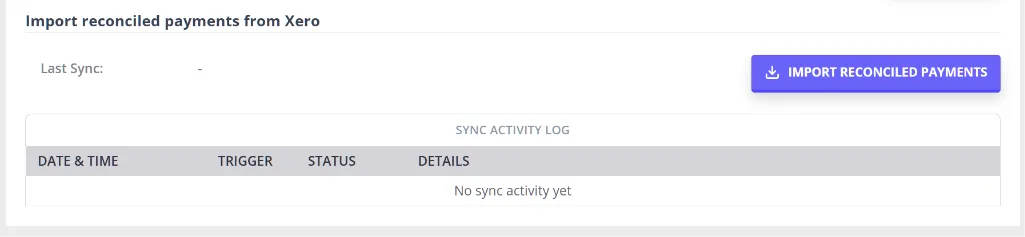
Click Import Reconciled Payments at any time to bring in payments reconciled in Xero since the last sync. The button changes to show Importing while the sync runs in the background, so you can navigate away and come back later. Results appear in the Sync Activity Log once the import finishes, and the Last Sync date updates.
Importing payments automatically
Turn on Automatic Payment Imports to have Zanda check Xero for newly reconciled payments once every hour, without you needing to trigger anything yourself. Leave it switched off if you would rather import on your own schedule using the manual button instead. Automatic Payment Imports is unavailable until a payment method is selected, and switching the payment method back to Disabled turns automatic imports off as well.
The first import, whether manual or automatic, picks up payments reconciled in Xero over the previous 7 days. Every import after that picks up whatever has been reconciled since the previous successful import.
How Zanda matches imported payments to invoices
As covered above, Zanda matches a reconciled Xero payment to the Zanda invoice it was originally exported from - so only payments against already-exported invoices can import.
When a match is found, Zanda records the payment against that invoice using the payment method you selected in Xero Settings, and adds an entry to that invoice’s activity log, for example “Bank Transfer payment of $120.00 imported from Xero.” A payment is not imported, and instead appears as Skipped in the Sync Activity Log with a reason, when:
- no matching Zanda invoice is found for the payment,
- the matching invoice has been deleted in Zanda,
- that Xero payment has already been imported previously,
- an existing payment already recorded on the invoice matches it by amount, date, and payment method (a payment with a different method doesn’t count as a match, see the caution under Turning on payment import),
- importing the payment would overpay the invoice (the payment amount, added to what’s already been paid on that invoice, is more than the invoice total), or
- the payment amount is $0.
Once a payment has imported successfully, it no longer appears in your list of payments still to export to Xero, so you will not be prompted to export it back.
Correcting a payment that imported against the wrong invoice
Importing reconciled payments only adds payments to Zanda. It never removes or changes one that has already imported. If a payment gets matched to the wrong invoice and you later fix this in Xero, for example by deleting or voiding the original payment and reconciling a new one against the correct invoice, the payment already sitting on the wrong invoice in Zanda stays exactly as it is. Correcting the entry in Xero does not undo the original import, so you will need to remove the incorrect payment from the invoice in Zanda yourself.
The correction you make in Xero creates a new reconciled payment, which the next sync, whether manual or automatic, can pick up and import onto the correct invoice, as long as:
- the correct invoice has already been exported from Zanda to Xero,
- it isn’t already fully paid, and
- it doesn’t already have a matching payment recorded against it.
If any of these conditions aren’t met, the import appears as Skipped in the Sync Activity Log rather than as an error, for the same reasons covered above.
Reading the Sync Activity Log
The Sync Activity Log sits underneath the Export To Xero section and lists every manual and automatic import: when it ran, whether it was triggered manually or automatically, its status (Processing, Success, Error, or Skipped), and details such as how many payments were imported, or which invoices were skipped and why. If no new reconciled payments were found and synced, the last sync timestamp shown above the table will be updated to the sync date, and no new rows will be added to the activity log table.
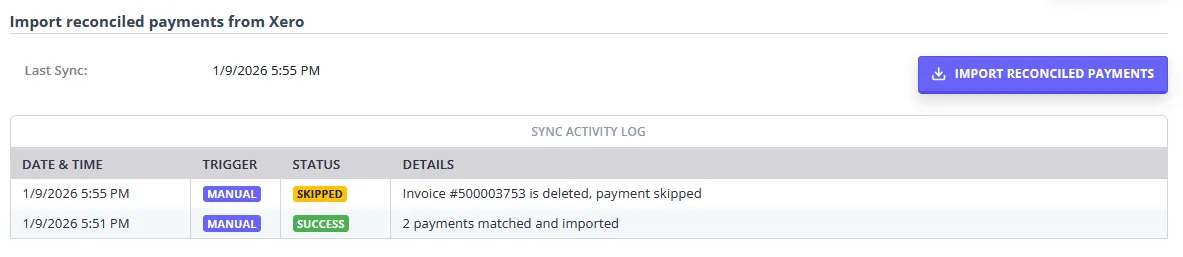
Reconnecting to a different Xero organisation
If you disconnect from Xero and then connect to a different Xero organisation, Zanda clears the Xero Settings tied to the previous organisation, so nothing from the old organisation carries over by mistake. That includes your branding theme, Xero Sales Account, Map to Practitioners mappings, Xero Payments Account, tracking category options, selected payment method, Automatic Payment Imports setting, and last sync date. Your client de-identification settings and tax code mappings are not affected. Review every Xero Setting and click Save before your first export to the new organisation, and select a payment method again before payment import becomes available. Reconnecting to the same organisation keeps your existing settings as they are.
Changing organisation doesn’t reset what Zanda has already exported. Invoices and payments you exported to the previous organisation, for example a trial organisation you used for testing, stay marked as exported in Zanda, and they won’t show as New when you export to the new organisation. If you test in a trial organisation first, use test invoices you don’t need in your live Xero books.
Understanding the Export Process
Exporting from Zanda to Xero is done in batches. Some other systems export invoices when they are created, however, we believe that it is better to do it in batches as it doesn’t slow down the normal operation of Zanda. A batch-based approach also allows you to manage invoicing and payments in Zanda and then bring it into your accounting system (Xero) at a time of your choosing.
You choose exactly when each batch runs: every export, whether invoices or payments, is triggered manually from Tools > Xero Export. You can run a batch as often as suits your practice, daily, weekly, monthly, or any other cadence, but each run starts only when you start it, with no automatic or scheduled option. This is the reverse of importing reconciled payments from Xero, where switching on Automatic Payment Imports (see above) lets Zanda check for newly reconciled payments every hour without you doing anything.
There are several business rules that Xero enforces (see below) and these could impact the way you use Zanda if the invoices and payments were exported to Xero live. For example, one rule is that an invoice can’t be modified once it has had a payment applied. We think this rule is a bit limiting, so exporting payments at the latest possible time is recommended.
As exporting is done in batches and not live, Zanda doesn’t need to store your Xero login credentials or even an access token, so you can be very confident that access to your information in Xero is secure.
Understanding Xero Rules
There are several rules enforced by Xero that we have no control over. If you find that you can’t export an invoice or payment, then you will need to manually enter it into Xero (or adjust Xero/Zanda). If you manually enter an invoice or payment, you can mark it as exported in Zanda (Right-click/Ctrl-click on the item in the list and select Mark as Exported).
- Invoices in Xero must have a status of Approved before a payment can be applied.
- Once payment is applied, no further changes to that invoice are permitted.
- Invoices in Xero with a status of Approved cannot be changed.
- Invoices in Xero with a status of Draft can be changed, but payments can’t be applied.
- All payments must be assigned to an invoice.
- Overpayments are not permitted by Xero (payments more than the invoice amount).
Error Messages
Please see our article here for further troubleshooting tips.
Payment Reconciliation in Xero
Credit card and EFTPOS Payment reconciliation in Xero require some special consideration because your merchant processor (credit card/EFTPOS provider) will deposit a single amount each day into your bank account, but Xero will have each payment recorded.
To get around this, you should export the payments from Zanda to a clearing account in Xero. Then when you reconcile, create a receive money transaction, coding this to the payments clearing account. This page has more detail on how to do just that.
Frequently Asked Questions
Can I use Zanda for UK Making Tax Digital (MTD) with Xero?
Zanda helps you prepare your financial data for Xero by exporting invoices, payments, client contact details, tax mappings, sales accounts, and tracking categories through the Xero Export workflow. Complete any MTD or VAT return submission in the accounting workflow your practice uses outside Zanda, and confirm the correct setup with your accountant or Xero adviser.
For the cleanest export, connect Xero in Tools > Xero, configure your Xero Settings, map your Zanda tax rates to Xero tax types, export invoices first, and then export the related payments.
Is there a limit on how many invoices or payments I can export to Xero at once?
No, you can select as many invoices or payments as you like for a single export. If your selection is large, Zanda sends it to Xero in smaller groups automatically, showing a progress bar as each group goes through. You do not need to split large selections yourself, and you will see a completion message once everything you selected has been exported.
The “You have reached the limit of invoices you can approve” error is a separate, Xero-side limit tied to your Xero plan (see Troubleshooting Xero Exports), not a limit on how many records Zanda can send per export.
Can the appointment date or a line description show on the Xero invoice?
Zanda sends the service or product name as each line’s description, and for an invoice created from an appointment, the Xero invoice date is the appointment date. Notes or extra descriptions you add to invoice lines in Zanda aren’t sent, and there’s no separate field for the appointment date (see What Zanda sends to Xero). If you’d like more detail sent to Xero, you can submit an idea.
Can I send invoices and reminders to clients from Xero instead of Zanda?
Yes. Exporting to Xero never emails your clients. Zanda doesn’t send the invoice to the client when it exports, and it doesn’t ask Xero to send it either. To send invoices from Xero, export them and then send them from Xero. Invoices exported as Draft need to be approved in Xero before you can send them.
If you send invoices and reminders from Xero, check that Zanda isn’t sending them too, or clients may get the same invoice twice:
- invoicing automations that email invoices or unpaid invoice reminders,
- reminder or other templates that include the {InvoicePayLink} merge field (see Sending Links To Pay Invoices Online),
- Show Invoices Page on the Client Portal, which lets clients view their invoices there, and pay them if online payments are set up, and
- emailing invoices from Zanda by hand (see Creating, Editing, Printing, and Emailing Invoices).
To keep invoices you don’t want in Xero, such as EAP or insurer-funded invoices, out of your export, right-click them on the Xero Sync page and select Mark as Exported. They’re then treated as exported, and nothing is sent to Xero.
Your Xero plan may also limit how many invoices you can approve and send each month. See You have reached the limit of invoices you can approve.
Why can’t I see the Import Reconciled Payments button?
The button only appears once you have selected a payment method under Payment Method for Imported Xero Payments in Xero Settings. Select a method, click Save, and the button appears on the Xero Sync page.
Why hasn’t a reconciled Xero payment appeared in Zanda?
Start by confirming the payment is fully reconciled in Xero, not just recorded there. Then check the Sync Activity Log for a Skipped entry against that invoice. Import matches a reconciled Xero payment to the Zanda invoice it was originally exported from, so a payment reconciled against an invoice that was created directly in Xero, rather than exported from Zanda, will not have a matching Zanda invoice to import against.
What does an Error entry in the Sync Activity Log mean?
An Error entry usually means Zanda could not authenticate with Xero to fetch reconciled payments. Disconnect and reconnect to Xero from Tools > Xero, then use Import Reconciled Payments to try again.
What does a Skipped entry mentioning a daily limit mean?
Xero limits how many API calls Zanda can make to your organisation each day. If a sync reaches that limit partway through, it stops early rather than failing, and the Sync Activity Log records a Skipped entry noting how many payments were imported before it stopped. Nothing is lost: the payments it hadn’t reached yet stay queued and are picked up on the next sync, whether that’s your next manual import or the next automatic one.