
Clients can choose for themselves which emails they receive from your practice, using a secure unsubscribe link that opens an Email preferences page. Their choices are saved to their client profile straight away. Your team spends less time updating profiles by hand, and fewer unwanted emails are marked as spam, which helps protect your practice’s email deliverability.
Every client’s email preferences cover three categories: Practice Communications, Appointment Reminders, and Invoicing. Unsubscribing covers more than marketing: a client who switches off Appointment Reminders or Invoicing stops receiving those emails too.
Adding the unsubscribe link to your emails
You can add the link in two ways. We recommend turning on the automatic setting, so every eligible client email carries the link without anyone having to remember it. You can also place the link exactly where you want it in specific email templates.
Add the link to every client email automatically
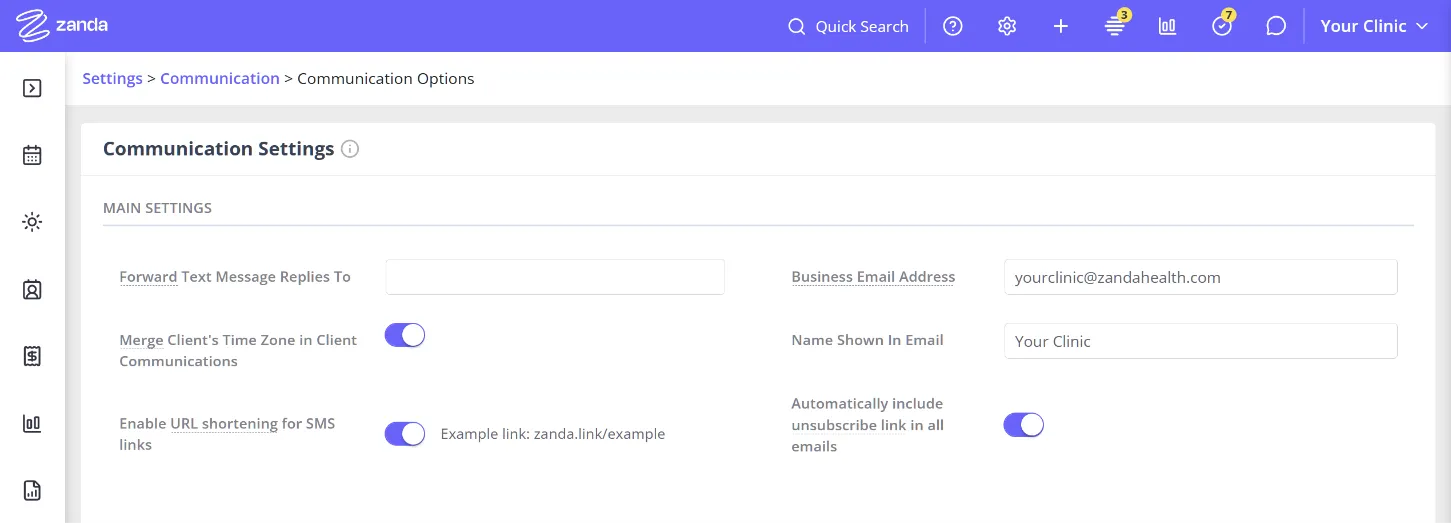
- Click the Settings cog (top right) > Communication > Communication Options.
- Under Main settings, turn on Automatically include unsubscribe link in all emails.
- Click Save Changes.
From then on, a centered Unsubscribe link is added to the end of every email sent to a client’s own email address. If the email already contains the {UnsubscribeLink} merge field, the automatic link is left off, so the client sees the link only once.
To stop adding the link automatically, return to Communication Options, turn the setting off, and click Save Changes. Templates that contain the {UnsubscribeLink} merge field keep including the link.
Add the link to a specific email template
- Go to Tools > Communication > Templates.
- Open the email template you want to edit, or create a new one.
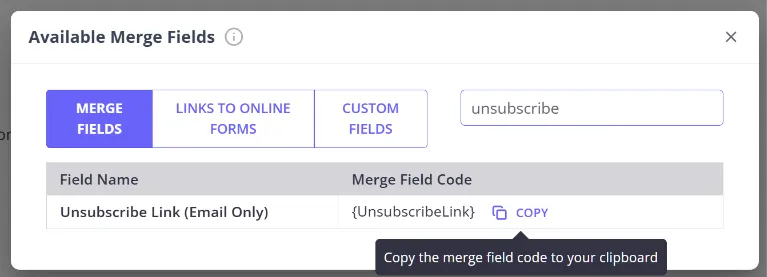
- Click Available Merge Fields and copy Unsubscribe Link (Email Only), which is the {UnsubscribeLink} merge field.
- Paste the merge field where you want the link to appear.
- Click Save.
When the email is sent, the merge field becomes an Unsubscribe link unique to that client. While you are composing or previewing the email, it still shows as {UnsubscribeLink}, because the link is only created at the moment the email is sent. The merge field is offered for email templates only.
For the full list of merge fields, see Available Merge Fields for Communication Templates.
What clients see when they click the link
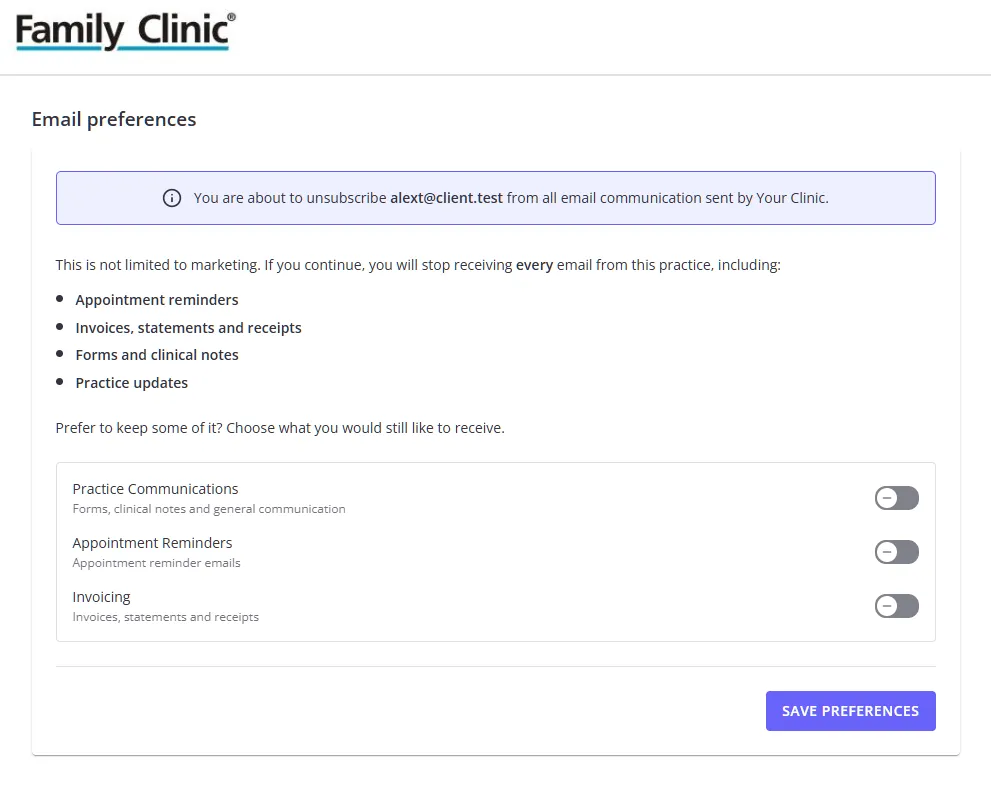
The link opens an Email preferences page in your Client Portal. Clients open it straight from the email, without logging in, because the link itself is unique to them and secure.
The page shows your practice logo and name, the email address the preferences apply to, and a switch for each category with a short description of what it covers. Every switch starts in the off position each time the page opens, whatever the client chose before. To update their preferences, a client:
- Turns on each category they still want to receive. Any category left off is unsubscribed.
- Clicks Save preferences.
The client then sees “Your email preferences have been updated.” If they left every category off, the page also confirms they won’t receive emails from your practice.
Opening the link on its own changes nothing. Preferences are only saved when the client clicks Save preferences, so email security scanners that open every link in a message can’t unsubscribe a client by accident.
Which emails each category covers
| Category | What it covers |
|---|---|
| Practice Communications | Emails you send from a client’s profile, letters, notes, forms, and files you email, bulk emails, new appointment confirmations and cancellation notifications, waitlist and reschedule notifications, Client Portal password reset emails, and automations not listed below. |
| Appointment Reminders | Automatic appointment reminders, reminders you send manually, and pre-appointment automations. |
| Invoicing | Invoices, statements, and superbills you email, and invoice, statement, and superbill automations. |
Email preferences apply to email only. SMS keeps following the client’s Receives SMS setting; see Managing SMS Communication Preferences.
Viewing and changing a client’s email preferences
A client’s choices appear on their profile as soon as they save them, and your team can change them on the client’s behalf, for example when a client asks by phone.
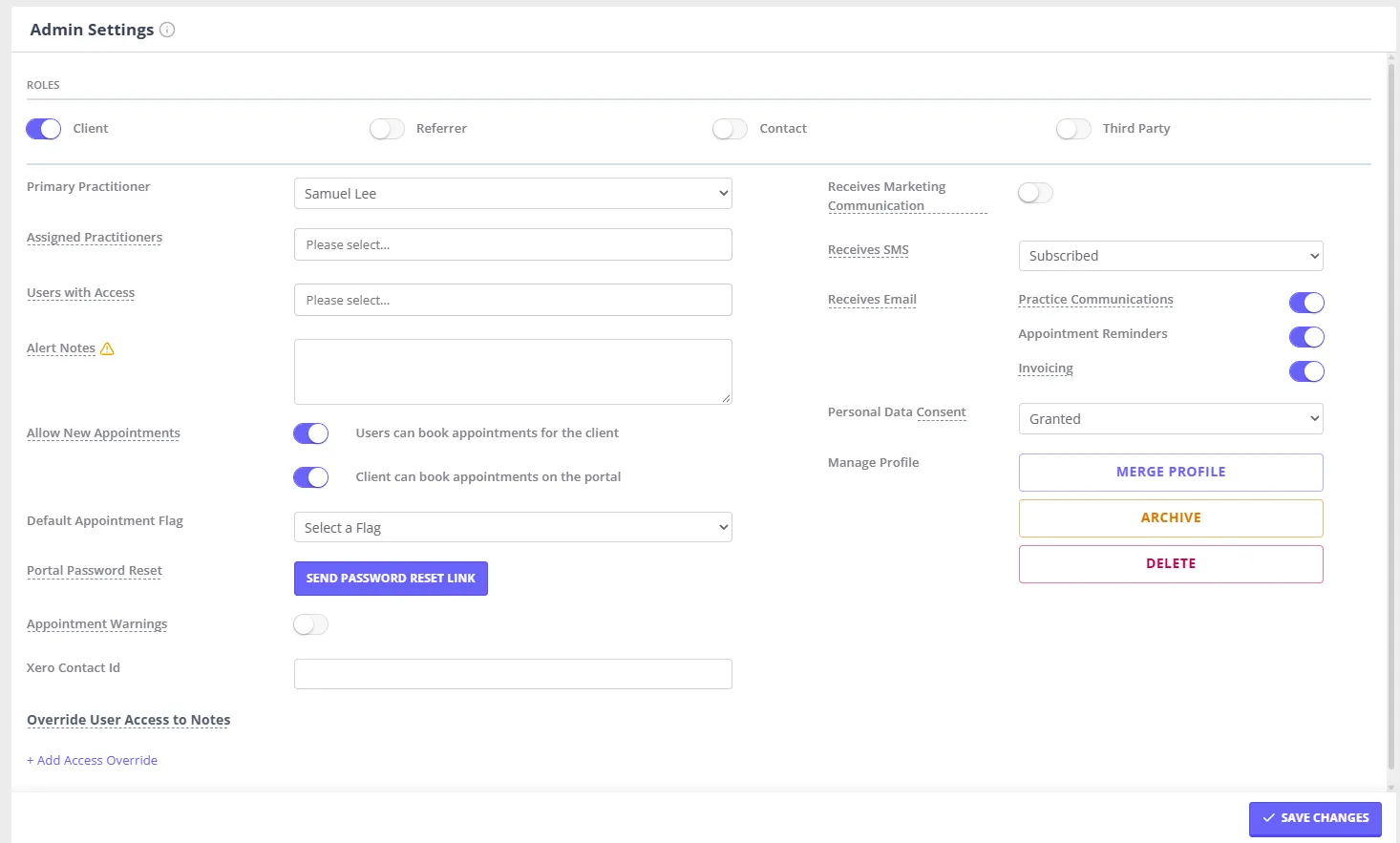
- Open the client’s profile.
- Go to Admin > Manage.
- Under Receives Email, check or change the Practice Communications, Appointment Reminders, and Invoicing switches. A switch that is on means the client receives that category.
- Click Save Changes.
Every new client profile starts with all three switches on.
Changes are recorded in Tools > Log File against the client. A change the client makes through the link reads, for example, “Client unsubscribed from Appointment Reminders emails via the unsubscribe link”. See Recording and Reviewing the User Activity Log File.
What happens when a client has unsubscribed
Zanda checks the client’s email preferences before each email goes out, and holds back any email in a category they have switched off.
- Emailing the client yourself. When you write an email to a client, or email them a document such as a letter or an invoice, and they have switched off that category, the message “The client has unsubscribed from email communications.” appears on the recipient field and sending is blocked. An email written from the client’s Communication page can still be saved as a draft.
- Reminders, automations, and other emails Zanda sends for you. An email in a switched-off category is held back, and Zanda adds an entry to Tools > Log File against the client, for example “Email to [client name] was not sent because the client has unsubscribed from Invoicing emails.” For an appointment reminder, Zanda also records “Appointment reminder was not sent because [client name] has unsubscribed from Appointment Reminders emails.” in the appointment’s log (the Show Appointment Log icon in Appointment Details).
- Emails already waiting to send. If an email was queued before the client unsubscribed, it is stopped at the moment of sending and shows as Failed in the client’s Communication > Activity and in the Email Activity report. Hover over the status to see the reason, for example “Email was not sent because the client has unsubscribed from Invoicing emails.”
If a client switches off Appointment Reminders or Invoicing, consider reaching them by SMS or phone for anything they still need to know.
When the unsubscribe link isn’t included
The link only changes the preferences of the client it was sent to, so Zanda adds it only when that client is the sole recipient.
- Emails with CC or BCC recipients get no unsubscribe link, whether from the automatic setting or the {UnsubscribeLink} merge field, which comes out blank. This stops someone who was copied in, such as a parent or carer, from unsubscribing the client by mistake.
- Emails sent to an address other than the client’s own email address, such as one of the client’s contacts or a third-party payer, get no unsubscribe link, and the client’s email preferences don’t stop them.
- Shared profiles don’t have email preferences, so emails to a shared profile get no unsubscribe link and keep sending as before.
Things to be aware of
- Preferences belong to each client profile. If two client profiles use the same email address, such as family members, each profile keeps its own preferences. A client who unsubscribes through a link changes only their own profile, so emails to the other profile keep sending until that profile is updated too.
- Links keep working until the client’s email address changes. A client can open an unsubscribe link from any earlier email to update their preferences. After an email address change, a link sent to the previous address opens a page saying “This link is no longer valid” and asking the client to use the link in your most recent email.
Frequently Asked Questions
Will the link appear twice if I’ve added the merge field and turned on the automatic setting?
The link appears once. When an email already contains the {UnsubscribeLink} merge field, Zanda leaves off the automatic link.
Why didn’t the unsubscribe link appear on an email I sent?
Check whether the email had CC or BCC recipients, or was sent to an address other than the client’s own email address. In both cases Zanda leaves the link out, including the {UnsubscribeLink} merge field. The link is also left out for shared profiles.
Why wasn’t my email sent?
The client has most likely unsubscribed from that category of email. Check the Receives Email switches on the client’s Admin > Manage page, look for the client’s entry in Tools > Log File, or, if the email shows as Failed in Communication > Activity, hover over the status to see the reason.
Can a client resubscribe?
Yes. The client can open the unsubscribe link from any earlier email, turn on the categories they want to receive again, and click Save preferences, as long as their email address hasn’t changed. Your team can also turn the switches back on from the client’s Admin > Manage page.
Does unsubscribing from emails also stop SMS?
SMS is managed separately, through the client’s Receives SMS setting, so unsubscribing from emails leaves SMS unchanged. Clients can opt out of SMS by replying to one; see Managing SMS Communication Preferences.