
How to Use the Log File
- Go to Tools > Log File
- Select your filter options and click Search.
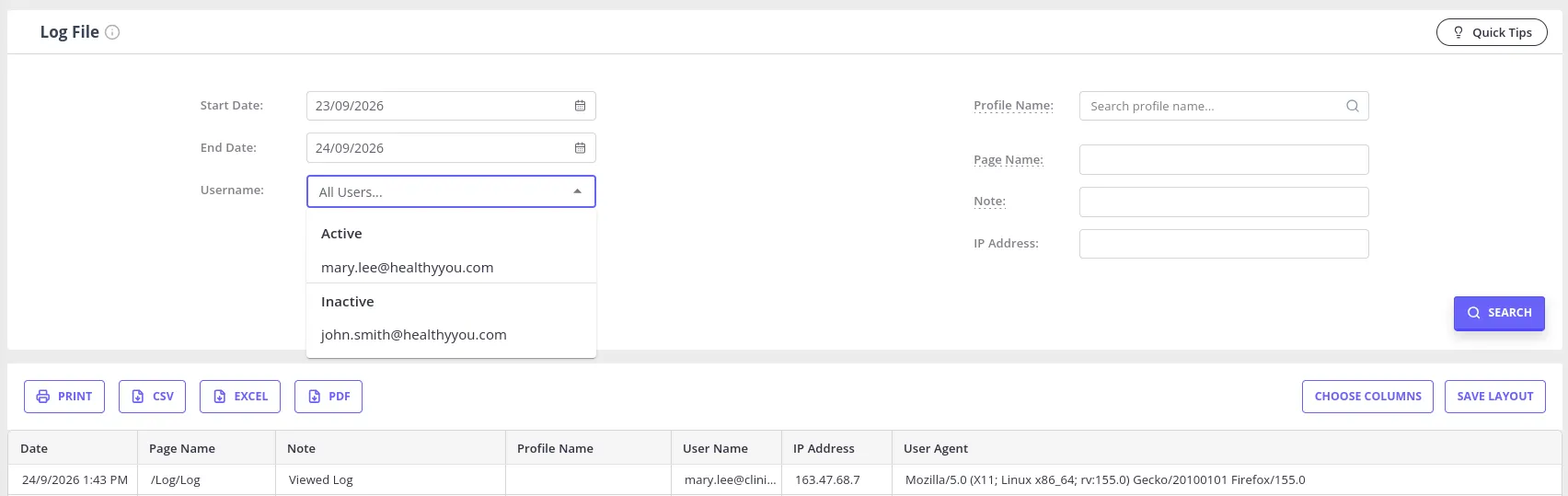
This is what the filter options do:
- Username: Shows activity for the selected user. Select All Users… to include everyone. The list groups users under Active and Inactive headers, sorted alphabetically within each, and you can type in the field to filter it down to a matching username.
- Profile Name: Shows activity related to that profile. The search supports all profile types (client, contact, shared, referrer, third party).
- Page name: Shows which users accessed a particular page in your account. Use part of the page URL when you want to narrow the results to one area of Zanda.
- Note: Searches the Activity Logs for particular words or actions. For example, search for ‘bill’, ‘edit’, ‘insurer’, or ‘invoice’.
- IP Address: Searches all activity from a particular IP address.
For example:
- /Diary/EditDiary/XXXXX or /Diary/EditSettings/XXXXX - changes to Practitioner Profile
- /Profile/XXXXX/PackInstance/Create - created a new session pack
- /VideoCall/TrafficLog - Telehealth Session started/ended (refer to accompanying note name)
- /Log/Log - Viewed Log File
- /Communication/SendBulkMessage - Bulk Send feature
- /CustomFormTemplate/Update?isData=True - Updates to Form Templates
- /NoteTemplate/Update?isData=True - Updates to Note Templates
- Note: Allows you to search the Activity Logs for particular words/actions. For example: ‘bill’, ‘edit’, ‘insurer’, ‘invoice’. etc.
- IP Address: Allows you to search all activity from a particular IP address.
Frequently Asked Questions
Can I see who changed a client’s profile details or status?
Use Tools > Log File as the audit trail for client profile changes. Set the date range, choose the client in Profile Name, and search the Note field for Saved Client Details to find profile edits.
To find client status changes, search the Note field for Client Status. The Note search isn’t case-sensitive and matches any part of an entry, so this one search finds status changes however they were made:
- Changed on the client’s profile: The entry reads
Saved Client Details:followed by the names of the fields that were changed, for exampleSaved Client Details: Client StatusorSaved Client Details: Client Type, Client Status. This entry shows that the status changed, and who changed it, but not which status the client was moved to. - Changed with a bulk update for one client: The entry reads
Client Status is updated to '<status>', for exampleClient Status is updated to 'Closed', and is linked to that client. - Changed with a bulk update for several clients at once: One entry covers the whole update and reads
Client status is updated to '<status>' for clients with numbers:followed by each client’s number. This entry isn’t linked to a client profile, so it won’t appear when you filter by Profile Name. Leave Profile Name on Show All to find it.
The results show the Date, Profile Name, User Name, Page Name, Note, IP Address, and User Agent for each matching log entry. A status such as Closed is a label from your client status list. The same User Name column is also how you find out who sent a particular email or SMS to a client; see Communicating with Clients for that search.
Can I list clients whose status was changed to Closed within a date range?
There isn’t a report that filters clients by the date their status changed. Reports and Advanced Search show each client’s current status, and the Log File shows when a status changed, so you can combine the two:
- Go to People > Search > Advanced search with the Clients profile type selected, set Client Status to Closed, and click Show Filtered List. This lists every client who is Closed now. You can export the list to Excel if you want to compare in a spreadsheet.
- Go to Tools > Log File, set the Date range to the period you want to review, leave Profile Name on Show All, type
Client Statusin the Note field, and click Search. - Clients who appear in both lists had a status change during that period and are Closed now. Entries that read
is updated to 'Closed'already confirm the new status; entries that readSaved Client Detailsonly confirm that the status changed.
If a client had more than one status change, choose them in Profile Name and check their latest Client Status entry to see when the change that left them Closed was made. The Log File keeps the past twelve months of activity.
Tip: If you change statuses with a bulk update, the Log File records the new status in the entry, so a Note search for updated to 'Closed' finds those changes directly. See Updating Profiles in Bulk.
How can I tell whether a client was added through the Client Portal or created by a user?
The Log File records how each client profile was created, so you can use it to tell self-registrations apart from clients your team added.
- Added by a user or admin: Set the date range, choose the client in Profile Name, and search the Note field for
Client Created Client Number(a shared profile is recorded asShared Profile Created Client Number). Because this entry is linked to the client, you can look it up directly from the client’s profile name. - Registered through the Client Portal: The entry reads
Client Portal new client record created. This one is recorded against the account rather than a specific profile, so it will not appear when you filter by Profile Name. Instead, set the date range, leave Profile Name on Show All, and search the Note field forClient Portal new client record created, then match the result to the client by the date and time they were added.
If a client’s creation does not show up when you search by their profile name, that on its own is a strong sign they registered themselves through the Client Portal.
If you want to route new clients differently depending on how they were added, the New Client automation trigger can filter on creation source with the conditions Only clients created on portal and Only clients created by users.
How can I see what files were uploaded to a client’s profile, or find a file that seems to have gone missing?
Use Tools > Log File to check for file uploads and deletions across your account. Set the date range, choose the client in Profile Name (or leave it on Show All to search across every client if you are not sure which profile the file was added to), and search the Note field:
- Uploads: Search for
Saved Client Fileto find the file name, and the Date, User Name, and Profile Name it was uploaded to. - Deletions: Search for
Deleted Client Fileto see who removed a file and when.
This works the same way for files uploaded through Admin > Admin Files.
Each matching entry shows the Date, Profile Name, User Name, Page Name, Note, IP Address, and User Agent - the User Name column identifies which practitioner or staff member uploaded or deleted the file.
Viewing the Log File requires the Access Log File permission. A user without access to all profiles only sees activity, including their own uploads, for clients they’re linked to.
What does the IP Address column actually show?
The IP Address column records the network address that reached Zanda when the request was made. In most cases, this is the same address as your device’s own internet connection at the time.
A few things affect how reliable that address is as evidence of location or identity:
- VPNs, proxies, and shared office or corporate gateways all replace the address you see. When a request passes through one of these, the IP Address column shows that VPN’s or gateway’s address, not the originating device’s own address. Because of this, the same public address can legitimately appear against different users on different days if they share that network path.
- Occasionally an entry shows an address that is not a public internet address at all (for example, one starting with
10.). This happens because of how the request traveled through the infrastructure that delivers Zanda to you, rather than reflecting anything about the user’s own device or network.
Because of the above, treat the IP Address field as a supporting detail rather than standalone proof of a user’s physical location, network origin, or whether two log entries reached Zanda through the same external connection. The Date, Username, and Page fields reliably identify who performed an action and when, since that identity link does not depend on network path.
If your practice needs IP or location-based login restrictions for security purposes, submit it as a feature request rather than relying on the Log File’s IP Address field for enforcement.