
Zanda Public API - COMING SOON
Caution: Enrolments in the Zanda Public API BETA testing group are closed, and new practices can’t join the beta at the moment. The API will be released for all users in the near future.
The Zanda Public API provides secure, rate‑limited, read‑oriented access to key practice data such as:
- Client profile data
- Practitioner data
- Locations
- Appointments
- Invoices & payments
- Billable items (services & products unified)
- Client forms and questionnaires, including the answers submitted in each field (file uploads, signatures, and drawings are included by name only, not their file content)
Forms can be listed across your whole practice, or filtered down to one client, and each form’s full content is available from its individual record.
It’s intended for practices and integrators who want to build custom reporting, dashboards, or integrations (e.g. into BI tools, middleware, a CRM for lead and referral management, or other 3rd‑party apps).
Documentation is published via our Docusaurus site: https://zandaapi.zandahealth.com/docs/
Zanda API Key: How to Generate, Use, and Revoke Your Key
What is the Zanda API key?
A Zanda API key is a secure, private token that allows outside applications to access your data inside Zanda.
- Treat your API key like a password.
- Anyone with this key can access the Zanda data permitted by the integration.
- For security reasons, once generated, the full API key cannot be viewed again in Zanda.
Accessing the Zanda API Key page
- Have the user permission for “Setup and Configure Zanda”
- Sign in to Zanda
- Go to Tools > Zanda API Key
- The Zanda API Key page opens
Note: Don’t see Zanda API Key under Tools? The option only appears for practices in the Zanda Public API beta testing group. If your practice isn’t in the beta group, the option won’t show, even for a Master User or a user with the Setup and Configure Zanda permission. You can’t switch it on from your account settings. It will appear once the API is released for all users.
Generating a new Zanda API key
- On the Zanda API Key page, locate the field:
- Enter a name for your API Key
- Enter a descriptive name for your key, for example:
- “Clinic integration – production”
- “Reporting tool – read only”
- The name:
- Is mandatory
- Has a 150 character limit
- Click Generate API Key.
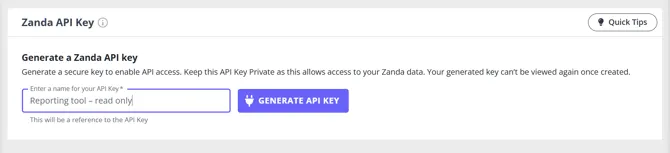
Validation error: missing name
If you click Generate API Key without entering a name:
- An error will appear: “Please enter a name for the API Key”.
- Enter a name, then click Generate API Key again.
Copying your API key (one‑time view)
If the name is valid, a confirmation modal appears:
- Header: Zanda API key
- Title: Zanda API Key successfully generated
- Subtitle:
“Make sure to copy your key now — for security reasons, it won’t be shown again after you close this window.” - A field displaying your newly generated API key
- Copy button
- Done button
To copy and use your key:
- Click Copy to copy the key to your clipboard.
- Paste it into the external application or integration that requires it.
- After you’ve stored it securely, click Done to close the modal.
Important: Once you close this window, the full key value cannot be displayed again.
If you lose it, you’ll need to revoke the key and generate a new one.
Viewing an existing key name
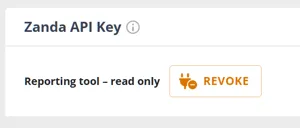
After you have generated a key, when you return to the Zanda API Key page you will see:
- The name of your existing API key.
- A Revoke button to remove that key.
The key value itself is not shown again; only its name and status are visible.
Revoking your API key
If you suspect that your API key has been compromised, no longer need an integration, or simply want to rotate keys, you can revoke it.
- Go to Tools > Zanda API Key page
- Click Revoke next to the API key name.
- A revoke confirmation modal appears with two options:
- Cancel
- Yes, revoke
- Click Yes, revoke to confirm.
Result:
- Your existing public API key is deleted.
- A confirmation/snackbar message appears.
- You can now generate a new key again by following the steps in Generating a new Zanda API key.
Security best practices
- Keep the key private: Do not share it via email, chat, or screenshots.
- Limit who has access: Only provide the key to trusted systems or administrators.
Frequently Asked Questions
Where do I find account integrations in Zanda?
For API-based account integrations, go to Tools > Zanda API Key. This page is available to practices in the Zanda Public API beta testing group, where users with Setup and Configure Zanda access can generate, view, or revoke the API key used by external applications.
Some integrations have their own setup pages or articles instead of being managed from the Zanda API Key page. If you are setting up a named integration such as Stripe, Xero, Google Calendar, Outlook Calendar, Mailchimp, Physitrack, or Tyro, use the setup guide for that integration.
Can Zanda integrate with an app that isn’t on this list?
No, not with a pre-built integration. Zanda has dedicated integrations for Stripe, Xero, Google Calendar, Outlook Calendar, Mailchimp, and Physitrack, plus Tyro, Medicare, and DVA for Australian practices, and an app outside that list has no setup guide to follow.
The beta Zanda Public API, covered above, gives secure, read-only access to your practice data and can be used to build a custom integration with another system, though this depends on the other system being able to connect to it. Enrolments in the beta testing group are closed, and new practices can’t join until the API is released for all users. If there’s something specific you’d like the API to support, you can tell us from Help Menu > Submit an Idea.
Does Zanda integrate with AI receptionists or AI phone agents for call answering and appointment booking?
No, not with a pre-built integration. Zanda doesn’t have a pre-built integration with third-party AI receptionist, AI phone agent, or AI virtual assistant tools that answer calls, handle customer service enquiries, or book appointments for your practice. The Zanda SMS feature sends and receives text messages only, so it can’t answer or make phone calls either.
Here’s what you can use instead to take bookings and client communication off your front desk:
- Online bookings: Clients can book their own appointments through your client portal, without anyone needing to answer the phone. See Setting Up Online Bookings on Client Portal.
- Automated appointment reminders: Zanda sends SMS and email reminders for upcoming appointments automatically. See Video: Setting Up Appointment Reminders.
- Virtual assistant and reception services: Zanda partners include virtual assistant and reception services that provide administrative support for practices. See Our Partners.
We’re currently working on our own built-in AI receptionist, and we’ll announce its release here once it’s ready.
If you want to build a custom connection between Zanda and another system, the beta Zanda Public API covered above is the only route, and enrolments in the beta testing group are closed until the API is released for all users. If an AI receptionist integration would help your practice, let us know from Help Menu > Submit an Idea.