
Tyro Support Details
🛠️ Tyro Health Customer Support(response time is under 5 min)
- Call 1300 018 976, then press Option 1 → Option 5
☑️ For help with technical issues, connection problems, terminal setup, and claims.
📞 Tyro Health Sales
- Call 1300 018 976, then press Option 2
☑️ For new merchant signups, additional terminals, or multi-merchant setup.
_💡 Tip: Calling the correct option helps you reach the right team faster! _
💡 Use Tyro’s Internet test URL //www.tyro.com/selftest/ if terminal pairing fails — may be due to firewall or browser cache restrictions.
Reversing or cancelling a Tyro HealthPoint claim
What you can do depends on whether the claim has finished processing.
If the claim is still in progress, for example the card payment declines partway through submitting a HealthPoint claim, open Tyro Options and select the Health Point Cancel tab, then click Cancel Claim to stop it before it goes through. This only works while the claim’s status is still Pending.
To reverse a claim that’s already gone through (status Claimed), contact Tyro Health Customer Support (see Tyro Support Details above); Zanda doesn’t have an in-app option for this.
Device Already Connected and Could Not Be Paired
Question: I connected my Tyro terminal to one device. When I tried to connect it to another device, I received an error message stating it was already connected to a device and couldn’t be paired, even though the initial device was turned off. What should I do?
Answer: This issue occurs because the Tyro terminal can only be paired with one device at a time. Even if the initial device is turned off, the terminal might still recognize it as connected. Here are the steps to resolve this issue:
- On the Tyro Terminal, press menu.
- Go to 5 - Configuration.
- Enter in your store manager PIN.
- Go to Integrated EFTPOS.
- Go to 3 - Clear Pairings.
- Select YES to confirm you want to clear the pairing.
Tyro Terminal Keeps Disconnecting
Question: My Tyro terminal keeps disconnecting from my Zanda account during the day. How can I ensure that the connection is not interrupted during the day?
Answer: If your Tyro terminal keeps disconnecting from your Zanda account during the day, please check the following browser settings:
- enable Web Storage in Chrome:
- Type <chrome://settings/content/siteData> in the address bar.
On the subsequent screen select “Allow sites to save data on your device” and
Tick ‘powerdiary.com’ to enable cookies storage. - On the subsequent screen select “Allow sites to save data on your device” and
- Tick ‘powerdiary.com’ to enable cookies storage.
- Safari on a Mac blocks third party cookies by default. To enable Safari cookies follow the steps below:
- Click the “Safari” menu
- Make sure you have a Safari window open and active; you will see the “Safari” menu in the top left of your screen. Click it and it will expand to show Safari specific options.
- Click the “Preferences” menu item
- Click the “Privacy” tab
- The Safari Preferences screen has a number of sections, indicated by the various options along the top of the screen (General/Tabs/AutoFill etc). Click the Privacy item to see privacy related options.
- Choose your preferred Cookies and tracking settings
- On the Privacy Preferences tab, you will see the “Website tracking:” and Cookies and website data:” checkboxes.
- Now you can choose what cookies you would like to enable. The safest way is to enable cookies from sites you have visited.
- If you click the Manage Website Data button, you’ll see a list of website domains which have stored data on your computer.
- Restart Safari
- Safari on an iPad or iPhone: iPadOS and iOS move these controls into the Settings app rather than Safari’s own menu.
- Open the Settings app (not Safari).
- Tap Safari (on newer iPadOS versions, go to Apps > Safari first).
- Tap Advanced, then turn off Block All Cookies.
- If the terminal still disconnects, go back to the main Safari settings screen and turn off Prevent Cross-Site Tracking under Privacy & Security.
- Close and reopen Safari, sign in to Zanda again, and re-pair the terminal.
The ‘Commence Pairing’ button is inactive/unavailable
Please clear the cache and update the browser if the ‘Commence Pairing’ button is unavailable while attempting to pair Tyro terminal to Zanda.
You can find the full list of Tyro error codes and troubleshooting advice on Tyro Help website.
Using one Tyro terminal across multiple Zanda accounts
You can use the same physical Tyro terminal with more than one Zanda account. The terminal pairs with the computer it’s connected to and with your Tyro merchant account, not with a specific Zanda account, so it keeps working if you switch between Zanda accounts on that same computer. Each Zanda account still needs its own Tyro integration enabled and set up (Account Settings > Payments > Tyro > Tyro Settings, from the Settings cog).
Finding Default TID and MID
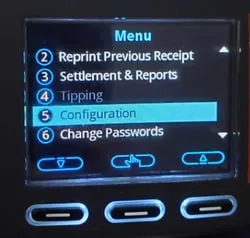
Start your Tyro countertop terminal. On the terminal,
- Go to Menu > Option 5 - Configuration
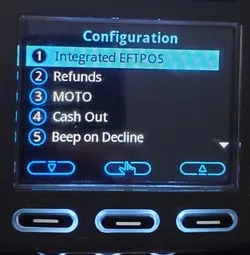
- Select 1 - Integrated EFTPOS
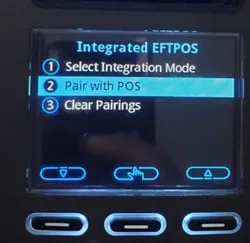
- Select 2 - Pair with POS
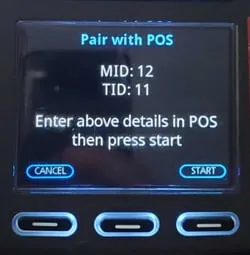
- See MID & TID
Useful Links
Tyro Terminal:
- Network test and IP Address for whitelisting - https://www.tyro.com/selftest/
- Terminal Configuration Page (plus submitting logs to Tyro) -
https://iclient.tyro.com/configuration.html - Tyro Service Status (inc. Easyclaim) - https://status.tyro.com/
- Tyro Health Service Status page - <https://status.tyrohealth.com/ >
Tyro HealthPoint funds and supported professions
- Complete list of supported funds and professions for the Tyro Terminal and Tyro Health Online
- Health Funds Not Supported by Tyro HealthPoint:
- MDHA
- GU Health (under migration to nib)
- CDH