
Where the order is controlled
The master order is set on:
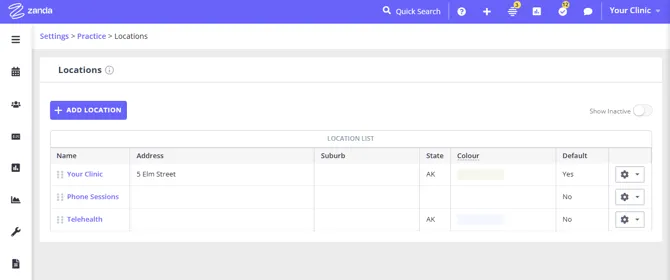
- Account Settings > Practice > Locations (click the Settings cog, top right)
Any changes you make here will be reflected anywhere you pick or view locations.
How to reorder locations
- Go to your locations list in Account Settings > Practice > Locations (click the Settings cog, top right). You’ll see all active locations listed.
- Use drag-and-drop to change the order on the locations list
- Each location row has a drag / move icon on the left.
- Click and hold the drag icon for the location you want to move.
- Drag the location up or down to its new position in the list.
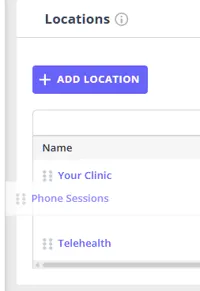
- Release the mouse to drop it into place.
- Changes are saved automatically once you drop a location into its new position.
New locations you create will automatically be added to the bottom of the list.
Where the new order is used
After you reorder locations on the Locations page, that same order is used in:
- Calendar – Location picker
- Appointment panel – Location dropdown
- Waitlist – Location dropdown
- Invoice screen – Location dropdown
- Client Portal
- Book appointment page
- Book a class page
- Automations – Location condition options
- Reports – any location selectors
Default location behaviour
When you create an appointment from a practitioner’s calendar, the Appointment panel suggests a location. The order of your locations list does not affect which location is suggested.
- If the practitioner is available at their own Default Location at that time, that location is suggested. You can set this in the practitioner’s settings.
- If the practitioner has no Default Location of their own, your business default location is used in the same way.
- If the practitioner is available at more than one location at that time and none of them is the default, the location from the availability that was set up first is suggested.
To change which location is suggested when a practitioner’s availability overlaps across locations (for example, Telehealth and Phone Call on the same days), either:
- set the location you want as the practitioner’s Default Location, or
- recreate the overlapping availability in Settings > Team > Availability in the order you prefer, starting with the location you want suggested.
You can always change the location on the Appointment panel before you save the appointment.