
Adding a Service
-
- Click the appointment block in question.
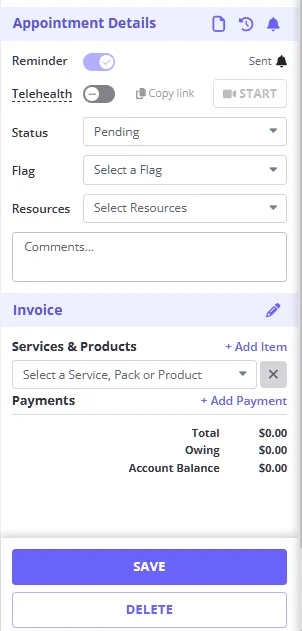
- In the Invoice section, click the “Select a service or Pack” drop-down list and select the service you wish to add.
- Click “Save” (Note: you can also Add a Payment before saving.)
Adding a Payment
- Click on the appointment block.
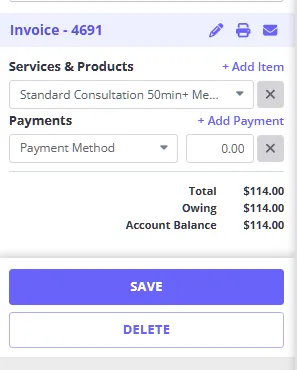
- Click on the blue text + Add Payment to add the payment drop-down list.
- Select the payment method you wish to add and the amount in your local currency.
- Click “Save”.
Printing an Invoice or Receipt
There are two ways of printing an invoice/receipt:
Method 1: From the Appointment Panel
- Click on the appointment block.
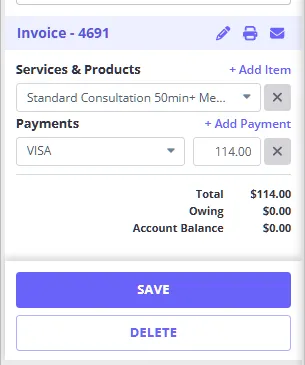
- On the Invoice panel banner, you’ll see a printer icon .
- Click the printer icon and follow the prompts
Method 2: Quick Print
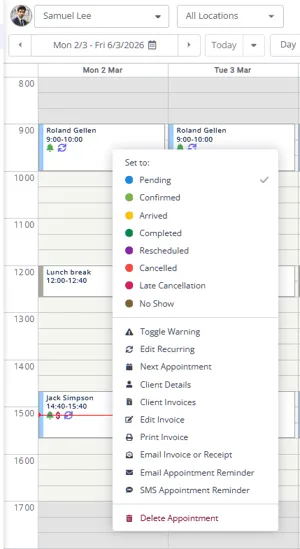
- Right-click an appointment block.
- Select Print Invoice command from the context menu
Editing the Amount Charged for a Service
When you add a service to an appointment Zanda uses the default Sell Price related to the service as the fee. You can edit the amount charged for a particular appointment if required. For example, you may decide to discount a service for a client on a particular day. Here’s how you do it:
-
Right-click on the appointment and select Edit Invoice
- You can also click Invoice > Edit Invoice in the appointment panel.
-
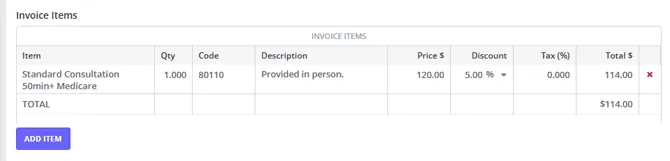
Enter the amount you wish to charge in the Price field.
- Alternatively, enter an fixed amount or % discount to reduce the price
-
Click Save Invoice.
Adding Multiple Payment Methods or Part-payments
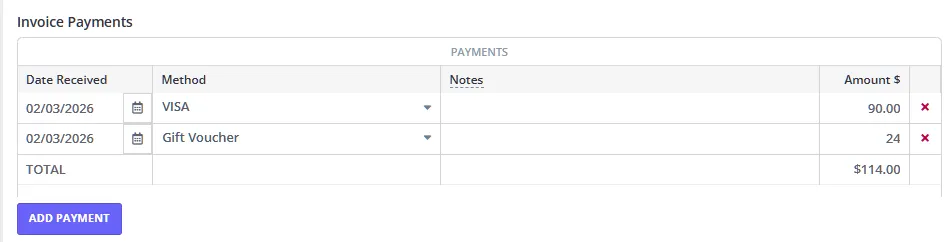
A client may pay using multiple payments (e.g. Cash and Eftpos), or may only make a partial payment. You can easily manage these situations using the Edit Invoice feature. Here is how you do it:
-
Right-click on the appointment and select Edit Invoice
- You can also click Invoice > Edit Invoice in the appointment panel.
-
Use the “Add Payment” function to add a partial payment, or to add multiple payment methods (e.g. $90 VISA and $24 Gift Voucher).
Frequently Asked Questions
❓ Why can’t I create an invoice for an appointment?
If the Create Invoice option isn’t available on a specific appointment, it’s usually one of the following:
- The appointment already has an invoice. Each appointment can have only one invoice attached to it. Look for the existing invoice on that appointment and use Edit Invoice instead.
- The appointment has been deleted. Zanda only allows invoices to be created for active appointments.
- The client isn’t a billable client type. Some client records, a Referrer for example, aren’t set up to be invoiced directly.
- It’s part of a group appointment, and this client’s own place in the group couldn’t be matched. For group appointments, invoicing works from each participant’s own appointment within the group. If someone isn’t currently listed as an active participant there, invoicing fails for them even though it works for everyone else in the same group.
If you’ve checked these and still can’t create an invoice, contact support with the client’s name and the appointment date so the team can take a look.