
Among other settings, the Session Packs feature provides the ability to define the expiry date of each pack, as well as the ability to automatically open a new pack when the previous one is used up. In this article, we will take a look at how these two settings work together.
Setting Up Pack Expiry
Zanda allows you to set up an expiry period for a Session Pack template, as well as add or update the expiry date for an individual Session Pack.
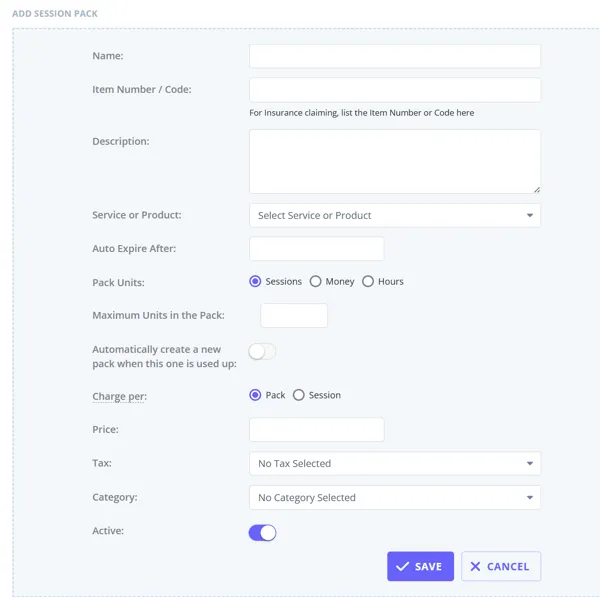
Here’s how:
- Setting up session pack template expiry date
- In Account Settings > Billing > Session Packs (click your practice name, top right), open an existing pack template, or create a new one.
- In the Auto Expire After field, add the number of months that will define the expiry date of each individual session pack created from this template, based on the date it was created.
- Save the changes.
- Setting up individual client session pack expiry date
- InClient Profile > Billing > Session Packs, open an existing pack or create a new one from one of the available templates.
- In the Expiry Date field, type in or select the date the pack will expire, as necessary. Note: the pack will expire at the start of the expiry date.
- Save the changes.
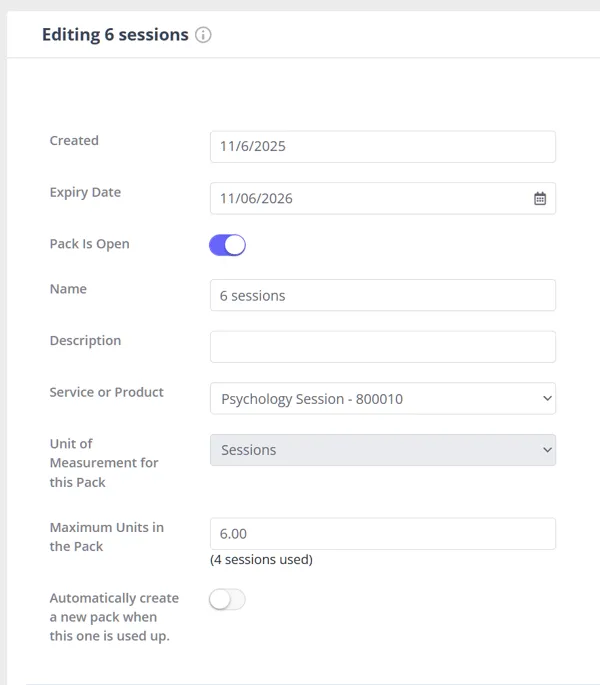
Note: If you put the Expiry via the Client Profile, it will hold this even if the associated template expiry is changed. So if you cannot apply a Session Pack, remember to check the expiry date via the Client Profile.
Setting Up Pack Auto Creation
When necessary, Session Packs can be auto-created by the system when the previously assigned client pack is used up. You can set this on the Session Pack template, or for an individual client’s session pack.
- Enabling session pack template auto creation setting:
- In Account Settings > Billing > Session Packs (click your practice name, top right) open an existing Session Pack Template, or create a new one;
- Toggle on the Automatically create a new pack when this one is used up: switch;
- Save the changes.
- Enabling client session pack auto creation setting:
- In a Client Profile > Billing > Session Packs, open the existing client’s pack or create a new one;
- Toggle on the Automatically create a new pack when this one is used up switch;
- Save the changes.
Note: The template setting is copied into each client’s session pack when that pack is created. Changing the template later doesn’t change packs clients already have. When a pack is used up, Zanda checks the setting on that client’s pack only. The using session packs article explains the same copy-once rule for billing fields.
Session Pack Behaviour With Both Settings Active
When both settings are active, session pack behaviour depends on whether the pack expires or is fully used first. If a session pack expires before all sessions are used up, the pack becomes inactive, the remaining sessions are not available for allocating to invoices, and a new session pack is not created automatically. If all available sessions are used up before the expiry date, the session pack becomes inactive and a new session pack is created automatically, with the same expiry date as the previous session pack for this client.
Note💡 *A session pack is regarded by the system as Used Up, when the last available session is allocated to the invoice. This can refer to future appointments when the actual service has not been provided to the client yet.
Using a Session Pack After its Expiry Date
You may need to create a future appointment for a client who currently has an open session pack. If the pack expires before the future appointment date, Zanda will still allow you to use the pack while it is active at the time you allocate the session. Allocate sessions before the expiry date because expired packs are no longer available for allocation.
Frequently Asked Questions
Why did a session pack appear after invoicing if I did not manually add it?
A session pack can appear after invoicing when a session pack template or an open client session pack is selected on the appointment or invoice. When a session pack template is selected, Zanda creates an individual session pack for that client and links the invoice item to it.
Check these areas first:
- Open the client profile and go to Billing > Billing Setup. Check whether Preferred Service or Pack is set to a session pack. If it is, Zanda can apply that pack automatically when creating appointments or invoices for that client.
- Go to Client Profile > Billing > Session Packs. Review the client’s open packs, recently created packs, expiry dates, and the Automatically create a new pack when this one is used up setting.
- Click your practice name (top right) > Account Settings > Billing > Session Packs and open the related session pack template. The Automatically create a new pack when this one is used up setting there applies to packs created from the template from now on. It doesn’t change packs a client already has, so also check step 2.
- Open the appointment and check the Appointment Log. The log can show timestamped appointment changes, including service changes, which may help identify when a pack or service was selected.
If the pack appears after a Medicare invoice, review the selected service, pack, or product on the invoice. The session pack creation paths to check are whether a session pack template was selected, whether an open pack was applied, or whether an existing pack with auto-creation enabled was fully used.
Why is a new session pack still created when ‘Automatically create a new pack when this one is used up’ is off?
There are two common reasons.
The client’s newest pack still has the setting on. Each client’s session pack has its own copy of the setting. When a pack is used up and creates a new one, the new pack keeps the setting switched on, and Zanda switches it off on the pack that was used up. If you open the old pack, the switch shows as off, but the client’s current pack will still create another pack when it’s used up. Switching it off on the template doesn’t change packs a client already has.
To stop it:
- Go to Client Profile > Billing > Session Packs.
- Open the client’s newest (current) pack and click Edit.
- Turn off Automatically create a new pack when this one is used up and Save.
- To stop it for clients who get a pack from this template in the future, also turn the setting off on the template under Account Settings > Billing > Session Packs (click your practice name, top right).
A session pack template is being selected on the appointment or invoice. When a session pack template, rather than the client’s own open pack, is selected on an appointment or invoice, and the client has no open pack from that template with sessions left, Zanda creates a new pack for the client. This happens whatever the auto-creation setting is. It is most often caused by Preferred Service or Pack in Client Profile > Billing > Billing Setup being set to a session pack template, or by choosing a template from Add Item on the invoice. To stop it, change Preferred Service or Pack to the service you want to bill (or clear it), and on invoices choose the client’s open pack instead of the template.
A session pack is never created automatically when a pack expires. Auto-creation only happens when a pack is used up.