
SMS delivery status shows you what happened to an SMS after Zanda sent it. When the messaging provider confirms that an SMS reached the recipient’s phone, its status changes from Sent to Delivered. When the provider reports a problem, the status changes to Failed and Zanda shows you the reason. You can check this yourself before you contact the client or Zanda support.
Where you can see SMS delivery status
SMS delivery status appears in these places:
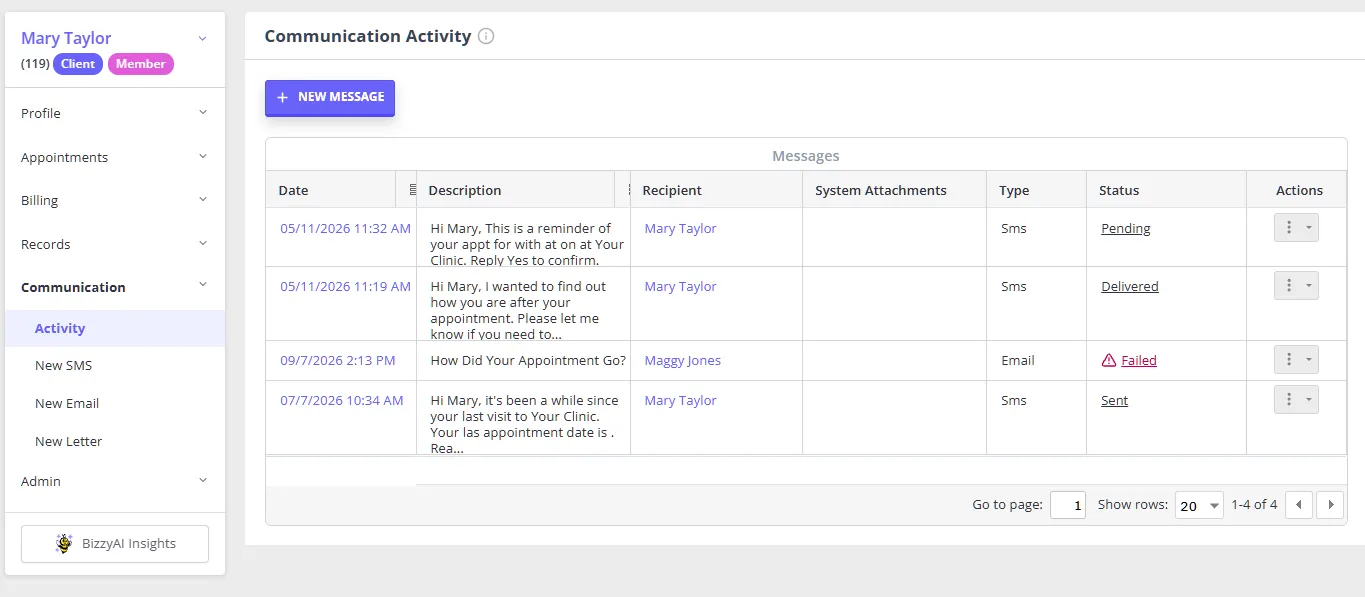
- The Communication Activity table in a client’s profile.
- The Correspondence page.
- The SMS Usage report (click Reports and search for it).
- The text messaging panel, as a tick under each sent message.
In Communication Activity, on the Correspondence page, and in the SMS Usage report, the SMS status can be clicked to open its delivery details. Hover over a status to see a short explanation of it.
SMS statuses
| Status | What it means |
|---|---|
| Pending | The SMS is queued and prepared to be sent. |
| Sent | Zanda sent the SMS. Delivery hasn’t been confirmed yet. |
| Delivered | The messaging provider confirmed that the SMS was delivered to the recipient’s phone. |
| Failed | The SMS couldn’t be sent, or the messaging provider reported that it wasn’t delivered. A Failed status is shown with a warning icon. |
The SMS Usage report labels the Sent status as Success. Its other SMS statuses match the table above.
Delivered means the SMS reached the recipient’s phone. It doesn’t tell you whether the client has opened or read it; Zanda doesn’t show read receipts for SMS.
Viewing the delivery details of an SMS
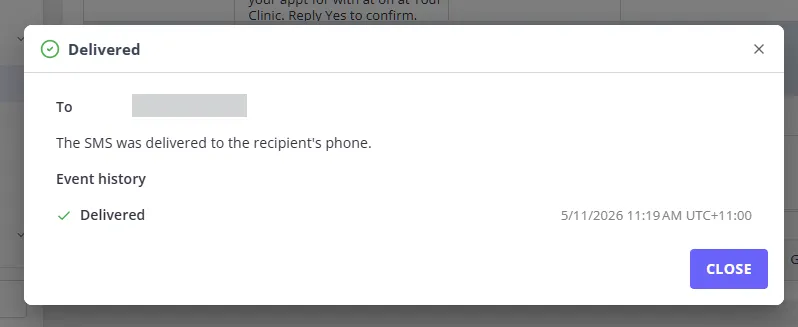
- Find the SMS in Communication Activity, on the Correspondence page, or in the SMS Usage report.
- Click the status value.
- A window opens without leaving the page. Its title shows the delivery outcome: Delivered for a delivered SMS, SMS sent for a sent SMS, Delivery failed for a failed SMS, and Delivery pending for a pending SMS. The window also shows the mobile number the SMS was sent to, and an Event history of the delivery reports received for that SMS, each with its date and time.
- Close the window using the Close button.
Why an SMS failed
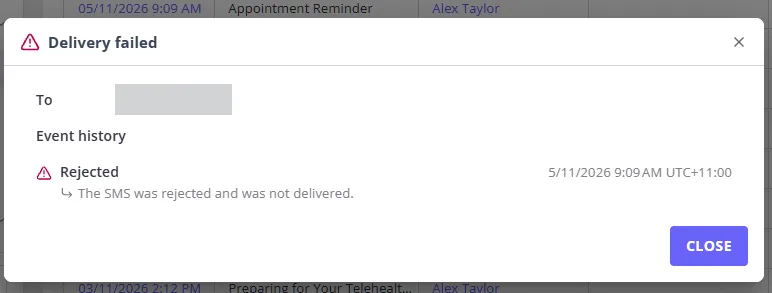
When the messaging provider reports that an SMS wasn’t delivered, the Event history shows one of these events with its reason:
| Event | Reason shown |
|---|---|
| Rejected | The SMS was rejected and was not delivered. |
| Failed | The SMS could not be delivered to the recipient. |
| Expired | The SMS expired before it could be delivered. |
The same reason appears when you hover over the Failed status. If an SMS shows Failed because it couldn’t be sent at all, the hover text reads “The SMS could not be sent.”
Once an SMS has failed, its status doesn’t change to Delivered later, even if another report arrives for it.
SMS ticks in the text messaging panel
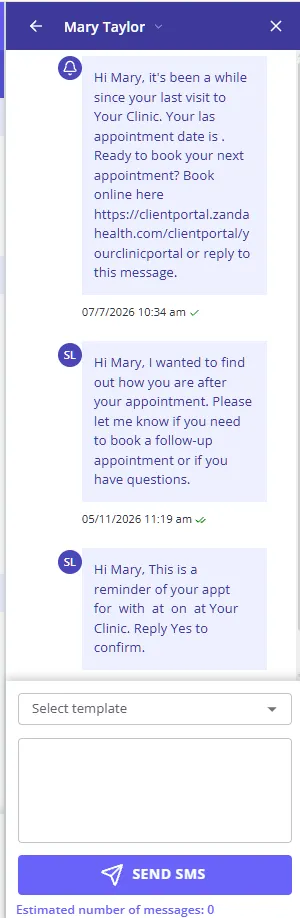
In a client’s conversation in the text messaging panel, each SMS sent from your account shows an icon after its date and time:
- A clock, with the word Merging, means the SMS is still waiting to be sent (the Pending status).
- A single tick means the SMS was sent.
- A double tick means the messaging provider confirmed that the SMS was delivered to the recipient’s phone.
A failed SMS shows no tick. The tick updates by itself when a delivery report arrives; if it doesn’t, it updates the next time the panel loads.
Important things to know
- Some SMS stay Sent. Delivery reports aren’t returned for every SMS, so an SMS can keep the status Sent with “No delivery events yet.” in its delivery details. That doesn’t mean it failed.
- SMS sent before SMS delivery status was introduced keep the status Sent, and their delivery details show “No delivery events yet.”
- Delivery details cover the last 60 days. For an SMS sent more than 60 days ago, the window shows “Delivery status information is only available for messages sent within the last 60 days.” The SMS still shows its status as normal.
- A long SMS sent in several parts is one message in Zanda, with one status.
- Received SMS (client replies) and drafts have no delivery details, so their status can’t be clicked.
- This feature only reports what happened to an SMS. It doesn’t change how or when SMS are sent, or what they cost. See About SMS Messages and Fees for how SMS are charged.
Frequently Asked Questions
What should I do if an SMS shows Failed?
Check the reason in the SMS delivery details, then check that the client’s mobile number in Client Profile > Details is correct and that they are subscribed to SMS in Client Profile > Admin > Manage. For more steps, see Why has my Client Stopped Receiving SMS from my Account? If everything looks right, send the client a new SMS or contact them another way.
How do I see the delivery status of an email?
Emails have their own delivery details, opened the same way by clicking the email’s status. See Email Deliverability Status.