

What this feature does
Email deliverability status gives you clearer visibility into what happened to an email after it was sent. It helps you quickly see whether a client received an email, without needing to guess based on a single overall status.
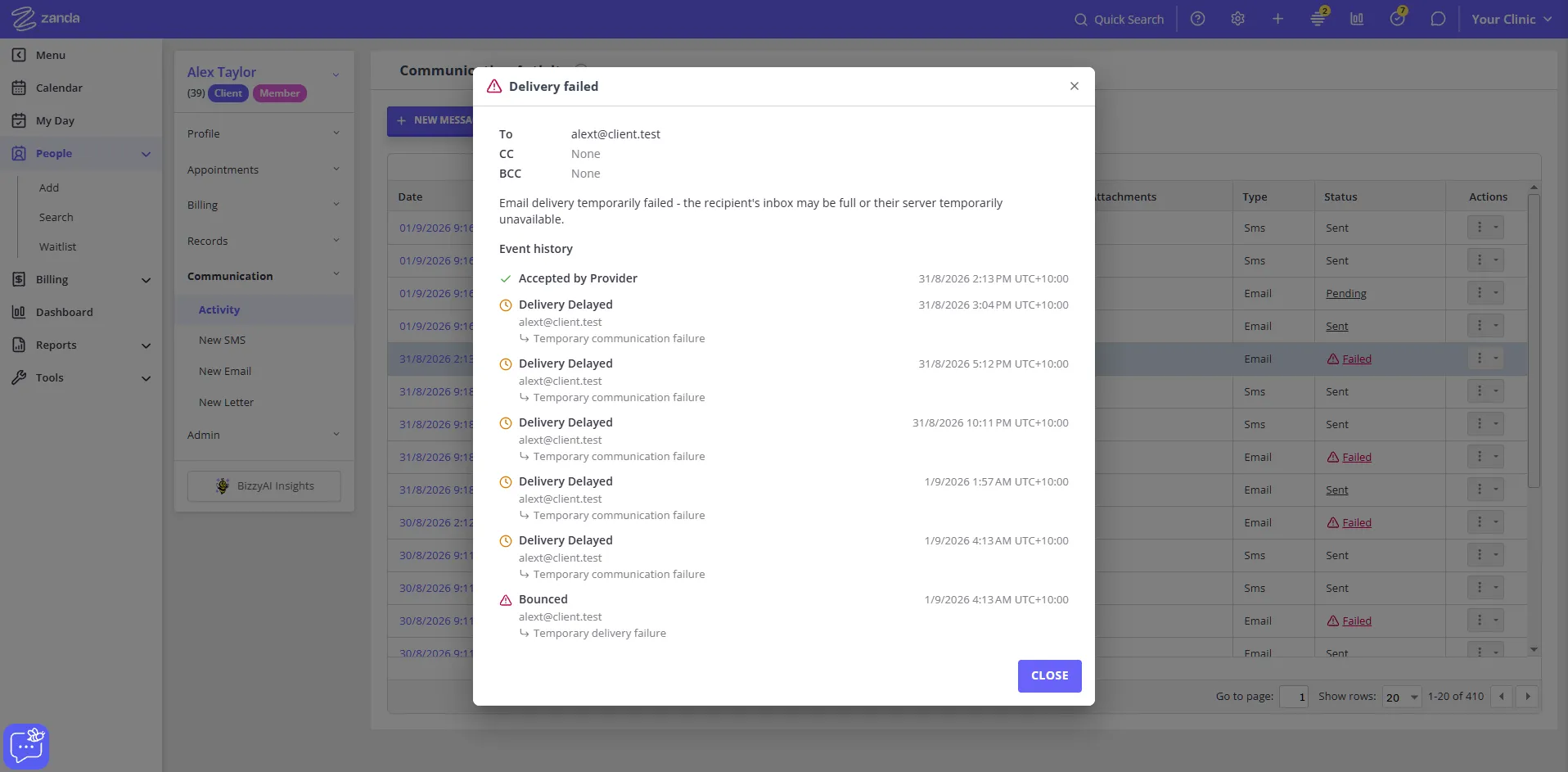
When you view an email’s status in Zanda, you can click it to open a details view showing a timeline of delivery events for that message, such as when it was sent, delivered, or ran into a problem.
How it works
Each email’s status reflects what happened to the address it was addressed to (the “To” recipient), not any CC or BCC addresses on the message.
If the client’s copy was delivered but a CC or BCC address had a problem, such as a bounce or being marked as spam, the status shows as Partially Failed rather than Failed. That way a delivery issue with a copied address doesn’t make it look like the client themselves never received the email.
Clicking a status opens a detailed view showing:
- The status, with a matching icon.
- A chronological timeline of delivery events, with timestamps where available.
- The recipient, CC, and BCC addresses on the message.
- Which address a timeline event relates to, where that event applies to one specific address (for example, a bounce).
Where it applies
This applies to emails only. It’s available on:
- The Communication Activity table in a client’s profile.
- The Correspondence page.
- The Email Activity report (click Reports and search for it).
If an item’s type is SMS rather than Email, the status is shown as plain text and isn’t clickable. Deliverability details like this are specific to email.
Current scope
Statuses you may see:
| Status | What it means |
|---|---|
| Sent / Delivered | The email reached the address it was sent to. |
| Partially Failed | The email reached the address it was sent to, but a CC or BCC address failed or was marked as spam. |
| Failed | The email failed to reach the address it was sent to. |
Tip: If an email shows Failed or Partially Failed, you can resend it directly from Communication Activity or the Correspondence page. See Resending an Email.
Viewing delivery details
- Find the email in Communication Activity, the Correspondence page, or the Email Activity report.
- Click the status value.
- A detailed view opens showing the status and delivery timeline for that email, without leaving the page.
- Close the view using the Close button.
Older emails
Delivery status detail is only available for emails sent within the last 60 days. Clicking the status link on an older email still opens the detailed view, but it shows a message letting you know delivery detail isn’t available for that email instead of the timeline. The email’s own status keeps showing normally either way; only the detailed timeline becomes unavailable.
Important things to know
- A Partially Failed status doesn’t mean the client didn’t receive the email. It means the client’s copy was fine, but a CC or BCC address had an issue. It’s worth checking who else was copied on the email.
- A CC or BCC address marked as spam only shows as Partially Failed on some accounts, the same way a Reported as Spam status does for the main recipient.
- If the message hasn’t had any delivery events recorded yet, the detailed view shows just the status, with no timeline underneath.
- Delivery timelines for emails sent before this feature was released may not show which address each event relates to.
- Filtering by status, including Partially Failed, is available in the Email Activity report.
- This feature is about visibility into an email’s delivery outcome. It doesn’t change how or when emails are sent, and it doesn’t affect the content or destination of any email.
Frequently Asked Questions
Can I still see what happened to a CC or BCC address?
Yes. The delivery timeline in the details view shows events for CC and BCC addresses too, labelled with the address each one relates to.