
Mobile network carriers only deliver SMS from numbers that have been verified for legitimate business use. The requirement is designed to tackle fraud, reduce spam, and keep messaging in line with industry regulations.
Because of this, all Zanda accounts in the USA, Canada, Puerto Rico, Bahamas, Jamaica, Costa Rica, and Barbados need to apply for a dedicated SMS number to send and receive SMS. This article covers what you need before you apply, how to apply, what it costs, and what happens if you don’t have a dedicated number.
Important: Start your plan to unlock SMS. Sending SMS and applying for a dedicated number both require an active subscription and aren’t available on the free trial.
What is a dedicated SMS number?
A dedicated SMS number is a toll-free number that is verified by telecommunications providers and assigned exclusively to your business. All SMS sent from your Zanda account are sent from this single verified number.
Benefits of a dedicated number
- The number is assigned exclusively to your registered business.
- You can send and receive text messages through Zanda, which helps reduce no-shows and keeps communication with clients in one place. (See how appointment reminders and confirmations work or get ideas for other types of SMSes to send to customers.)
- Clients can save the number in their contacts.
- Messages are less likely to be blocked as spam by telecommunications providers.
Before you start: what you’ll need
To verify your number, carriers need proof of your business and of how your clients agree to receive texts from you. Have everything below ready, and your web pages live, before you apply, since missing items are the most common cause of delays.
Business details
- A business website, or a business social media page if you don’t have a website
- A business phone number that belongs to your business, not a personal number
- Your EIN or other business registration number (sole proprietors, see Sole proprietors and DBA names)
- A business email address on your website’s domain (recommended)
Live, public web pages
- An SMS Terms & Conditions page
- A Privacy Policy page
- An SMS opt-in form, plus a short description of how clients opt in
Opt-in rules to know
- Only text clients who have given explicit consent to receive texts from you.
- Opt-in evidence must be a live, public page your clients actually use. Internal records aren’t accepted.
- Collect SMS consent separately from consent for email or your general terms, with a separate checkbox for each type of message.
- Your Terms & Conditions and Privacy Policy on their own don’t count as proof of opt-in.
- If you don’t have a compliant opt-in process yet, set one up before you apply.
Each requirement is explained in the sections below.
Cost of a dedicated SMS number
A dedicated SMS number has a monthly fee, which includes 35 SMS credits each month. For the current price, see the Zanda pricing page. Any SMS beyond those 35 credits is charged at the standard SMS rates. Unused included credits don’t carry over. There’s no application fee.
Applying for your dedicated SMS number
Once you’ve started a paid plan, follow these steps to apply:
- Click the Settings cog (top right) > Practice > Subscription > Dedicated SMS Number.
(You need “Set Up and Configure” permissions to do this.) - Click Apply for a dedicated SMS number.
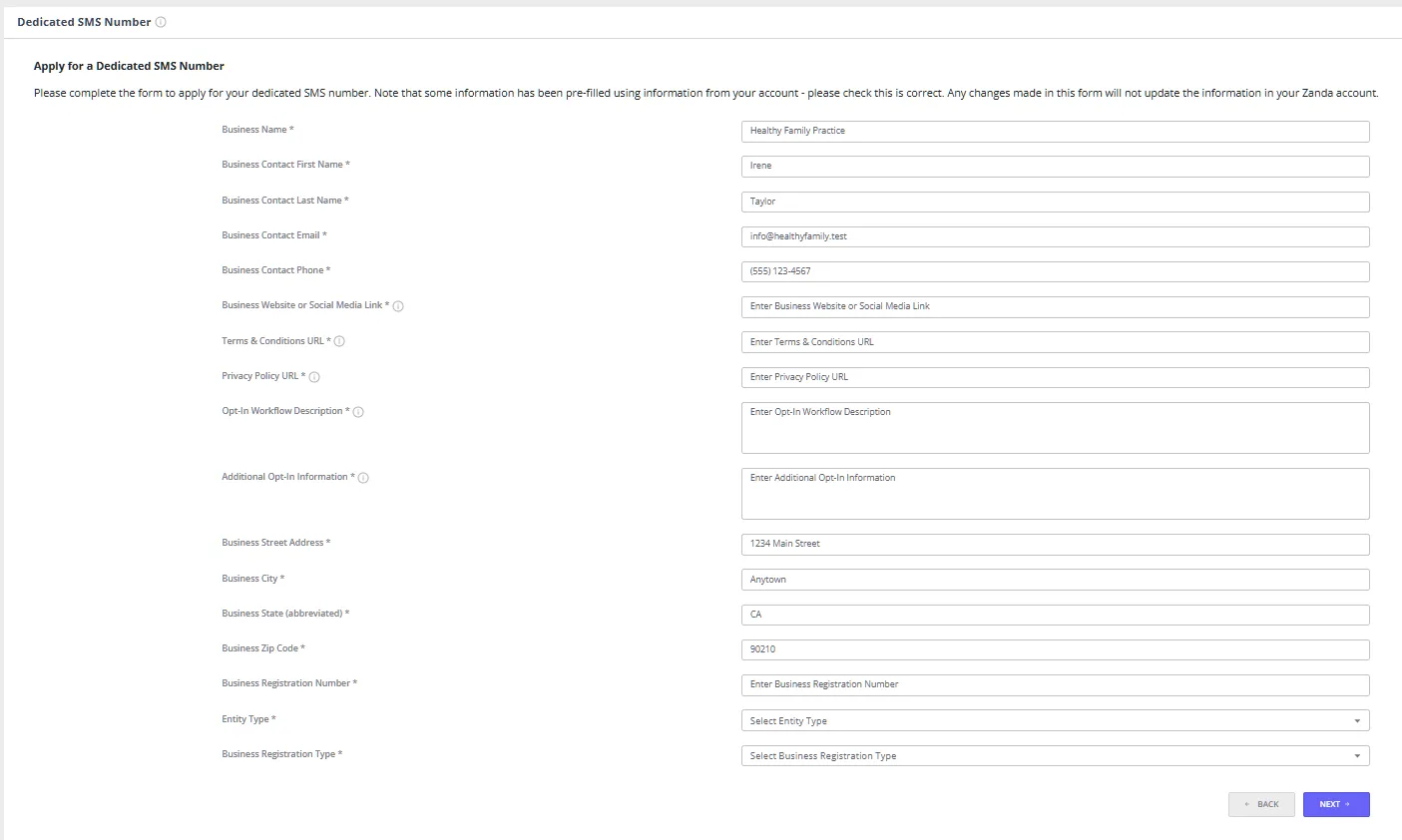
- A form loads, pre-filled with the business information you already provided. Check that it’s correct and fill in the blank fields, including:
- Business Website or Social Media Link
- Terms & Conditions URL and Privacy Policy URL (both must start with https://)
- Opt-In Workflow Description: how your clients agree to receive texts from you
- Additional Opt-In Information: where your sign-up form or consent checkbox can be seen
- Entity Type, Business Registration Type, and Business Registration Number
- Click Next once you’ve completed the form.
- Read the disclaimer and select the checkbox to confirm your agreement.
- Click Submit Application.
What happens next?
After you submit the application, the telecommunications provider reviews it. Verification currently takes several weeks, and can take longer if the provider asks for more information. Having everything in Before you start live before you apply is the best way to avoid delays.
Once your number is verified, we’ll let you know by email. Your new number appears on the Dedicated SMS Number page and in Account Settings > Communication > Communication Options (click the Settings cog, top right). You can then send SMS from your Zanda account using that number.
Speed up verification
After you submit your application, email [email protected] with documents that verify:
- Your EIN or other business registration number, such as an EIN confirmation letter (CP 575), articles of incorporation or organization, a business name registration form, or a state business license
- Ownership of the business phone number on your application. This number must belong to your business, not be a personal number.
It also helps to use a business email address on your website’s domain rather than a free provider like Gmail, Hotmail, or Yahoo, since this makes it easier to confirm the email belongs to your business.
Sole proprietors and DBA names
Sole proprietors: If your practice has an EIN, use it as your business registration number. A business registration number is required on every application. If you don’t have an EIN, select Sole Proprietor as your Entity Type then select BRN as your Business Registration Type and enter your state business license number as your Business Registration Number. Carriers apply extra scrutiny to sole proprietor applications without an EIN, and approval isn’t guaranteed either way.
DBA (doing business as) names: If the name your practice uses in Zanda is different from your legally registered business name, your registration number needs to match your legal entity name, not the DBA. Mention the DBA in the Additional Opt-In Information field so the reviewer can connect the two names.
Terms & Conditions and Privacy Policy URLs
As of September 15, 2026, carriers require every new toll-free number verification to include live, publicly accessible links to your business’s Terms & Conditions and Privacy Policy. Applications without them are rejected. Numbers verified before that date aren’t affected.
Each link must:
- Use HTTPS, not HTTP
- Go directly to the policy page, not your homepage
- Load without a login and not be broken
- Appear as a clickable link next to your SMS opt-in checkbox, not as plain text or only in your site’s footer
Your pages need to include:
- Terms & Conditions: your business or program name and a short description of your service, how often you’ll message (or that frequency varies), “Message and data rates may apply,” how to get help (“Reply HELP for help” plus an email or phone number), how to opt out (“Reply STOP to opt out”), that consent is not a condition of purchase, “Wireless carriers are not liable for delayed or undelivered messages,” and a link to your Privacy Policy. Keep this separate from your opt-in wording.
- Privacy Policy: what client data you collect and how you use it, a link to your SMS Terms & Conditions, and this wording, word for word: “No mobile information will be shared with third parties or affiliates for marketing or promotional purposes. All categories of information sharing described in this Privacy Policy exclude text messaging originator opt-in data and consent. This information will not be shared with any third parties.”
You can combine both into one page, as long as the link name makes clear it covers both and the page includes everything above.
Don’t have these pages yet? Download our Example Terms & Conditions and Privacy Policy for Your SMS Opt-In to use as a starting point.
Common reasons applications are rejected:
- A broken link, or a page that doesn’t load
- An HTTP link instead of HTTPS
- A link to your homepage instead of the policy itself
- The required data-sharing sentence or carrier liability line is missing
- The opt-in checkbox mentions the Terms & Conditions or Privacy Policy as plain text instead of a clickable link
- One shared checkbox for several message types instead of one checkbox per type
- The opt-in checkbox is pre-checked
- Your website, Terms & Conditions, and Privacy Policy show different business names or describe different types of messages
Opt-in evidence
Carriers also need to see how your clients agree to receive text messages from you, and that process must be published and verifiable online. In the application, you’ll:
- Describe your opt-in workflow in Opt-In Workflow Description (for example, a sign-up form on your website or a text-to-join keyword). Be specific about where and how clients give consent, since vague answers slow down review.
- Give the live, public URL of your opt-in form in Additional Opt-In Information.
Use a live, public URL. Paper consent forms, screenshots, PDFs, downloadable files, and unpublished pages aren’t accepted in its place. This includes client-specific intake forms, since they aren’t publicly accessible. Opt-in wording that appears only in your Terms & Conditions or Privacy Policy also doesn’t count, and neither do internal records, like a screenshot of your client list.
Your opt-in wording must include:
- Your business name
- The type of messages clients will receive (use a separate checkbox for each type, such as appointment reminders versus promotions)
- Message frequency, or “Message frequency varies”
- “Message and data rates may apply”
- “Reply STOP to opt out” and “Reply HELP for help”
- “Consent is not a condition of purchase”
- Links to your SMS Terms & Conditions and Privacy Policy
Place this wording right next to the mobile number field or the submit button, so clients don’t have to search for it. The checkbox must be unchecked by default, and the Terms & Conditions and Privacy Policy must be clickable links. Keep it specific to SMS: generic wording like “Sign up for updates” isn’t enough. For example:
☐ By providing your mobile number, you consent to receive appointment reminder messages from [Practice Name]. Message frequency varies. Message and data rates may apply. Reply STOP to opt out or HELP for help. Consent is not a condition of purchase. Read our SMS Terms & Conditions [link] and Privacy Policy [link].
Fundraising or donation messages: if you send these, your opt-in wording must say so specifically, not just describe your messages in general terms.
Your opt-in evidence should reflect your specific practice, not a generic example, and be branded with your business’s name so it’s clear whose consent is being collected.
Using your existing toll-free number
If you already own a toll-free number (TFN), you can use it as your dedicated SMS number in Zanda. Our messaging provider takes over sending SMS for that number. Voice service isn’t affected and stays with your current provider. There are no additional charges for using your own TFN.
This works when your current provider can release the SMS component of the number. AT&T, Verizon, and Bandwidth are known examples that can’t, but that isn’t a complete list, so we can’t confirm in advance whether a provider that isn’t named here will work. If you’re not sure about yours, ask your current provider whether they can release the SMS component of your toll-free number while keeping voice service with them.
To use your own TFN as your dedicated number in Zanda:
- Contact Zanda support and request a Letter of Authorization (LOA).
- Fill out the LOA and return it to Zanda support, not your current provider.
- Apply for a dedicated number in Zanda, following the steps in Applying for your dedicated SMS number.
- Email [email protected] to ask for your existing TFN to be used, and include the number in your email.
Warning: Porting moves your number’s SMS service entirely to our messaging provider. Once porting is complete, your current provider can no longer send or receive SMS on that number through any platform. All texting to and from that number happens only through Zanda, with the mobile numbers stored in your Zanda account.
Porting back later is possible, but it’s a separate, in-depth process through your original provider’s own LOA process, and it isn’t guaranteed. Confirm with your provider in writing before you begin.
Prefer to keep your existing number untouched? Complete the standard dedicated number application instead, and our messaging provider assigns you a new number to use only in Zanda. Compared to porting, this:
- Skips the LOA and porting process, so it’s typically faster (porting your SMS service to our provider can take 30 to 45 days)
- Leaves your existing number untouched for calls and texting through your current provider
- Costs the same
Clients will see a different number for Zanda messages than your main practice line. Including your practice name at the start of your SMS templates helps clients recognize the message.
Best practices for text messaging
Any business sending SMS should follow the best practices and compliance rules set by the regulators in its region. In the US, this includes the Federal Communications Commission, the Cellular Telecommunications and Internet Association, and the Mobile Marketing Association. We recommend reviewing their guidelines for complete information.
In brief, best practices include (but aren’t limited to):
- Get a person’s consent before you message them, with separate consent for each type of message
- Identify your business in every message
- Include opt-out instructions (reply STOP) and help instructions (reply HELP)
- Don’t use all caps
- Don’t link to third-party sites
- Don’t use public link shorteners (such as bit.ly). Use Zanda short links instead, which shorten supported links automatically while keeping the destination on a Zanda-owned domain.
- Don’t include any content that falls under “SHAFT”: sex, hate, alcohol, firearms, tobacco, and any illicit substance
Tip: Following best practices for SMS sending helps reduce the chance of your SMS being flagged as spam or fraud, which could block further sending from the number.
What happens if you don’t have a dedicated number?
Caution: If you haven’t applied for a dedicated SMS number, you won’t be able to send SMS messages to your clients through Zanda.
If you don’t want to send SMS through Zanda, no action is needed. Without a dedicated SMS number, all SMS messaging is turned off for your account.
Frequently Asked Questions
How long does the dedicated SMS number application take to be approved?
Verification currently takes several weeks, and can take longer if the telecommunications provider asks for more information or documentation. You’ll receive an email once your number has been verified and is ready to use. See Speed up verification for ways to avoid delays.
Can I port my own telephone number or VOIP number into Zanda?
You can use your own number for Zanda SMS through the existing toll-free number process above. This includes a toll-free number from a VOIP provider, with the SMS component routed through our messaging provider. If your number isn’t a toll-free number, or your provider can’t separate SMS from voice service, apply for a new dedicated SMS number in Zanda instead.
To apply, click the Settings cog (top right) > Practice > Subscription > Dedicated SMS Number and select Apply for a dedicated SMS number. The application is for a Toll Free Number, and the number is used only for SMS, also known as text messaging.
Does the dedicated SMS number application go through The Campaign Registry (TCR), and does it matter how recently my EIN was issued?
Your Zanda dedicated SMS number is a toll-free number, so your application goes through toll-free number verification with our messaging provider. It is not a 10DLC (10-digit long code) registration, and it is not submitted to The Campaign Registry. Rules that belong to that separate 10DLC and TCR process, including anything about how recently your business registration number was issued, don’t govern your Zanda application.
The Zanda application form asks for your business registration number and the type of number it is, for example an Employer Identification Number (EIN). It doesn’t ask when that number was issued.
We can’t confirm exactly what checks our messaging provider carries out on that information during toll-free verification. As with any application, the provider may ask for additional information or documentation before approving it, which can extend the review. If you’re working to a deadline, apply as early as you can, and we’ll be in touch if anything further is needed.
Do Australian accounts need to apply for a dedicated SMS number or complete ACMA phone number verification in Zanda?
The dedicated SMS number application in Zanda applies to accounts in the USA, Canada, Puerto Rico, Bahamas, Jamaica, Costa Rica, and Barbados. Australian accounts do not use this in-app dedicated number application flow.
For accounts in Australia and the UK, Zanda sends SMS from dedicated numbers assigned through our messaging provider. When a client replies to an SMS sent from Zanda, their reply appears in the Messaging Panel. You can also forward replies from Account Settings > Communication > Communication Options > Forward Text Message Replies To (click the Settings cog, top right). Appointment reminder reply forwarding is configured separately for each practitioner in Account Settings > Team > Practitioners > [Practitioner] > Settings (click the Settings cog, top right).
If you have questions about external regulatory obligations for your practice, check the current guidance from the relevant regulator or contact our support team for help with your Zanda SMS setup.
Can a prospective client text my dedicated SMS number before they’re set up as a client in Zanda?
A prospective client’s text reaches you once your practice has sent them at least one message. Add them as a client and send them a message first. For existing clients, this usually happens naturally through your SMS appointment reminders, and after that they can reply or text the number directly at any time.
Zanda SMS is built for two-way conversations with people already in your account: an incoming text is matched to your account by linking it to a message your practice already sent that mobile number. A text from a number Zanda has never messaged, such as a prospective client texting in cold, has no message to link to, so it won’t be received into your account or appear in your Messaging Panel.
Can I publish my dedicated SMS number publicly, for example on my Google Business Profile, social media, or online directories, as a general contact number?
We don’t recommend it. Because the number only receives replies to texts Zanda has already sent, publishing it publicly won’t let new prospective clients reach you: their first message in has nothing to match against, so it won’t come through. For a public point of contact, use your practice’s regular phone number, or add your Client Portal link to your website, social profiles, and Google listing so prospective clients can reach you and book directly.