
❓ Interested in learning more about Tyro Health?
Complete this form and someone from the team at Tyro Health will be in touch.
🛠️ Tyro Health Customer Support(response time is under 5 min)
- Call 1300 018 976, then press Option 1 → Option 5
☑️ For help with technical issues, connection problems, terminal setup, and claims.
📞 Tyro Health Sales
- Call 1300 018 976, then press Option 2
☑️ For new merchant signups, additional terminals, or multi-merchant setup.
_💡 Tip: Calling the correct option helps you reach the right team faster! _
💡 Use Tyro’s Internet test URL //www.tyro.com/selftest/ if terminal pairing fails — may be due to firewall or browser cache restrictions.
You can easily process a Medicare claim with your Tyro terminal and Zanda. Just follow the steps below to learn how.
Using Zanda without Tyro? Tyro is only needed for the Tyro terminal workflow in this article. You can also submit Medicare claims directly through Zanda. First complete Medicare online claiming registration, then open the invoice and select Medicare & DVA to create a Patient Claim or Bulk Bill and click Send.
- Processing a Bulk Bill Claim
- Processing a Patient Claim
- Related Articles
Processing a Bulk Bill Claim
- Select the Appointment in the calendar.
- On the appointment panel to the right scroll down to the Invoice section.
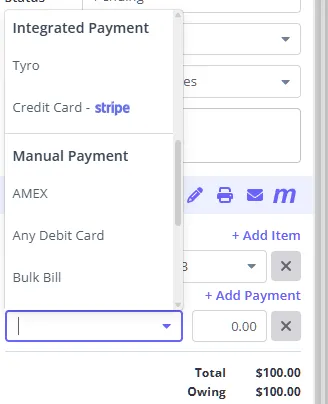
- Select ‘Tyro’ from the Integrated Payment method dropdown.
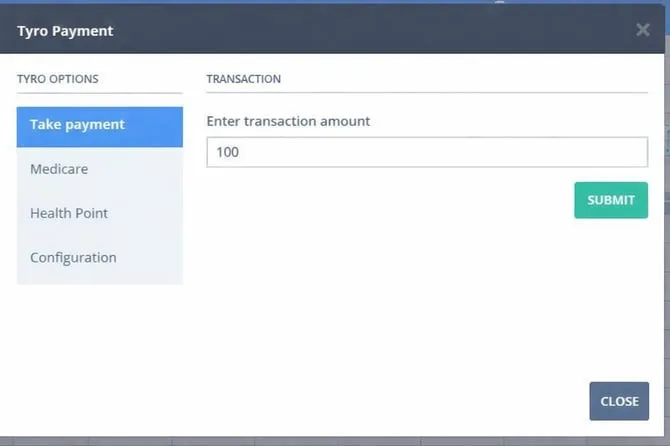
 4. In the Tyro Options menu, click Medicare :
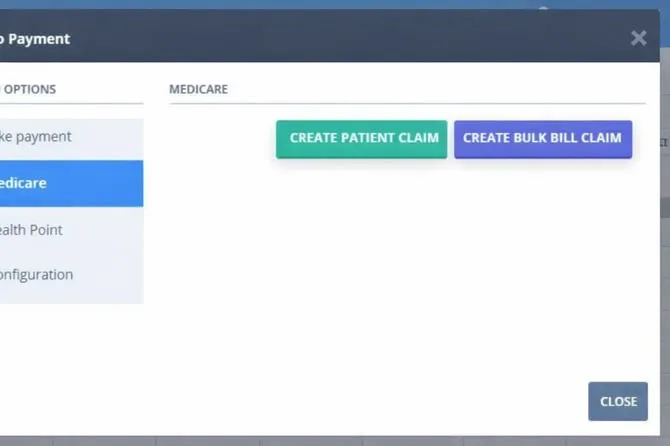
- Select ’ Create Bulk Bill Claim’:
- Review the information provided and click Save and Submit With Tyro.
Processing a Patient Claim
- Select the Appointment in the calendar.
- On the appointment panel to the right scroll down to the Invoice section.
- Select ‘Tyro’ from the payment method dropdown.
- Process the full payment.
- When the transaction is complete, select the Medicare tab (you may need to select Tyro Payment Method on the appointment panel again, if the Tyro modal closes after the payment is processed).
- Select Create Patient Claim:
7. Review the information provided and click Save and Submit With Tyro.
8. Client will need to use their card again to receive the rebate amount.