
Creating a Statement for a Third Party
Third-Party Statements allow you to show multiple paid or unpaid invoices for a certain period of time for a particular client or for several clients and the received and allocated payments.
There are two different statement types to choose from, which work as follows:
- Activity: Both paid and unpaid invoices in that period
- Outstanding Invoices: Unpaid invoices in that period only
Note:
You will first need to ensure that the client’s invoices have been billed to the Third Party. For information on how to do this, please read our support article here.
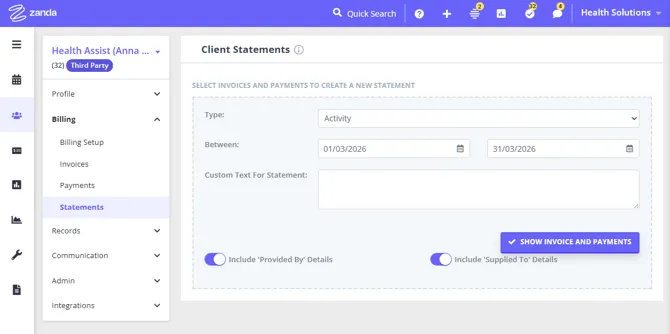
- Statements are created in the third party profile > Billing > Statements.
-
In the Statements tab, click “New Statement”.
-
Select the Statement Type: ‘Activity’ or ‘Outstanding Invoices’.
-
Enter the date range, or leave as the default 30-day period.
- Optional: Use Custom Text For Statement to add a note that applies to this statement only - payment instructions, for example, or a purchase order number that covers this period. It prints under the statement number and period at the top of the statement.
-
Click ” Show Invoices and Payments”.
-
Tick the invoices and payments which you would like to combine into the statement.
-
Click ” Create Statement”.
- Once you have created your statement you have the option to show the referrer on the statement, which you can do this by ticking “Referral”. This will show the referrer details at the top right hand of the statement (the same place that it is shown on a normal invoice).
- You also have the option to either email, print or delete the statement
Statement Layout
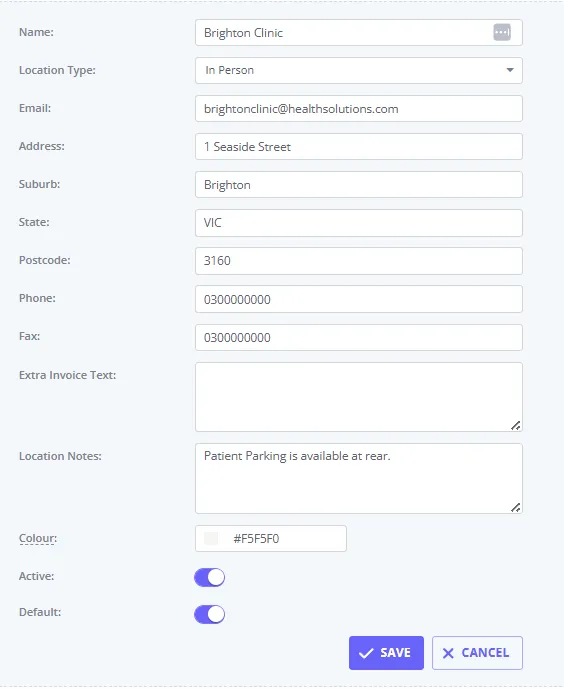
Each statement is designed to print the default location configured in your account into the header of the document. If you are using multiple locations, you can modify the default location (and the clinic details printed on statements) by navigating to User Menu > Account Settings > Practice > Locations and alter which of them is the Default.
If you would like to find out how to create a statement that is billed to a client, please read our article here.
Frequently Asked Questions
Why am I seeing statements as Invoice To: Client, when all client invoices are billed to their contact or third party by default?
💡 If completed-appointment invoices are missing from a third-party statement, check whether each invoice is payable by the third party before creating the statement.
- Statements created from the Client Profile > Billing > Statements will default to showing the client as the invoiced entity, even if the invoices are billed to their contact or third party.
- Proposed solution: create statements directly in payee profiles to see payees details listed in the Invoice To: section of the statement. For example, if client invoices are billed to their third party, go to Third Party profile > Billing > Statements and generate the statement there.
How do I add information that only applies to one statement?
Enter it in Custom Text For Statement when you create that statement. Follow the steps above to start the statement, and at step 3, type the text into the Custom Text For Statement box before continuing.
What you type is saved on that one statement. It prints under the statement number and period at the top of the statement, it is not carried over to the next statement you create, and it never appears on an invoice. Each new statement starts with this field blank, and a statement you have already sent keeps whatever text it was created with.
Two things to keep in mind:
- To change custom text, delete the statement and create it again. There’s no separate edit step, so enter it correctly when you create the statement.
- Don’t use Extra Invoice Info for information that changes from one period to the next. That field lives on the profile and is read fresh every time an invoice or statement is produced, so updating it also changes the reference shown on documents you have already issued, including earlier periods’. Keep Extra Invoice Info for a reference that stays the same, such as a standing contract number. See Customising Your Invoices/Receipts.