Automatic Monthly Superbill Settings
In Zanda, you can set up your monthly superbills to be generated automatically on a specific day of the following month. Here is how
-
Go to User Menu > Account Settings > Billing > Invoicing.
-
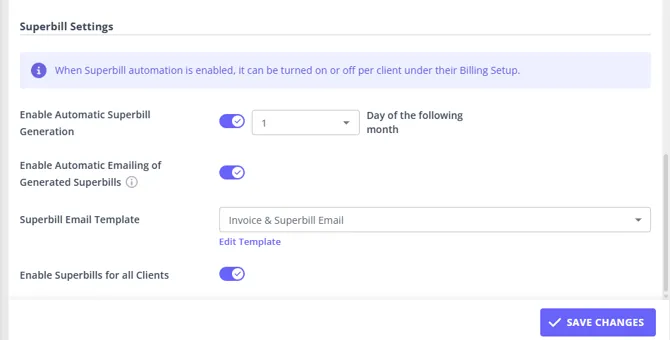
On the right-hand side of the invoicing settings page, scroll down to the ‘Superbill Settings’ section.
-
Toggle on the ‘Automatically Generate Monthly Superbills’ switch to enable this feature.
-
Select the day of the following month you would like the Superbill created.
-
Toggle on ‘Automatically Send System Generated Superbill’ if you would like your Superbills to be automatically sent to the client after they are created.
-
Select the email template that includes the merge field {SuperbillPDFLink} or {SuperbillPDFAttachment} you would like be sent. The generated link will be valid for 7 days upon creation.
-
Toggle on Enable Superbills For All Clients if you would like to turn on this setting for all clients. You can also update this setting per client in their client profile in their billing setup.
-
Once all the settings are selected, click ‘Save Changes’.
💡Note: When automatic superbills are sent:
- Execution Time: 2:00 PM (14:00) local time for US accounts.
- How it works: The system evaluates at 2:00 PM daily, it will only actually queue the Superbill automation if the current day matches the specific “Generation Day of the Month” configured for the account.
*Important:
- The {SuperbillPDFLink} merge field is required to provide a link to download a Superbill file in the email that is sent.
- The {SuperbillPDFAttachment} merge field is required to attach a Superbill file in the email that is sent.
You can find these merge fields in the Available Merge fields list on the email template page.
Here is a sample Superbill email template you can use to create your own template in Tools > Communication > Templates:
Message Type: Email
Name: “Superbill Email”
Description: “a template used to email Superbills to clients”
Email From Name: Your business name
Email From Address: your contact email address that will be used as a From address
Email Subject: “Your Monthly Superbill”
Conten t:
“Dear {ClientFirstName}
We hope this message finds you well!
Attached to this email, you will find your Superbill {SuperbillPDFLink} / {SuperbillPDFAttachment} for the services provided at {BusinessName} in the previous month. This document contains all the necessary information you need for insurance reimbursement.
Here’s what to do next:
- Review Your Superbill: Ensure that all the details are accurate, including the services listed and personal information.
- Submit to Your Insurance Provider: Send this Superbill to your insurance company for reimbursement. You can usually submit it through their online portal, by mail, or by fax.
- Keep a Copy for Your Records: It’s a good idea to save a copy of the Superbill for your personal records.
If you have any questions about the Superbill or need further assistance, please don’t hesitate to contact us on {BusinessPhone}.
Warm regards,
{BusinessName}
[enter your contact details]
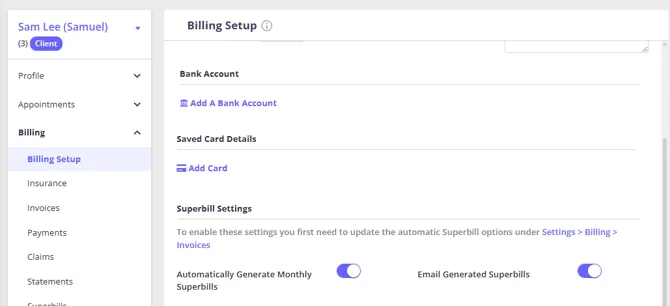
Client Profile Monthly Superbill Settings
It is possible to modify a separate client monthly superbill settings if they are different from your account overall automatic settings.
-
Go to the profile of the client where you would like to adjust the settings and navigate to Billing > Billing setup. The Superbill settings are displayed on the right-hand side of the page.
-
Toggle the settings off if you would like to turn off ‘Automatically Generate Superbills Monthly’ so that monthly superbills are not created for this client. Please note that both settings will turn off in this case.
-
You may still have the automatic generation of a superbill enabled for this client, but not select to email it automatically. To do so, toggle off ‘Automatically Send System - Generated Superbills’.
-
Click ‘Save Changes’.