
Tip💡 If you do not use the ’ Paid By Insurer’ field it will not appear on the invoices sent to clients.
Adding Insurer Payment to an Invoice
Adding an Insurer payment to an invoice is easy. Here’s how:
- If you haven’t already, create an appointment with your client in your Zanda calendar.
- Click on the appointment you just created to open the appointments panel. Scroll to the bottom until you see the Invoice section. Here, simply choose a Service, Product or Session Pack you’d like to add to your invoice. To add multiple services/products, click the +Add Item button. Then click Save.
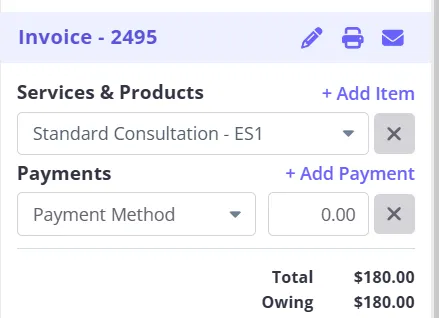 3. Click the pencil icon on the appointment panel to open the Edit Invoice page.
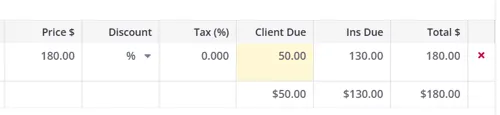
4. On the Edit Invoice page, enter the client amount due - the insurance amount due will automatically update.
3. Click the pencil icon on the appointment panel to open the Edit Invoice page.
4. On the Edit Invoice page, enter the client amount due - the insurance amount due will automatically update.
 5. On the same Invoice page, select Add payment, select the payment method, then click on the ‘Select Payer’ dropdown. You will then see the option to select an Insurer as a payer.
6. Then add the amount the Insurer has paid. The amount will then be added to the Insurer portion of the Invoice.
5. On the same Invoice page, select Add payment, select the payment method, then click on the ‘Select Payer’ dropdown. You will then see the option to select an Insurer as a payer.
6. Then add the amount the Insurer has paid. The amount will then be added to the Insurer portion of the Invoice.
 7. Then click the Save Invoice button so that these changes are applied.
Hint💡 You can also access the Edit Invoice page by going to the client’s profile > Billing > Invoices > Edit Invoice.
Frequently Asked Questions
What does my client see when I email an invoice with a Client Due and Insurer Due split?
The invoice shows the split, but it’s still a bill for the whole invoice, not a client-only bill. When the invoice has an insurer and at least one line item has a client amount due, each line item shows Client Due and Ins Due columns in place of the usual Total column. A Totals Due row adds up each column.
The rest of the invoice still covers the full invoice:
- Invoice Total is the full charge for the services, including the insurer’s portion.
- Balance Owing is the invoice total minus every payment recorded on it, from both the client and the insurer.
Until you record the insurer’s payment, Balance Owing includes the amount you’re expecting from the insurer. Your client can see their portion in the Client Due column, but the insurer’s portion is still on the invoice. Every way of sending the invoice produces the same document, including any email template and the unpaid-invoice automation.
Tip: To make clear what your client needs to pay, put their Client Due amount in the body of your email.
Will an unpaid invoice reminder still go to my client after they’ve paid their copay?
It can. An invoice stays Unpaid until the payments recorded on it cover the full invoice total, including the insurer’s portion. If your client has paid their Client Due amount but the insurer’s payment hasn’t been recorded yet, the invoice still counts as unpaid. When it reaches the Days After Invoice Date you set in your unpaid invoices automation, your client will get the reminder. Record the insurer’s payment with Paid By set to Insurer as soon as it arrives, and the invoice is marked paid.
Can I send all of a client’s outstanding copay invoices in one email?
Yes, with a statement. In the client’s profile, go to Billing > Statements > New Statement, choose the Outstanding Invoices type, and set Payable By to Self. Create the statement, then email it to your client. Every unpaid invoice in the date range is listed in one document. See Creating Statements Billed to Clients.
Statements don’t show the Client Due and Ins Due split: each invoice’s outstanding amount on a statement is its whole unpaid balance, including any insurer portion not yet paid. If you want your client to see the split, email each invoice on its own instead. See Emailing Invoices and Receipts to Your Payees.