
Check with your client/s
If only a few clients are not receiving your emails, while the rest are, then it is likely the issue is occurring on the client’s end. In this case ask your client to check their Spam / Junk folder. Also ask them to reach out to their email service provider as to whether they are blocking emails sent from your particular email address.
Check to see if all email address fields are filled in your templates
In your account it is important that all your email communication templates have the required info added.
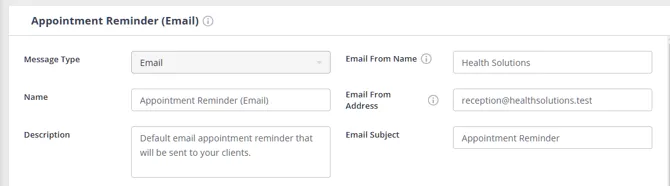
Go to User Menu > Account Settings > Communication > Templates. Here, open each of your email templates and check whether these three fields are properly filled:
- Email From Address: Enter the email address from which you want that email to be sent “from”. Any replies you receive will also go to that email address. This is why it is a good idea to double-check the spelling of the email address you list here.
- Email From Name: The name you enter here will appear as the sender’s name. An empty “from” name will reduce delivery of your emails.
- Email Subject: Ensure you enter a subject. Avoid adding too many ’!’, ’?’ and other symbols in your subject, along with words in ALL CAPS. Emails with these subject lines are viewed suspiciously by email provides and can get blocked or be marked as high risk of Spam.
Check your default business email
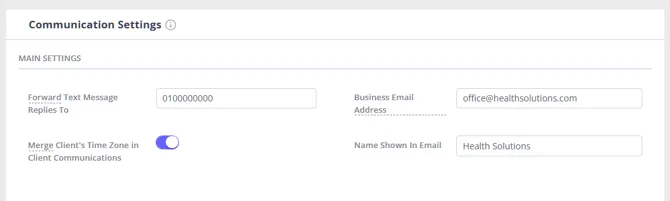
Go to User Menu > Account Settings > Communication > Communication Options and make sure the Business email field has been completed.
Hint 💡
If you are using a personal email address i.e. one that ends with [email protected], @yahoo.com, @bigpond.com_ it is likely that you will experience issues sending emails. This is because personal email addresses are not designed for commercial use, and are frequently blocked by email service providers. Therefore, the most effective way to ensure your emails have a high deliverability rate is to invest in a professional email address that ends with @yourbusinessname.com or any other customized name of your choice.
Check which mail server your account is using
Go to User Menu > Account Settings > Communication > Communication Options. The Email Server field shows which mail server your account is currently set to: Zanda Default Server, Custom SMTP Server, Gmail, or Microsoft Outlook, so you can check this yourself before contacting us.
This matters for the troubleshooting steps below: Zanda can only see delivery records when your account is using the Zanda default server. If your account is set to a custom server, or to Gmail or Microsoft Outlook—including an organization’s own mailbox connected that way, such as a Microsoft 365 mailbox—see Emails Still Not Being Received? below for what to do instead.
Check pending emails in the Email Activity report
If an email shows as Pending, use the Email Activity report to review its status before changing your mail server settings. Pending emails are queued and prepared to be sent, while delayed emails are retried automatically.
- Click Reports and search for the Email Activity report.
- Choose whether to search by Email Creation Date or Email Sent Date.
- Set the date range for the emails you want to review.
- Use the Status filter and select Pending.
- Click Run Report to review matching emails.
Emails that remain pending or sending for more than 12 hours are shown as Failed in the report. If emails are still not being received after you have checked their status, continue with the delivery troubleshooting steps below.
How will I know if an email fails to deliver?
Zanda does not send you an automatic bounce or non-delivery notification when an individual email fails to reach a client—unlike a standard mailbox, there is no per-email failure alert. Instead, the outcome of every send is recorded against the message, and you check it in the Email Activity report.
- Click Reports and search for the Email Activity report.
- Set your date range and use the Status filter to find emails marked Failed.
- A Failed status means the email bounced, was rejected, or stayed Pending/Sending for more than 12 hours.
Because failures are not pushed to you, it is worth checking the Email Activity report periodically if a client tells you they have not received an email—especially if only one client’s address is affected.
Find out why an email failed
The Failed status tells you the email did not get through; the reason is on the row itself. Hover over the status of the email to see the delivery detail:
- Hard bounce —“Email delivery permanently failed - the address may be invalid or inactive. Future emails to this address have been blocked.” The address is either wrong or no longer accepting mail. Once an address hard bounces, Zanda stops sending to it, so nothing further will reach that client until the block is cleared—see Ask Zanda to check delivery for a specific client below.
- Soft bounce —“Email delivery temporarily failed”, usually a full inbox or the client’s mail server being briefly unavailable. Worth trying again later.
- Rejected —the email could not be sent due to a system issue. Contact us if you see this.
- Delayed —delivery is running late and will be retried automatically. Delayed emails show as Pending.
- Reported as Spam: Usually means a client marked one earlier email from you as spam. That message still reached the client, and it does not affect later emails you send to the same address. (This status is only shown on some accounts.) If every email you send to that address keeps showing Reported as Spam, not just one message, this is different: Zanda has stopped sending to that address to protect your account’s deliverability, and sends will keep failing until the block is cleared. Checking the client’s inbox, junk folder, or safe senders list will not fix this, because the block happens before the email leaves Zanda, so there is nothing on the client’s side for those checks to change. Contact Zanda support and ask us to clear the block for that email address, using the steps in Ask Zanda to check delivery for a specific client below.
- Partially Failed: the email reached the address you sent it to, but a copied (CC) or blind copied (BCC) address on the same email bounced or was marked as spam. The intended recipient still received the message; only the copied address had a problem.
Tip: On accounts with email deliverability details enabled, click a status to see the recipient, CC, and BCC addresses plus a full delivery timeline. See Email Deliverability Status.
What does “Recipient on the account suppression list” mean?
If you click an email’s status to open its delivery timeline, you may see an event that reads Recipient on the account suppression list. This means Zanda did not send the email at all. An earlier email to that address either hard bounced or was reported as spam, so the address is now blocked. Every later email to the same address will fail the same way until the block is cleared.
Depending on your account, the email’s status shows as Failed or as Reported as Spam, even if nobody marked this particular email as spam.
This can affect any address you send to from Zanda, not just a client’s. For example, it can affect a practitioner’s own email address that receives appointment notifications.
Things to know:
- “Account” here refers to Zanda’s email service, not a setting in your Zanda account, so there’s nothing you can change in Account Settings to remove it.
- Checking the recipient’s inbox, junk folder, or safe senders list won’t clear the block, because the email is stopped before it leaves Zanda. Adding your Zanda sending address to their safe senders list can still help avoid spam reports in future. See Adding Email Addresses to Safe Senders List.
- First, check that the address is spelled correctly where it’s saved in Zanda. A mistyped address that bounced is a common cause, and in that case the fix is to correct the address, not to clear the block.
- Only our support team can clear the block. Email [email protected] with the exact blocked address, plus the details listed in Ask Zanda to check delivery for a specific client below.
- Once the block is cleared, new emails to that address will send normally. The email that already failed isn’t sent again automatically, so send it again if it’s still needed.
What if the status shows “Unspecified”?
Occasionally an entry in the Email Activity report or a client’s Communication Activity shows Unspecified instead of one of the statuses above, even while your other emails are sending normally. This means Zanda has recorded the message as sent or received but without one of the outcomes above attached to it. Email [email protected] with the client’s name, the appointment or communication in question, and a description (or screenshot) of what is shown against that entry, so our team can check what happened on our end.
You can see the same statuses and hover detail for one client without running a report: open the client’s record and go to Communication Activity, or check the Correspondence page.
If Zanda detects a pattern of addresses bouncing or reporting your emails as spam, we email the account’s primary contact so you can act on it before your sending is affected.
Emails Still Not Being Received?
- If your emails are being marked as spam, is it possible that you sent some promotional messages in the past, and your clients marked them as spam. This will affect future messages, even if the future messages are transactional. If this is the case, please recommend your clients to add your email address to the safe senders list in their inbox settings. (The specific instructions will depend on the mailing service a client is suing).
- In addition, you can also opt-in to using your own email server. Our article on Using a Custom SMTP Server has more instructions on this.
- If you are using the Zanda default email server, our support team can check the delivery reports on the email server and advise further—see the section below for what to send us.
- If your account is set to a custom mail server (Custom SMTP, Gmail, Microsoft Outlook, or an organization’s own mailbox reached through one of these—for example, a Microsoft 365 mailbox), Zanda has no visibility into that server’s delivery logs and cannot check them for you. Contact your email provider, or your organization’s IT/email administrator (for example, your Microsoft 365 administrator), to check delivery on their end.
Ask Zanda to check delivery for a specific client
This section applies only to accounts using the Zanda default email server—see above if your account uses a custom mail server.
If you are using the Zanda default email server and the client has already confirmed the address is correct and checked their Spam / Junk folder, we can look at the delivery records on the mail server for you. Where an address has been blocked, whether from a hard bounce or from a spam complaint, we can clear that block using the same process so you can send to it again. This is something only our team can do.
Email [email protected] and include:
- Your practice name and the email address your Zanda emails are sent from (see Adding Email Addresses to Safe Senders List if you are not sure which address that is).
- The client’s email address that is not receiving emails.
- The date and subject of an example email that did not arrive.
- The status shown for that email in the Email Activity report, including the hover detail if there is one.
- Confirmation that the client has checked their Spam / Junk folder.
- Your permission for us to look at the affected client record.
With those details we can check the delivery outcome on the mail server and tell you exactly where the email stopped.
What if the blocked address is a team member’s own login, not a client’s?
Some emails from Zanda go to a clinician or team member’s own account rather than to a client, for example a password reset email, a notice that their login details changed, or an invitation to set up a new user. These follow the same delivery and blocking rules described above, but because they aren’t client communications, they won’t show up in the Email Activity report, which only tracks emails sent to clients.
If someone on your team stops receiving these account emails, their own address may have been blocked the same way a client’s address can be, for example after an earlier email to it hard bounced. This is something only our team can check and clear.
Email [email protected] with:
- Your practice name.
- The team member’s email address that isn’t receiving these emails.
- What kind of email is missing (for example, a password reset) and roughly when you last expected one.
- Your permission for us to look into the account.
We can check whether that address has been blocked and clear it the same way, so account emails start reaching them again.
Note: We check and clear one address at a time, so let us know each specific address you’re concerned about.
Have further questions?
Please feel free to reach out at [email protected] regarding any queries/issues. We’ll be happy to assist and give you our best advice.