
Note: PDF password protection is currently in beta. To request access for your practice, go to Help Menu > Beta Program and register your interest. See Using the Help Menu to find the Help Menu options.
Turning on PDF password protection
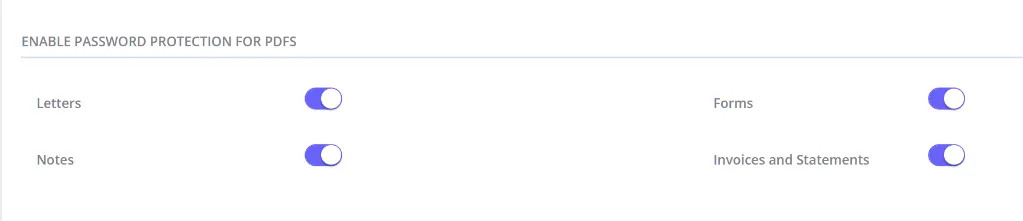
Go to User Menu > Account Settings > Communication > Communication Options and find Enable Password Protection for PDFs. Turn protection on separately for each type of document you send by email:
- Letters
- Notes
- Forms
- Invoices, Statements, and Superbills (US accounts) or Invoices and Statements (all other regions)
Once a toggle is on, Zanda encrypts every PDF of that document type attached to an outgoing email. This covers emails you send yourself, bulk communications, and automatic or manual reminders. The recipient must enter the password to open the file.
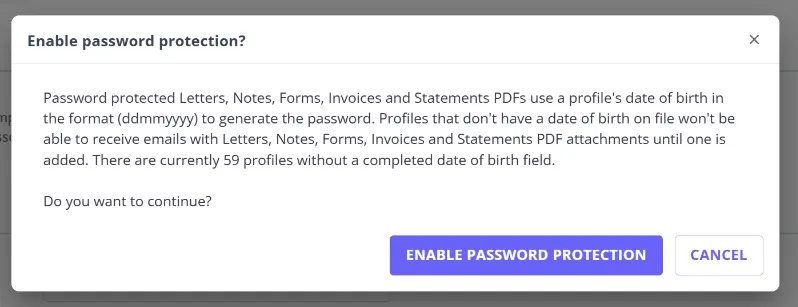
Before you save a newly enabled toggle, Zanda tells you how many client profiles are currently missing a date of birth, so you know who to update first. If you expect that number to be high, it’s worth checking your client list for missing dates of birth before you turn a toggle on, so you can update profiles ahead of time instead of chasing blocked sends afterward.
How the password is generated
The password is always the date of birth on file for the client the document is about, not a password you or the client set. Zanda formats it as mmddyyyy for US accounts and ddmmyyyy everywhere else, with no separators. For a shared profile with no date of birth of its own, Zanda uses the primary member’s date of birth instead.
Important: On an invoice or statement billed to a third party, the password is still the client’s date of birth, not the payee’s. If you turn on password protection for invoices and someone other than the client (a parent, guardian, or third-party payer) receives the email, you’ll need to share the client’s date of birth with them separately so they can open the attachment.
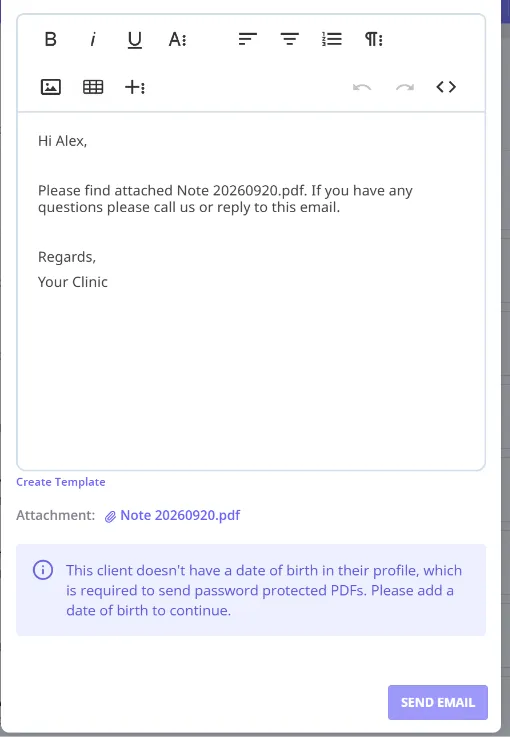
If a client’s profile has no date of birth on file, Zanda can’t generate a password, so it blocks that email rather than sending the document unprotected. You’ll see a message that the send failed because password protection is on and the profile has no date of birth; a failed automatic reminder or automation instead notifies your practice in Practice Hive, naming the client by their client number.
What you see when you send a protected PDF
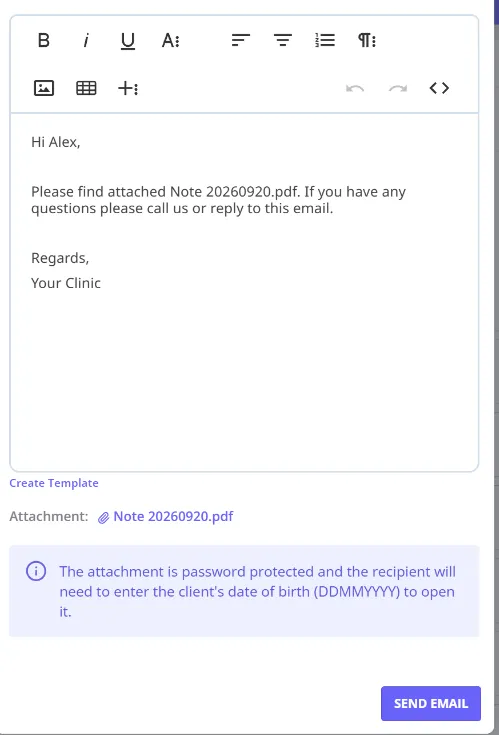
When you attach a protected PDF to an outgoing email, Zanda shows a message in the email window confirming the attachment is password protected and that the recipient will need to enter the client’s date of birth to open it. If the client has no date of birth on file, Zanda disables the Send button instead and shows a message that a date of birth is required before the email can go out.
What the recipient sees
When the recipient opens a protected PDF, they’re prompted for a password. They enter the client’s date of birth as digits only, with no separators, in the format for their region (for example, 15081990 for 15 August 1990). Once they enter it correctly, the PDF unlocks.
See Main Communication Settings for the full settings page, including the business email address, name shown in email, and the other communication options this article doesn’t cover.