
You can use this when emailing from any profile type, including:
- Client Profiles
- Contact Profiles
- Shared Profiles
- Referrer Profiles
- Third-Party Profiles
Caution:
💡 Important: This feature does not support previewing files selected directly from your computer while writing an email. To preview a custom file, you must upload it to a Profile first.
How to Preview Attachments
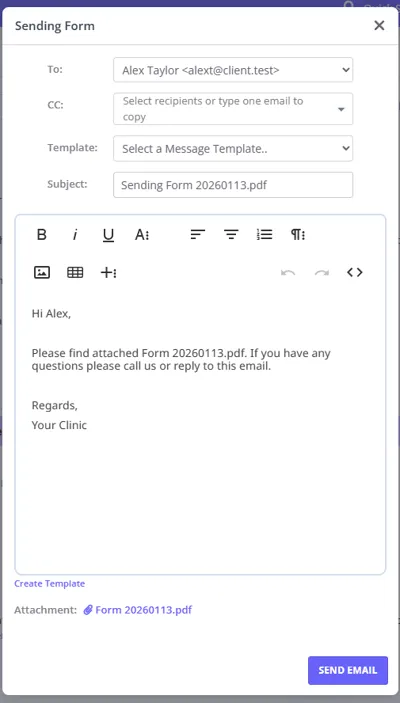
When you are sending an email with an attachment (such as an invoice, letter, or uploaded file), you can now simply click the attachment link to preview it.
- Start by creating an email for the item you want to send (e.g. click Email Invoice, Email Letter, or Email File).
- Find the Attachment section in the email window.
- Click on the name of the attachment link.
- A preview window will appear showing the document.
Supported Attachment Types
You can preview both system-generated and custom attachments.
System Attachments
- Invoices: Fully supported.
- Statements and superbills: Fully supported.
- Letters: Supported.
- Notes: Supported.
- Forms: Supported.
Custom Attachments
- Profile Files: Any file uploaded to a Profile > Files section (e.g., PDFs, Images, Word Docs) can be previewed. This applies to Client, Contact, Referrer, Shared, and Third-Party profiles.
Supported File Formats
The previewer supports various file types. How they are displayed depends on the format:
| File Type | Preview Method |
|---|---|
| Displayed in an embedded viewer. | |
| Images (jpg, png) | Displayed directly. |
| Text | The preview modal attempts to show them. If the browser cannot embed them, it may trigger a download. |
Audio and video aren’t in this table because they can’t be uploaded to a profile’s Files section in the first place—see Uploading Files or Documents for supported formats.