
Release date October 13, 2026
When to use BizzyAI: Write with Insights
BizzyAI: Write with Insights is the built-in AI writing assistant in Zanda, designed to support clear, professional communication across your practice.
Note: You get free access to BizzyAI: Write with Insights with your Zanda subscription.
BizzyAI: Write with Insights helps you produce professional written content in three key areas:
-
day-to-day client emails and letters,
-
internal Practice Operations Manual policies and procedures.
Whether you’re a practitioner responding to clients daily, an admin or practice manager setting up consistent templates, or a practice owner documenting internal processes, BizzyAI: Write with Insights adapts to the context you’re working in, using client-specific information where appropriate, or operating in a privacy-safe “template mode” for generic content. Across all use cases, you stay in full control: every result is reviewable, editable, and securely processed in line with healthcare privacy and compliance standards.
BizzyAI: Write with Insights drafts from what you type. For voice dictation and transcription, see BizzyAI: Scribe.
- How to use BizzyAI: Write with Insights for refining client emails and letters
- What data BizzyAI: Write with Insights has access to
- Security information
- FAQs
- Related Articles
Overview of the BizzyAI: Write with Insights Functionality in Client Communications Feature
BizzyAI: Write with Insights in client emails and letters allows you to use AI to produce the document, or to refine the existing content to shape the writing style. This functionality is available when creating or editing a letter or email in all profile types by either
- clicking on the Write icon on the content editor toolbar
- or by highlighting content in your email or letter and clicking on the AI icon:
The response from the AI will be seen in the AI chat modal.
This content can then be copied, or you can choose to replace all existing content in the document, or insert the content into the document without overwriting existing content.
How to Enable BizzyAI: Write with Insights
Accounts in a trial period will have AI features automatically enabled. Once you convert your account, you can choose to keep AI features active or disable access to them for all users in your practice.
You will need to opt-in to use AI features in you Zanda account. By default, AI features will be off in your account. Follow these steps to enable access to AI features for all users in your account:
- Navigate to User Menu > Account Settings > Practice > AI Settings
- Under the section “BizzyAI Features” toggle on “Enable AI Features”. This will enable access to Write in notes as well as in the clients email and letters for all users in the account with access to those places.
Storage Mode
BizzyAI: Write with Insights isn’t available while your account is in Storage Mode, even when Enable AI Features is switched on. If the Write button is grayed out and its tooltip mentions Storage Mode, that’s why. To check, go to User Menu > Your Account > Subscription Information — an amber (In Storage) label appears next to your Current Plan when Storage Mode is active.
How to use BizzyAI: Write with Insights for creating client emails and letters
You can use BizzyAI: Write with Insights to draft emails or letters from scratch without any existing content in the letter or email. You can use this functionality while viewing any of these pages in a profile:
-
- Records > Correspondence > New Message > Email/Letter
- Records > Correspondence > Edit Draft Email/Letter
- Communication > Activity > New Message > Email/Letter
- Communication > Activity > Edit Draft Email/Letter
- Communication > New Email/Letter
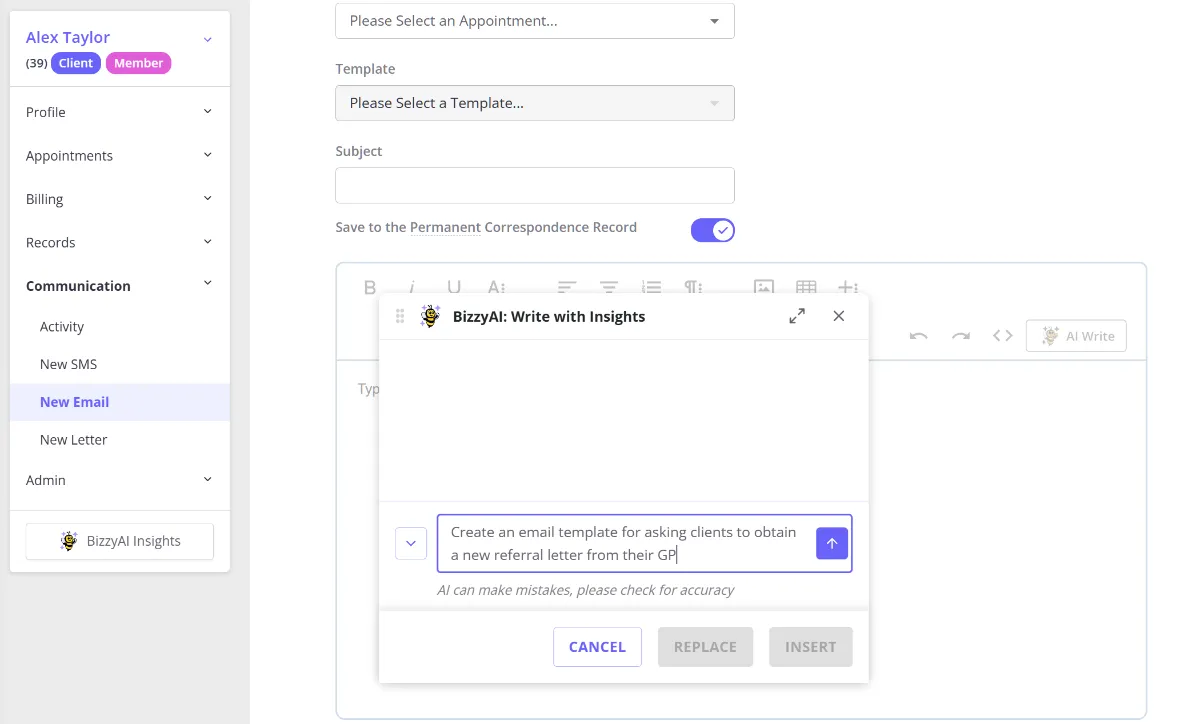
- While in one of the pages listed above, press “Write” on the content editor toolbar to open the Write modal
- Type what you’d like BizzyAI: Write with Insights to do (e.g. “write a letter to the client’s referrer to thank them for the referral”)
- Hit ‘Enter’ or press on the upward arrow to submit the instruction
- The AI will take a moment to process the instruction
- The response will then be visible in the modal
- You can click “Replace” to replace the content in your email/letter with the Ai produced content
- You can click “Insert” to insert the content into the email/letter where your cursor is positioned to add it to the existing content in the email/letter
- You can click the mop icon ‘Clear Conversation’ to clear the conversation context for the next responce
- You can click the ‘Copy’ button to copy the generated text
- Use the ‘Thumbs Up and Down’ buttons to provide feedback about the chat results
- You can click “Cancel” to close the modal and abandon the content
How to use BizzyAI: Write with Insights for refining client emails and letters
You can use BizzyAI: Write with Insights to improve the writing style of your existing email or letter content. You can use this functionality while viewing any of these pages in the client profile:
-
- Records > Correspondence > New Message > Email/Letter
- Records > Correspondence > Edit Draft Email/Letter
- Communication > Activity > New Message > Email/Letter
- Communication > Activity > Edit Draft Email/Letter
- Communication > New Email/Letter
-
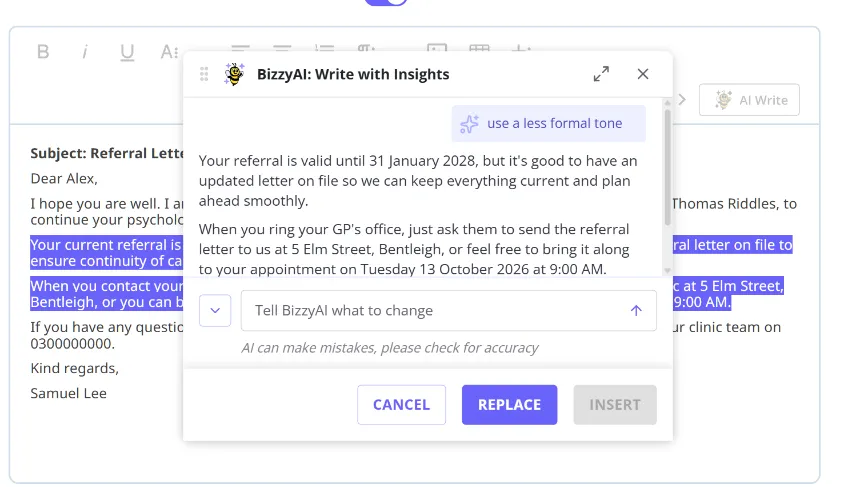
While in one of the pages listed above, highlight the content from your email or letter
-
Click on the ✨ icon that appears
-
Choose from a pre-loaded instruction or type your own instruction (e.g. “rewrite this with a professional tone”)
- If you’ve written a custom instruction, click the arrow icon or hit Enter to submit it
-
The AI will take a moment to process the instruction
-
The response will then be visible in the modal
- You can click “Replace” to replace the content in your email/letter with the Ai produced content
- You can click the mop icon ‘Clear Conversation’ to clear the conversation context for the next response
- You can click the ‘Copy’ button to copy the generated text
- Use the ‘Thumbs Up and Down’ buttons to provide feedback about the chat results
- You can click “Cancel” to close the modal and abandon the content
What data BizzyAI: Write with Insights has access to
When using BizzyAI: Write with Insights for producing a client email or letter, we pass the AI basic client information from the profile that is typically populated in communication merge fields including the clients basic information from their details page, their referral details, next and last appointment details, and details of their primary practitioner. This information is used to produce a letter or email that includes the type of information typically included in communications.
The system will also pass any existing content from the letter or email to the AI so that it has the appropriate context when producing or refining content.
As of 13 October 2026, accounts with Insights on the AI Core or AI Pro plan get an extra layer of access: BizzyAI: Write with Insights can call on the client’s notes and forms directly while drafting or refining any email or letter, not only when you use the explicit Continue to BizzyAI: Write with Insights button from Insights. This lets it reference clinical information, such as session notes and form responses, that’s already on the client’s profile.
Note: The amount of history BizzyAI: Write with Insights can search this way depends on your AI plan. On AI Core, it’s limited to the 3 most recent notes and the 3 most recent forms. AI Pro removes that limit, so BizzyAI: Write with Insights can search the client’s full available history. See Introducing AI Core and AI Pro for what each plan includes.
You can also start from Insights on the client’s profile: ask it a question, then select Continue to BizzyAI: Write with Insights to draft a letter or email from the answer. Only your most recent question and the answer Insights gave for it carry over automatically; the rest of the Insights conversation doesn’t come across.
Security Information
BizzyAI: Write with Insights has been built with privacy and security at the forefront. Zanda adheres to strict privacy standards and the services we are using for email and letter content generation meet rigorous industry standards for security and compliance.
Learn about the extensive security and privacy measures in place that protect your data, and the steps we are taking to keep the tool accurate and reliable.
About the service we are using:
- We are using the AWS Bedrock service to access an industry leading LLM (large language model) for generating and refining the letter and email content.
- We have configured AWS Bedrock to use Anthropic’s Claude.
- Data is encrypted in transit and at rest.
- No data is used to train the AI model, and all information is processed securely in real-time.
- Zanda has a zero-retention agreement with AWS to ensure that no data is stored after processing.
FAQs
Can I use voice dictation to write a letter or email?
Voice dictation and transcription live in BizzyAI: Scribe, which is built for session notes and isn’t available inside BizzyAI: Write with Insights. To draft a letter or email, click the Write icon and describe what you would like it to do (for example, “write a letter to the client’s referrer to thank them for the referral”) - BizzyAI: Write with Insights drafts from whatever text is in that instructions box.
If you’d rather speak than type, you can dictate into that instructions box using a third-party voice-to-text tool, such as your device’s built-in dictation or a browser voice-typing extension. BizzyAI: Write with Insights doesn’t have its own voice input, but it drafts from whatever text lands in the box, however it gets there.
-
Will my data be used to train the AI model?
No, our service (AWS) does not use any data input out output for training their own or any third party model providers. -
How accurate is the output?
We deliver extensively fine-tuned instructions to the LLM service to control the information being returned to ensure that it is healthcare specific and based on the information provided in the prompting and basic information from the clients record that can be obtained from merge fields. The instructions have been built by practitioners in line with healthcare documentation standards. We will continue closely monitoring and fine tuning performance to ensure the model is delivering high quality and accurate output. It is recommended that the users review all output content as the user remains responsible for the documentation. -
Where is the AI generated information stored?
The generated letter and email content are double encrypted at rest in our database in a region according to your Zanda region. This information is not stored outside of Zanda secure databases. -
Which server location are you interacting with for AWS?
We are using US servers for the AWS Bedrock services and in doing so we make sure your data stays safe and meets AU, EU, and UK privacy laws. Your data remains protected under the privacy laws that apply to you, and BizzyAI: Write with Insights is built to meet the regional data protection requirements that apply to your account. -
Does BizzyAI: Write with Insights comply with data protection laws?
Yes. BizzyAI: Write with Insights is built to meet the regional data protection requirements that apply to your account, including HIPAA, GDPR, Australia’s Privacy Act, Canada’s PIPEDA, South Africa’s POPIA, California’s CCPA, and ISO 27001 security standards, along with a Business Associate Addendum (BAA) with AWS for accounts handling protected health information.