
Release date October 13, 2026
BizzyAI: Insights works from a client’s profile to help you find, understand, and summarize information already recorded in Zanda. When you want to turn that information into a letter, email, or report, Insights hands off to Write with Insights to draft it.
Together, the two features cut the time it takes to review a client’s history, prepare a report, or write to a client or another healthcare professional, all grounded in what is actually in the client’s record.
What you can do with BizzyAI: Insights
From a client’s profile, you can use Insights to:
- Generate a summary of a client’s history or progress.
- Review clinical notes, appointments, diagnoses, and other information already on file.
- Pull together information from different parts of a client’s record to answer a specific question.
- Ask follow-up questions to dig into a detail further.
- Gather the information you need, then continue straight to Write with Insights to draft a letter, email, or report from it.
Insights can combine information from multiple parts of a client’s file in a single answer, including appointments, clinical notes, forms, referrals, diagnoses, invoices and payments, tasks, communications, and files. For example, you could ask:
- “Summarize this client’s progress over the last 6 sessions.”
- “What diagnoses are recorded for this client?”
- “Show me the client’s appointment attendance over the last 3 months.”
- “What outstanding tasks are associated with this client?”
Important: Insights is designed for retrieving and analyzing information, not for writing content. If you ask Insights to draft a letter, email, or report, it tells you that communication drafting is handled in Write with Insights and offers a button to continue there with your request.
Getting started with BizzyAI: Insights
- Open a client’s profile in Zanda.
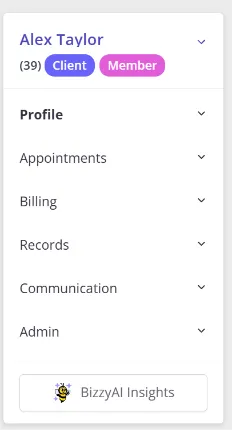
- In the left-hand menu, scroll to the bottom and select BizzyAI Insights. It sits below the other menu items, under a dividing line, and is available from most pages in the client’s profile, including Notes.
- Type your question or request in plain language. You can optionally specify a time frame, such as “since 1 January” or “last 6 sessions.”
- Select the send button to submit your request.
- Alternatively, select one of the predefined prompts from the chevron menu to the left of the prompt input box.
Insights retrieves the relevant information from the client’s record and generates a response. Always review the response against the client’s record before relying on it.
Asking follow-up questions
Insights remembers your conversation for as long as you stay on the same page and client profile, so you can ask a follow-up question without repeating your original request. For example:
First question: “Summarize this client’s progress based on clinical notes and appointments from the last 6 months.”
Follow-up question: “What changes have been recorded in their treatment goals during this period?”
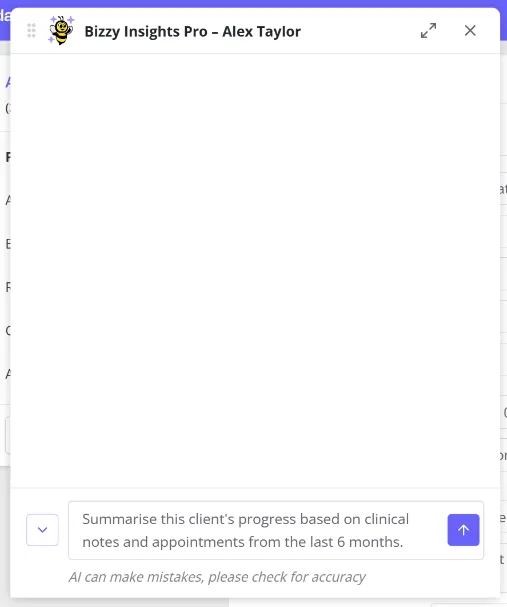
You can close and reopen the Insights panel without losing the conversation, as long as you stay on the same page and client. Navigating to a different page or a different client starts a new conversation, even if it’s the same client you were working with on another page. If you want to keep your current conversation open while you check something else, open Zanda in a second tab.
From Insights to Write with Insights
Insights and Write with Insights split information gathering from content creation, so a drafted letter, email, or report is built from information Insights has already verified against the record, rather than written from scratch by the AI.
When you ask Insights to produce a letter, email, or report, for example “Write a report summarizing this client’s progress over the last 6 sessions,” Insights responds that communication drafting is handled in Write with Insights and shows a Continue to Write with Insights button.
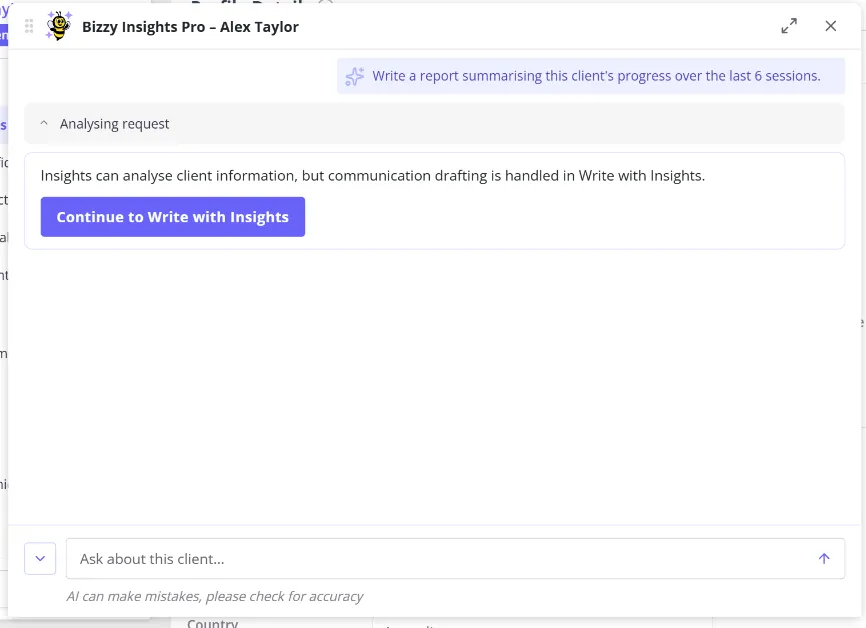
Select Continue to Write with Insights and Zanda takes you to the relevant letter, email, or report screen for that client. Your most recent request and the answer Insights gave for it carry across automatically, so you don’t need to retype your question or copy information across by hand. Your request appears in the prompt field on the writing screen, where you can review it, adjust it (for example, “keep it concise and use professional language”), and generate your content.
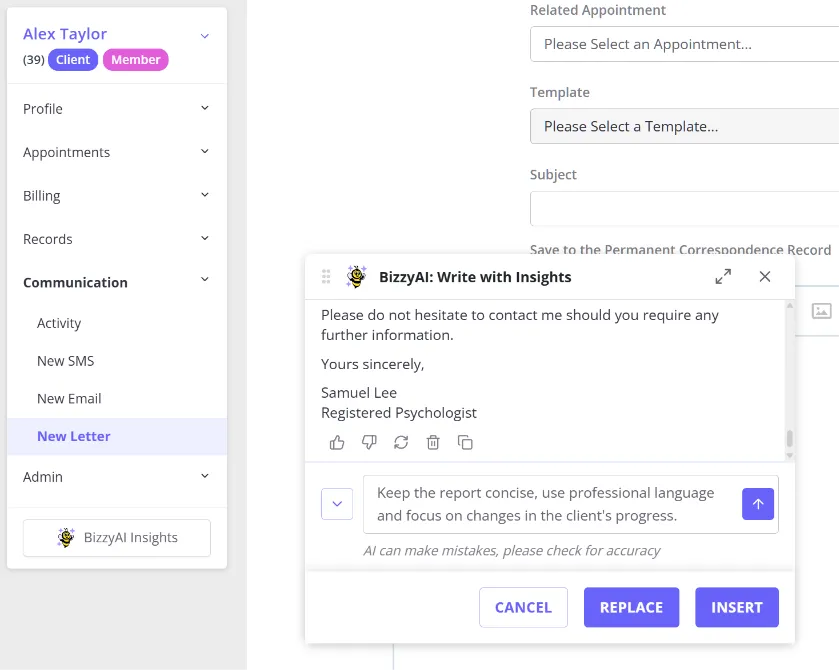
Review the generated content carefully before inserting, saving, or sending it. AI-generated content can contain errors or leave out important information, so always check it against the client’s record, particularly for clinical communications or reports.
What client information Insights can use
Insights can draw on information already visible to you in the client’s profile. It does not use anything outside of what you can already see there, and the amount of history it can search depends on your AI plan (see Access and availability below).
| Information | Available details |
|---|---|
| Client profile | Name, preferred name, date of birth, pronouns, sex, gender identity, shared profile membership, default biller, classifications, and alert notes. |
| Appointments | Dates, times, practitioners, statuses, cancellation reasons, locations, linked services, and appointment notes. |
| Notes | Note dates, titles, content, status, associated appointments, and note type. |
| Forms | Form dates, names, content, status, expiry dates, form type, and assessment scores and interpretations where available. |
| Diagnoses | Diagnosis dates, codes, descriptions, practitioners, resolution dates, and notes. |
| Referrals | Referrer names, referral dates, referral status, and referral notes. |
| Invoices and payments | Invoice number, invoice date, charges, payments, amount owing, payment method, payee, practitioner, location, insurers, and linked services. |
| Tasks | Task names, due dates, assigned users, and task status. |
| Communications | Emails, letters, and SMS, including dates, statuses, subjects, content, and recipients. |
| Files | File names, types, upload dates, descriptions, and tags. |
Does Insights read the content of uploaded files?
No. For a file uploaded to a client’s profile, Insights can see the file’s name, type, upload date, description, and tags, but it doesn’t open the file or read what’s inside it. If there’s something in an uploaded document (a scanned referral letter or PDF, for example) that you want included in a response or a draft, record that information in a note or a form on the client’s profile instead.
Access and availability
BizzyAI: Insights is available as part of the AI Core and AI Pro plans. See Introducing AI Core and AI Pro for what each plan includes more broadly.
Both plans let you ask questions, retrieve information, and generate summaries, but they differ in how much of a client’s history Insights can search.
| AI Core | AI Pro | |
|---|---|---|
| Records searched | The 3 most recent records of each data type | No limit, Insights can search the client’s full available history |
| Information sources | The same information sources listed above | The same information sources listed above |
| Follow-up questions | Supported | Supported |
| Write with Insights | Available | Available |
With AI Core, Insights can retrieve up to the 3 most recent records of each data type. For example, when a question draws on notes, appointments, and invoices, AI Core retrieves the 3 most recent notes, the 3 most recent appointments, and the 3 most recent invoices, with the limit applied separately to each type rather than to the total.
AI Pro removes that limit entirely, so Insights can search across a client’s complete available history for any supported record type, which is particularly useful for reviewing long-term progress or preparing a comprehensive summary. Both plans still only use information you have permission to view: if your access to a client’s notes is restricted, for example, Insights won’t include that information in its responses.
To manage your AI plan, go to Account Settings > Subscription > Optional Add-Ons.
Can’t see BizzyAI Insights?
If you’re in a client’s profile and don’t see the BizzyAI Insights button where you expect it, here’s what to check.
The button isn’t there at all. Insights hasn’t been turned on for your account. Ask a colleague with setup permissions to check Account Settings > Subscription > Optional Add-Ons.
The button is there but grayed out. Insights isn’t turned on for you specifically, or your account is in Storage Mode. Hover over the button to see which applies. If you have setup permissions, you can turn it on yourself under Account Settings > Subscription > Optional Add-Ons; otherwise, ask whoever manages your subscription to do it for you.
Safety, accuracy, and privacy
What BizzyAI: Insights won’t do
Insights is built to support, not replace, clinical judgment:
- It doesn’t provide medical advice. Insights can summarize observations and advice a practitioner has already recorded, but it doesn’t independently suggest new diagnoses, treatments, medication changes, or clinical recommendations.
- It doesn’t change client records. Insights is read-only. It cannot create, edit, or delete notes, appointments, invoices, tasks, or any other record.
- It doesn’t draft letters, emails, or reports directly. That’s handled by Write with Insights, which you reach through the Continue to Write with Insights button.
You remain responsible for reviewing and approving all AI-generated content before you rely on it, save it, or send it.
Security and privacy
BizzyAI uses AWS Bedrock, configured to use Anthropic’s Claude models, to generate the summaries and answers Insights and Write with Insights produce from your client data.
- Data is encrypted in transit and at rest.
- Client data isn’t used to train AI models.
- Zanda has a zero-retention agreement with AWS, so data isn’t stored by the AI service after processing.
- Only the information needed to answer your request is sent to the AI service, and only from what you already have permission to see in the client’s profile.
Zanda uses regional AWS servers for the Bedrock service depending on your location, and your data remains protected under the privacy laws that apply to you. BizzyAI: Insights is built to meet the regional data protection requirements that apply to your account, including HIPAA (US), GDPR (EU/UK), Australia’s Privacy Act, Canada’s PIPEDA, South Africa’s POPIA, California’s CCPA, ISO 27001 security standards, and a Business Associate Addendum (BAA) with AWS for accounts handling protected health information.
Frequently Asked Questions
Can BizzyAI Insights write letters, emails, or reports?
Not directly. Insights focuses on retrieving and analyzing information from a client’s record. If you ask it to draft a letter, email, or report, it shows a Continue to Write with Insights button; select it to carry your request and Insights’ answer across to the appropriate writing screen, where you can review and generate the content.
Do I need to repeat my request when I move to Write with Insights?
No. When you select Continue to Write with Insights, your most recent request and the information Insights already gathered for it carry over automatically and appear in the prompt field, ready for you to review or adjust before generating your content.
Does BizzyAI Insights give medical advice?
No. Insights summarizes and organizes information already recorded in a client’s file. It doesn’t independently generate diagnoses, treatment recommendations, or clinical advice.
Can BizzyAI Insights change my notes, appointments, or other records?
No. Insights is read-only and cannot create, edit, or delete information in a client’s record.
How accurate are the summaries?
Insights generates its response from information retrieved from the client’s file, but it may occasionally miss something, misread a detail, or present information in a way that’s open to misinterpretation. Always check its output against the original record, especially before using it to support a clinical decision or a communication.
Can I control which parts of the record Insights uses?
Yes. Be specific about the information and time frame you want it to focus on, for example, “Summarize this client’s progress based on clinical notes and appointments only, since the referral start date.”
Can I ask BizzyAI Insights to review the charges on a client’s last invoice?
Yes. Open BizzyAI Insights from the client’s profile and ask about their last or most recent invoice. Insights can return details such as the invoice number, invoice date, charges, payments, amount owing, payment method, practitioner, location, insurers, and linked services.
Is client data sent to a third-party AI provider?
Only the specific information needed to answer your request is sent to the AI model, through AWS Bedrock, and only from what you already have permission to see in the client’s profile. Zanda has a zero-retention agreement with AWS, so this data isn’t retained after processing.
Will my data be used to train an AI model?
No. AWS doesn’t use your input or output data to train its own models or third-party models.
Am I responsible for reviewing generated content?
Yes. Insights and Write with Insights help you retrieve information and prepare content faster, but you should always review, edit, and approve anything generated before saving it as a note, sending it as a communication, or sharing it externally. The practitioner remains responsible for the accuracy and appropriateness of all documentation.
How is my use of Insights tracked?
Activity in BizzyAI: Insights is logged, including when you open the panel and each time you submit a request, along with the user and time involved.
Can I use BizzyAI Insights for anything other than client-specific questions?
Insights is designed specifically for retrieving and analyzing information tied to an individual client. For general writing or non-client tasks, use BizzyAI: Write as integrated with Client Communications, Communication Templates, and the Practice Manual editor.