
How to add a one-off discount to an invoice
Use this method when you need to apply a discount to an invoice only once.
-
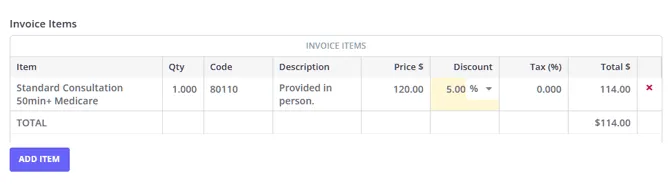
Open the Invoice Edit page, using one of the methods described here.
-
In the Discount column, enter the required discount amount in $ or %
-
Save changes.
How to add an ongoing discount to a client profile
Use this method when you need to apply a discount to each of the client’s invoices.
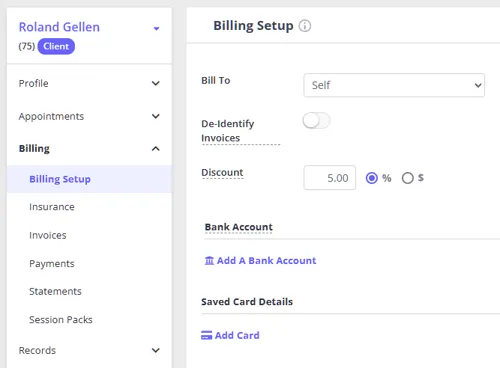
- Navigate to Client Profile > Billing > Billing Setup
- Select the discount type: % or $
- Type in the discount amount
- Save changes
Zanda applies this discount to the client’s future dated invoices automatically as soon as you save, with no confirmation prompt for the Discount field. This is different from the Bill To and Preferred Service fields on the same screen, which do ask you to confirm before updating future invoices.
Important notes:
-
The new discount replaces any discount already on a future dated invoice for this client, including a one-off discount added directly on that invoice, or a different ongoing discount amount applied before. The old discount is not kept or combined with the new one; it is overwritten. If a specific invoice needs to keep its own discount, apply the ongoing discount change first, then adjust that invoice’s discount afterward.
-
If you need to apply this discount to the already existing past dated invoices, please do so manually for each invoice, using the first method described in this article.
-
When you create Statements, the Invoice Items section will reflect the final total amount with any applied discounts incorporated, but the specific details of the applied discounts will not be shown.
Frequently Asked Questions
Can an ongoing client discount help with client-specific pricing?
Yes. If most clients should pay the standard service price and some clients need a lower rate, set the standard price on the service and add an ongoing discount to the specific client profiles. For example, if the standard service price is $200 and a client should pay $180, add a $20 ongoing discount to that client’s profile.
This approach keeps one service available for bookings while Zanda applies each client’s profile discount to their invoices.
Will the discount apply when clients book and pay through the Client Portal?
Yes. An ongoing discount on the client profile is included when Zanda creates invoices for appointments booked through the Client Portal. If your Client Portal settings require payment at the time of booking, Zanda calculates the booking payment from the discounted service amount.
For example, if a service is priced at $200 and the client has a $20 ongoing discount, the Client Portal payment amount is based on $180 before any applicable tax or card processing fees.
Can clients enter a discount code, coupon, or promo code when they book on the Client Portal?
No. The Client Portal booking flow has no field for a code, so your clients cannot apply a discount to their own booking. Discounts on Client Portal bookings are set by your practice, in one of two ways:
- Before the booking: add an ongoing discount to the client’s profile at Client Profile > Billing > Billing Setup. The Client Portal then shows Discount Applied on the booking confirmation, and any payment taken at the time of booking is calculated from the discounted amount.
- After the booking: add a one-off discount in the Discount column on the Invoice Edit page.
If you are running a promotion for a group of clients, add the ongoing discount to each of their profiles before you share the offer, or discount their invoices as they are raised.
Can clients buy Session Packs through the Client Portal?
Client Portal bookings use services for online appointment payment. If you use Session Packs, create or assign the Session Pack in Zanda, then apply it to the client’s appointment or invoice after the booking is made.