
By default, SMS and Email reminder templates will already be selected in User Menu > Account Settings > Communication > Reminders, but you can change these if desired.
A dedicated Toll-Free Number (TFN) is required to send/receive SMS messages in the USA, Canada, Puerto Rico, Bahamas, Jamaica, Costa Rica, and Barbados. For more details, please click here.
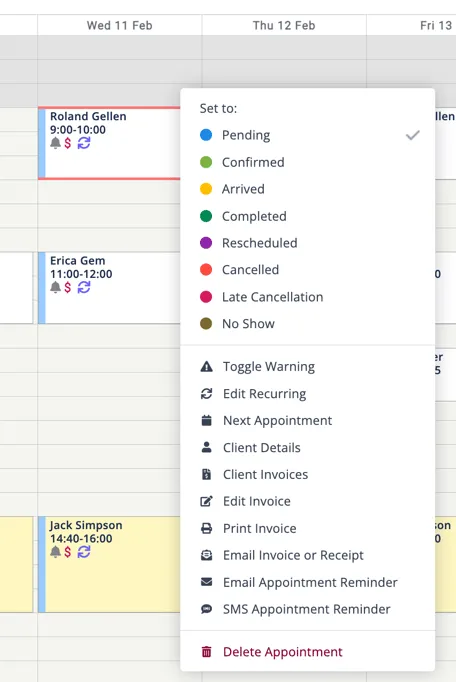
Sending Manual Reminder from the Appointment Context Menu
- Go to the main Appointments screen (Hint: clicking the Zanda logo will get you there.)
- Locate the appointment for which you wish to send a reminder, then right-click on it.
- In the pop-up menu, click on either Email Appointment Reminder or SMS Appointment Reminder to manually send the reminder to your client.
Sending Manuals Reminder from the Appointment Panel
-
Go to the main appointments screen, locate the appointment and left-click on it once to open its Appointment Panel on the right-hand side.
-
Click on the Notify Now (the white bell icon next to the Appointment Details), select either SMS Reminder or Email Reminder:
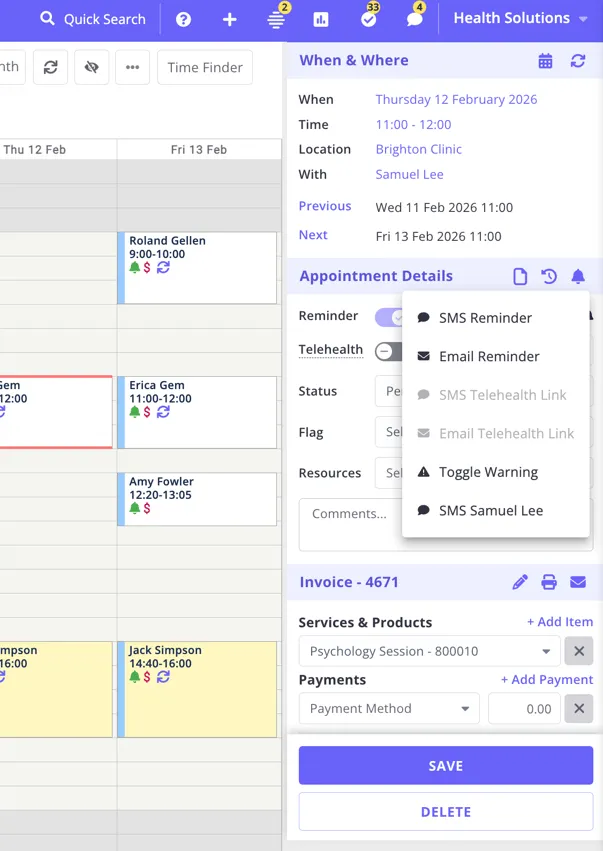
Note: Add the client’s the phone number and email address to their Zanda profile before sending SMS or email appointment reminders.
Frequently Asked Questions
Will an automatic reminder go out if I sent the reminder for the same appointment manually?
The automatic reminder will still be sent as scheduled, even if you have manually sent a reminder for the same appointment. To prevent this, disable the automatic reminder in the appointment panel after sending the reminder manually and save your changes.
Can I send an appointment reminder SMS from the Messaging Panel?
An SMS sent from the Messaging Panel on the right-hand side is not linked with an appointment and the system will not automatically confirm or cancel an appointment.
Which template is used when I send a reminder from the Notify Now bell?
When you select SMS Reminder or Email Reminder from the Notify Now bell, Zanda uses the SMS or email reminder template selected in User Menu > Account Settings > Communication > Reminders. You can edit those templates from the same settings page.
If the appointment is a telehealth appointment, the Notify Now menu may also show SMS Telehealth Link and Email Telehealth Link. These options send the built-in telehealth link message for the appointment. To send your own wording and include the telehealth link in an editable reminder template, use SMS Reminder or Email Reminder and add the {ClientTelehealthUrl} merge field to the selected appointment reminder template.
Can I send my own saved template directly from the Appointment Panel, instead of the built-in Zanda reminder template?
Yes. The Notify Now bell doesn’t offer a template picker when you click it, but you can set your own saved SMS or email template as the one it sends:
- Go to User Menu > Account Settings > Communication > Reminders.
- Under If I manually send an appointment reminder, use these templates, choose your saved template from the SMS or Email drop-down. Any of your active templates can go here, not only the two Zanda creates by default.
- Click Save Changes.
From then on, selecting SMS Reminder or Email Reminder from Notify Now on any appointment sends that exact template, with the appointment’s merge fields (including {AppointmentStartTime} and any {ClientTelehealthUrl} you’ve added) already filled in. See Configuring Appointment Reminders for the full setup.
Can a manually sent reminder let the client add the appointment to their calendar?
Yes. Add the {AppointmentAddToCalendar} merge field to the email reminder template you send from Notify Now or the appointment context menu. It puts the appointment date and time into the message and attaches a calendar file named event.ics that the client opens to save the appointment. Sending to a group appointment sends one reminder per attendee, so each attendee receives a calendar file for their own booking.
A reminder email carries a single attachment, so if the template also contains {InvoicePDFAttachment}, an appointment that has an invoice sends the invoice PDF and leaves the calendar file off, with nothing to flag it. An appointment with no invoice has no PDF to send, so the calendar file goes out instead. Keep the two in separate templates. See Available Merge Fields for Communication Templates.
Why can’t I manually send a reminder to this client?
Check the client’s reminder recipients setting on their profile under Profile > Appointment Reminders. If it is set to Off, manual reminders are blocked for that client, the same as automatic ones, and Zanda shows a message that appointment reminders are turned off for the client. Choose Clients & Reminder Contacts or Reminder Contacts Only for that client to allow a manual reminder to send. Note this only applies to reminders—a manually sent appointment confirmation or cancellation notice is not affected. See Configuring Appointment Reminders.
The reminder sent, but the practitioner’s name is blank in it. Why?
The {AppointmentPractitionerShortName} merge field reads the Shortened Name field on the practitioner and nothing else, so when that field is empty it prints nothing and does not fall back to Practitioner Name or Real Name. Shortened Name is optional and starts empty on every practitioner Zanda creates. Fill it in at User Menu > Account Settings > Team > Practitioners, on the practitioner’s Details page, and send the reminder again. See Available Merge Fields for Communication Templates for the other fields that behave this way.
What does “Appointment reminders are turned off for this client” mean when I try to send a reminder manually?
A client’s Automatically Send Appointment Reminders setting (Profile > Appointment Reminders) controls manual sends as well as automatic ones. When it is switched to Off for a client, both the automatic reminders and a manual send from the appointment context menu or the Notify Now bell are blocked for that client, and you’ll see this message.
If every client shows the same message at once, the likely cause is the account-level Automatically send appointment reminders to clients setting (User Menu > Account Settings > Communication > Reminders) being switched off and applied to all existing clients, which resets every client’s individual setting to match. See Configuring Appointment Reminders.
To send reminders manually again, open the client’s profile, go to Profile > Appointment Reminders, and change the setting away from Off (choose Reminder Contacts Only if you don’t want the client themselves receiving reminders automatically). If you rely on manual-only reminders and need help keeping automatic reminders off after this change, contact our support team.