
Before Your Telehealth Session
1. Check Your Technology
-
Device: Ensure you have a computer, laptop, tablet, or smartphone with a camera and microphone.
-
Internet Connection: A stable internet connection is essential. If possible, use Wi-Fi for a stronger connection.
-
Battery: Fully charge your device or keep it plugged in during the session.
2. Install Zoom App
If you’ve never used Zoom before, you’ll need to download and install it:
-
On a Computer:
- If Zoom Desktop App is not already installed, you can download it via this link. Click “Download” and install it by following the instructions.
-
On a Smartphone or Tablet:
-
Visit the App Store (iPhone/iPad) or Google Play Store (Android).
-
Search for “Zoom Cloud Meetings” and download the app.
-
Note: If you don’t wish to install the Zoom App, you can open your Zoom telehealth links in your preferred browser. You will need to select the ‘Join in Browser’ option when joining the telehealth sessions.
3. Test Zoom
-
Open the Zoom application and sign in as a guest or create an account.
-
Click on “New Meeting” or “Join a Test Meeting” at https://zoom.us/test to ensure your camera, microphone, and speakers work.
4. Prepare Your Environment
-
Choose a quiet, well-lit space where you won’t be interrupted.
-
Make sure your background is tidy and free of distractions.
-
Use headphones if possible to improve sound quality.
Joining Your Telehealth Session
1. Locate the Zoom Link
- Find the Zoom link sent by your health practitioner. This link is usually provided via email or text message.
- If you have back to back individual appointments you will see both the ongoing and upcoming appointment on the joining screen if the upcoming appointment starts within 30mins.
- Choose which appointment you need to join and click its Join Telehealth Call link.
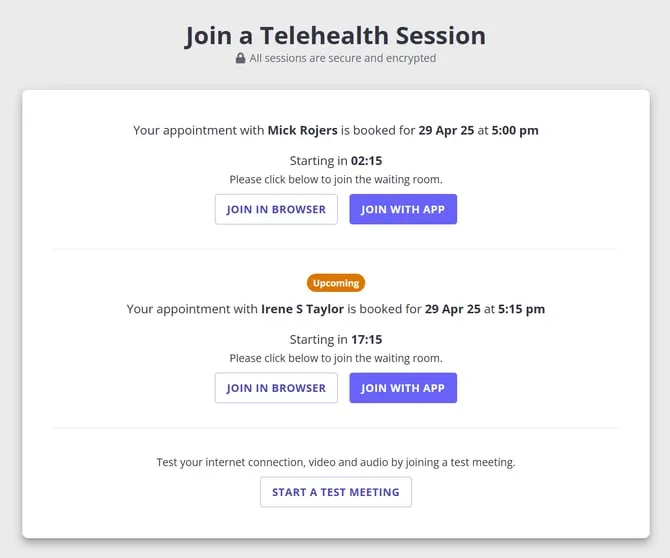
- If you have registered in your practice’s client portal, you can easily access your telehealth session through the My Appointments list:
- When you log in, you will see the My Appointments list.
- The My Appointments list will show your upcoming appointments. Telehealth appointments will have the Join Telehealth Call button.
- You will need to click that button to join your call via browser or Zoom app.
2. Click the Link
10 minutes before your appointment:
-
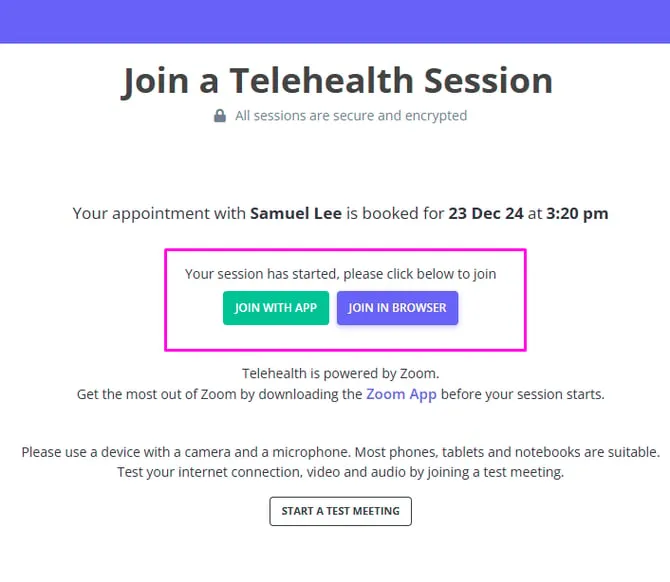
Click the Telehealth link. A screen with an invitation to join the telehealth session and your appointment information will open.
- You can use the time before your session starts to run the test meeting to ensure your internet, camera and microphone are working properly. Just click the ‘Start a test meeting’ button and follow the prompts.
- Allow Zoom to access your camera and microphone if asked.
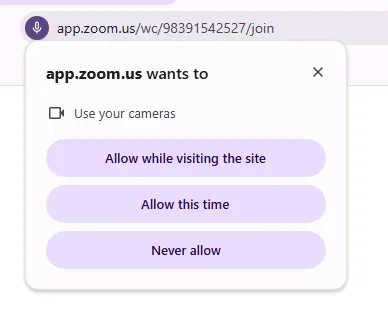
- When you are ready, click ‘Join With App’ or ‘Join With Browser’, to join the session.
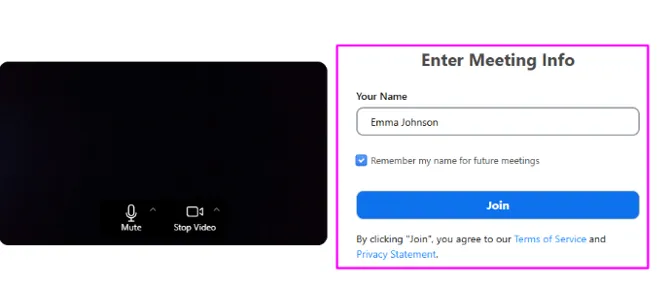
- Before you enter your first meeting, you will see the option to enter your name and save it for future meetings.
Troubleshooting Common Issues
-
Audio Issues:
-
Ensure your device’s volume is turned up.
-
Check if you’re muted in Zoom.
-
-
Video Issues:
-
Ensure your camera is enabled in Zoom settings.
-
Close other applications that might use the camera.
-
-
Connection Issues:
- Check your internet speed: https://fast.com/
- Restart your device if the connection remains unstable.