
Release date October 13
We’re updating the Notes and Forms experience in client profiles to make everyday record keeping cleaner, easier to navigate, and more focused on the task at hand.
The workflows you already use will remain familiar, but the refreshed design brings clearer record lists, a more guided creation process, easier access to previous records, and important controls that stay within reach while you work.
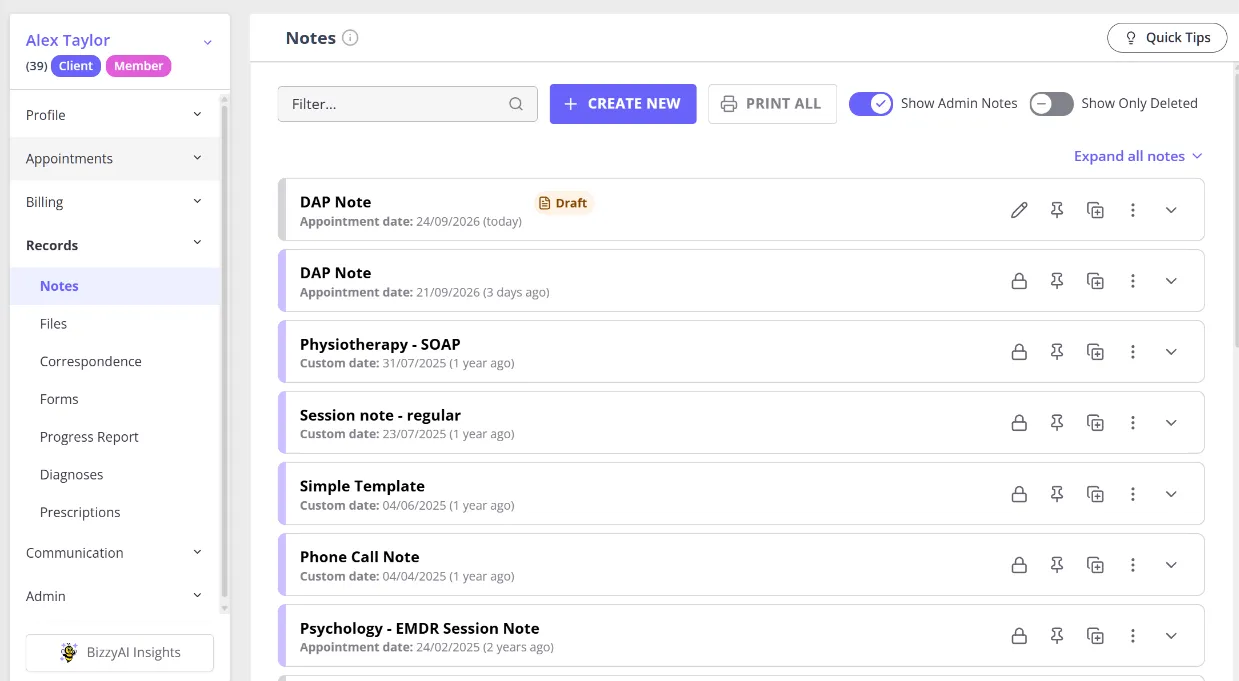
A cleaner, easier-to-scan record list
Notes and forms now have a more spacious layout that makes key information easier to identify at a glance, including the record name, relevant date, and Draft status.
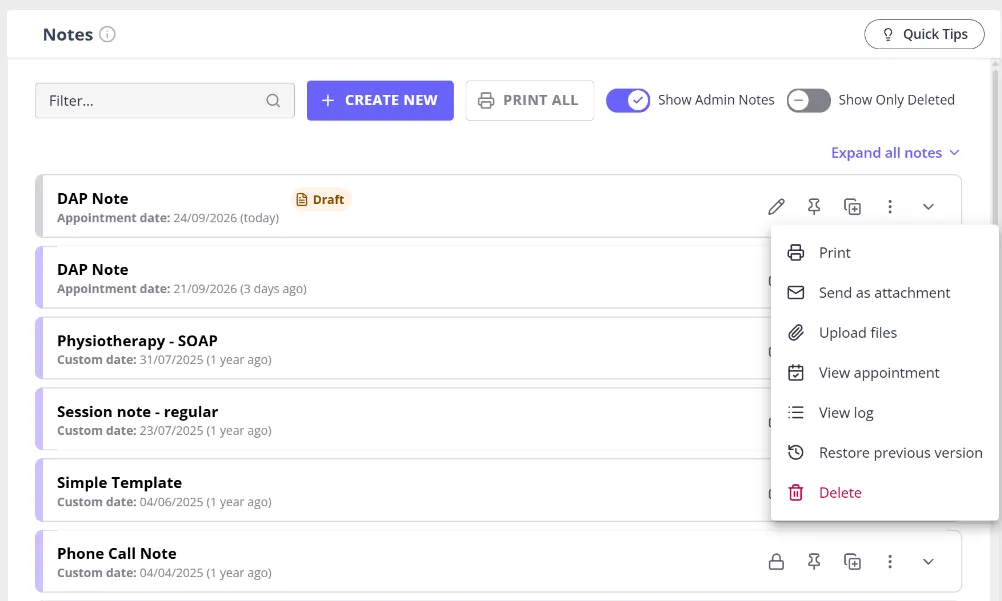
Frequently used actions remain available directly from each record. Additional actions are grouped behind ⋮, helping keep the page uncluttered while still giving you quick access to the tools you need.
Depending on the record and its status, these actions can include options such as Print, Send as attachment, Upload files, View appointment, View log, Restore previous version, and Delete. Forms also offer Copy client’s portal form link and Go to portal form, which notes don’t have.
A deleted record’s ⋮ menu only offers View log and Restore deleted note (or Restore deleted form), since its other actions only apply once it’s active again.
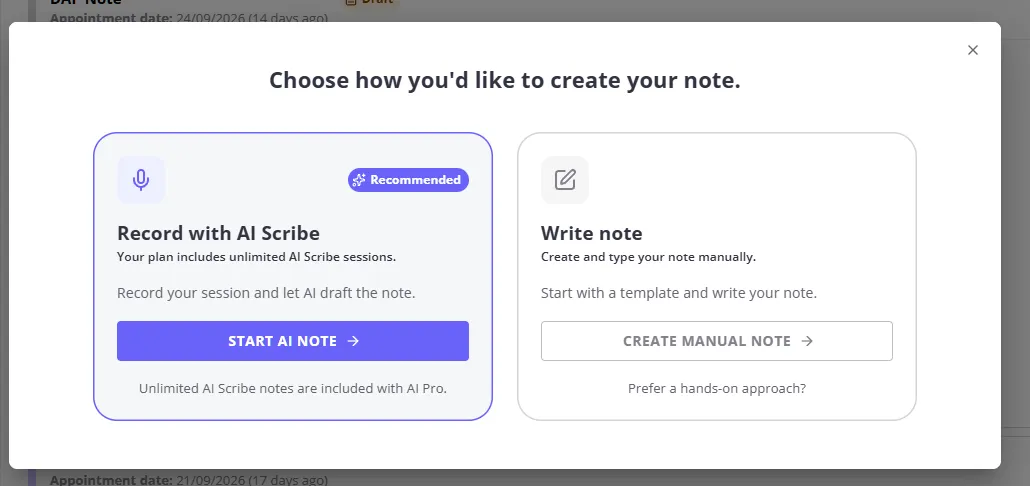
A simpler way to create new notes and forms
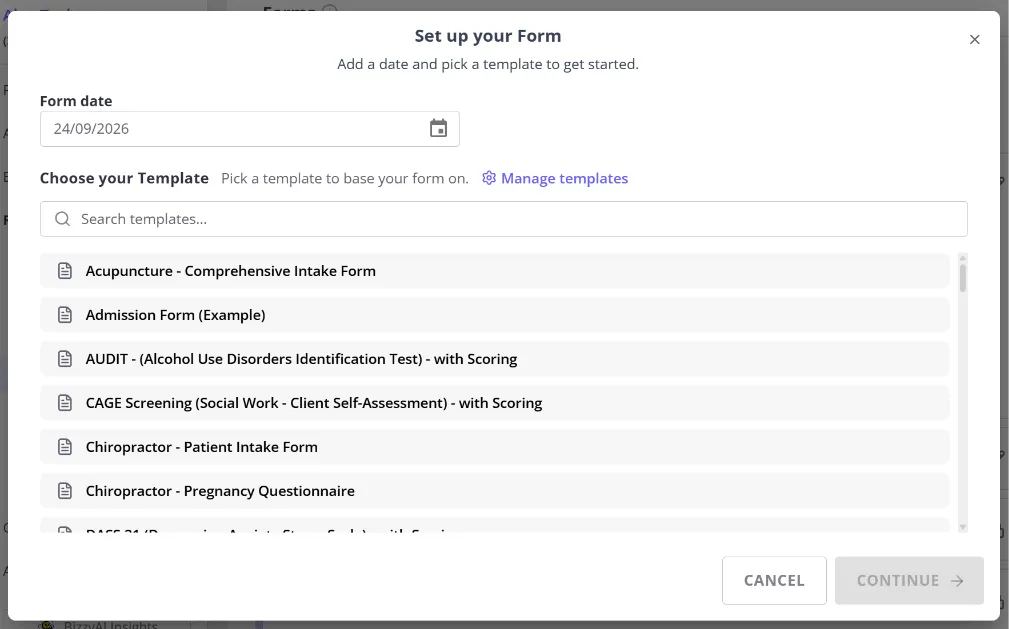
When you select Create New, a new setup window guides you through the information needed before opening the note or form.
For notes, if AI Scribe is available for your account, you’ll first choose how to create it: record with AI Scribe or write note manually. See Introducing AI Core and AI Pro for how your AI plan affects the Scribe option. If AI Scribe isn’t enabled for your account, this choice is skipped and you’ll go straight to the next step.
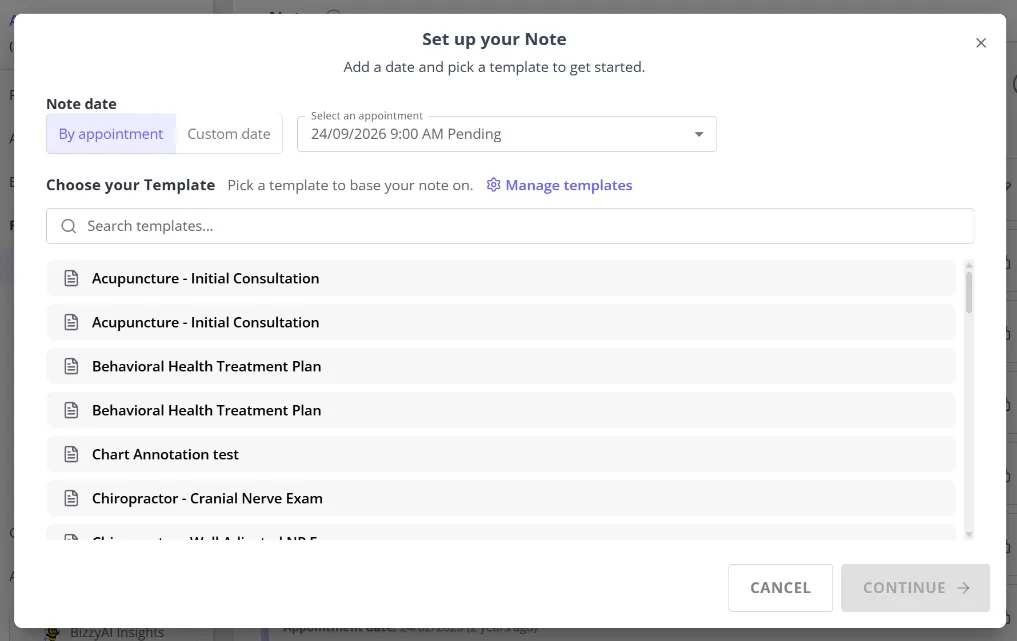
Either way, you’ll then choose whether to link the note to an appointment or use a custom date, and search your available templates to select the one you want to use. Selecting a template expands it into an editable Note name (or Form name) field pre-filled with the template’s name, so you can give the record a different name right away instead of renaming it later from Note Settings. A name is still required to continue.
If there’s only one active template for what you’re creating, this setup step is skipped entirely: your note or form is created straight away using that template, dated by today’s appointment when there is one, or today’s date otherwise. (With AI Scribe enabled, you’ll still see the Choose how you’d like to create your note step first.)
For forms, you can select the form date and search for the appropriate form template.
If you have permission to manage note and form templates, Manage templates is also available directly from the setup window.
Keep important controls within reach as you scroll
Long notes and forms can contain a lot of information, so the updated editor keeps your key controls visible while you move through the record.
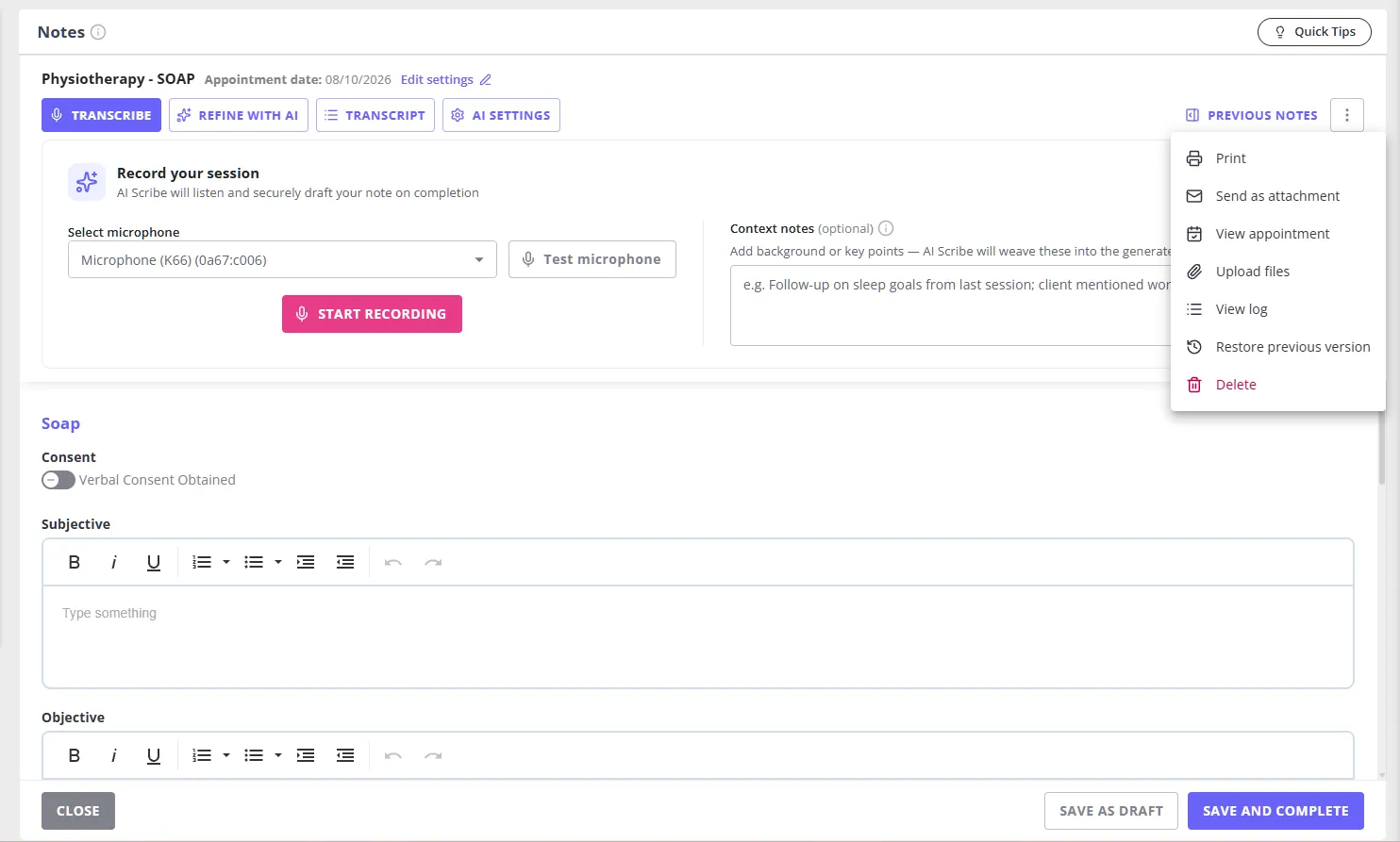
The header and footer stay fixed while you scroll through the content of a note or form. This means you do not need to return to the top or bottom of a long record to access common actions.
At the top, the fixed header keeps the main tools within reach while you work. For notes, this can include Transcribe, Refine with AI, Transcript, AI Settings, and Previous Notes, where applicable.
The ⋮ menu also remains available from the header while you work, giving you quick access to additional actions such as Print, Send as attachment, Upload files, Restore previous version, and Delete, depending on the record and your access.
At the bottom, the fixed footer keeps actions such as Close, Save as Draft, and Save and Complete available while you work through the record.
This makes it easier to work with longer notes and forms without losing access to the actions you use most.
Previous records stay close while you work
When working on a note or form, Previous Notes or Previous Forms are now clearly available from the editor.
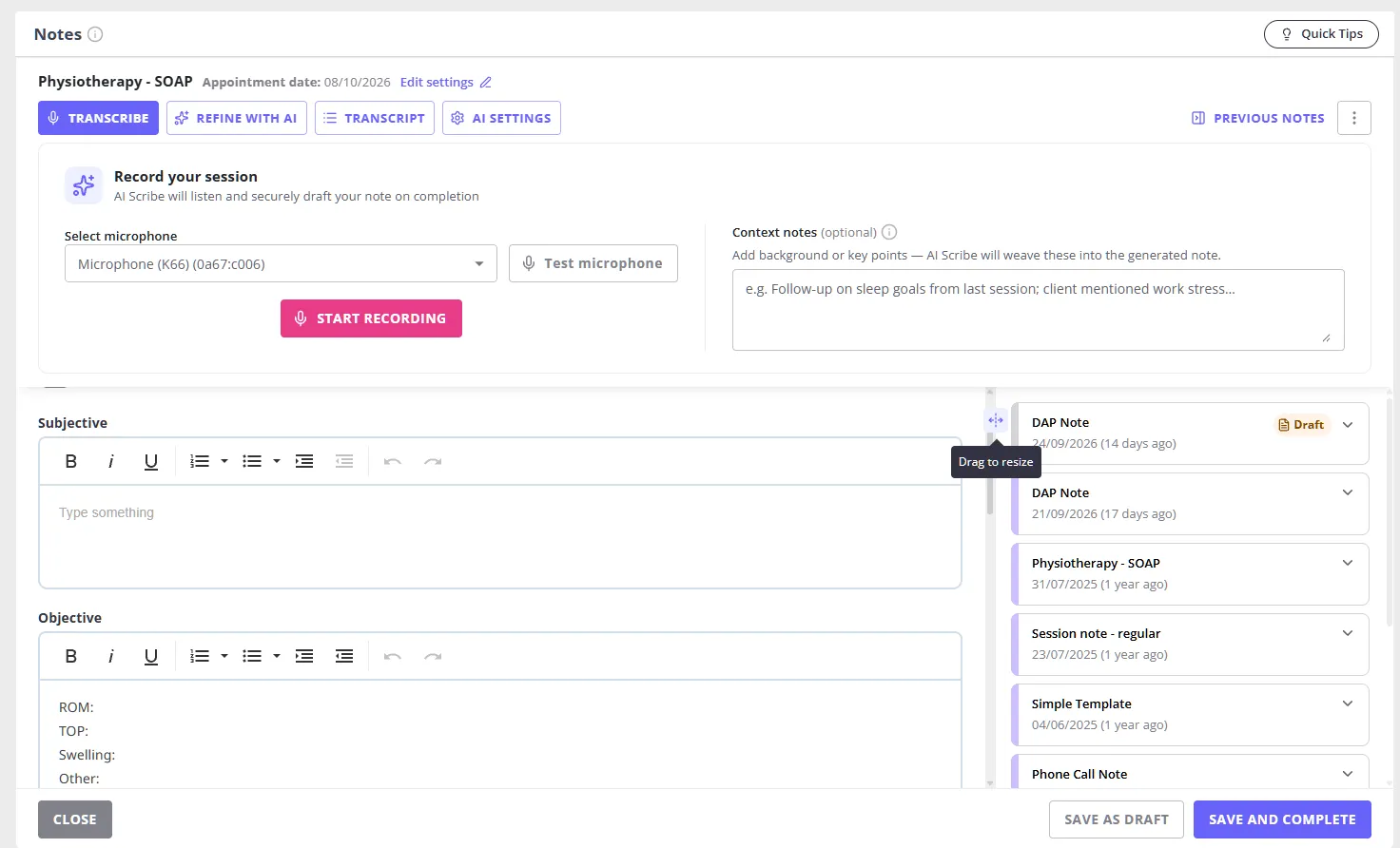
Selecting Previous Notes or Previous Forms opens your earlier records alongside the note or form you’re currently working on. This makes it easier to refer back to previous client information without leaving the current record.
You can browse previous records, see key details such as dates and Draft status, and return your focus to the records you are editing.
You can also resize the panel between 25% and 75% of the available width (it opens at 50%): hover over its left-hand border until the resize cursor appears, then drag horizontally to widen or narrow it.
Where you’ll see the change
The refreshed Notes and Forms experience will apply across both clinical and admin records:
- Records > Notes
- Records > Forms
- Admin > Admin Notes
- Admin > Admin Forms
You’ll also see the updated workflow when creating and working with notes or forms from these areas.
The update is designed to make record keeping feel simpler and more focused across both clinical and admin workflows, with clearer navigation, less visual clutter, and the information and actions you need close at hand.