Viewing Your Zanda Appointments in Outlook
Before we look into how appointments from Zanda appear on Outlook, here is some important information to be aware of:
- We only send existing Zanda appointments within 7 days prior to the date of the initial sync, and all existing future appointments to your Outlook calendar.
- The initial sync will take about 20 minutes to process, depending on the above amount of appointments being synced.
- After the initial sync is run, any new and modified Zanda appointments will be synced to Outlook within 10 minutes.
- Zanda will sync the client’s full name and appointment status for the client appointment, or the name of a group or personal appointment, as well as the date and start and end time or each type of appointment.
- The integration works one way, from Zanda to Outlook Calendar. Any changes made in Outlook will not be synced back to Zanda.
Using Outlook with third-party booking tools
The Outlook Calendar integration is best used to view Zanda appointments in Outlook. It is not designed to use Outlook as an intermediary calendar between Zanda and another booking system, such as GoHighLevel.
If an appointment or blocked time is created outside Zanda and then added to Outlook, Zanda will not read that Outlook event back into your Zanda calendar. This means the time will not automatically become unavailable for Zanda online bookings or appointment scheduling.
For accurate Zanda availability, create and manage appointments in Zanda, or use Zanda online bookings so new bookings are written directly into the Zanda calendar. If you are planning a custom integration with another booking platform, review the workflow with Zanda Support before setup so the team can confirm what is currently supported.
Once your Zanda appointments are synced with the Outlook calendar, you will be able to see them there. Let us have a look together:
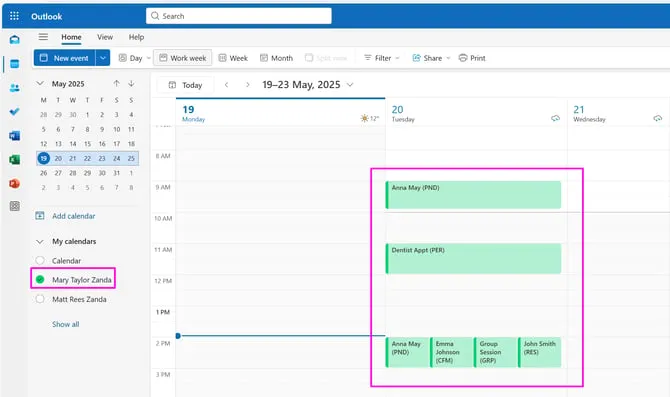
- In the ‘My calendars’ list of your Outlook calendars, you will find the synced Zanda calendar. When it is ticked, your Zanda appointments will show in the Outlook calendar.
Hint 💡
If more than one Zanda calendar is synced to the same Outlook Calendar, they will all be listed in your ‘My Calendars’ list. An Outlook user will be able to select and deselect them to manage how their Zanda appointments show in Outlook, change their colours and names, etc.
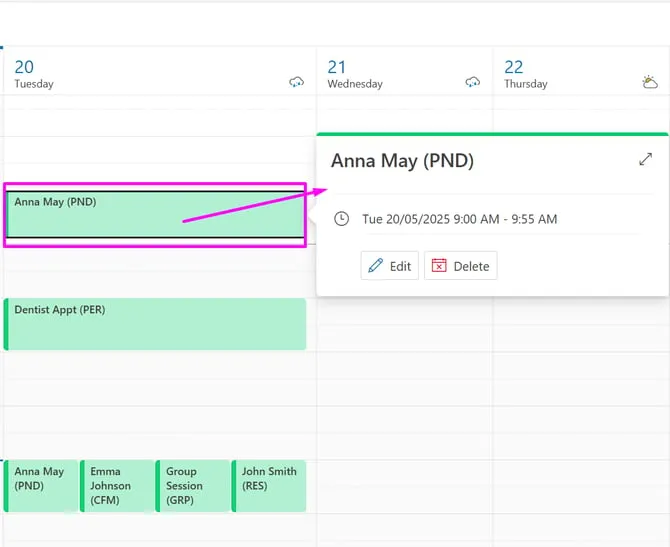
- A client appointment will show the full client name and the appointment status, such as ‘CFM’ = confirmed. Click on the appointment to see more details in the pop-up:
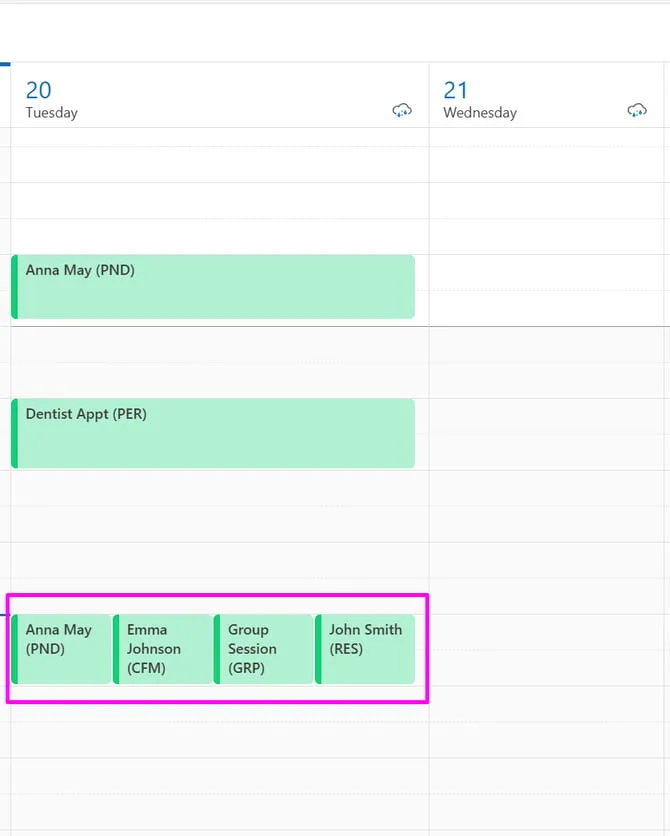
- A group appointment will make one entry for the appointment, with the appointment name, and one entry for each participant of the group. The participant entries will show their own appointment status (here, there are three participants in the group appointment, each with PND status, which means ‘pending’):
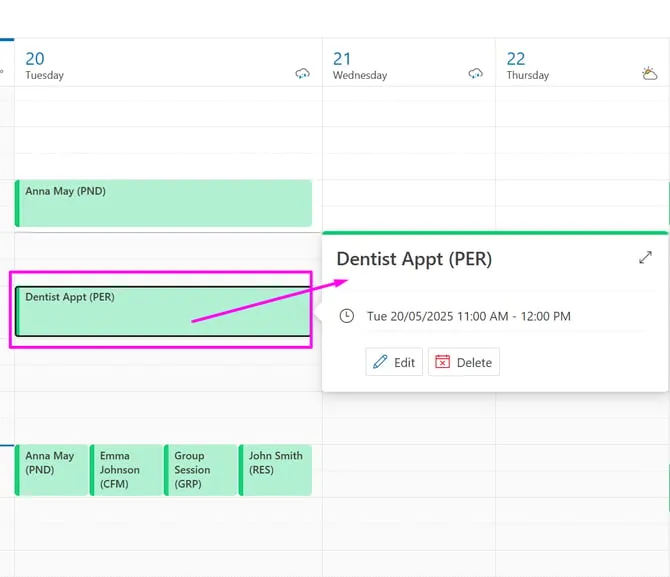
- This is a screenshot of a personal appointment, with the appointment name and status PER (personal):