
- You must fill out your HW027 form to register for Online Claiming.
- If you or any providers that submit claims through your account have not filled out this form previously please do so immediately.
- Details on how to fill out the form and submit it to Medicare can be found here.
- Please keep Question 3 on the form blank.
When submitting Medicare claims you may run into errors that prevent the claim from being sent which are usually easily fixed if you know what to look for. We have put together a list of common errors below and explain how you might be able to fix each of them.
Once you have corrected the error, what you do next depends on the status the claim came back with — see “After you’ve corrected the error” below.
Please note that you cannot delete rejected Medicare claims. These will remain in the account.
This table doesn’t cover every possible Medicare error code. If you see a code with no matching row here, call the Medicare eBusiness Service Centre on 1800 700 199 with your claim ID, or contact Zanda support at [email protected] with the invoice number for the claim so we can investigate.
Claiming Errors and Response Codes
| Error Code | Meaning | Action |
|---|---|---|
| Invalid string: the minimum length must be at least 4 (got only 3) | This typically indicates that the postcode entered may be incorrect or placed in the wrong field. To resolve, check that: The postcode contains 4 digits The state has been entered into the correct field | |
| 2017 | The Payee Provider specified is the same as the Servicing Provider | When the servicing provider is also the one receiving payment the payee provider fields need to be blank or Medicare will generate this error. To resolve this go to User menu > Account Settings > Team > Practitioners > Practitioner name > Insurers (on the left). Edit the relevant Medicare insurer and remove the payee information. You can then resubmit the claim. |
| 2030 | N o referral is required for general service type claims | If the service type for the provider is set to “General Practitioner” the claim does not require a referral. If you are not a General Practitioner, change the service type to match the type of services provided. For Medicare Patient Claim and Bulk Bill claims, select either General Practitioner (Medicare / DVA Medical) or Specialist & Allied Health (Medicare / DVA Medical). Psychologists and clinical psychologists should use Specialist & Allied Health (Medicare / DVA Medical) for these Medicare claim types. If you navigate to User menu > Account Settings > Team > Practitioners > Practitioner name > Insurers: Edit the Medicare insurance you will see the option to select the Service Type, in accordance with the services you provide. |
| 9006 | The Provider { } is not authorised to undertake this function. Contact the Medicare eBusiness Service Centre on 1800 700 199 for further assistance. | This error occurs when the provider number on the claim is not correctly registered for online claiming. How to resolve: Ensure the HW027 Form has been submitted. If required, confirm with Medicare that the HW027 form (Medicare Online Claiming Provider Agreement form) has been completed and processed. If the Location ID is correctly linked, c heck that the Provider Name and Provider Number entered in your Zanda account match exactly with Medicare records. Still experiencing issues after these checks, you may need to contact the Medicare eBusiness Service Centre on 1800 700 199 for further assistance. Contact our Support Team so we can check if your provider Location ID is linked correctly in Zanda |
| 9007 | The Location is not authorised to undertake the function on the date of transmission. | Medicare is telling you it doesn’t have your Location ID recorded as authorised for this type of claim on the date the claim was sent. Zanda sends the same Location ID on every claim from your account, whichever client, practitioner or practice location the claim is for. It’s the ID shown at the top of Tools > Medicare (it starts with PWD). That means trying a different client won’t change the result, and there’s no other Zanda setting that controls this error. How to resolve: 1. Check that the Location ID at the top of Tools > Medicare is the one you entered on your HW027 form, and that the form was emailed as a signed PDF, not submitted through HPOS. See Registering for Medicare Online Claiming. 2. If you sent your HW027 form recently, Medicare may still be processing it. This can take several weeks, and Medicare won’t send a confirmation when it’s done. 3. Call the Medicare eBusiness Service Centre on 1800 700 199. Quote error code 9007, your provider number and your Location ID. Ask them to confirm that this Location ID is linked to your provider number and authorised for online claiming of this claim type (for example, Patient Claims) as of today, not just that your registration details are correct. 4. If Medicare confirms all of this and the error continues, contact Zanda support at [email protected] with your Location ID and the invoice number of the rejected claim. |
| 9201 | Invalid format for data item | This error simply indicates that some of the information provided is either incorrectly formatted or is missing. This is most commonly generated when the referring provider number is missing. To check this, simply scroll down and look over the data submitted and ensure that all required fields are filled and accurate |
| 9202 | Invalid Value For Data Item | There are few reasons why this error can occur: The patient has a PO Box as the address set up in the file The account holder of the patient has a PO Box attached to their file. A physical address is required, as a PO Box is not accepted by Medicare. This will need to be changed to a physical address If there is no date of birth entered or an invalid date of birth Service Type is selected incorrectly - see above for the instructions on how to fix this. For a patient claim involving a minor, check the Claimant section on the claim before resubmitting. Medicare may require the parent or guardian to be selected as the claimant, with the claimant’s full name, date of birth, address, Medicare card number, and reference number entered correctly. For the full workflow, see Submitting Claims for Minors (AUS Only) . |
| 9202 | Invalid Value of [I] supplied for referral period code. The value supplied must be [S] (standard). Error located in medical event 1. | This code/error refers to an (I) ‘Indefinite’ referral period entered under the Profile → Referrals which is not accepted for this particular claimant and/or claim. The Referral period should be set to (S) Standard (12 months from a GP and 3 months from a Specialist) or if Referral period set to Non standard, the period should be specified in the Service Text. |
| 9501/9602 OR 9602 | This claim cannot be lodged through Medicare Easyclaim. Please submit the claim via an alternative Medicare claiming channel. OR This claim cannot be lodged through this channel. Please issue claimant with an account/receipt to claim via an alternative Medicare claiming channel. | Medicare is telling you that this claim cannot continue through the Easyclaim channel. First, check the claim details that commonly cause this response: There is no referral listed or connected to the invoice being claimed when a referral is required for the item code being claimed. This only applies to claims where a referral is required; if the provider’s service type is set to General Practitioner, no referral is required at all (see error 2030 above), so this cause does not apply to General service type claims. The client’s details do not match Medicare’s database (i.e. client’s full name, Medicare card number, or IRN). Please try validating the client’s Medicare data in their profile and check if this returns a message that the data validates, or if there is a discrepancy with the data Medicare has. If so, please confirm the correct details with the client. The client has met the maximum number of sessions possible under their referral (for example, all of the sessions within the mental health care plan). Patient claims have to be submitted within 6 months of the date of service for EasyClaim. The Invoice being claimed has a date of service outside of this timeframe. Steps to resolve are: If the claim details are correct and the error still appears, use one of these options Option 1: Issue the claimant with a Medicare-compliant account or receipt so they can claim through an alternative Medicare claiming channel. Option 2: Create a new Medicare Online claim in Zanda if the date of service is less than 2 years ago and the claim is eligible to be submitted directly to Medicare. These two time limits are separate and apply to different claiming paths: the 6-month limit above applies only to lodging a claim through Easyclaim, while the 2-year limit is Medicare’s general date-of-service limit for a direct Medicare Online claim. If you are unsure which alternative claiming method applies, contact the Medicare eBusiness Service Centre for guidance. |
| 9603 | Check the client’s address. The address entered is invalid. | If this error appears but the address looks correct, and the client has confirmed it matches what Medicare have on record, check the spelling and format. Put the address into Google Maps and copy what it provides. Validate Medicare Data checks the client’s Medicare card details (name, date of birth, card number, and reference number), not their address, so it won’t catch an address mismatch. Check the spelling, number, and postcode this way, and confirm the address with the client. If the claim still rejects, call the Medicare eBusiness Service Centre on 1800 700 199 with your claim ID. Medicare keeps its own address record for the claimant, which can differ from what you have on file. |
| 9611 | The item claimed is either unknown or invalid at the date of service. Eg Misc, incorrect alpha included. | Troubleshooting options: 1. Check Item code under MBS and ensure it matches format as well as correct code number. 2. Confirm with Medicare item number is correct for specific Service Item claimed. 3. Confirm with Medicare the Practitioner is able to claim the code or if Patient has to claim directly with Medicare |
| 9619 | Check postcode and locality. This is not a recognised combination, or a PO Box type locality has been entered. | This relates to the claimant’s address. Check the client’s address spelling, numbers, and postcode using the Google Maps search to confirm it’s spelled and configured correctly, then check the address in the intake form and/or with the claimant to confirm it matches Medicare’s records. If you’ve done this and the claim still rejects, call the Medicare eBusiness Service Centre on 1800 700 199 with your claim ID, as above. |
| 9630 | Please check the request or referral details. | This may mean that the referral details are incorrect, the referral has exceeded the number of appointments, or the referral date has expired. Because the Claim was immediately rejected, Medicare may have no record of this Claim. At that point, system checks may have found that the referral has exceeded the number of appointments which is why it stopped it from being submitted. It will require checking if the Provider Number of the Referring GP is correct, and/or checking with either the Referring GP or Medicare whether they’ve exceeded their number of appointments. |
| 9632 | Duplicate of service already paid. If not duplicate resubmit with appropriate indication. | This type of error code comes up if there was more than one service performed for the client on the same day with the same item number and the same practitioner. You need to include additional information with the claim when you submit it to Medicare. On the claim page, click on Show More on the Service Items section, and select Duplicate Override - Yes |
| 9633 | A new Medicare card has been issued. Please update your records and ask the patient to use the new card number for any future claims. | Steps: a new Medicare card has been issued, please contact the patient/claimant to confirm their new Medicare card number, update the client’s Medicare details on their Profile and click “Validate Medicare Data” and then resubmit the claim. Or please ask the Patient/Claimant to contact Medicare if they believe this to be an error. |
| 9635 | Check Servicing Provider. May not be able to provide the service for this item at date of service. | Troubleshooting: Error 9635 is about provider registration. The most likely reason for this error is that the provider is not properly registered with Medicare to submit the claim for the specific service on the specified date. Ensure the service date is correct for all items being claimed. Make sure the provider has completed the necessary HW027 Form . If the issue persists, contact Medicare for assistance. |
| 9641 (or 9601) | Your claim was not able to be processed automatically due to a non-critical warning. You may try resubmitting the claim for manual processing. | This is a non-critical warning and as such can usually be ignored. To submit the claim and force it through simply click the green Resubmit Claim button or create a new claim and tick Accept Non Fatal Warnings toward the bottom right of the page prior to clicking Send. Pendable claims must be sent to Medicare within an hour of the original request. Once the claim has been submitted it will go through with a status of Pended . |
| 9641 | A restrictive condition exists | This error means a prerequisite service has not been submitted by the referring provider or items numbers were claimed that conflict with MBS rules. The error is linked to the referral eligibility. Please double check and confirm the referral details that have been added to the claim are correct and that the item code is correct inline with the Client’s Referral. |
| 9645 | The claim identified for deletion has a status other than Paid Same Day. | This appears when you try to delete a Patient Claim, but Medicare’s records show it no longer qualifies for a same-day delete. Same-day delete only works for a claim you are deleting on the same Medicare calendar day it was paid, and only during Medicare’s operating hours (7am to 9pm AEST, Monday to Friday, excluding public holidays). If the claim was paid on an earlier day, or the window has closed, check the claim’s Medicare Service Response to confirm its current status and payment date. If the claim still needs to be corrected or reversed after the same-day window has passed, use the appropriate Medicare adjustment process, or contact the Medicare eBusiness Service Centre for assistance. |
| 9650 | The card number and/or patient details submitted did not match Medicare checks. Please verify the details and resubmit with additional information if available. | The client’s Medicare card number and/or address must be updated to match Medicare’s files before the claim will be accepted. |
| 9783 | The claimant will need to update their bank details registered with Medicare. This can be done through their Medicare online account, by calling Medicare, or visiting a Service Centre. | From 1 October 2025, Medicare will return a new message code — 9783 — if a claimant does not have valid bank account details registered with Medicare. This message indicates that the claimant must update their bank details to receive any Medicare benefits, even if a claim has been assessed as payable. Services Australia has reported that over 962,000 customers are currently owed benefits but cannot be paid due to missing bank information. The 9783 message is considered a valid and expected response and will appear even if temporary bank details were provided at the time of claim. When this message appears, it’s important to inform the claimant exactly as provided — “The claimant will need to update their bank details registered with Medicare. This can be done through their Medicare online account, by calling Medicare, or visiting a Service Centre.” Practices are encouraged to proactively remind patients to register their bank details with Medicare to avoid benefit delays. |
| NA | JSON Object [medicare] must not be empty. | Claimant’s Medicare card details are blank |
After you’ve corrected the error
What you do next depends on the status the claim came back with.
Rejected claims cannot be resubmitted. A Rejected claim is closed — there is no Resubmit button on it, and correcting the details on the rejected claim will not send it again. Once you have fixed the underlying information (for example the client’s address, the item code, or the referral details), create a new claim from the invoice:
- Open the invoice and click the M / Medicare & DVA button (or go to Tools > Medicare, open the original claim, and use the link back to the invoice).
- On the All Claims for this Invoice page, click Create Patient Claim (or Create Bulk Bill Claim).
- Check the claim details, then click Send.
The rejected claim stays in your account for your records — rejected claims can’t be deleted — and the new claim is submitted to Medicare as a fresh claim.
Pendable (previously Warned) claims can be resubmitted. If the claim came back Pendable, open it from Tools > Medicare and scroll to the Medicare Service Response section. You’ll see two buttons there:
- Resubmit to Confirm — sends the claim again as-is for manual processing by Medicare.
- Resubmit As New Claim — sends a fresh copy of the claim.
Pendable claims must be sent to Medicare within an hour of the original request, so act on them promptly.
Frequently Asked Questions
Why is an indefinite referral duration not accepted for a psychology Medicare claim?
Zanda can record an indefinite referral on the client profile, but Medicare may reject the claim when the referral period code is submitted as Indefinite. If the returned error says the value supplied must be Standard, edit the referral period for the claim to Standard: 12 months for a GP referral or three months for a specialist referral. If the claim circumstances are different, confirm the accepted referral period with Medicare before resubmitting.
Data Entry Notifications
Medicare Validation
If a client is covered under Reciprocal Health Care Agreement and you validate their card, you will see this notification message: “Please be aware: The patient is or was covered under the Reciprocal Health Care Agreement”. This is not an error, but just a notification for your information.
Invalid Medicare provider number: Alpha character does not match
This error is generated whenever the provider number that’s entered doesn’t exactly match what Medicare has on record. If the provider number is correct and this error is still being generated you can resolve it by placing a zero (0) at the start of the provider number and trying again.
Invalid Medicare Card Number: check digit / Card Issue Number error
If you see an error like:
Invalid value of […] supplied for Patient Medicare Card Number. The value supplied must be numeric and conform to the Medicare Card check digit routine. The 10th character (Card Issue Number) must not be set to zero.
this is Medicare’s own validation of the card number, not a Zanda formatting rule. A Medicare card number can still be rejected even if it looks correct at a glance, because Medicare checks the whole number against its own check-digit calculation - a single mistyped or transposed digit anywhere in the number is enough to fail it, even when the length and last digit are right.
To resolve:
- Ask the client for their physical or digital Medicare card (for example, via the Medicare Express Plus app) and re-enter all 10 digits of the card number on their profile character by character, rather than retyping from memory or an existing record.
- Make sure the reference number (IRN) - the small individual number printed next to the client’s name on the card - is entered in its own reference number field, separate from the 10-digit card number. Mixing the two up will not trigger this particular error, but it’s worth checking while you’re re-entering the details.
- Once re-entered, click Validate Medicare Data on the client’s profile to confirm Medicare now accepts it.
- If it still fails, the card may have been reissued - see the 9633: A new Medicare card has been issued row above - or ask the client to confirm their current Medicare card details directly with Medicare before resubmitting.
The service type for the Provider is not consistent with the type of claim being submitted.
On the claim page, click “Edit Provider” > click the gear icon on the right to edit the insurance and select a service type that matches the type of claim being submitted. (If you are not on the claim page, go to the practitioner settings directly: User menu > Account Settings > Team > Practitioners > Practitioner name > Insurers).
- General Practitioner (Medicare / DVA Medical)
- Specialist & Allied Health (Medicare / DVA Medical)
- Pathology (DVA Medical)
- Community Nursing (DVA Allied Health)
- Speech Pathology (DVA Allied Health)
- Allied (DVA Allied Health)
- Psychology (DVA Allied Health)
The service type selected for the provider’s insurance (Medicare or DVA) will need to be updated. The service type includes the type of claim that it can be used for in brackets after the service type name as shown in the list of service type name.
If you are submitting a Patient Claim or Bulk Bill, choose a service type with the (Medicare / DVA Medical) label, such as General Practitioner (Medicare / DVA Medical) or Specialist & Allied Health (Medicare / DVA Medical). For psychologists and clinical psychologists, use Specialist & Allied Health (Medicare / DVA Medical).
If you are submitting a DVA Medical/Paperless claim you will need to choose a service type with the (Medicare / DVA Medical) or (DVA Medical) label. (i.e. General Practitioner, Specialist & Allied Health, or Pathology)
If you are submitting a DVA Allied Health claim you will need to choose a service type with the (DVA Allied Health) label (i.e. Community Nursing, Speech Pathology, Allied, or Psychology).
If the client only has one name
In the event that the client only has one name, Medicare require that the name be entered in the surname / last name field. You can either replicate their name in both the first name and last name fields, or you can enter “Onlyname” in the first name field, and their name in the last name field. Both options will be accepted for claiming.
- The list of all return codes for rejected Medicare claims can be found here.
- If the suggested solutions haven’t worked for you please let us know so that we can assist you with the claim. In your email, please provide us with the invoice number relating to the claim so that we can investigate what might be causing the issue.
Medicare Icon Missing On Appointment Panel
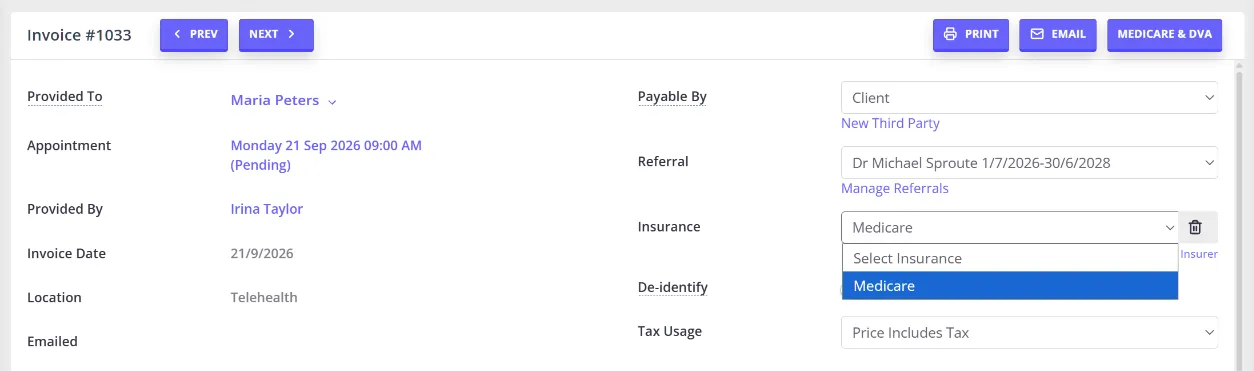
If a Medicare icon is missing on an appointment panel, this means that Medicare is not selected as Insurance on this appointment invoice. Here is how you can fix this:
- Click the ‘pencil’ icon on the Invoice section of the appointment panel. This will open the invoice edit page.
- On the invoice edit page, click the Insurance dropdown field.
- Select Medicare and save.
If Medicare is not available as an insurance option on an invoice, it needs to be added on the client profile > Billing > Insurance page.
Medicare & DVA button stays greyed out on an invoice
The Medicare & DVA button on an invoice only becomes clickable when Medicare or DVA is selected as that specific invoice’s own Insurance option, so it’s worth confirming the basics first:
- Open the invoice and click the Insurance dropdown.
- Confirm Medicare (or DVA) is selected, then save. If Medicare or DVA isn’t available in the dropdown, see “Medicare Icon Missing On Appointment Panel” above to add it from the client profile.
If the button is still greyed out after that, particularly on an invoice that already existed before Medicare or DVA was set up for the client, the invoice’s own Insurance selection may not have updated even though it looks correct. To fix this:
- Go to the client’s profile, then Billing > Insurance.
- Edit the Medicare (or DVA) insurer and tick Default, then save.
- When asked “Would you like to add this insurer to all existing invoices of [Client Name]?”, choose Yes, update past and future invoices.
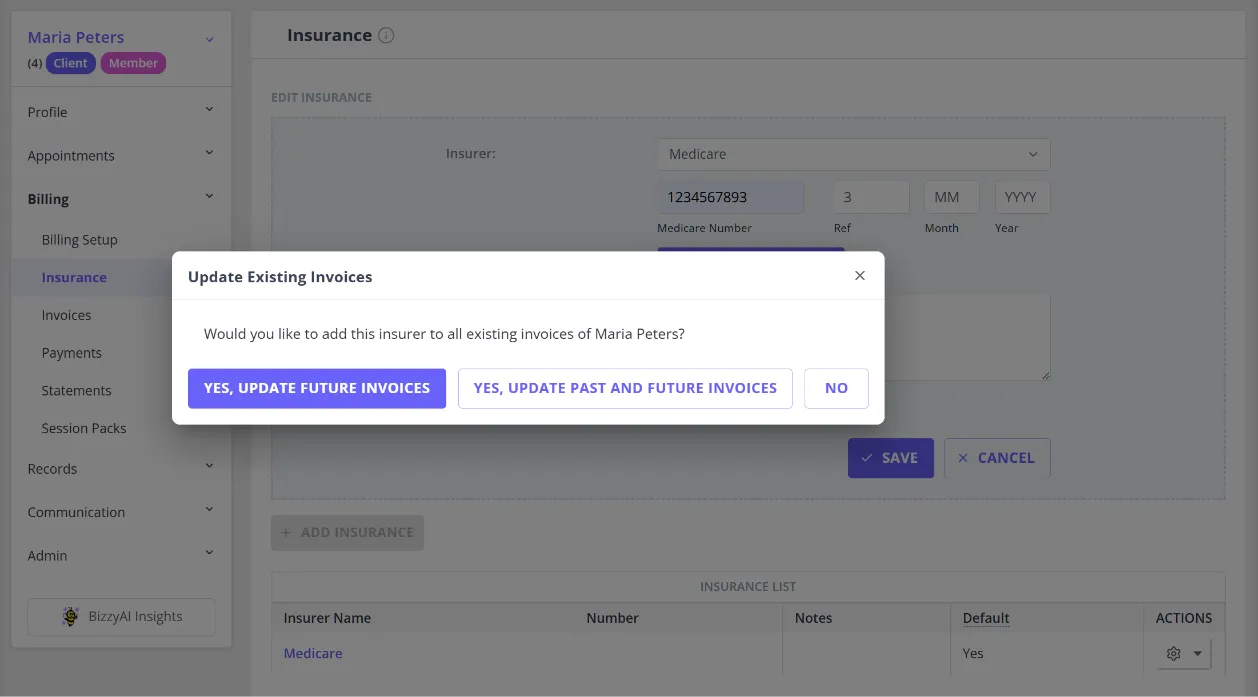
This updates the Insurance selection on all of that client’s existing invoices, not just new ones, which also un-greys the Medicare & DVA button on them. Ticking Default without choosing to update past invoices only applies to invoices created from that point on; it won’t change an invoice that already exists.